
22
May
2026
Complete Kid Safe Phone Setup Guide for Parents
May 22, 2026
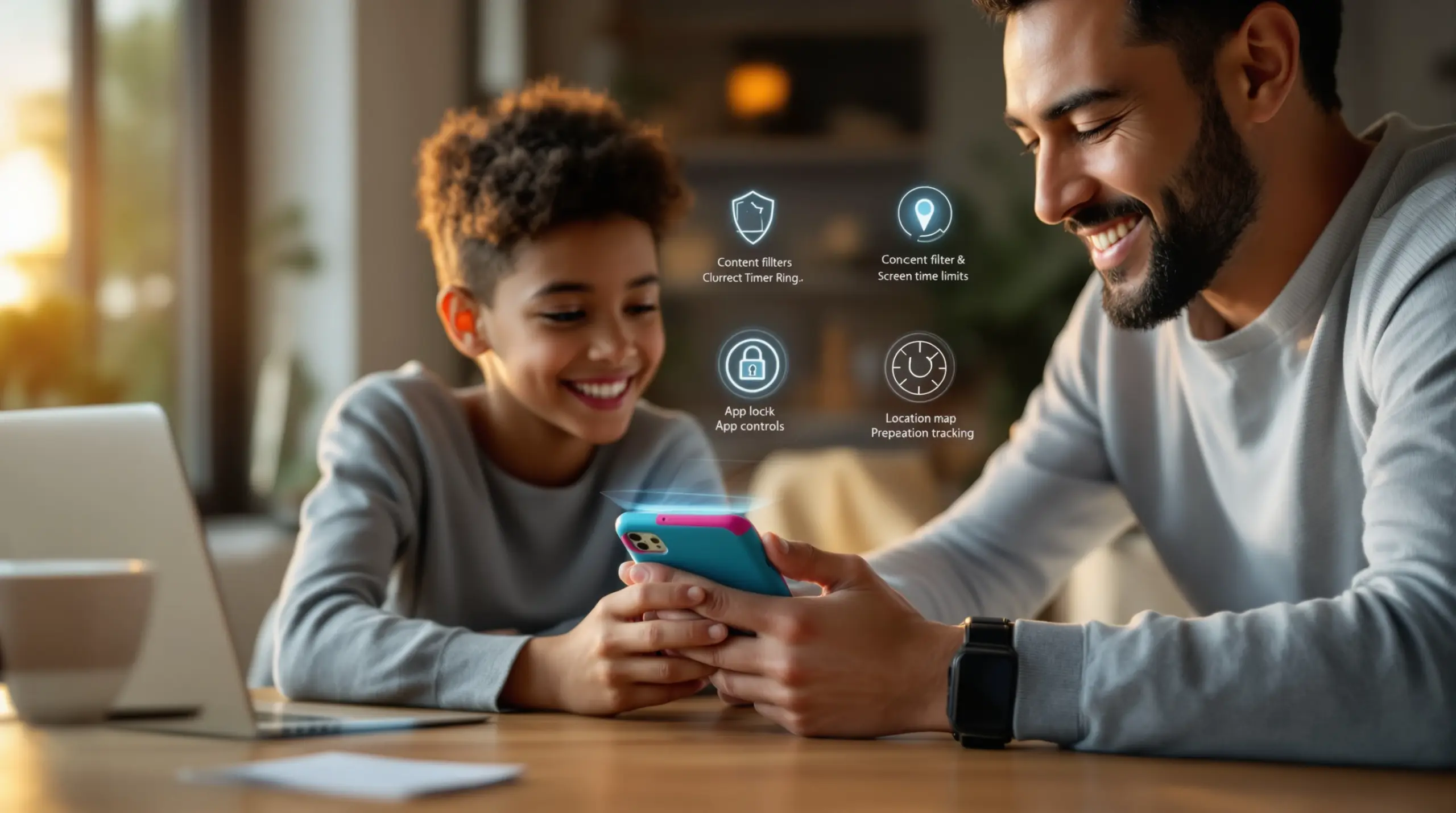
Kid safe phone setup is the process of configuring a child’s first mobile device with content filters, screen time limits, app controls, and location tracking to create a safe digital environment from day one.
Table of Contents
- What Is Kid Safe Phone Setup?
- Essential Controls Every Parent Needs
- Android vs iOS: What You Can Actually Control
- Making Rules Stick When Kids Push Back
- Frequently Asked Questions
- Comparing Kid Safe Phone Setup Approaches
- How Boomerang Parental Control Helps
- Practical Tips for a Safe First Phone
- The Bottom Line
Article Snapshot
Kid safe phone setup is the process of locking down a child’s mobile device before handing it over – covering content filtering, screen time scheduling, app approval, and location tracking. Done right, it protects children from harmful content, limits addictive use, and gives parents real visibility into their child’s digital life from the very first day.
Quick Stats: kid safe phone setup
- 73% of parents say a child should wait until at least age 12 before owning a smartphone (Pew Research Center, 2020)[1]
- 70% of children ages 12 to 13 already have their own phone (Brown University Health, 2024)[2]
- 49% of parents check their child’s call records or text messages on their smartphone (Pew Research Center, 2020)[1]
- 33% of parents use GPS apps or software to track their child’s location (Pew Research Center, 2020)[1]
What Is Kid Safe Phone Setup?
Kid safe phone setup is the structured process of configuring a child’s device so that it is age-appropriate, protected from harmful content, and governed by clear usage rules before the child ever touches it. Boomerang Parental Control was built specifically to make this process straightforward for parents who want real, enforceable protection – not just a checkbox in the phone’s built-in settings.
Handing a child a smartphone without configuration is like handing them a library card with access to every section, including the ones you would never allow in your home. The open internet, unfiltered app stores, and unrestricted social platforms are all accessible the moment a device connects to wifi. A proper child phone configuration closes those doors before they are ever opened.
START YOUR FREE TRIAL
Take control of screen time—free for 14 days, cancel anytime.




The American Academy of Pediatrics is direct about what that setup should include. As their Center of Excellence on Social Media and Youth Mental Health advises, parents should “Set privacy, content, contact, download and downtime settings and explain to kids why this is important to avoid running into creepy or inappropriate content” (American Academy of Pediatrics Center of Excellence on Social Media and Youth Mental Health, 2024)[3]. That guidance maps directly to the four pillars of any strong kid safe phone setup: what the child can see, who can contact them, what they can install, and when the device turns off.
For parents setting up a first device – typically for children between ages 8 and 13 – the goal is not punishment. It is building a safe digital foundation that can be relaxed gradually as trust and maturity grow. Getting the setup right from day one prevents the harder conversation that comes when problems have already developed.
First Smartphone Setup: Why the First Day Matters Most
Research consistently shows that smartphone ownership rises sharply in the middle school years. According to Brown University Health, 70% of children ages 12 to 13 already own a phone, and that number reaches 90% by age 14 or older (Brown University Health, 2024)[2]. That means the window for proactive setup is narrow – and waiting until a problem appears is rarely effective.
When a child receives their first Android or iOS device, the safe browsing setup, app approval workflow, and screen time schedule should be in place before the device leaves your hands. Tools like SPIN Safe Browser block millions of harmful websites automatically on any network, with no VPN or router configuration required – making it one of the easiest first steps in a complete child phone configuration.
Essential Controls Every Parent Needs
Effective kid device management comes down to four categories of control: content filtering, screen time scheduling, app oversight, and communication safety. Each category addresses a distinct risk, and together they create a layered protection system that is far harder for children to work around than any single setting.
Content filtering is the first line of defense. A dedicated safe browser for children like SPIN Safe Browser enforces strict SafeSearch on Google, Bing, and Yahoo automatically and blocks categories including adult content, violence, and hate – all from first launch, with no manual category configuration needed. This is meaningfully different from simply enabling the content restriction toggle in Chrome or Safari, which children can often locate and disable in a few taps.
Screen time scheduling moves beyond content to manage when the device is available at all. Scheduled downtime – automatic locks at bedtime, during school hours, or at dinner – removes the daily negotiation entirely. Instead of a parent asking a child to put the phone down for the fifth time, the device simply stops working. This is the feature parents most consistently report as transforming family routines. Dr. David Anderson, Clinical psychologist and senior director at the Child Mind Institute, puts the case plainly: “Set limits on both general screen time and phone time” (Child Mind Institute, 2024)[4].
App oversight through an approval workflow means no new game, social platform, or utility can land on the device without a parent’s sign-off. This single feature closes one of the most common gaps in child phone safety – kids quietly installing apps that parents never know about. On Android devices, Boomerang’s App Discovery and Approval feature flags every new install and requires parental authorization before the child can open it.
YouTube Monitoring and Communication Safety
YouTube is one of the most-used apps by children of every age, yet it is one of the hardest platforms for parents to monitor through built-in controls. On Android devices, Boomerang provides YouTube App History Monitoring, giving parents a clear view of what their child searches for and watches inside the main YouTube app. This visibility allows parents to spot concerning interests early and start informed conversations – rather than discovering problems after the fact.
Communication safety is equally important. Call and Text Safety (available on Android only) logs call and SMS history, sends keyword alerts when messages contain inappropriate content, and blocks calls from numbers not saved in the child’s contacts. For parents worried about cyberbullying or unknown adults making contact, this is a critical layer that most built-in parental tools simply do not offer.
Android vs iOS: What You Can Actually Control
The platform a child’s device runs on has a direct impact on what a parent can realistically configure and enforce. Android and iOS differ significantly in how deeply third-party parental control apps can integrate with the operating system, and parents making a first device purchase should understand those differences before deciding.
Android, particularly on Samsung devices, allows for the deepest level of parental oversight available on a consumer smartphone. Apps like Boomerang can integrate with Samsung Knox – an enterprise-grade security layer built into most Samsung Galaxy phones and tablets – to make the parental control app exceptionally difficult to remove. You can read more about how Boomerang Parental Control is the only parental control app to use Samsung’s Knox, an enterprise mobile security solution pre-installed in most of Samsung’s smartphones and tablets. On Android, parents also have access to per-app time limits, YouTube history monitoring, SMS keyword alerts, and allocated daily time budgets – features that are either unavailable or severely restricted on iOS.
iOS offers scheduled screen time and location tracking through third-party apps, but the platform’s architecture limits how deeply outside apps can integrate. Uninstall protection on iOS is notification-only – meaning if a child removes the parental control app, the parent receives an alert but the app is already gone. Per-app time limits, YouTube monitoring, and SMS monitoring are Android-only capabilities when using Boomerang.
For parents who want the most comprehensive mobile device parental controls available, Android – especially Samsung – delivers capabilities that iOS cannot match at the consumer level. That said, SPIN Safe Browser is available on both platforms and provides consistent safe browsing protection regardless of which device your child uses.
Platform-Specific Safe Setup Steps
Regardless of platform, the core sequence for a kid safe phone setup follows the same order: install the parental control app first, configure content filtering, set the screen time schedule, enable app approval, and then hand the device to the child. On Android, also enable uninstall protection and, if using a Samsung device, activate Knox integration before the child is aware the controls are in place. On iOS, configure scheduled screen time and install SPIN Safe Browser for web filtering. Review location tracking settings on both platforms and test that geofencing alerts fire correctly before the first school day.
Making Rules Stick When Kids Push Back
Configuring a safe phone is only half the job. The controls need to stay in place when a motivated child decides to look for a way around them. This is where many free and basic parental control solutions fall short – and where the difference between a well-configured device and a bypassed one becomes clear.
Tech-savvy children, particularly teenagers, are often faster at finding loopholes than parents expect. Google Family Link and Apple Screen Time, while useful starting points, are frequently defeated by children who know exactly which settings menu to navigate. Boomerang’s Uninstall Protection is specifically designed to address this reality. On Samsung devices, Knox integration makes the app resistant to removal even for children who understand how device administration settings work. As one Google Play reviewer noted, “I have no idea how she did that but she managed to find a way, as did other kids. That was a major frustration for us. But now with Boomerang, I can manage her time, what applications she uses and what sites she visits.” – Joe Eagles, Google Play review.
The American Academy of Pediatrics also makes an important point about boundaries beyond screen time. They advise parents to “Remind kids that getting a cell phone does not equal getting social media. Make decisions about each app separately” (American Academy of Pediatrics Center of Excellence on Social Media and Youth Mental Health, 2024)[3]. App-by-app decisions are exactly what Boomerang’s App Discovery and Approval workflow enables – every new install requires explicit parental authorization, so social media cannot appear on the device without the parent knowing.
Geofencing adds a layer of passive safety that reduces the need for constant check-in calls. Parents can set digital boundaries around school, home, and regular activity locations and receive automatic alerts when the child arrives or leaves. This Boomerang Parental Control software review from TechRadar covers how these features work in practice. Real-time location tracking with up to 30 days of location history gives parents a reliable record without requiring the child to remember to text.
Using Encouraged Apps to Build Digital Balance
Restriction alone does not build healthy digital habits. Boomerang’s Encouraged Apps feature allows parents to designate specific apps – school portals, reading apps, fitness trackers – as always available, even after the child’s daily entertainment screen time has run out. This distinction teaches children that technology has different purposes, and that some uses are genuinely valuable. It shifts the household conversation from punishment to guided habit-building, which is a meaningfully different dynamic than simply locking the device and walking away. You can explore how these tools work together on the Boomerang Parental Control screen time features page.
Your Most Common Questions
What age is the right time to set up a kid safe phone?
There is no single correct age, but data points to a clear trend. Research cited by Brown University Health shows that 70% of children ages 12 to 13 already own a phone, and 90% of teens 14 and older do (Brown University Health, 2024)[2]. Pew Research found that 73% of parents believe a child should wait until at least age 12 before owning a smartphone (Pew Research Center, 2020)[1]. Anya Kamenetz, author and education correspondent at NPR, observed that “The ages of 12 to 14 seem to be a major milestone in parents’ eyes for smartphones” (Pew Research Center, 2020)[1]. What matters more than a specific number is the child’s maturity and whether the device will be properly configured before it is handed over. A safe phone setup is appropriate at whatever age a child receives their first device – the setup should come before the phone, not after the first problem.
What is the difference between Android and iOS for kid safe phone setup?
Android – especially Samsung devices – offers significantly deeper parental control capabilities than iOS for third-party apps. On Android, Boomerang provides per-app time limits, YouTube App History Monitoring, SMS keyword alerts, allocated daily time budgets, and Samsung Knox-backed uninstall protection. These features are not available on iOS. On iOS, Boomerang supports scheduled screen time, location tracking, and SPIN Safe Browser for content filtering, but uninstall protection is notification-only – meaning the parent is alerted if the app is removed, but the protection is already gone. Parents who want the most comprehensive child device safety features available should consider an Android device, particularly a Samsung model. That said, SPIN Safe Browser works on both platforms and delivers consistent safe browsing protection regardless of operating system.
Can my child bypass a kid safe phone setup?
Children – particularly tech-savvy teenagers – frequently find ways around basic or free parental controls. Google Family Link and Apple Screen Time are the most bypassed, because children learn which settings menus to navigate and how to exploit gaps in the platform’s architecture. Boomerang addresses this directly through Uninstall Protection that makes the app extremely difficult to remove without a parental PIN. On Samsung devices, Knox integration adds an enterprise-grade security layer that even technically sophisticated teens struggle to defeat. The Boomerang Parental Control Review at SafeWise covers how these bypass-prevention features hold up in real-world use. If a child does attempt to tamper with settings, parents receive an alert. On Android, the combination of Knox integration and device administrator protection makes Boomerang one of the most tamper-resistant consumer parental control options available.
Do I need to configure the router or use a VPN for safe browsing?
No. Router-based filtering only works when the child is on your home wifi – it provides zero protection at school, a friend’s house, or on mobile data. VPN-based solutions introduce their own complexity and are often disabled by children who understand the device settings. SPIN Safe Browser takes a different approach: its filtering technology is built directly into the browser itself, which means it works on any network the device connects to, without any router configuration or VPN. On any wifi or mobile data connection, the content filtering and SafeSearch enforcement remain active. This is particularly important for children who regularly use their devices outside the home. When combined with Boomerang Parental Control, SPIN Safe Browser also respects screen time schedules – the browser locks when device time runs out, just like any other app on the device.
Comparing Kid Safe Phone Setup Approaches
Parents choosing how to configure a child’s first device weigh four main approaches: built-in platform tools, router-level filtering, dedicated parental control apps, and managed safe browsers. Each has distinct trade-offs in terms of coverage, bypass resistance, and ease of management.
| Approach | Content Filtering | Screen Time Scheduling | Bypass Resistance | Works Off Home Network |
|---|---|---|---|---|
| Built-in tools (Family Link, Apple Screen Time) | Basic | Yes | Low – frequently bypassed | Partial |
| Router-level filtering | Strong at home | Limited | Medium | No – home wifi only |
| Dedicated parental control app (e.g., Boomerang)[1] | Comprehensive | Full scheduling + per-app limits (Android) | High – Knox integration on Samsung | Yes |
| Safe browser only (e.g., SPIN Safe Browser) | Strong – no VPN needed | Respects app limits when paired with Boomerang | Medium – browser can be switched | Yes – any network |
For families who want kid safe phone setup protection that travels with the device, a dedicated parental control app combined with a safe browser delivers the most complete coverage. Built-in tools are a reasonable starting point for younger children on closely supervised devices, but they are not a substitute for dedicated mobile device parental controls as children grow older and more technically capable.
How Boomerang Parental Control Helps
Boomerang Parental Control – Taking the battle out of screen time for Android and iOS is built for exactly the moment a parent hands their child a phone for the first time. It is an Android-first solution with limited iOS support, designed to give parents comprehensive control without requiring technical expertise or daily manual management.
For Android users – especially those with Samsung devices – Boomerang offers the most complete kid safe phone setup available at a consumer price point. Screen Time Scheduling and Daily Limits enforce bedtime and homework routines automatically, removing parents from the role of daily enforcer. Per-App Limits let you allow 30 minutes of gaming while keeping educational apps open all day. YouTube App History Monitoring gives you visibility into what your child is actually watching without relying on the child to self-report. And Uninstall Protection with Samsung Knox integration ensures the controls stay in place even when a tech-savvy child tries to remove them.
On iOS, Boomerang provides scheduled screen time, real-time location tracking with geofencing alerts, and SPIN Safe Browser for content filtering – a meaningful upgrade over what Apple Screen Time alone provides, even if the Android feature set is deeper.
Subscriptions are available on an annual basis for single devices, with a Family Pack covering up to 10 child devices for households managing multiple phones and tablets. Setup is guided and designed for non-technical parents – you configure the rules once, and the app enforces them automatically from that point forward.
“Hey fellow parents, So far this the best parental control app .. hands down. So far the only app my 11 year old was not able to bypass. Big Shout out to developers for making such a great app.” – Jason H, Google Play review
“Kids hate it and they are doing low rating. This app has been great. Any issues or questions that I have are very quickly responded to. Have been using for 2 years and am very pleased. The very low price covers all year.” – App Store review
You can download Boomerang directly or sideload it on non-Samsung Android devices via the sideload download page for Android devices. For questions or support, the help portal is available at [email protected].
Practical Tips for a Safe First Phone
A successful kid safe phone setup comes down to a few consistent principles that apply regardless of the platform or the child’s age.
Configure before you hand it over. Every setting – content filtering, screen time schedule, app approval, location tracking – should be active before the child touches the device. Retrofitting controls after a child has explored freely is harder, both technically and relationally.
Set a bedtime lock that is non-negotiable. Sleep disruption is one of the most documented harms of unrestricted smartphone access for children. Scheduled downtime that automatically locks the device at bedtime removes the nightly argument and protects sleep without requiring parental intervention every evening.
Treat social media as a separate decision from the phone itself. The American Academy of Pediatrics advises parents to remind children that receiving a phone does not automatically mean receiving social media access. Use your app approval workflow to gate each platform individually and revisit those decisions as the child matures.
Tell your child the controls are there. Transparency reduces resentment and sets clear expectations. Explaining why limits exist – not just that they do – helps children understand the boundaries are about safety and balance, not punishment or distrust.
Review activity reports regularly. Boomerang sends daily emailed activity summaries that keep you informed without requiring you to log in to a dashboard constantly. Make reviewing these part of a weekly routine, and use what you learn to start conversations rather than simply enforcing consequences.
Check location tracking on the first school day. Confirm that geofence alerts fire when the child arrives at and leaves school. A system that has not been tested is not a system you can rely on when it matters.
Plan to loosen controls gradually. The goal of a safe first phone setup is not permanent restriction – it is establishing a safe foundation from which trust is built incrementally. Build a roadmap of milestones at which specific controls will be relaxed, and share that roadmap with your child.
The Bottom Line
Kid safe phone setup is not a one-time task – it is the foundation of every safe digital experience your child will have on their device. Getting it right before the phone leaves your hands prevents the harder conversations that follow when problems develop without guardrails in place.
The data is clear: most children have a smartphone by age 13, and the window for proactive setup is short. Content filtering, screen time scheduling, app approval, and bypass-resistant uninstall protection are not optional extras – they are the baseline for any responsible first device configuration.
Boomerang Parental Control is designed to make that baseline achievable for every parent, regardless of technical confidence. Android families – especially Samsung households – get the deepest feature set available. iOS families get scheduled screen time, location tracking, and SPIN Safe Browser protection. Both get a solution that runs automatically once configured, so you are not the daily enforcer.
Ready to set up your child’s phone the right way? Visit useboomerang.com to get started, or reach out at [email protected] with any questions.
Sources & Citations
- Parenting Children in the Age of Screens. Pew Research Center.
https://www.pewresearch.org/internet/2020/07/28/parenting-children-in-the-age-of-screens/ - A Child’s First Cell Phone: A Guide for Parents. Brown University Health.
https://www.brownhealth.org/be-well/childs-first-cell-phone-guide-parents - Appropriate Age to Introduce a Mobile Device. American Academy of Pediatrics Center of Excellence on Social Media and Youth Mental Health.
https://www.aap.org/en/patient-care/media-and-children/center-of-excellence-on-social-media-and-youth-mental-health/qa-portal/qa-portal-library/qa-portal-library-questions/appropriate-age-to-introduce-a-mobile-device/ - When Should You Get Your Kid a Phone? Child Mind Institute.
https://childmind.org/article/when-should-you-get-your-kid-a-phone/
START YOUR FREE TRIAL
Take control of screen time—free for 14 days, cancel anytime.
