
29
Jun
2026
Best Parental Control App for Android Tablet
June 29, 2026
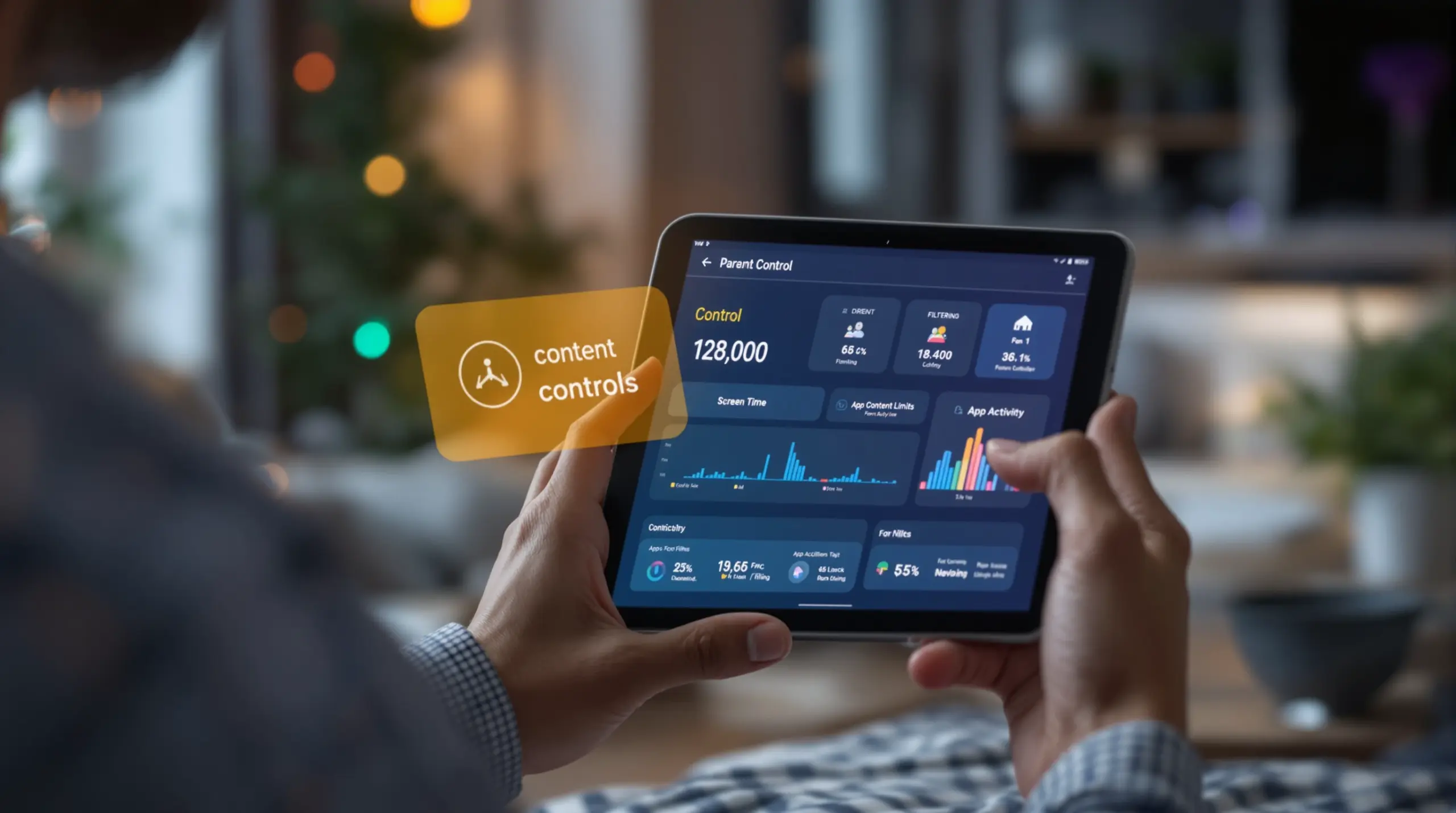
A parental control app for android tablet helps families set screen time limits, block inappropriate content, and monitor app activity – find out which features matter most and how to choose the right solution for your child.
Table of Contents
- What Is a Parental Control App for Android Tablet?
- Key Features to Look For
- Setting Up Android Tablet Controls That Actually Work
- Stopping Kids from Bypassing Parental Controls
- Frequently Asked Questions
- Comparing Android Tablet Parental Control Approaches
- How Boomerang Parental Control Helps Your Family
- Practical Tips for Managing Your Child’s Android Tablet
- The Bottom Line
- Sources & Citations
Article Snapshot
A parental control app for android tablet is software that gives parents the ability to set screen time limits, filter web content, approve app installs, and monitor device activity on a child’s Android tablet. The right app enforces your family’s rules automatically, reducing conflict and keeping children safer online.
By the Numbers
- Google Play parental controls cover apps, games, and other digital content on Android devices – giving parents content restriction tools across 3 major content categories (Google Support, 2026)[1]
- Google Play parental controls require the child to be signed in to a Google Account on the device before restrictions take effect (Google Support, 2026)[1]
- Google Play’s built-in parental controls involve 4 setup steps before parents reach the content filtering choices (Google Support, 2026)[1]
- Google Play purchase approval settings only apply to purchases made through Google Play’s own billing system – in-app purchases through other payment channels are not covered (Google Support, 2026)[1]
What Is a Parental Control App for Android Tablet?
A parental control app for android tablet is dedicated software that lets parents manage what a child can see, do, and access on their Android tablet – going well beyond the basic settings built into the device or Google’s own tools. Boomerang Parental Control, built specifically for Android-first families, is one example of a solution that combines screen time scheduling, app approval, content filtering, and location tracking in a single platform designed for non-technical parents.
Android tablets are popular first devices for children, especially in the 8-12 age range. They are affordable, versatile, and packed with apps, games, and browsers that children explore freely the moment they are handed over. Without a dedicated parental control solution in place from day one, children gain unsupervised access to content and communication that most parents would want to oversee.
START YOUR FREE TRIAL
Take control of screen time—free for 14 days, cancel anytime.




The difference between built-in Android controls and a purpose-built parental control app comes down to depth and reliability. As Google’s own documentation notes, “When you put parental controls on an Android device, you can restrict what content can be downloaded or purchased from Google Play on that device based on maturity level.” (Google Support, 2026)[1] That is a useful starting point, but it does not cover web browsing, YouTube viewing history, app time limits, or what happens when a child tries to remove the app entirely.
Purpose-built tablet parental controls close those gaps. They add web filtering, per-app time limits (on Android), app approval workflows, and uninstall protection – the features that turn a basic content rating gate into a complete family digital safety solution. For parents setting up a first device, these capabilities are the difference between a guardrail that holds and one that a determined child can walk around in minutes.
Key Features to Look For in Android Tablet Parental Controls
The most effective Android tablet parental control apps share a core set of features that address the real challenges families face daily – screen time conflicts, inappropriate content, and children finding workarounds.
Screen Time Scheduling and Daily Limits
Automated screen time management is the feature most parents use first. A strong parental control app lets you set a total daily usage allowance – for example, two hours of recreational screen time – and configure scheduled downtime windows for bedtime, homework, and mealtimes. When the limit is reached or the scheduled window begins, the device locks automatically. You are no longer the person telling your child to put the tablet down; the app handles it for you.
On Android, per-app time limits add another layer of precision. You can allow 30 minutes for a game while leaving an educational app unrestricted – what Boomerang calls an “Encouraged App.” This approach promotes digital balance rather than blanket restriction, teaching children that technology has a place for both learning and entertainment.
App Approval and Content Filtering
New app install approval is one of the most important proactive safety features available on Android tablets. When your child tries to download a new app or game, the tablet parental control app sends you a notification and holds the install until you approve or block it. This single feature prevents dozens of risky or age-inappropriate apps from ever reaching your child’s device.
Content filtering through a safe browser works alongside app controls. SPIN Safe Browser is a self-contained browser with built-in filtering that blocks millions of inappropriate websites across categories including adult content, violence, and unfiltered search engines – active from first launch on any wifi or mobile data connection, with no VPN or router configuration needed. Safe search on Google, Bing, and Yahoo is enforced automatically so children cannot override it.
YouTube Monitoring and Communication Safety
YouTube App History Monitoring is an Android-only feature that gives parents visibility into what their child is actually watching and searching within the main YouTube app. This is a significant gap in both Google Family Link and most competing solutions – children watch content on YouTube that bypasses standard content filters, and without history visibility, parents have no way to spot concerns and start a conversation.
On Android tablets, Call and Text Safety features (where a tablet has SIM capability) log communication history and send keyword alerts when inappropriate terms appear in messages. This surfaces early warning signs of cyberbullying or contact from unknown adults before the situation escalates.
Setting Up Android Tablet Controls That Actually Work
Setting up a parental control app for android tablet correctly from the start determines whether it will hold up over time or become a frustration you eventually stop using. The setup process matters as much as the features themselves.
Google’s built-in option is a common first step. “Parental controls work on Android devices where your child is signed in to their Google Account,” (Google Support, 2026)[1] and the setup involves navigating to the Family section of the Google Play app settings. This takes approximately 4 configuration steps before you reach the actual content filtering choices (Google Support, 2026)[1] – and it covers Google Play downloads but not web browsing, YouTube activity, or third-party app behavior.
For a more complete setup, a dedicated parental control app installs on both the parent’s device and the child’s tablet. You configure rules – screen time limits, app approvals, content categories to block – once through a parent dashboard, and the app enforces them continuously without requiring daily adjustments. Non-technical parents benefit from guided setup wizards that walk through each step in plain language.
Samsung Knox Integration for Stronger Protection
If your child uses a Samsung tablet, you have access to an additional layer of protection that most parental control apps cannot match. Boomerang Parental Control is the only parental control app to use Samsung’s Knox, an enterprise mobile security solution pre-installed on most Samsung smartphones and tablets. Knox integration makes the app significantly harder to tamper with or remove, even for tech-savvy children who have already defeated Google Family Link or Apple Screen Time on other devices.
For non-Samsung Android tablets, Boomerang’s standard uninstall protection still presents a strong barrier. The sideload download for Android devices provides access to call and text safety features and enhanced app removal protection that the Google Play version alone does not include.
Once installed and configured, a well-set-up parental control app runs in the background without requiring you to check it daily. Daily emailed activity reports keep you informed of your child’s usage patterns – what apps they used, how long they spent on the tablet, and any alerts triggered – so you stay in the loop without having to log in to the parent dashboard constantly.
Stopping Kids from Bypassing Parental Controls on Android Tablets
Children bypassing parental controls is one of the most common frustrations parents encounter, and Android tablets are a frequent target because children quickly learn that deleting an app or changing a setting restores unrestricted access.
Free built-in controls are the most vulnerable. Google Family Link, while useful, is defeated by determined children who are aware of its limitations. Parents frequently discover their child has found a workaround – changing the device account, using a browser-based workaround, or simply uninstalling the Family Link companion app when they know it can be removed without a PIN.
Purpose-built apps address this directly through uninstall protection. On Samsung tablets, Knox integration anchors the parental control app at the device level, making removal without a parent PIN effectively impossible. On other Android tablets, Boomerang’s standard uninstall protection requires parental authentication before the app can be removed. TechRadar’s review of Boomerang Parental Control highlights this as one of the app’s standout differentiators for parents who have already experienced children defeating simpler tools.
Beyond uninstall protection, a complete bypass-prevention strategy includes disabling the device’s developer options (which some children use to sideload alternative launchers), requiring a PIN to change wifi networks, and using a safe browser rather than a default browser that allows private or incognito modes. When these layers work together, the parental control environment becomes substantially harder to circumvent without parental knowledge.
The goal is not to create an impenetrable fortress – it is to make bypass attempts detectable and difficult enough that most children stop trying. When children know the rules are enforced consistently and neutrally by the app rather than by their parents arguing with them, the daily conflict over screen time decreases significantly.
Your Most Common Questions
Does a parental control app for android tablet work without the internet?
Most parental control features require an internet connection to sync settings between the parent’s device and the child’s tablet. Screen time schedules and daily limits are cached on the device itself, so they continue to enforce locally even when the tablet is offline – the device will still lock at the scheduled bedtime or when the daily limit is reached. However, real-time location tracking, activity reports, and remote rule changes require a data connection to update. Content filtering through a safe browser like SPIN Safe Browser works on any network connection the tablet joins, including home wifi, school networks, and mobile data. If your child’s tablet is wifi-only and you take it to a location without internet, the locally cached schedule rules still apply, but new alerts and reports will not sync until connectivity is restored. For most families, this is not a practical concern – tablets are almost always connected to wifi at home where most usage occurs.
What is the difference between Google Family Link and a dedicated parental control app for android tablet?
Google Family Link is a free tool built into Android that covers Google Play content ratings, basic screen time limits, and app approval for Google Play downloads. It is a solid starting point, but it has well-documented limitations. It does not provide visibility into YouTube App viewing history within the main YouTube app, it does not monitor text messages or calls, its web filtering relies on the child using Google’s supervised browser rather than blocking other browsers, and determined children have found ways to defeat it – often by switching Google accounts or exploiting account-level settings. A dedicated parental control app goes significantly further. Boomerang, for example, adds YouTube App History Monitoring (Android only), Call and Text Safety (Android only), per-app time limits, keyword alerts, uninstall protection anchored by Samsung Knox on supported devices, and safe browsing through SPIN Safe Browser that works across any network without VPN configuration. For parents of pre-teens or tech-savvy teenagers who have already bypassed Family Link, a dedicated app is the appropriate next step.
Can my child remove the parental control app from their Android tablet?
With a basic parental control app, yes – children can often uninstall it through the standard Android app management settings. This is one of the most common complaints parents raise about free or entry-level solutions. A purpose-built app with uninstall protection changes this significantly. Boomerang Parental Control uses device-level protection that requires a parent PIN before the app can be removed. On Samsung tablets, Knox integration provides an additional enterprise-grade security layer that makes removal without parental authorization exceptionally difficult – even for tech-savvy teenagers who know their way around Android settings. No system is mathematically unbreakable, but effective uninstall protection raises the barrier high enough that most children stop attempting it, especially when they know any attempt will trigger a parent alert. Pairing uninstall protection with device-level safeguards like disabling developer options gives you the strongest possible protection against bypass attempts on an Android tablet.
What Android tablet parental control features are not available on iOS?
Android offers substantially deeper parental control capabilities than iOS, and this gap is meaningful for families choosing between platforms. On Android tablets, you get YouTube App History Monitoring – visibility into what your child searches and watches in the main YouTube app – which is not available through iOS parental controls or most competing solutions. Per-app time limits let you set individual daily allowances for specific apps (for example, 30 minutes for a game, unlimited time for an education app), a feature that is Android-only in Boomerang. Call and Text Safety, which logs communication history and sends keyword alerts for inappropriate terms in messages, is also Android-only. Uninstall protection anchored by Samsung Knox is available only on Android Samsung devices. On iOS, Boomerang supports scheduled screen time and location tracking, but the deeper monitoring and per-app control features require Android. For parents who want comprehensive tablet parental controls, Android – particularly Samsung – provides a significantly richer set of tools than iOS currently allows third-party developers to access.
Comparing Android Tablet Parental Control Approaches
Families evaluating tablet parental controls choose between three main approaches: relying on Android’s built-in tools, using a free platform-native solution like Google Family Link, or installing a dedicated third-party parental control app. Each offers a different balance of depth, reliability, and ease of use. The table below summarizes how these approaches compare across the features parents care about most.
| Approach | Screen Time Limits | App Approval | Web Filtering | YouTube Monitoring | Uninstall Protection | Cost |
|---|---|---|---|---|---|---|
| Android Built-In Controls | Basic (Google Play ratings only) | Limited to Play Store maturity ratings[1] | None native | Not available | None | Free |
| Google Family Link | Daily limits + scheduled downtime | App approval for Play Store downloads | Supervised browser only | Not available | Minimal – commonly bypassed | Free |
| Dedicated App (e.g., Boomerang) | Daily limits + per-app limits (Android) + scheduling | Full approval workflow for all installs | SPIN Safe Browser, network-independent | Android only – full history visibility | Strong – Samsung Knox on supported devices | Paid subscription |
How Boomerang Parental Control Helps Your Family
Boomerang Parental Control – Taking the battle out of screen time for Android and iOS – gives families a complete toolkit for managing a child’s Android tablet from a single parent dashboard. The platform was built specifically to address the real pain points parents face: daily arguments over screen time, children finding workarounds, anxiety about what kids watch on YouTube, and not knowing where their child is after school.
For Android tablets, Boomerang’s screen time features let you set a total daily allowance and configure automatic lockdown windows for bedtime and homework – the tablet turns off itself, removing you from the role of daily enforcer. Encouraged Apps let you designate educational tools that stay available even when recreational screen time runs out, promoting balance rather than pure restriction.
YouTube App History Monitoring (Android only) surfaces what your child is searching and watching in the main YouTube app – the single biggest visibility gap in both Google Family Link and most competing solutions. App Discovery and Approval means no new game or app reaches your child’s tablet without your sign-off first. And on Samsung tablets, Knox integration makes Boomerang’s protections exceptionally difficult for children to remove or work around.
“Hey fellow parents, So far this the best parental control app .. hands down. So far the only app my 11 year old was not able to bypass. Big Shout out to developers for making such a great app.” – Jason H, Google Play review
“This is a great application! I have control back over my child’s phone and applications because she managed to circumvent family link. I have no idea how she did that but she managed to find a way, as did other kids. That was a major frustration for us. But now with Boomerang, I can manage her time, what applications she uses and what sites she visits.” – Joe Eagles, Google Play review
Subscriptions are available annually for a single device or as a Family Pack covering up to 10 child devices. Support is available through the help portal, and daily emailed activity reports keep every parent in the household informed without requiring a daily login. For families who want to get started right away, visit useboomerang.com or reach out at [email protected].
Practical Tips for Managing Your Child’s Android Tablet
Getting the most from a parental control app for android tablet comes down to how you set it up and how you use it as part of a wider family approach to technology. These practical steps will help you get consistent results.
Set rules before you hand over the device. Installing a parental control app after your child has already had unrestricted access is harder than configuring it from day one. If your child is getting their first tablet, set up Boomerang and SPIN Safe Browser before they touch it. Establish screen time limits, app approval requirements, and content filtering as the baseline – it is much easier to loosen controls gradually than to tighten them after habits form.
Use Encouraged Apps to reward positive behavior. Rather than treating every app restriction as punishment, designate educational apps, fitness tools, or school portals as always-available. When your child’s recreational screen time runs out, they can still access the tools that support learning. This framing shifts the conversation from “you’re being punished” to “you’ve used your fun time – here are the tools that are always here for you.”
Review YouTube history on a regular schedule. Boomerang’s YouTube App History Monitoring (Android only) is most valuable when you use it proactively. Set aside a few minutes each week to look at what your child has been searching and watching. If you see something concerning, use it as a starting point for a conversation rather than an accusation. The goal is to stay informed so you can engage, not to catch your child doing something wrong.
Enable geofencing for school and home. Setting up geofences around your child’s school and home takes about two minutes and gives you passive confirmation that your child arrived safely – no check-in calls needed. You receive an automatic alert when the tablet enters or leaves the defined area. For parents managing busy schedules, this eliminates a significant daily anxiety without any ongoing effort.
Pair uninstall protection with a conversation. Uninstall protection is a technical safeguard, but it works best alongside an honest conversation with your child about why the rules are in place. Children who understand the reasoning behind limits are less likely to invest energy in defeating them. On Samsung tablets, Knox integration adds a device-level enforcement layer that backs up the conversation with genuine technical protection.
Use daily email reports to stay informed without hovering. Boomerang sends daily activity summaries to your email. Review them when you have a quiet moment rather than checking the parent dashboard constantly. This keeps you informed about usage patterns and any triggered alerts without making tablet monitoring feel like a full-time job.
The Bottom Line
A parental control app for android tablet is one of the most practical investments you can make when setting up a child’s device – whether it is a first tablet for an 8-year-old or a replacement for a teenager who has already bypassed simpler tools. Built-in Android controls and Google Family Link cover the basics, but purpose-built solutions like Boomerang Parental Control go significantly further with features like YouTube App History Monitoring, per-app time limits, app approval workflows, and Samsung Knox-backed uninstall protection that free tools simply cannot match.
The combination of automated enforcement, deep Android visibility, and bypass-resistant protection means you set the rules once and the app holds them – removing you from the daily conflict and giving you the peace of mind that comes from knowing your child’s device is genuinely managed. To see how Boomerang works for your family, visit useboomerang.com, explore the screen time features, or get in touch at [email protected].
Sources & Citations
- How to set up parental controls on Google Play. Google Support.
https://support.google.com/googleplay/answer/1075738?hl=en - AirDroid Parental Control – Apps on Google Play. AirDroid Parental Control.
https://play.google.com/store/apps/details?id=com.sand.airdroidkidp&hl=en_US - Screen Time: Parental control app for Android and iOS. Screen Time Labs.
https://screentimelabs.com
START YOUR FREE TRIAL
Take control of screen time—free for 14 days, cancel anytime.
