
29
Jun
2026
Best Parental Control App for iOS: Your 2026 Guide
June 29, 2026
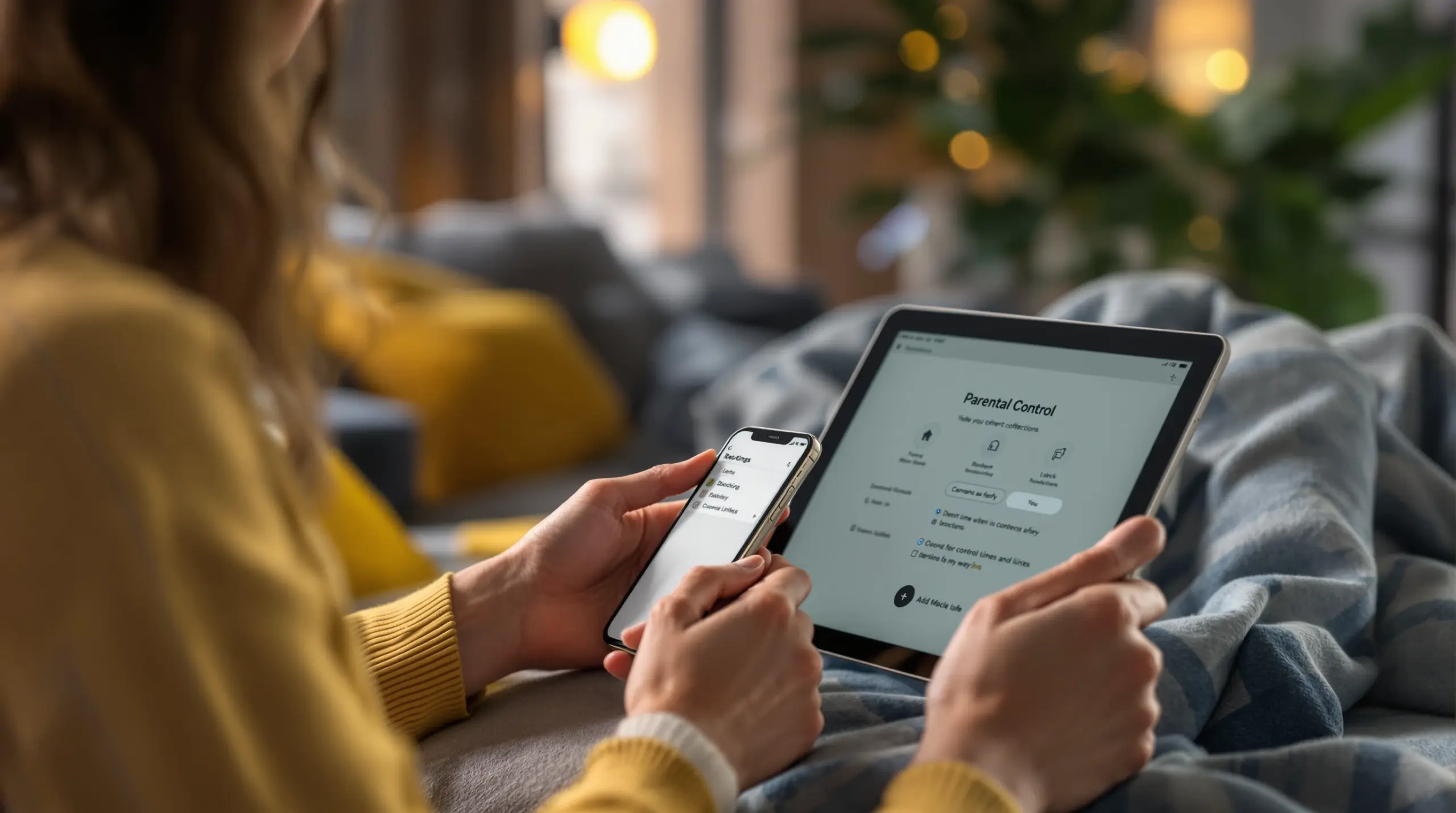
The best parental control app for iOS helps parents manage screen time, block harmful content, and keep kids safe online – discover what to look for and how top apps compare in 2026.
Table of Contents
- What Makes the Best Parental Control App for iOS?
- Understanding iOS Limitations for Parental Controls
- Key Features to Evaluate Before You Choose
- Why Android Gives Parents More Control
- Frequently Asked Questions
- Comparison: Approaches to iOS Parental Controls
- How Boomerang Parental Control Supports iOS Families
- Practical Tips for Setting Up Parental Controls on iOS
- The Bottom Line
- Sources & Citations
Article Snapshot
The best parental control app for iOS is a third-party or built-in tool that helps parents limit screen time, filter web content, and manage app access on iPhones and iPads. iOS platform restrictions mean no single app delivers the full depth available on Android, but the right choice still provides meaningful protection for your child.
Quick Stats: best parental control app for ios
- Apple’s built-in Screen Time covers iPhone, iPad, and Mac – giving parents native controls across 3 Apple devices (Apple Support, 2026)[1]
- One independent reviewer tested over 30 parental control apps before ranking them in 2026 (TechRadar, 2026)[2]
- A separate 2026 review tested over a dozen parental control options before naming its top pick (All About Cookies, 2026)[3]
- One reviewer found that a leading app completed iPhone setup in approximately 5 minutes (Security Hero, 2026)[4]
What Makes the Best Parental Control App for iOS?
The best parental control app for iOS combines content filtering, screen time scheduling, and app management in a way that works within Apple’s strict platform boundaries. Parents shopping for an iOS parental control solution face a more constrained environment than Android users do, because Apple restricts how deeply third-party apps can interact with the operating system. That said, a strong iOS parental control app still delivers real, everyday value – it just requires understanding what the platform will and will not allow before you set your expectations.
Boomerang Parental Control offers iOS support alongside its deeper Android feature set, making it a practical option for families whose children use iPhones or iPads. For iOS specifically, the core job of any parental control app is to limit access to harmful content, enforce browsing safety, and give parents visibility into how much time their child spends on the device.
START YOUR FREE TRIAL
Take control of screen time—free for 14 days, cancel anytime.




A good iOS parental control app should do the following without requiring complex technical setup. It should filter web content automatically, restrict age-inappropriate apps, enforce safe search on major search engines, and schedule device downtime around bedtime and homework. These are the baseline capabilities every parent should verify before committing to any subscription.
One practical use case that resonates with many parents is setting up a first iPhone for a child aged 8 to 12. At that stage, the priority is locking down the environment from day one – blocking inappropriate sites, requiring approval for new apps, and establishing bedtime routines before bad habits form. The right iOS parental control app makes that foundation easy to build and hard for a child to dismantle.
Apple itself acknowledges the importance of these tools. As Apple Support states, “Parental controls are built directly into iPhone, iPad, and Mac, and can help you manage the downloads and purchases your child can make, who they can communicate with, and the apps and other content they can access.” (Apple Support, 2026)[1] That built-in foundation is useful, but many families need additional depth that only a dedicated third-party app provides.
Understanding iOS Limitations for Parental Controls
iOS platform restrictions are the single most important factor shaping what any parental control app can realistically deliver on an iPhone or iPad. Apple’s sandboxed operating system prevents third-party apps from monitoring SMS messages, tracking app-by-app usage in real time, or enforcing uninstall protection the way Android solutions can. Parents who switch from an Android-based parental control setup to iOS will notice these gaps immediately.
Apple’s own Screen Time feature is the foundational layer every iOS parental control solution builds on or works alongside. Before setting up any third-party app, Apple requires Family Sharing to be enabled as a prerequisite step (Apple Support, 2026)[1]. Once that is in place, Screen Time’s Content & Privacy Restrictions become available – covering app purchases, media ratings, web content, and Game Center activity.
As Apple Support explains, “With Screen Time, there are a number of settings and parental controls that you can use to help keep your child’s device usage safe.” (Apple Support, 2026)[1] Screen Time handles iTunes and App Store purchases through a dedicated purchase-control area, and it covers App Store, Media, Web, and Games settings through a single settings group – giving parents meaningful native oversight without installing anything extra.
The limitation is that Screen Time alone is not enough for most parents. It does not monitor YouTube viewing history, it cannot alert you to suspicious keywords in messages, and it offers no meaningful uninstall protection if a tech-savvy teenager decides to work around it. That is where third-party apps step in to fill the gap – though they are still constrained by what iOS permits them to access.
What iOS Parental Controls Can and Cannot Do
On iOS, third-party parental control apps reliably deliver web content filtering (often through a dedicated safe browser or VPN-style profile), screen time scheduling tied to Apple’s Screen Time API, location tracking, and app hiding by age rating. What they cannot do on iOS – regardless of which app you choose – includes monitoring individual SMS conversations, reading YouTube app watch history, enforcing per-app time limits with the same granularity available on Android, or preventing the child from uninstalling the app without a physical device interaction or iOS profile management. Knowing these boundaries helps you select an app that genuinely fits your family’s needs rather than one that promises more than the platform allows.
Key Features to Evaluate Before You Choose
Choosing the right iOS parental control app means evaluating a specific set of features against your child’s age, device habits, and your family’s daily routines. Not every app excels in every area, and on iOS the feature gaps between competing products are narrower than they are on Android – so the details matter more.
Web content filtering is the most important feature for most families. Look for an app that filters harmful websites automatically without requiring you to manually build a blocklist. The SPIN Safe Browser is a dedicated safe browsing solution available on both Android and iOS that blocks millions of inappropriate websites and enforces strict SafeSearch on Google, Bing, and Yahoo – with no VPN or router configuration required. That kind of plug-and-play protection is exactly what busy parents need.
Screen time scheduling is the second priority. The best iOS parental control apps let you set fixed daily time allowances and automatic device lockout windows for bedtime and homework. Verify that scheduled downtime actually locks the device and cannot be overridden by the child without a parent PIN.
App management and content ratings control matter most for parents of younger children. On iOS, third-party apps hide apps based on age ratings, but they cannot monitor or block specific apps the way Android parental controls do. Understanding this distinction prevents disappointment after purchase.
Location Tracking and Geofencing on iOS
Location tracking and geofencing work reliably on iOS and represent one area where third-party parental control apps genuinely add value beyond what Apple’s built-in tools offer. A good iOS parental control app gives you real-time device location on a map and lets you set up geofences around specific places – school, home, a sports field – with automatic alerts when your child arrives or leaves. This removes the need for constant check-in texts and gives parents passive confirmation of physical safety throughout the day.
Reporting and alerts round out the feature checklist. Daily activity summaries delivered by email keep you informed without requiring you to log into the app every morning. Alert-based notifications for concerning behavior – even if limited on iOS compared to Android – give you early warning when something needs your attention. For parents who are not highly technical, simple daily email reports are more useful than complex dashboards that require manual review.
Why Android Gives Parents More Control
Android’s open operating system architecture gives parental control apps significantly deeper access to device functions than iOS allows, and this difference has a direct, practical impact on what you can monitor and enforce. Parents who want the most comprehensive oversight of their child’s digital life will consistently find that Android delivers more – and that gap is not likely to close given Apple’s deliberate platform philosophy.
On Android, Boomerang Parental Control unlocks a set of capabilities that do not exist on iOS. YouTube App History Monitoring lets parents see exactly what their child is searching for and watching inside the main YouTube app – not just YouTube Kids, but the full platform. This is one of the most requested parental visibility features because YouTube is where children spend a significant portion of their screen time, and the content they encounter there is not always age-appropriate.
Call and Text Safety is another Android-exclusive feature that addresses a worry most parents of older children share: who is contacting my child, and what are they saying? On Android, Boomerang logs call and SMS history, sends alerts when messages contain inappropriate keywords, and blocks calls from numbers not saved in the child’s contacts. None of this is available on iOS due to platform restrictions, regardless of which app you use.
Uninstall Protection on Android – particularly the Samsung Knox integration available on supported Samsung devices – makes it exceptionally difficult for tech-savvy children to remove the parental control app without a parent PIN. On iOS, tamper protection is notification-only: if a child removes the app, you receive an alert after the fact. The difference between prevention and notification is significant when your teenager is motivated to work around your rules.
Per-app time limits are also an Android advantage. On Android, Boomerang lets parents set individual time budgets for specific apps – 30 minutes for a game, unlimited time for a homework portal – while designating educational apps as Encouraged so they bypass the daily limit entirely. iOS parental controls do not support this level of per-app granularity through third-party apps, which is a meaningful limitation for parents trying to balance entertainment and learning on the same device. Families with children on Android should consider Boomerang’s screen time features to take full advantage of these controls.
Your Most Common Questions
Is Apple’s built-in Screen Time good enough, or do I need a third-party app?
Apple’s Screen Time is a solid starting point and covers the basics: app purchase controls, web content restrictions, downtime scheduling, and communication limits. For many families with younger children and straightforward needs, it is sufficient – especially when set up correctly with Family Sharing enabled as the required first step (Apple Support, 2026)[1]. However, Screen Time has real gaps. It does not provide web filtering through a dedicated safe browser, it does not monitor YouTube viewing history, and its uninstall protection is easy for determined teenagers to work around. A third-party app adds a meaningful layer of protection on top of Screen Time – particularly a dedicated safe browser like SPIN Safe Browser that filters content on any network without a VPN. If your child is under 10 and primarily uses supervised apps, Screen Time alone meets your needs. If your child is older, uses YouTube independently, or has already found workarounds to built-in controls, a third-party iOS parental control app is worth the subscription cost.
What features are available for iOS with the best parental control app for ios?
On iOS, the most reliable third-party parental control features include web content filtering (through a safe browser or managed profile), screen time scheduling with automatic device lockout, location tracking and geofencing, and app hiding based on age ratings. These features work within Apple’s platform boundaries and deliver consistent value. What iOS parental control apps cannot provide – regardless of brand – includes SMS message monitoring, YouTube watch history tracking, per-app time limits with the same granularity as Android, and true uninstall prevention. Boomerang Parental Control supports iOS with scheduled screen time, location tracking, and SPIN Safe Browser integration for web filtering. Parents who want the full feature set – including YouTube App History Monitoring, Call and Text Safety, per-app limits, and Samsung Knox-backed uninstall protection – will need to set their child up on an Android device. Understanding these platform differences before purchase prevents frustration and helps you choose the app that genuinely fits your family’s situation.
Can my child bypass or delete a parental control app on iPhone?
On iOS, a determined child or teenager has more pathways to bypass or remove a parental control app than they would on a well-protected Android device. Apple’s platform does not allow third-party apps to lock themselves against removal the way Android solutions can. The most a third-party iOS parental control app does is send you a notification after the fact if the child deletes it. The strongest deterrent available on iOS is combining a strong third-party app with Apple’s own Screen Time passcode, which prevents changes to restrictions settings without the parent PIN. Setting a Screen Time passcode that your child does not know is an important step that many parents skip. On Android, Boomerang’s Uninstall Protection – including Samsung Knox integration on supported devices – is a genuine prevention mechanism rather than a notification-only response. If bypass prevention is your top priority and your child is old enough to be motivated to try, this is a strong argument for choosing an Android device for your child’s first smartphone.
How do I set up parental controls on my child’s iPhone step by step?
Setting up parental controls on an iPhone starts with enabling Family Sharing in your Apple ID settings – this is the required prerequisite before any Screen Time controls apply to your child’s device (Apple Support, 2026)[1]. Once Family Sharing is active, go to Settings, tap Screen Time, select your child’s name, and turn on Content & Privacy Restrictions. From there you can control iTunes and App Store purchases, set age-appropriate app and media ratings, restrict web content, and schedule downtime for bedtime and homework. Set a Screen Time passcode your child does not know – this is the most important step for maintaining control. After the built-in setup is complete, install your chosen third-party parental control app for deeper web filtering, location tracking, and daily reporting. For web safety specifically, adding SPIN Safe Browser ensures that content filtering works on any network – home wifi, school, or mobile data – without router changes or VPN configuration. Review settings together with your child so expectations are clear from day one, and plan to revisit the setup as your child grows and earns more digital trust.
Comparison: Approaches to iOS Parental Controls
Parents choosing a parental control approach for their child’s iPhone or iPad have several options, each with different levels of depth, cost, and platform dependency. The table below outlines four common approaches so you can match the right solution to your family’s needs and your child’s age.
| Approach | Web Filtering | Screen Time Scheduling | Uninstall Protection | Location Tracking | YouTube Monitoring | Cost |
|---|---|---|---|---|---|---|
| Apple Screen Time (built-in) | Basic (content category restrictions) | Yes – downtime scheduling | Passcode-protected settings only | No | No | Free |
| Third-party iOS app (e.g., Boomerang on iOS) | Strong (SPIN Safe Browser, no VPN needed) | Yes – scheduled lockout | Notification-only on iOS | Yes – real-time + geofencing | No (iOS platform restriction) | Subscription |
| Third-party Android app (e.g., Boomerang on Android) | Strong (SPIN Safe Browser + web filter) | Yes – per-app limits + daily total | Yes – Uninstall Protection + Samsung Knox[2] | Yes – real-time + geofencing | Yes – YouTube App History Monitoring | Subscription |
| Apple Screen Time + third-party safe browser | Strong (filtered browser on any network) | Yes – combined controls | Passcode-protected settings only | Depends on app | No | Free + possible subscription |
How Boomerang Parental Control Supports iOS Families
Boomerang Parental Control is built primarily as an Android-first solution, but it does support iOS devices with a meaningful set of features that give parents real protection on their child’s iPhone or iPad. For families where one child uses an Android device and another uses an iPhone, Boomerang provides a single platform that covers both – simplifying management for parents who would otherwise need two separate subscriptions.
On iOS, Boomerang delivers scheduled screen time controls, real-time location tracking with geofencing alerts, and integration with SPIN Safe Browser for automatic web content filtering that works on any network without a VPN. These three capabilities address the most common parental concerns for iPhone-using children: too much screen time, unsafe web content, and not knowing where their child is after school.
“This is a great application! I have control back over my child’s phone and applications because she managed to circumvent family link… But now with Boomerang, I can manage her time, what applications she uses and what sites she visits.” – Joe Eagles, Google Play review
“Hey fellow parents, So far this the best parental control app .. hands down. So far the only app my 11 year old was not able to bypass. Big Shout out to developers for making such a great app.” – Jason H, Google Play review
For parents whose children use Android devices, the full Boomerang feature set unlocks significantly deeper controls – including YouTube App History Monitoring, Call and Text Safety, per-app time limits, Encouraged Apps for educational tools, and Samsung Knox-backed uninstall protection. If you are deciding between platforms for your child’s first device, the Android feature advantage is substantial.
Boomerang offers annual subscriptions for single devices and a Family Pack for households with up to 10 child devices – making it cost-effective for families managing multiple phones and tablets. Boomerang Parental Control – Taking the battle out of screen time for Android and iOS is available to download from Google Play, the App Store, or via direct sideload for non-Samsung Android devices. Visit our contact page or email [email protected] to get started or ask questions about the right plan for your family.
Practical Tips for Setting Up Parental Controls on iOS
Getting the most out of any iOS parental control setup requires a few deliberate steps that many parents overlook during initial configuration. These practical tips apply whether you are using Apple’s built-in tools, a third-party app, or a combination of both.
Set your Screen Time passcode before handing over the device. This is the single most important step. A Screen Time passcode prevents your child from disabling restrictions, changing content settings, or extending their own screen time. Choose a code your child does not know and store it somewhere you will not forget.
Install a dedicated safe browser from day one. Safari’s content restrictions are functional but not comprehensive. A purpose-built safe browser like SPIN Safe Browser blocks millions of harmful websites automatically and enforces strict SafeSearch on all major search engines – with no network configuration required. Install it alongside the default browser, then restrict Safari access through Screen Time if you want all web activity routed through the safer option.
Enable Family Sharing before configuring any third-party app. Most iOS parental control features – both Apple’s and third-party – require Family Sharing to be active (Apple Support, 2026)[1]. Skipping this step causes setup errors that frustrate non-technical parents and leave gaps in protection.
Set realistic screen time limits and explain them to your child. Automated enforcement works best when your child understands the rules upfront. Sit down together, show them how the schedule works, and explain why certain apps or sites are blocked. Children who understand the boundaries argue less than those who feel restrictions appeared without explanation.
Review activity reports weekly, not daily. Most parental control apps and Screen Time itself generate usage reports. Weekly review gives you enough data to spot patterns – excessive social media use, late-night screen time, repeated attempts to access blocked content – without turning oversight into a daily chore. Use what you find as the basis for calm, informed conversations rather than reactive punishment.
Revisit settings every few months as your child grows. A configuration that makes sense for a 9-year-old will feel overly restrictive to a 13-year-old who has earned trust. Gradually loosening controls in response to responsible behavior is a practical way to teach digital self-management – the long-term goal that responsible parental control use is ultimately working toward. If your child is on Android, consider using the sideload download page for non-Samsung Android devices to ensure the strongest available uninstall protection is in place from the start.
The Bottom Line
The best parental control app for ios does a specific job: it keeps your child safer online, reduces screen time conflict, and gives you visibility without turning you into a full-time device monitor. On iOS, platform boundaries mean no third-party app delivers everything – but the right combination of Apple’s built-in Screen Time, a safe browsing app, and a reliable third-party parental control solution gets you very close.
If your family includes both iOS and Android devices, Boomerang Parental Control manages both from a single platform – with significantly deeper controls available on the Android side, including YouTube App History Monitoring, Call and Text Safety, per-app limits, and Samsung Knox-backed uninstall protection that genuinely stops tech-savvy kids from bypassing your rules.
Ready to take the battle out of screen time? Visit useboomerang.com, explore the full feature set, or email [email protected] to find the right plan for your family today.
Sources & Citations
- Use parental controls to manage your child’s iPhone or iPad. Apple Support.
https://support.apple.com/en-us/105121 - Best parental control app of the year. TechRadar.
https://www.techradar.com/best/best-parental-control-app-of-year - The Best Parental Control Apps of 2026 (Independently Tested). All About Cookies.
https://allaboutcookies.org/best-parental-control-apps - Best Parental Control App for iPhone (2026). Security Hero.
https://www.securityhero.io/best-parental-control-app-for-iphone/
START YOUR FREE TRIAL
Take control of screen time—free for 14 days, cancel anytime.
