
30
Jun
2026
Best Parental Monitoring App: A Parent’s Guide
June 30, 2026
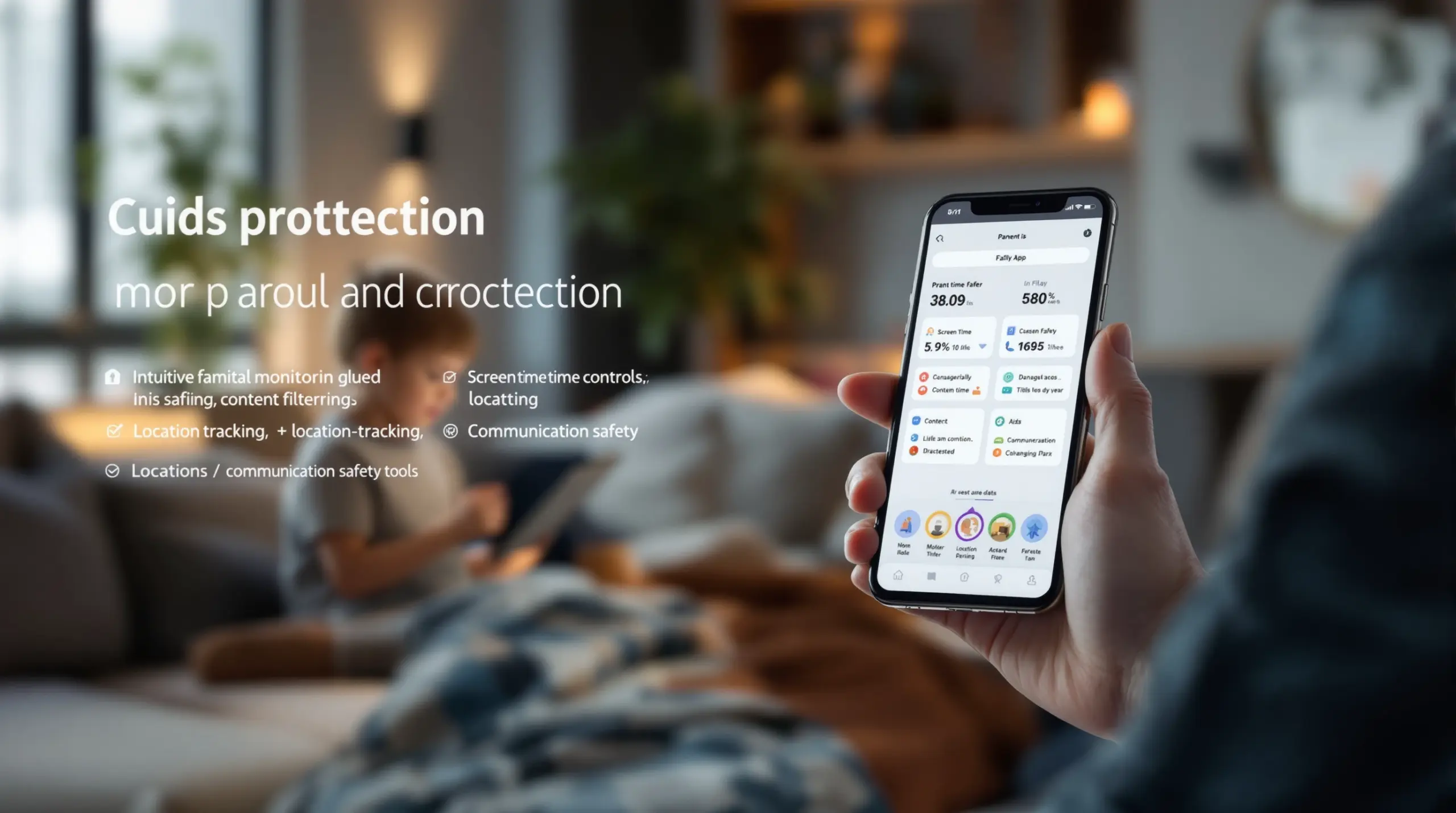
The best parental monitoring app gives families automated screen time controls, content filtering, location tracking, and communication safety tools – all in one place to protect children online and offline.
Table of Contents
- What Is the Best Parental Monitoring App?
- Key Features Every Parental Monitoring App Should Have
- Android vs. iOS: Why Platform Matters for Parental Controls
- How to Choose the Best Parental Monitoring App for Your Family
- Frequently Asked Questions
- Comparing Parental Monitoring App Approaches
- How Boomerang Parental Control Helps Your Family
- Practical Tips for Getting the Most Out of Parental Monitoring
- The Bottom Line
- Sources & Citations
Article Snapshot
The best parental monitoring app is a dedicated software tool that gives parents automated control over their child’s device – managing screen time, filtering content, tracking location, and monitoring communications. The right app enforces rules consistently without daily parental intervention, helping families build safer digital habits from day one.
What Is the Best Parental Monitoring App?
The best parental monitoring app is a dedicated tool that automates the rules parents want enforced on their child’s device – from daily screen time limits to content filtering and real-time location tracking. Rather than relying on a child’s self-discipline or a parent’s ability to manually police a device every hour, these apps run quietly in the background and enforce boundaries consistently. Boomerang Parental Control was built with exactly this goal: to give parents comprehensive visibility and firm control, primarily on Android devices, without turning every family dinner into an argument about phones.
For parents handing a child their first smartphone, the challenge is real. The moment a device is in a child’s hands, they have access to the entire internet, every app store, and direct lines of communication with anyone in the world. A parental monitoring app acts as the guardrail that keeps that access age-appropriate. At the core, the best tools combine child safety software with digital wellness features – they don’t just block; they guide.
START YOUR FREE TRIAL
Take control of screen time—free for 14 days, cancel anytime.




Parental control solutions vary widely in what they offer. Some focus purely on website filtering. Others specialize in screen time management for kids or location sharing. The strongest options bring all of these together in a single dashboard that a parent manages from their own device without needing technical expertise. For families with Android devices in particular, the depth of control available through a dedicated parental monitoring app far exceeds what built-in tools like Google Family Link provide on their own.
Key Features Every Parental Monitoring App Should Have
Effective family monitoring software must do more than simply restrict access – it needs to give parents clear insight while enforcing rules that children cannot easily bypass. When evaluating any parental monitoring app, there are several capabilities that separate genuinely useful tools from ones that frustrate parents within a week.
Automated Screen Time Management
Screen time management for kids is the feature most families reach for first, and for good reason. Daily arguments about getting off a device are one of the most common sources of family conflict around technology. The best apps eliminate this conflict by automating the enforcement. Parents set a daily allowance – say, two hours of entertainment – and the device simply locks when the time is up. No negotiation, no pleading, no child claiming “just five more minutes.” Scheduled downtime for bedtime and homework works the same way: the phone locks at a set hour and the parent never has to be the bad guy.
On Android devices, the most capable apps also offer per-app time limits, letting parents set different allowances for different apps. A gaming app gets 30 minutes, while a school portal is marked as an “Encouraged App” with unlimited access. This kind of granular control helps parents guide digital balance rather than just applying a blunt restriction to everything.
Content Filtering and Safe Browsing
No screen time limit matters if a child accesses harmful content during the time they are allowed online. Strong web content filtering is a non-negotiable component of any app worth recommending. The best tools block millions of inappropriate websites across categories like adult content, violence, and hate speech – automatically, without requiring a parent to manually build a blocklist.
Safe search enforcement is equally important. When a child uses Google or Bing, the search engine itself returns inappropriate images and results unless strict safe search is locked on. A dedicated safe browsing app like SPIN Safe Browser addresses this directly: it enforces SafeSearch on all major search engines automatically and works on any network – home wifi, school networks, or mobile data – without needing a VPN or router configuration. This is particularly valuable for children who take their devices to school, a friend’s house, or anywhere outside the home network.
App Approval and New Install Control
Children are resourceful. If a parental monitoring app blocks a specific app, a child’s first instinct is to find an alternative. App approval control closes this loophole by requiring parental sign-off before any new app is installed or used. Parents receive a notification when their child tries to download something new, and they approve or block it before the child accesses it. This keeps the app environment curated and age-appropriate from day one – a key feature for parents setting up a first device.
Location Tracking and Geofencing
Physical safety monitoring is a core reason many parents seek out a child safety app in the first place. Real-time location tracking lets a parent see where their child’s device is at any moment. Geofencing takes this further by creating digital boundaries around specific locations – school, home, a sports field – and sending automatic alerts when the child arrives or leaves. Parents get passive confirmation that their child arrived safely without needing to send a check-in text that the child ignores.
Android vs. iOS: Why Platform Matters for the best parental monitoring app
Platform choice has a direct impact on how much control a parental monitoring app delivers, and Android gives parents significantly more capability than iOS does for most monitoring features. This is not a preference – it is a technical reality that parents should understand before choosing a device for their child.
On Android, a parental control app like Boomerang accesses deep device functions: per-app usage timers, YouTube App History Monitoring, Call and Text Safety features, and strong uninstall protection. On iOS, Apple’s platform restrictions limit what third-party apps do. Features like SMS monitoring, per-app time limits beyond Apple’s own Screen Time settings, and YouTube history visibility are not available to third-party iOS apps. Boomerang supports iOS devices, but parents should know that the feature set on iOS is more limited than on Android.
Samsung Knox Integration: The Gold Standard for Uninstall Protection
One of the most frustrating experiences for parents is discovering their child has deleted the monitoring app. Tech-savvy kids – especially teenagers – quickly learn that deleting an app is the simplest way to remove oversight. This is exactly why uninstall protection is a defining feature of the best parental monitoring apps.
On supported Samsung devices, Boomerang Parental Control is the only parental control app to use Samsung’s Knox, an enterprise mobile security solution pre-installed in most of Samsung’s smartphones and tablets. Knox integration means the app is embedded at a security layer below the normal Android operating system, making it exceptionally difficult for a child to remove or bypass – even a tech-savvy teenager who has already defeated Google Family Link or Apple Screen Time.
For parents who have already been through the experience of a child bypassing simpler controls, this level of protection is not optional – it is the entire point. The TechRadar review of Boomerang Parental Control highlights this depth of Android integration as a key differentiator from more basic alternatives.
YouTube Monitoring on Android
YouTube is one of the most-used apps on children’s devices, and it is also one of the least transparent for parents using platform-native tools. Google Family Link does not provide parents with a clear history of what a child has searched for or watched within the main YouTube app. Boomerang’s YouTube App History Monitoring, available on Android only, fills this gap directly. Parents see what their child has been searching for and watching, enabling informed conversations about content rather than blind guesswork.
How to Choose the Best Parental Monitoring App for Your Family
Choosing the right parental monitoring app comes down to four practical factors: the device your child uses, the age of your child, the specific risks you are most concerned about, and how much time you can realistically spend on ongoing management.
Start with the device. If your child has an Android phone or tablet, you have the widest range of options and the deepest feature sets available. Android-first tools like Boomerang give you capabilities – YouTube monitoring, per-app limits, SMS safety, Knox integration – that iOS simply cannot match in third-party apps. If your child has an iPhone, your options are narrower, and you should verify which features actually work on iOS before subscribing to any service.
Next, consider your child’s age and maturity. For a younger child receiving their first device, the priority is comprehensive gatekeeping: app approval control, content filtering, and strict screen time schedules. For a teenager who has already shown they bypass simpler tools, uninstall protection and communication monitoring become the most important factors. A tool that a determined teenager deletes in 30 seconds is not a solution – it is a placebo.
Think about your own time and technical comfort. The best parental monitoring apps for busy or non-technical parents are ones that set up once and run automatically. Daily emailed activity reports keep parents informed without requiring them to log in to an app dashboard every day. Automated scheduling enforces bedtime and homework routines without any daily intervention. If an app requires constant manual adjustments to stay effective, most parents will stop using it within weeks.
Finally, evaluate the app’s track record on bypass prevention. Read reviews specifically from parents of teenagers, where bypass attempts are most common. Look for tools that explicitly address what happens when a child tries to uninstall the app or change device settings. Independent reviews from sources like SafeWise provide useful real-world assessments of how well these protections hold up in practice.
Your Most Common Questions
What is the difference between a parental monitoring app and built-in parental controls like Google Family Link or Apple Screen Time?
Built-in tools like Google Family Link and Apple Screen Time are free starting points, but they have meaningful limitations that experienced parents quickly run into. Google Family Link does not provide YouTube viewing history, does not offer per-app time limits with the same granularity as dedicated apps, and – critically – is bypassed more easily than apps with advanced uninstall protection. Apple Screen Time on iOS similarly restricts what third-party apps do at the system level, meaning third-party monitoring apps on iPhone have less access to device functions than on Android.
A dedicated parental monitoring app like Boomerang goes several layers deeper. On Android, it monitors YouTube App history, enforces per-app daily limits, logs call and SMS history for safety alerts, and uses Samsung Knox integration to prevent uninstallation. These are capabilities that platform-native tools do not offer. For families who have already found their child bypassed the free built-in controls, a dedicated app is the practical next step – not a duplication of what they already have.
Can my child delete a parental monitoring app from their phone?
With most basic parental control apps, yes – a determined child finds a way to uninstall or disable monitoring software. This is one of the most common frustrations parents report, particularly with teenagers who are comfortable navigating Android settings. The solution is an app that uses advanced uninstall protection built into the operating system itself.
Boomerang Parental Control addresses this directly. On Android, uninstall protection makes the app significantly harder to remove without the parent’s PIN. On supported Samsung devices, Knox integration embeds the app’s protections at the security layer of the device, making it the most bypass-resistant option available to consumer families. On iOS, Boomerang provides notification-only tamper alerts, so parents are informed if a child attempts to remove or disable the app, though iOS’s platform restrictions limit deeper enforcement. For parents who specifically need a solution their teenager cannot defeat, Android with Samsung Knox is the strongest available configuration.
Does a parental monitoring app work when my child is not on the home wifi network?
This depends on how the app’s filtering technology works. Some parental control tools rely on router-level DNS filtering or a VPN connection to enforce web content rules – which means protections drop off the moment a child connects to a different network at school, a friend’s house, or on mobile data. This is a significant gap that parents often don’t discover until after their child has been using an unfiltered connection for weeks.
Boomerang Parental Control and the companion SPIN Safe Browser handle this differently. SPIN Safe Browser’s filtering technology works on any network the device connects to – home wifi, school networks, public hotspots, or mobile data – without requiring a VPN or any router configuration. Screen time schedules and daily limits enforced through Boomerang are also network-independent: they run on the device itself and activate regardless of what network the child is using. This makes the protection genuinely portable, following the device wherever your child takes it.
What age is a parental monitoring app most appropriate for?
Parental monitoring apps are most used for children between the ages of 8 and 16, though the features you prioritize will shift significantly across that age range. For younger children – especially those receiving their first device around ages 8 to 12 – the focus is on comprehensive gatekeeping. App approval control, strict content filtering, and automated screen time schedules help establish safe habits before bad patterns have a chance to form.
For teenagers aged 13 to 17, the approach shifts toward accountability and bypass prevention. Teens are more likely to test limits, research workarounds, and push back on restrictions. At this age, the most important features are uninstall protection that holds up against a tech-savvy user, call and text safety monitoring for early signs of cyberbullying or inappropriate contact, and location tracking that provides passive safety confirmation without the need for constant check-in calls. The goal with older teens is less about total restriction and more about maintaining a safety net that enforces firm boundaries while gradually building toward digital independence.
Comparing Parental Monitoring App Approaches
Not all parental monitoring apps take the same approach, and the right choice depends on what your family needs most. The table below compares four common approaches – from built-in free tools to advanced dedicated apps – across the features that matter most to parents.
| Approach | Screen Time Controls | Content Filtering | Uninstall Protection | YouTube Monitoring | SMS & Call Safety | Network Independence |
|---|---|---|---|---|---|---|
| Built-in free tools (Google Family Link, Apple Screen Time) | Basic scheduled limits | Basic category filtering | Minimal – easily bypassed | Not available | Not available | Partial (router-dependent for some features) |
| Router-based filtering (home network only) | Time-based network cutoff | DNS-level category blocking | N/A (network-based) | Not available | Not available | Home network only |
| Monitoring-focused apps (alert-only tools) | Limited or none | Alert-based, not blocking | Varies | Some tools | Alert-based on some platforms | Varies by app |
| Dedicated parental monitoring app (Android-first, e.g., Boomerang) | Per-app limits, daily totals, scheduled downtime | Comprehensive filtering + safe search enforcement | Advanced – Samsung Knox on supported devices | Available on Android | Available on Android | Full – works on any network without VPN |
How Boomerang Parental Control Helps Your Family
Boomerang Parental Control – Taking the battle out of screen time for Android and iOS – is designed around one central idea: parents should be able to set the rules once and trust that they will be enforced, automatically and consistently, without daily intervention. For families on Android devices, Boomerang delivers one of the most comprehensive feature sets available in consumer-grade parental monitoring software.
Screen time scheduling lets parents lock the device at bedtime and during homework without ever having to remind their child. Boomerang’s screen time features include both daily time limits and per-app controls on Android, so entertainment apps get a capped allowance while educational tools remain available without restriction. The “Encouraged Apps” feature lets parents designate specific apps – a school portal, a reading app, a fitness tracker – as always available, even after a child’s daily entertainment limit runs out.
For parents whose children have already defeated simpler controls, Boomerang’s uninstall protection is the defining reason to choose the platform. On Samsung devices, Knox integration makes tampering with the app exceptionally difficult. Parents who need to install on a non-Samsung Android device use the sideload download page for Android devices to access the full version with call and text safety features and app removal protection.
Two parents in the Boomerang community sum up the experience well: “I have control back over my child’s phone and applications because she managed to circumvent family link. I have no idea how she did that but she managed to find a way, as did other kids. That was a major frustration for us. But now with Boomerang, I can manage her time, what applications she uses and what sites she visits.” – Joe Eagles, Google Play review. And from another parent: “Hey fellow parents, So far this the best parental control app .. hands down. So far the only app my 11 year old was not able to bypass. Big Shout out to developers for making such a great app.” – Jason H, Google Play review.
Subscriptions are available annually for a single device or as a Family Pack covering up to 10 child devices. Daily emailed activity reports keep parents informed without requiring them to open the app every day – a practical feature for busy households. For questions or setup help, the support portal is accessible at contact us, and the knowledge base covers common setup scenarios in plain language.
Practical Tips for Getting the Most Out of Parental Monitoring
Installing a parental monitoring app is only the first step. How you configure and use it over time determines whether it actually supports your family’s goals or becomes another source of friction.
Set it up before handing the device to your child. The most effective time to configure a parental monitoring app is before your child has used the device freely. Establish screen time schedules, content filtering, and app approval rules on day one. Children who have already enjoyed unrestricted access will push back harder against new limits; children who have never known anything different accept them as the normal way the device works.
Use “Encouraged Apps” to reward positive habits. Rather than framing parental controls purely as restriction, use the Encouraged Apps feature to signal what you value. Marking a reading app or homework platform as always available teaches children that some technology use is actively supported – not everything is subject to the same limits. This shifts the conversation from punishment to guidance.
Check YouTube history on Android as a conversation starter. YouTube App History Monitoring is most useful not as a surveillance tool but as a way to know what is on your child’s mind. If you notice your child has been watching content about a topic – whether it is gaming, science, music, or something more concerning – it gives you a genuine, informed opening for a conversation. You are not guessing; you know what they have been watching, and you respond appropriately.
Use geofencing for passive safety checks. Set up geofences for the locations your child visits regularly – school, a friend’s house, after-school activities. The automatic arrival and departure alerts mean you get quiet confirmation that your child is where they are supposed to be, without texting them every afternoon. Most children find constant check-in texts more annoying than the monitoring app itself; geofencing removes the need for them.
Review communication safety logs periodically on Android. Call and text safety monitoring works best as a periodic review, not a daily audit. Set aside time weekly or bi-weekly to check the summary. Look for patterns – unknown numbers appearing repeatedly, keyword alerts triggering frequently – rather than reading every message. The goal is to spot risks early enough to act, not to eliminate your child’s privacy entirely.
Talk to your child about why the app is installed. Transparency builds more durable trust than secrecy. Explain that the app is there to help the whole family manage screen time fairly and keep them safe – not to spy on them. Children who understand the purpose of the controls are less likely to invest energy in defeating them, and the conversation itself models responsible digital citizenship.
The Bottom Line
Finding the best parental monitoring app is ultimately about matching the right features to your child’s age, your family’s devices, and the specific risks you want to address. For Android households, a dedicated app like Boomerang Parental Control offers a depth of control – per-app limits, YouTube monitoring, SMS safety, Samsung Knox uninstall protection – that free built-in tools simply cannot match. For parents of pre-teens receiving their first device, it establishes a safe environment from day one. For parents of teenagers who have already bypassed simpler controls, it provides the protection that actually holds.
The best parental monitoring app is not the one with the most features on paper – it is the one your family actually uses, that runs reliably in the background, and that enforces your rules without you having to police the device every day. If you are ready to take the battle out of screen time, visit Boomerang Parental Control or reach out at [email protected] to get started.
Sources & Citations
- Boomerang Parental Control Software Review. TechRadar.
https://www.techradar.com/reviews/boomerang-parental-control-software - Boomerang Parental Control Review. SafeWise.
https://www.safewise.com/boomerang-parental-control-review - SPIN Safe Browser. National EdTech.
https://spinsafebrowser.com/ - Boomerang Parental Control and Samsung Knox Integration. Boomerang Parental Control.
https://useboomerang.com/boomerang-parental-control-samsung-knox-information/
START YOUR FREE TRIAL
Take control of screen time—free for 14 days, cancel anytime.
