
09
Jul
2026
PS4 Parental Lock: Complete Setup Guide for Parents
July 9, 2026
The ps4 parental lock system lets parents control game ratings, screen time, spending, and content access on PlayStation 4 – here’s everything you need to set it up and keep it working for your family.
Table of Contents
- What Is the PS4 Parental Lock System?
- How to Set Up PS4 Parental Controls Step by Step
- Managing Screen Time and Spending Limits on PS4
- Going Beyond the Console: Full Mobile Device Protection
- Frequently Asked Questions
- Parental Control Approaches Compared
- How Boomerang Parental Control Supports Gaming Families
- Practical Tips for PS4 Parental Controls
- The Bottom Line
- Sources & Citations
Article Snapshot
PS4 parental lock is a built-in set of controls on the PlayStation 4 console that restricts game ratings, limits screen time, blocks web content, and caps spending on child accounts. Parents access it through Settings and protect it with a 4-digit passcode. Controls also extend to the PlayStation Family app on mobile.
PS4 Parental Lock in Context
- The PS4 restriction passcode uses a 4-digit code to enforce system-level rules (ESRB Ratings, 2025)[1]
- Play time settings let parents customize restrictions across all 7 days of the week individually (ESRB Ratings, 2025)[1]
- PlayStation parental controls include a monthly spending limit setting for child accounts to prevent unauthorized purchases (ESRB Ratings, 2025)[1]
- Sony’s PlayStation Family app provides a mobile device management option so parents can update controls without touching the console (Sony Interactive Entertainment, 2025)[2]
What Is the PS4 Parental Lock System?
The ps4 parental lock is a built-in suite of access controls on the PlayStation 4 that allows parents to restrict game content by age rating, limit daily play time, block web browsing, and set spending caps – all protected by a passcode that only the parent controls. It is not a third-party add-on; Sony built these controls directly into the console’s system software. For families managing a connected child, understanding how these controls work is the first step toward creating a safer gaming environment at home.
At its core, the ps4 parental lock system works through two separate layers. The first is the System Restriction Passcode – a 4-digit code that must be entered before any system-level setting can be changed (ESRB Ratings, 2025)[1]. The second is the Family Management system, which requires a PlayStation Network account setup with a designated child account linked to a parent or guardian account. Without this two-layer structure, controls are far easier to bypass.
START YOUR FREE TRIAL
Take control of screen time—free for 14 days, cancel anytime.




Parents managing children who also use Android mobile devices will recognize that console controls alone rarely tell the whole story. Apps like Boomerang Parental Control – Taking the battle out of screen time for Android and iOS extend that same philosophy of automated, consistent boundaries to smartphones and tablets, covering the digital spaces that PS4 controls simply cannot reach.
The console’s built-in tools cover several key restriction categories: game and content age ratings (aligned with ESRB standards), internet browser access, PlayStation Store access, communication with other players, and monthly spending limits. Each category is configured independently, giving parents fine-grained control over what their child can and cannot do during a gaming session. For first-time setup, this level of detail can feel overwhelming – but the following sections break each step down into plain language.
How to Set Up PS4 Parental Controls Step by Step
Setting up the ps4 parental lock correctly from the beginning prevents most of the common problems parents encounter later, including children finding loopholes or controls failing to apply consistently. The setup process has two phases: securing the console itself and creating a managed child account through PlayStation’s Family Management system.
Phase One: Securing the Console with a Restriction Passcode
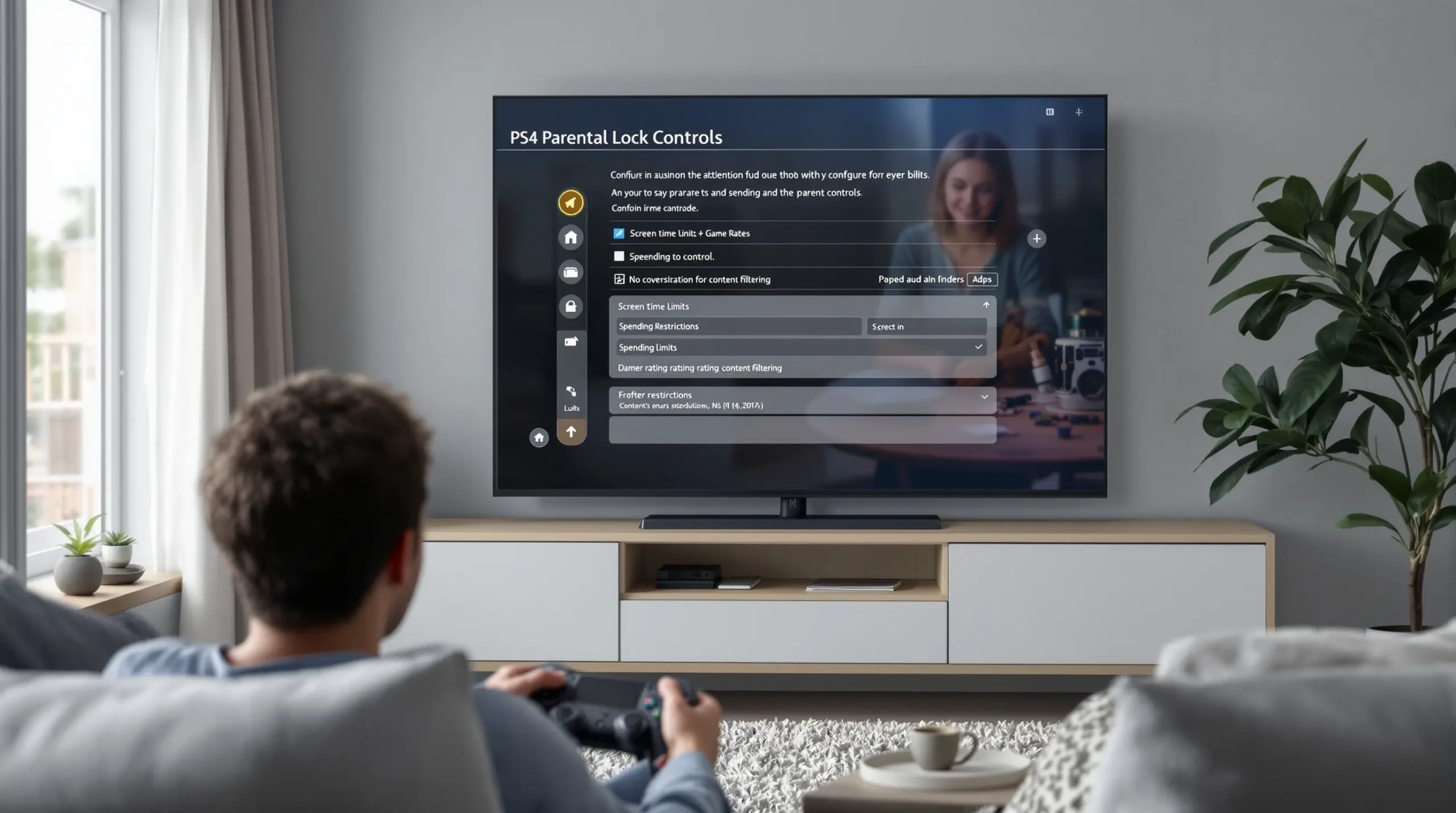
The first step is navigating to the parental control menu. As the ESRB explains, “On your PS4 system, go to ‘Settings’ and select ‘Parental Controls/Family Management.'” – Entertainment Software Rating Board (ESRB Ratings, 2025)[1]. From that menu, select PS4 System Restrictions. You will be prompted to enter the default passcode (0000) and then create your own custom 4-digit code. Choose a code your child cannot easily guess and do not share it with them.
Within the System Restrictions menu, you can set the following controls directly on the hardware: restrict games by age rating, block Blu-ray and DVD playback above a certain rating, disable the PlayStation Store entirely, turn off internet browser access, and restrict communication features. These settings apply regardless of which user account is logged in – making them your safety net even if your child logs in on a guest or adult account.
Phase Two: Creating a Child Account via Family Management
For more granular control – including play time limits and spending caps – you need to set up a child account through Sony’s PlayStation Family Management system. Sony’s guidance is direct: “Go to Settings > Family and Parental Controls > Family Management. Select a child and select a parental control to set.” – Sony Interactive Entertainment (Sony Interactive Entertainment, 2025)[2].
This process requires a PlayStation Network account for both the parent and the child. The child account must be created by the parent and linked to the family group. Once linked, the parent account gains access to a dedicated management dashboard where individual restrictions – play time schedules, monthly spending limits, and communication controls – can all be adjusted. You can also access this dashboard remotely using the SPIN Safe Browser – Safe web browsing for Boomerang Parental Control – and through Sony’s own PlayStation Family app on your phone, which we cover in a later section.
One important note: system-level restrictions (Phase One) and Family Management controls (Phase Two) work independently. Setting only one layer leaves gaps. For example, if you skip the restriction passcode, a determined child can access the Settings menu and adjust their own account controls. Setting both layers together creates a much more secure environment.
Managing Screen Time and Spending Limits on PS4
Screen time management and spending controls are two of the most practically useful elements of the PS4 parental lock system, and they are also the areas where parents report the most daily impact on household routines. Getting these settings right removes the need for you to manually intervene every time your child’s play session runs long.
Setting Play Time Limits by Day
The PS4 Family Management system lets you set play time restrictions on a per-day basis, covering all 7 days of the week individually (ESRB Ratings, 2025)[1]. This means you can set a shorter play window on school nights and a longer allowance on weekends – without needing to remember to make changes each day. When the time limit is reached, the console displays a warning, and the session ends when the allotted time runs out.
To configure this, log into your PlayStation Network account online or through the PlayStation Family app, navigate to your child’s profile, and select Play Time Settings. You will see a weekly calendar view where you can set both a maximum daily play duration and the hours during which play is permitted. Setting a hard stop time – for example, no gaming after 9 p.m. on weekdays – enforces bedtime routines automatically without the nightly argument.
Monthly Spending Limits and Store Access
Unauthorized in-game purchases are a genuine concern for families with children who have access to a console connected to a payment method. The PS4 parental controls system includes a monthly spending limit setting that caps how much a child account can spend from wallet funds or linked payment methods (ESRB Ratings, 2025)[1]. You can also restrict PlayStation Store access entirely if you prefer your child not to browse or download anything without your direct involvement.
For games like Fortnite, in-game purchase controls exist at the platform level too. Epic Games’ own parental controls allow parents to set limits on time spent in Fortnite (Epic Games Safety and Security Center, 2025)[3], adding another layer of oversight for popular free-to-play titles that drive significant spending through microtransactions.
Reviewing your child’s monthly spending summary through the PlayStation Family app takes less than a minute and gives you a clear picture of what they are purchasing – before a credit card statement arrives with a surprise.
Going Beyond the Console: Full Mobile Device Protection
The ps4 parental lock covers what happens on the console, but most children who game on a PS4 also spend significant time on a smartphone or tablet. Those devices operate entirely outside PlayStation’s control systems, which means content filtering, app management, and screen time limits need to be addressed separately on mobile.
Sony itself acknowledges that mobile management matters. As Sony Interactive Entertainment states, “You can use the PlayStation Family app to manage your child’s access to games and content from your mobile device.” – Sony Interactive Entertainment (Sony Interactive Entertainment, 2025)[2]. But that app only manages PlayStation account settings – it does not control what your child does in other apps on their phone.
Why Mobile Controls Need to Work Independently
A child who hits their PS4 screen time limit switches to a smartphone and continues watching YouTube, playing mobile games, or browsing content that the PS4’s browser block would have prevented. Without a dedicated mobile parental control app, the console restrictions create only a partial solution. Parents who want consistent boundaries across all devices need a tool specifically designed for Android and iOS smartphones.
This is where the value of a dedicated mobile parental control app becomes clear. Features like per-app time limits, YouTube viewing history monitoring (on Android), app installation approval, and uninstall protection address the specific risks that consoles cannot manage. The Boomerang Parental Control screen time features work automatically on the child’s Android device – no daily manual enforcement required – creating the same kind of neutral, automated boundaries that good console parental controls provide.
Families setting up a child’s first Android smartphone alongside a PS4 benefit from running both control systems together. The console handles the gaming environment; the mobile app handles the smartphone. Together, they create a consistent set of rules across every screen in your home – reducing both the gaps in protection and the daily negotiation that comes from inconsistent enforcement. You can read independent assessments of how Boomerang performs in practice at the Boomerang Parental Control software review on TechRadar and at SafeWise’s Boomerang Parental Control Review.
Your Most Common Questions
What is the default PS4 parental lock passcode and how do I change it?
The default PS4 system restriction passcode is 0000. Sony ships every PS4 with this code pre-set so parents can access the parental controls menu for the first time without a code. The very first thing you should do when setting up child safety controls is change this default to a 4-digit code that only you know (ESRB Ratings, 2025)[1]. To change it, go to Settings > Parental Controls/Family Management > PS4 System Restrictions. You will be asked to enter the current passcode (0000 on a new setup), and then you can enter and confirm your new code. Choose something memorable for you but not obvious to your child – avoid birthdays or repeating digits. If you forget your custom passcode later, Sony provides a reset process through your PlayStation Network account. Write the code down and store it somewhere secure outside the gaming area.
Can my child bypass the ps4 parental lock, and how do I prevent it?
Yes – there are several ways a tech-savvy child can work around PS4 parental controls if they are not set up correctly. The most common bypass methods include logging into an unmanaged guest account, creating a second PSN account with an adult birth date, or simply resetting the console to factory settings if they know the system passcode. Preventing these requires a few specific steps. First, set a strong system restriction passcode and never share it. Second, ensure your child logs in exclusively to their managed child account – remove or restrict access to other profiles. Third, link the child account properly to your family group so that play time and spending limits apply through the cloud-based Family Management system, not just through local console settings alone. For comprehensive protection that also covers mobile devices your child uses outside of gaming, pairing PS4 controls with a dedicated Android parental control app closes the gaps that console settings alone cannot address.
How do I set up play time limits and a gaming schedule on PS4?
Play time limits on PS4 are managed through the PlayStation Network’s Family Management system, not the console’s local settings menu. To set them up, log into your PSN account online or through the PlayStation Family app on your phone, navigate to Family Management, select your child’s account, and open Play Time Settings. From there you can set a maximum number of play hours per day for each day of the week individually, covering all 7 days (ESRB Ratings, 2025)[1]. You can also define a time window during which gaming is permitted – for example, allowing play only between 3 p.m. and 8 p.m. on school days. When the session limit is approaching, the console shows a countdown warning to your child. When time runs out, the console enforces the cutoff automatically. This removes you from the role of “screen time police” on gaming nights and makes the schedule a neutral, automated rule rather than a parental argument.
Do PS4 parental controls cover online multiplayer and in-game chat?
Yes – the PS4 Family Management system includes communication and online interaction controls. From your child’s account settings in Family Management, you can restrict who your child can play with online (friends only, or nobody), block voice and text chat with other players, and prevent your child from seeing user-generated content submitted by strangers. These settings address one of the most common concerns parents have about online gaming: unsolicited contact from unknown adults. Restricting communication to friends-only limits your child’s multiplayer interactions to people you have approved as PSN friends. For games with in-built communication systems outside Sony’s network – such as popular cross-platform titles – additional game-level parental controls are also available. Epic Games, for example, provides separate parental controls for Fortnite that allow parents to restrict voice chat and set play time limits from within the game’s own safety settings (Epic Games Safety and Security Center, 2025)[3]. Reviewing both the console-level and game-level settings together gives the most complete communication protection.
Parental Control Approaches Compared
Parents managing a child’s gaming and device use have several different control approaches available to them. Understanding what each layer covers – and where the gaps are – helps you build a complete protection strategy rather than relying on a single tool that leaves parts of your child’s digital life unmonitored.
| Approach | What It Controls | Key Strength | Key Limitation |
|---|---|---|---|
| PS4 Built-in Parental Lock | Game ratings, play time schedules (7 days)[1], spending limits, online communication | No extra cost; directly integrated with console hardware | Only covers the PS4 console – no mobile or cross-device coverage |
| PlayStation Family App | Remote management of child PSN account settings from a mobile device[2] | Allows parents to adjust controls without touching the console | Limited to PlayStation account management only |
| In-Game Parental Controls (e.g., Fortnite) | Play time limits, scheduled play windows, voice chat restrictions per game[3] | Game-specific controls add a layer the console cannot provide | Must be set up separately for each qualifying game |
| Dedicated Mobile Parental Control App (e.g., Boomerang) | Android app management, screen time scheduling, YouTube history, location tracking, web filtering | Comprehensive cross-app coverage on Android devices; uninstall-protected | Covers mobile devices – not a replacement for console controls |
How Boomerang Parental Control Supports Gaming Families
For families managing a child who games on a PS4 and uses an Android smartphone, Boomerang Parental Control fills the gaps that console controls cannot cover. While your PS4 parental lock handles the gaming console environment, Boomerang takes care of everything happening on your child’s Android device – automatically, without you needing to intervene every day.
The frustration many parents experience is that a child who hits their gaming time limit on PS4 immediately switches to a smartphone and continues watching YouTube or playing mobile games with no restrictions at all. Boomerang closes that gap. Screen Time Scheduling and Daily Limits automatically lock the Android device at bedtime or when the day’s allowance runs out – the same neutral, automated enforcement you value in your console controls, now applied to the smartphone too. Per-App Limits let you give a YouTube or gaming app a set daily window, while designating homework or learning apps as Encouraged so they stay accessible even when entertainment time is finished.
For parents who have already tried and been defeated by basic free tools, Boomerang’s Uninstall Protection – including Samsung Knox integration on supported Samsung devices – makes it exceptionally difficult for tech-savvy children to remove or bypass the app. As one parent put it: “Hey fellow parents, So far this the best parental control app .. hands down. So far the only app my 11 year old was not able to bypass. Big Shout out to developers for making such a great app.” – Jason H, Google Play review.
On Android, Boomerang also provides YouTube App History Monitoring so you can see exactly what your child has been watching in the main YouTube app – a visibility gap that no console control addresses. Add in real-time Location Tracking with Geofencing and Call and Text Safety monitoring, and you have a complete picture of your child’s digital and physical safety that works alongside your PS4 setup. You can explore the Samsung Knox integration details to understand how enterprise-grade security protects your family’s rules from being bypassed. Subscriptions are available on an annual basis for a single device, or as a Family Pack covering up to 10 child devices – flexible pricing that fits a growing family without a corporate budget.
Practical Tips for PS4 Parental Controls
Getting the most out of your console’s built-in parental control system takes more than a one-time setup. These practical steps will help you keep controls effective as your child grows and your household routines change.
Set the restriction passcode before handing over the controller. The single most common mistake parents make is setting up the PS4 without changing the default 0000 passcode. A child who searches online for even a minute will find this default. Change your passcode during initial setup – before your child’s first session – and store it somewhere only you can access.
Use the per-day play time settings to match your actual weekly routine. Weekdays and weekends have different demands. The PS4 Family Management system lets you set a different play duration for each of the 7 days of the week (ESRB Ratings, 2025)[1]. Take ten minutes to map your family’s schedule – homework nights, activity nights, free evenings – and program the play windows to match. You will eliminate most gaming-related conflicts because the console enforces the schedule automatically.
Set a monthly spending limit even if you trust your child with purchases. In-game stores are designed to encourage spending, and children can lose track of wallet funds quickly. Setting even a modest monthly cap – rather than leaving spending unrestricted – creates a natural checkpoint that prevents bill shock and teaches financial boundaries alongside digital ones.
Pair console controls with mobile device management. Your child’s smartphone is not governed by the PS4 system. If you have given your child an Android device, pair your PS4 controls with a dedicated mobile parental control app to create consistent rules across every screen. The Boomerang sideload download for Android includes uninstall protection and Call and Text Safety features that work alongside your existing console setup.
Review the activity reports regularly. Sony’s PlayStation Family app provides summaries of your child’s gaming time and any purchase activity. Checking these weekly – rather than only when a problem arises – keeps you informed and makes it easier to have proactive conversations with your child about their gaming habits before they become a source of conflict.
Talk to your child about the rules before enforcing them. Automated controls work best when children understand why the boundaries exist. A brief conversation that explains the rules and the reasoning behind them turns the parental controls from an adversarial restriction into a shared household agreement – reducing the emotional charge when the console does enforce a cutoff.
The Bottom Line
The ps4 parental lock system gives families a solid built-in foundation for managing game ratings, screen time schedules, online communication, and spending – all protected by a 4-digit passcode that keeps children from adjusting their own restrictions. When set up correctly across both the console’s local system settings and Sony’s cloud-based Family Management tools, these controls handle the gaming environment with minimal daily effort from you.
The honest limitation is that console controls stop at the edge of the TV. Every Android or iOS device your child uses operates in a completely separate digital space that the PS4 system cannot touch. Pairing your console parental lock with a dedicated mobile parental control app creates the consistent, cross-device boundaries that modern families actually need.
If your child is on an Android smartphone, visit useboomerang.com to explore how Boomerang Parental Control automates screen time, filters content, and protects your rules from being bypassed – giving you the same peace of mind on mobile that your PS4 setup gives you at the TV. You can also reach the team directly at [email protected] with any questions about your family’s setup.
Sources & Citations
- PlayStation 4 – Parental Controls. ESRB Ratings.
https://www.esrb.org/tools-for-parents/parental-controls/playstation-4/ - How to set parental controls on PlayStation consoles. Sony Interactive Entertainment.
https://www.playstation.com/en-us/support/account/ps5-parental-controls-spending-limits/ - Parental Controls. Epic Games Safety and Security Center.
https://safety.epicgames.com/parental-controls
START YOUR FREE TRIAL
Take control of screen time—free for 14 days, cancel anytime.
