
05
Aug
2026
Can a Teenager Tell If Boomerang Is Installed?
August 5, 2026
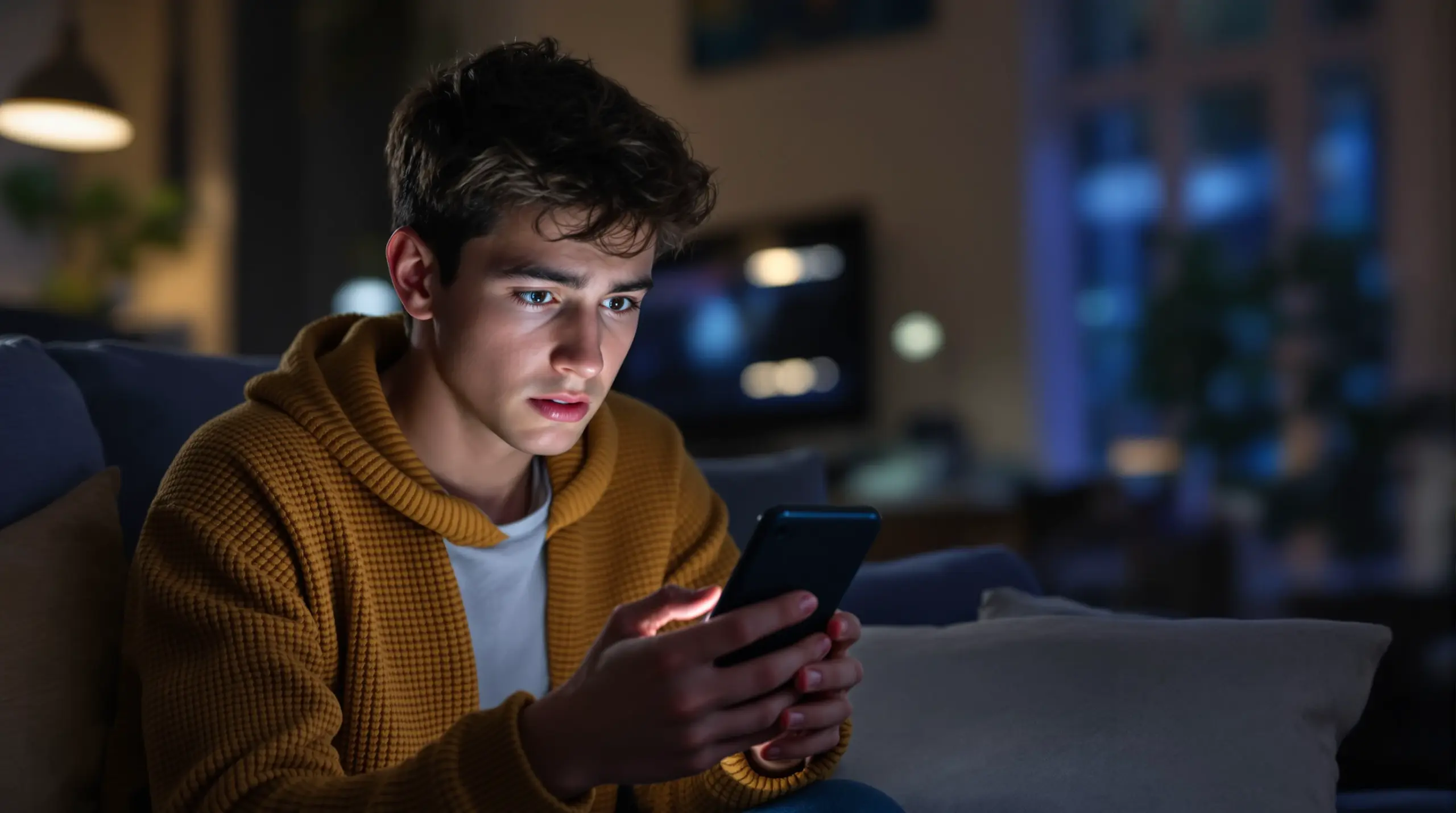
Can a teenager tell if Boomerang is installed on their device? This guide covers how Boomerang Parental Control appears on Android and iOS, what teens can detect, and how parents can maintain effective oversight.
Table of Contents
- Quick Summary
- How Visible Is Boomerang on a Child’s Device?
- What Can a Teen Actually Detect on Android?
- How Does Boomerang Appear on iOS Devices?
- Can a Teenager Bypass or Remove Boomerang?
- Questions from Our Readers
- Parental Control Visibility: Approach Comparison
- How Boomerang Parental Control Helps Your Family
- How to Set Up Boomerang So It Stays Effective in 5 Steps
- The Bottom Line
- Sources & Citations
Quick Summary
Can a teenager tell if Boomerang is installed? Yes – Boomerang Parental Control appears as a visible app on a child’s device and cannot be hidden. On Android, its icon shows in the app drawer. Strong uninstall protection means a teen can see it but cannot easily remove or bypass it without a parent’s PIN.
Quick Stats: can a teenager tell if boomerang is installed
- Boomerang’s Family Pack covers up to 10 child devices for $40 USD per year, as of 2025 (TechRadar, 2025)[1]
- Boomerang offers a 14-day free trial so parents can test visibility and controls before committing (TechRadar, 2025)[1]
- Android reporting includes daily email summaries, lists of installed apps, and per-app usage reporting (TechRadar, 2025)[1]
- Boomerang flags text messages containing inappropriate language on Android devices (SafeWise, 2025)[2]
How Visible Is Boomerang on a Child’s Device?
Can a teenager tell if Boomerang is installed? Yes – Boomerang Parental Control is intentionally visible on a child’s device and is not designed to run as a hidden spy app. Boomerang appears as a named app icon in the app drawer on Android devices, and parents should expect that any teenager with the phone in hand will be able to see it. This is by design: Boomerang’s philosophy centers on setting transparent boundaries and teaching responsible digital habits, not covert surveillance.
That transparency is a strength for most families. When a teenager knows monitoring tools are in place, the app functions as a neutral rule enforcer rather than a secret trap. The teen understands that limits on screen time, app usage, and web browsing exist – they just cannot easily get around them. This shifts family dynamics away from daily arguments and toward consistent, automated enforcement. Boomerang is built to end screen time battles, not to catch children off-guard.
START YOUR FREE TRIAL
Take control of screen time—free for 14 days, cancel anytime.




On Android devices, Boomerang’s app icon appears alongside other installed apps. The child can tap the icon and see that a parental control app is running. What they cannot easily do is turn it off, uninstall it, or change the settings without entering the parent’s PIN. The protection is designed to be seen but not defeated. This approach – visible presence, tamper-resistant control – is the core of what makes Boomerang effective for families managing pre-teens and teenagers on Android devices.
On iOS, the situation is slightly different. The Boomerang parent app runs on the parent’s phone, and monitoring capabilities on the child’s iPhone are more limited by Apple’s platform restrictions. A teenager using an iPhone will see fewer direct signs of Boomerang’s presence on their device, though location tracking and some scheduling features remain active. The platform-specific differences are covered in detail in the sections below.
What Can a Teen Actually Detect on Android?
On Android, a teenager will be able to identify several clear signs that Boomerang Parental Control is active on their device. The Boomerang child app icon is visible in the app drawer, the device locks automatically when screen time limits are reached, and specific apps are blocked or time-limited in ways that are immediately obvious during everyday use.
Beyond the icon itself, a tech-savvy teen will notice other signals. Attempting to install a new app triggers an approval request that pauses the install and sends a notification to the parent – the teen sees the app does not simply download as normal. Trying to open a blocked website in the SPIN Safe Browser returns a filtered page rather than the requested content. When daily screen time runs out, the device locks and displays a message indicating the limit has been reached. None of these enforcement actions are invisible.
What a teenager cannot easily do on Android is determine exactly what parents can see. Boomerang provides parents with detailed Android reporting that includes daily email summaries, lists of installed apps, and per-app usage data (TechRadar, 2025)[1]. As the TechRadar review notes, “On both platforms you’ll get to see your child’s web history and block certain websites, but Android’s reporting is much stronger thanks to detailed email summaries, daily reports, lists of installed apps and per-app usage reporting.”[1] The depth of that reporting is not surfaced on the child’s device – the teen sees controls in action but does not have access to the parent dashboard.
On Android, Boomerang also monitors YouTube app history and flags text messages containing inappropriate keywords (SafeWise, 2025)[2]. These monitoring features run in the background and are not announced by an on-screen indicator to the child. A teenager will know parental controls are present, but will not realize the full scope of what is being reported to their parent each day.
For families with a Boomerang Parental Control is the only parental control app to use Samsung’s Knox, an enterprise mobile security solution pre-installed in most of Samsung’s smartphones and tablets, the integration goes even deeper. On Samsung Galaxy devices, Boomerang uses Knox enterprise-grade security to lock its own processes in place, making the app exceptionally difficult for a teenager to interfere with at the system level.
How Does Boomerang Appear on iOS Devices?
On iOS, Boomerang’s presence on a child’s iPhone or iPad is considerably less visible than on Android, primarily because Apple’s platform restricts the depth of control third-party apps can exercise over the operating system. The Boomerang child-side experience on iOS is limited compared to Android, and a teenager using an iPhone will not notice any dedicated Boomerang app installed on their device at all.
The Boomerang parent app runs on the parent’s iPhone or Android phone and connects to the child’s Apple account to enable available features. Features like location tracking and scheduled screen time remain active, but many of the deep Android-only capabilities – per-app time limits, YouTube app history monitoring, call and SMS monitoring, and uninstall protection – are not available on iOS. As the SafeWise review confirms, “There’s no way to do this on an iOS device. The most you can do on an iPhone is see which apps your child has installed after downloading the Boomerang app.”[2]
For iOS families, this means a teenager will have less daily awareness of Boomerang’s activity simply because fewer active controls are enforcing rules on the device itself. Location tracking works silently in the background, and scheduled downtime locks the screen at set times, but the layered enforcement that makes Boomerang so visible on Android – the locking app drawer, blocked installs, per-app timers – does not apply to iPhones in the same way.
Parents managing an iOS child device should use Boomerang alongside Apple’s built-in Screen Time settings to fill capability gaps. The SPIN Safe Browser – Safe web browsing for Boomerang Parental Control is available on both Android and iOS and provides consistent web filtering and SafeSearch enforcement across platforms without requiring any VPN or network configuration. Installing SPIN Safe Browser on a child’s iPhone gives parents a meaningful, visible layer of protection even where Boomerang’s deeper features are unavailable.
The key takeaway for iOS families is that Boomerang is most powerful on Android. If your child uses an iPhone and you need stronger enforcement, Boomerang’s feature set is more limited by design – not a gap in Boomerang’s capabilities, but a reflection of Apple’s platform boundaries for third-party parental control apps.
Can a Teenager Bypass or Remove Boomerang?
A teenager can see that Boomerang is installed, but removing or bypassing it on Android is extremely difficult by design. Boomerang’s uninstall protection is one of its most important features: without the parent’s PIN, the app cannot be deleted, and on Samsung Galaxy devices, Samsung Knox integration locks Boomerang’s processes at the enterprise security level, making tampering virtually impossible without the parent’s knowledge.
This matters because tech-savvy teenagers routinely defeat simpler parental controls. Google Family Link and Apple Screen Time, for example, have well-documented workarounds that teenagers share with each other. Boomerang was built specifically to address this frustration. Parents who have already experienced a teenager disabling Google Family Link will find Boomerang’s uninstall protection a significant upgrade. If a child attempts to remove the app or change protected settings, the parent receives a notification alert.
On iOS, bypass protection works differently. Apple’s platform does not allow the same level of lock-down, so Boomerang relies on notification-only tamper alerts rather than active prevention. If a teenager on an iPhone tampers with related settings, the parent is notified – but the app cannot actively stop the action the way Knox integration can on Samsung Android devices. This is an important platform difference parents should factor into their device choice when setting up controls for a teenager.
For Android users, the combination of uninstall protection and Boomerang Parental Control – screen time features means that even when a teenager knows the app is there, they cannot simply turn off the rules. The Boomerang Parental Control Review from SafeWise confirms the app’s core feature set for blocking content and creating screen time schedules (SafeWise, 2025)[2]. Automated enforcement – not a parent standing over the child’s shoulder – is what keeps the rules in place day after day.
Questions from Our Readers
Can a teenager tell if Boomerang is installed by looking at their phone?
On Android, a teenager can tell Boomerang is installed because the app icon appears visibly in the app drawer and enforcement actions like device locking and blocked installs are noticeable during daily use. Boomerang is not a hidden monitoring app; it is a transparent parental control tool designed to enforce rules that both the parent and child are aware of. On iOS, the child-side presence is less obvious because Apple’s platform limits how deeply third-party apps can integrate with the operating system. A teenager on an iPhone will see little evidence of Boomerang on their device, though features like location tracking and scheduled screen time still operate in the background. The app’s transparency is intentional – it teaches accountability rather than enabling covert surveillance.
What happens if a teenager tries to delete Boomerang from their Android phone?
If a teenager tries to delete Boomerang from their Android phone, the uninstall protection feature blocks the attempt and the parent receives a tamper notification alert. Boomerang requires the parent’s PIN to be uninstalled, and on Samsung Galaxy devices, the integration with Samsung Knox enterprise security makes tampering at the system level exceptionally difficult – even for tech-savvy teenagers who have previously bypassed tools like Google Family Link. This is one of Boomerang’s most important differentiators: the app is designed specifically to resist the workarounds teenagers use to defeat simpler parental controls. On iOS, active prevention is not possible due to Apple’s platform restrictions, so Boomerang sends a notification alert when the parent’s settings are interfered with rather than blocking the action outright. Parents managing a tech-savvy teenager on Android will find the uninstall protection a meaningful upgrade over free built-in tools.
Can a teenager see what their parents are monitoring through Boomerang?
A teenager cannot access the parent dashboard or see the specific reports that Boomerang sends to the parent’s device, even though they can see that the app is installed. On Android, Boomerang sends parents detailed daily email summaries, lists of installed apps, per-app usage data, and YouTube app history (TechRadar, 2025)[1]. The depth of this reporting is not visible to the child – the teen sees that controls are active but does not know exactly which activities are being reported or how frequently. Call and SMS history monitoring on Android also operates without a visible indicator on the child’s screen (AirDroid, 2024)[3]. Parents can use this information gap productively: because teenagers know monitoring is in place without knowing every detail, it encourages more responsible behavior without requiring parents to disclose the full scope of their oversight.
Does Boomerang work differently on Android than on iOS for teenagers?
Yes – Boomerang works significantly differently on Android than on iOS, with Android offering far deeper control and monitoring capabilities for parents managing teenagers. On Android, Boomerang provides per-app time limits, YouTube app history monitoring, call and SMS safety monitoring, keyword alerts in text messages, and uninstall protection backed by Samsung Knox on supported devices. On iOS, the available features are limited by Apple’s platform restrictions to scheduled screen time, location tracking, basic app visibility, and tamper notifications rather than active prevention. Families where a teenager uses an Android device benefit from the full Boomerang feature set. Families with an iPhone-using teen should supplement Boomerang with Apple’s built-in Screen Time controls and install SPIN Safe Browser for consistent web filtering across any network. Choosing the right device platform matters significantly when setting up parental controls for a teenager.
Parental Control Visibility: Approach Comparison
Choosing how to deploy parental controls on a teenager’s device involves trade-offs between visibility, enforcement strength, and platform. The table below compares the most common approaches parents use, including Boomerang Parental Control, built-in platform tools, and covert monitoring methods, across the factors that matter most for families.
| Approach | Visible to Teen | Uninstall Protection | Android Depth | iOS Support | Reporting to Parent |
|---|---|---|---|---|---|
| Boomerang Parental Control (Android) | Yes – app icon visible | Strong; Samsung Knox on supported devices | Full feature set including YouTube history, SMS monitoring, per-app limits | Limited; scheduled time and location only | Daily email summaries, per-app reports (TechRadar, 2025)[1] |
| Google Family Link | Yes | Weak; commonly bypassed by teenagers | Moderate; lacks YouTube app history and SMS monitoring | Not available | Basic app usage data |
| Apple Screen Time | Yes (settings menu) | Weak on older iOS; teen can reset with Apple ID | Not available | Native; moderate depth | Weekly screen time reports |
| Covert monitoring apps | No – hidden from teen | Varies | Varies | Varies | Detailed but raises ethical and legal concerns |
How Boomerang Parental Control Helps Your Family
Boomerang Parental Control is designed for parents who want rules that stick – especially on Android devices where teenagers are most likely to test boundaries. At Boomerang Parental Control – Taking the battle out of screen time for Android and iOS, we combine transparent, visible enforcement with tamper-resistant protection so parents can set rules once and trust they will be followed.
Our Android-first platform offers the deepest feature set available for families managing pre-teens and teenagers. Screen time scheduling automatically locks the device at bedtime or during homework hours without any daily parental intervention. Per-app time limits let you cap entertainment apps at 30 minutes while marking educational tools as Encouraged so they are never restricted. YouTube app history monitoring gives you visibility into what your child is actually watching – a capability that most competitors and free tools simply do not offer. And for families worried about a teenager who has already bypassed simpler controls, our uninstall protection backed by Samsung Knox integration makes Boomerang the hardest parental control app for a tech-savvy teen to defeat.
Our customers have shared what that difference means in practice. “This is a great application! I have control back over my child’s phone and applications because she managed to circumvent family link. I have no idea how she did that but she managed to find a way, as did other kids. That was a major frustration for us. But now with Boomerang, I can manage her time, what applications she uses and what sites she visits.” – Joe Eagles, Google Play review
“Hey fellow parents, So far this the best parental control app .. hands down. So far the only app my 11 year old was not able to bypass. Big Shout out to developers for making such a great app.” – Jason H, Google Play review
For iOS families, our SPIN Safe Browser provides consistent content filtering on any network without VPN or router configuration, and location tracking with geofencing keeps you informed of your child’s whereabouts. We also offer a 14-day free trial (TechRadar, 2025)[1] so you can test every feature before committing, and our Family Pack covers up to 10 devices for $40 USD per year – enterprise-grade protection at a family-friendly price. Reach us any time at [email protected] or through our Contact section for support via email and access to our Knowledge Base.
How to Set Up Boomerang So It Stays Effective in 5 Steps
Step 1: Install Boomerang on the Parent Device First
Download and create your parent account on the Boomerang app before touching the child’s device. Setting up the parent account first lets you configure rules, PIN protection, and notification preferences before the child’s phone is enrolled – preventing any window where the device is unprotected.
Step 2: Install Boomerang on the Child’s Android Device (or Use the Sideload Option)
Install the child-side app from Google Play or use the Sideload download page for Android devices to access the full feature set including call and text safety and enhanced app removal protection. The sideload version provides stronger uninstall protection on non-Samsung devices where Knox is unavailable.
Step 3: Enable Uninstall Protection Immediately
Activate uninstall protection and set your parent PIN before handing the device back to your teenager. On Samsung Galaxy devices, also enable Samsung Knox integration for the strongest available tamper resistance. This single step is what prevents a tech-savvy teen from simply removing the app the moment they have the phone.
Step 4: Configure Screen Time Schedules and App Rules
Set daily time limits, bedtime lockdowns, and per-app restrictions to match your family’s routines. Mark educational or health apps as Encouraged so they are never blocked even when daily screen time runs out. This automated scheduling means you do not need to manually intervene each evening – the app enforces the rules for you.
Step 5: Review Daily Reports and Adjust Rules as Trust Develops
Check the daily email summaries Boomerang sends to your parent account, reviewing app usage, YouTube history on Android, and any flagged text messages or new app install requests. Use this information to have informed conversations with your teenager and gradually loosen restrictions as they show responsible digital habits – turning oversight into a trust-building process rather than a permanent restriction.
The Bottom Line
Can a teenager tell if Boomerang is installed? On Android, yes – the app is visible and enforcement is unmistakable. What teenagers cannot do is easily remove it or bypass the rules it enforces, particularly on Samsung Galaxy devices where Knox integration provides enterprise-level tamper resistance. On iOS, Boomerang’s presence is lighter by necessity, though location tracking and scheduled downtime remain active. For families who need dependable, transparent parental controls that a tech-savvy teenager cannot simply delete, Boomerang Parental Control offers the strongest Android solution available at a family-friendly price. Try it free for 14 days and see the difference consistent, automated enforcement makes for your household. Visit useboomerang.com or email us at [email protected] to get started today.
Sources & Citations
- Boomerang Parental Control software review. TechRadar.
https://www.techradar.com/reviews/boomerang-parental-control-software - Boomerang Parental Control Review. SafeWise.
https://www.safewise.com/kids-safety/parental-control-apps/boomerang/ - Boomerang Parental Control Review in 2024. AirDroid.
https://www.airdroid.com/parent-control/boomerang-parental-control-review/
START YOUR FREE TRIAL
Take control of screen time—free for 14 days, cancel anytime.
