
05
Aug
2026
Can Boomerang See What Apps My Child Is Using?
August 5, 2026
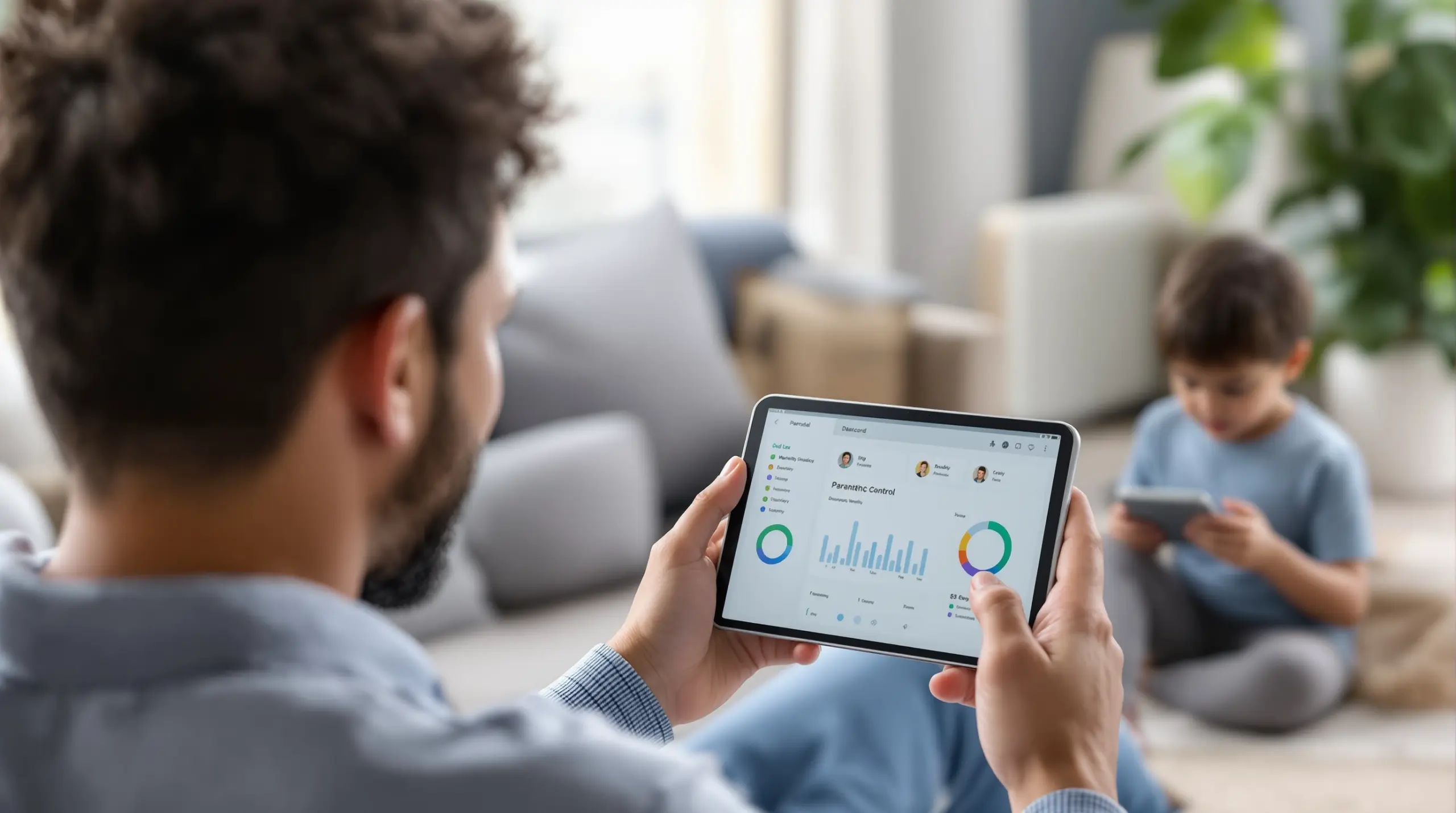
Can boomerang see what apps my child is using? Yes – Boomerang Parental Control gives parents a detailed breakdown of every app installed and used on their child’s Android device, with up to 30 days of usage history available in the parent dashboard.
Table of Contents
- What App Information Can Boomerang Actually See?
- How Does App Monitoring Work on Android vs. iOS?
- YouTube Monitoring and Content Visibility
- How Do You Control Which Apps Your Child Can Use?
- Frequently Asked Questions
- Comparing Parental Control App Monitoring Approaches
- How Boomerang Parental Control Helps Your Family
- How to Set Up App Monitoring with Boomerang in 5 Steps
- The Bottom Line
- Sources & Citations
Article Snapshot
Can boomerang see what apps my child is using is a question with a clear answer: yes, on Android child devices. Boomerang Parental Control tracks installed apps, daily usage by individual app, and YouTube viewing history – all viewable in a parent dashboard for up to 30 days.
Quick Stats: can boomerang see what apps my child is using
- Boomerang’s app usage reports show individual app usage on a daily basis for up to 30 days on Android child devices (Boomerang, 2026)[2]
- Boomerang’s web dashboard lists all installed apps on a child’s Android device in one place (Boomerang, 2026)[2]
- Boomerang’s YouTube monitoring on Android covers two types of activity: viewing history and search history (Boomerang, 2026)[1]
- Parents receive alerts across three categories when new apps are installed – games, social media, and inappropriate apps (Google Play, 2026)[3]
What App Information Can Boomerang Actually See?
Can boomerang see what apps my child is using – and in how much detail? On Android child devices, Boomerang provides two distinct layers of app visibility: a complete list of every installed app on the device, and a time-based breakdown of how long your child spent in each individual app on any given day.
Boomerang Parental Control, available at useboomerang.com, is designed to give parents this kind of practical, daily insight without requiring you to physically hold your child’s phone. The parent dashboard, accessible from any browser or the Boomerang parent app, organizes this information clearly so you can see patterns at a glance.
START YOUR FREE TRIAL
Take control of screen time—free for 14 days, cancel anytime.




According to Boomerang’s product demo narration, the platform provides “a breakdown of individual app usage on a daily basis for up to 30 days” for Android child devices (Boomerang product demo narration, 2026)[2]. This means you can look back over the past month and identify whether your child is spending an hour on a learning app or three hours in a game – on each specific day.
The installed apps list is a separate but equally useful feature. As Boomerang’s dashboard documentation confirms: “Installed Apps: lists all installed apps on your child’s device. Apps Usage: lists the app usage for up to 30 days” (Boomerang product demo narration, 2026)[2]. Knowing which apps are installed – not just which ones are being used – helps you catch new downloads early, before a risky app becomes a habit.
This level of visibility is particularly valuable for parents who want to stay informed without hovering. The Boomerang Parental Control screen time features work alongside the app monitoring dashboard, giving you a full picture of both what your child is using and for how long each day.
How Does App Monitoring Work on Android vs. iOS?
App usage monitoring in Boomerang is primarily an Android feature, and parents choosing between platforms for their child’s device should understand this distinction clearly before setting up their family’s plan.
On Android child devices, Boomerang delivers the full monitoring experience: installed app lists, per-app daily usage breakdowns, usage history for up to 30 days, YouTube viewing and search history, and call and text logs (Boomerang, 2026)[1]. These capabilities are powered by deeper Android system access that Apple’s iOS platform does not permit third-party apps to use in the same way.
On iOS child devices, Boomerang’s monitoring is more limited. Screen time scheduling – setting fixed hours when the device locks – is supported, as is location tracking and access to the SPIN Safe Browser for safe web browsing. However, per-app usage reporting, YouTube history monitoring, and SMS monitoring are not available on iOS child devices. If app-level visibility is a priority for your family, an Android device for your child will give you the most comprehensive picture.
The parent-side app – the one you use to review reports and adjust settings – works on both Android and iOS parent devices (Boomerang, 2026)[1]. So even if you use an iPhone yourself, you can fully manage and review your child’s Android device from your own phone. The platform difference that matters is the child’s device, not yours.
This Android-first design is a deliberate choice. Android’s operating system gives Boomerang the system-level permissions needed to track usage across all installed apps – something Apple restricts for third-party developers. Parents setting up a child’s first device in the United States or Canada who want full app monitoring should factor this into the device decision.
YouTube Monitoring and Content Visibility
YouTube history monitoring is one of Boomerang’s most distinctive features for Android child devices, giving parents direct visibility into what their child is watching and searching within the YouTube app – not just YouTube Kids.
Most children aged 10 and older use the main YouTube app, not YouTube Kids. The main YouTube app contains content across every imaginable topic, and the platform’s recommendation algorithm surfaces unexpected material. Knowing your child’s search history and viewing history gives you the context to have real, informed conversations about what they’re discovering online.
Boomerang’s support documentation states that parents can “review your child’s viewing history and searches made in the Android YouTube app (YouTube Kids not required)” (Boomerang support documentation, 2026)[1]. This means the monitoring applies to the full YouTube experience your child actually uses – not a filtered child-specific version they have already outgrown or bypassed.
Boomerang’s product overview video makes an even stronger claim: “We are the only parental control app that currently provides monitoring of the YouTube app’s viewing and search history (Android only child devices)” (Boomerang product demo narration, 2026)[4]. For parents who have tried other parental control apps and found YouTube to be a blind spot, this Android-specific capability closes a gap that many competing solutions leave open.
Content visibility extends beyond YouTube. Boomerang’s web filtering, powered by the independently reviewed SPIN Safe Browser, blocks millions of inappropriate websites automatically across any network – without requiring a VPN or router changes. Together, YouTube monitoring and web filtering give parents overlapping layers of content protection on Android devices.
How Do You Control Which Apps Your Child Can Use?
Seeing which apps your child uses is only half the equation – Boomerang also gives parents active control over which apps are allowed on the device in the first place, through an app approval and blocking system built into the dashboard.
When your child attempts to install a new app from the Google Play Store, Boomerang sends you an alert. You then approve or block the app before your child can use it. This approval-first workflow means you are the gatekeeper for every new game, social media app, or utility that lands on the device. Boomerang’s Google Play listing describes this directly: “Monitor and control app installations and usage. Approve or block new apps and receive alerts for games, social media and even inappropriate apps” (Boomerang support documentation, 2026)[3].
Beyond new installs, parents can set per-app time limits on Android – for example, capping a specific game at 30 minutes per day while leaving a school portal completely unrestricted. Apps you designate as “Encouraged” bypass daily screen time limits entirely, so homework tools and educational apps are always accessible even after entertainment time has run out.
For parents setting up a child’s first Android device, the sideload download page for Android devices includes an install method that enables Boomerang’s full tamper-resistant features, including uninstall protection. This is particularly relevant for older children and teenagers who attempt to remove monitoring apps – a challenge that Boomerang addresses directly through Samsung Knox integration on supported Samsung devices, which makes the app exceptionally difficult to remove without a parent PIN.
The Boomerang Parental Control Review on SafeWise notes the platform’s combination of visibility and enforcement as a standout strength. Monitoring without control is frustrating; control without visibility is guesswork. Boomerang combines both on Android devices, giving parents a complete toolkit rather than a partial solution.
Your Most Common Questions
Can boomerang see what apps my child is using on both Android and iOS devices?
Boomerang sees every installed app and delivers a full per-app daily usage breakdown on Android child devices, but app usage monitoring is not available on iOS child devices. On Android, the Boomerang dashboard shows every installed app and a per-app daily usage breakdown going back up to 30 days (Boomerang, 2026)[2]. This includes time spent in individual apps like games, social platforms, and educational tools – organized by day so you can spot patterns over time.
On iOS child devices, Boomerang’s capabilities are more limited by Apple’s platform restrictions. Scheduled screen time and location tracking are available on iOS, but per-app reporting, YouTube history, and SMS monitoring are Android-only features. If detailed app-level visibility is a primary concern for your family, setting your child up with an Android device gives you access to the full Boomerang feature set. Your own parent device can be either Android or iOS – the platform difference applies to the child’s device only.
How far back can I see my child’s app usage history in Boomerang?
Boomerang stores your child’s app usage history for up to 30 days, giving you a rolling month of daily breakdowns for each installed app on their Android device (Boomerang, 2026)[2]. This means you can look back to any specific day in the past month and see exactly which apps were used and for how long – not just a summary total, but a day-by-day record.
Thirty days of history is practically useful for identifying weekly patterns. If your child consistently spends more time on games on school nights than on weekends, you can see that trend clearly and adjust per-app limits accordingly. The same 30-day window applies to location history, as noted in Boomerang’s Google Play listing (Google Play, 2026)[3]. For parents who don’t check the dashboard every single day, this history window means you won’t miss important usage patterns just because you were busy during the week.
Does Boomerang show YouTube watch history on my child’s phone?
Yes, Boomerang shows both the viewing history and search history from the main YouTube app on Android child devices – not just YouTube Kids (Boomerang support documentation, 2026)[1]. This is one of Boomerang’s most requested features, because the main YouTube app is where most older children spend their video time, and its recommendation algorithm surfaces content parents would want to know about.
The monitoring covers what your child has searched for within YouTube and which videos they have watched – giving you genuine visibility into their interests and any concerning content they encountered. Boomerang’s own product overview states it is the only parental control app currently providing this level of YouTube app monitoring for Android child devices (Boomerang product demo narration, 2026)[4]. This feature does not work on iOS child devices, as Apple’s platform restrictions prevent the same level of app-specific monitoring. If YouTube visibility is a priority, an Android device for your child is the right choice.
Can my child delete Boomerang to hide their app activity from me?
On Android devices, Boomerang includes uninstall protection that makes it extremely difficult for children to remove the app or tamper with its settings without a parent PIN. On Samsung devices specifically, Boomerang integrates with Samsung Knox – Samsung’s enterprise-grade mobile security platform – to provide an additional layer of tamper resistance that very few competing parental control apps match.
This is a meaningful differentiator. Many parents find that children – especially tech-savvy teenagers – can disable Google Family Link or Apple Screen Time with relative ease. Boomerang’s uninstall protection is specifically designed to close that loophole. The Samsung Knox integration means that even a determined teenager with technical knowledge faces genuine barriers to removing the app. On iOS child devices, Boomerang provides notification-only tamper alerts rather than active prevention – another reason Android is the stronger platform for families where bypass attempts are a concern. Once installed with uninstall protection active, the monitoring and control features stay in place reliably.
Comparing Parental Control App Monitoring Approaches
Not all parental control apps approach app monitoring the same way. The table below compares four common approaches across the features most relevant to parents asking whether they can see what apps their child is using.
| Approach | App Usage Reporting | YouTube History | Uninstall Protection | App Approval Required |
|---|---|---|---|---|
| Boomerang Parental Control (Android child device) | Per-app daily breakdown, up to 30 days (Boomerang, 2026)[2] | Viewing and search history in YouTube app (Boomerang, 2026)[1] | Strong – Samsung Knox on supported devices | Yes – parent approves every new install |
| Built-in Free Controls (Google Family Link / Apple Screen Time) | Basic screen time totals only | Not available | Limited – commonly bypassed by older children | Partial – child can request, parent can approve |
| Monitoring-Only Apps (alert-based approach) | Alerts for flagged content, no usage history | Not available | Varies – weak | No – reactive alerts only, no gatekeeping |
| Boomerang Parental Control (iOS child device) | Not available on iOS child devices | Not available on iOS | Notification-only on iOS | Age-based app hiding only |
How Boomerang Parental Control Helps Your Family
Boomerang Parental Control is built for parents who want genuine visibility into their child’s digital life – not just a list of blocked websites, but a real-time and historical picture of how their child spends time on their device every day.
The app monitoring features sit at the center of what Boomerang offers for Android child devices. From the web dashboard, you can review every installed app, see a daily breakdown of time spent in each app going back 30 days (Boomerang, 2026)[2], monitor YouTube viewing and search history, and approve or block any new app your child attempts to install. These aren’t separate tools – they’re integrated into a single parent dashboard you can access from your own phone, whether you use Android or iOS yourself.
Parents who’ve used Boomerang speak to the difference it makes in daily family life. “I have control back over my child’s phone and applications because she managed to circumvent family link… But now with Boomerang, I can manage her time, what applications she uses and what sites she visits. I especially find the time-out and extend-time functionalities very useful.” – Joe Eagles, Google Play review
“Hey fellow parents, So far this is the best parental control app… hands down. So far the only app my 11 year old was not able to bypass. Big shout out to developers for making such a great app.” – Jason H, Google Play review
Boomerang is available for Android child devices via Google Play or as a direct sideload install from the download page – with the sideload method enabling the full tamper-resistant feature set including Samsung Knox integration. iOS child device support is available with limited features, and the parent app works on both platforms. Annual subscriptions cover a single device, and a Family Pack is available for households managing up to 10 child devices. Visit Boomerang Parental Control – Taking the battle out of screen time for Android and iOS to explore plans and get started.
How to Set Up App Monitoring with Boomerang in 5 Steps
Step 1: Install Boomerang on Your Child’s Android Device
Download Boomerang Parental Control from Google Play on your child’s Android device, or use the sideload download page for Android devices to install the version that includes full uninstall protection and Samsung Knox integration on supported Samsung devices. The sideload method is recommended for families with tech-savvy children or teenagers who attempt to bypass the app.
Step 2: Install the Boomerang Parent App on Your Own Device
Download the Boomerang parent app on your own smartphone – available for both Android and iOS. Create your parent account and link it to your child’s device by following the guided setup prompts. Your parent app is where you’ll review app usage reports, approve or block new installs, and adjust screen time settings.
Step 3: Enable App Approval and Review the Installed Apps List
In your parent dashboard, turn on App Discovery and Approval so that every new app your child tries to install requires your sign-off before it becomes usable. Then review the installed apps list – the dashboard shows every app currently on your child’s device, giving you a baseline picture of what’s already there before you set any limits.
Step 4: Set Per-App Time Limits and Mark Encouraged Apps
Use the per-app controls to set daily time limits on entertainment apps like games and social media. Then designate any educational or health apps as “Encouraged” – these apps will remain accessible even after your child’s daily screen time limit is reached. This step is Android-only and is where Boomerang’s digital balance philosophy is most directly put into practice.
Step 5: Check the App Usage Report and YouTube History Regularly
After a few days of use, open your parent dashboard and review the app usage report. Check which apps are consuming the most of your child’s daily screen time, and review the YouTube viewing and search history (Android only) to understand what content your child is engaging with. Use this information to have informed conversations with your child about their digital habits – the goal isn’t just enforcement, it’s building the foundation for responsible, self-managed device use over time.
The Bottom Line
Can boomerang see what apps my child is using? On Android child devices, the answer is a confident yes – and in meaningful detail. Boomerang Parental Control gives parents a full installed-app list, per-app daily usage breakdowns for up to 30 days, YouTube viewing and search history, and app approval gatekeeping, all from a single parent dashboard. On iOS child devices, app monitoring is not available, making the choice of your child’s device an important one if visibility is a priority for your family.
Whether you’re setting up a first smartphone for an 11-year-old or trying to regain control after a teenager has bypassed simpler tools, Boomerang provides the combination of monitoring and enforcement that free built-in options do not match. Reach out to the team at [email protected] or visit the Boomerang contact page to get started or ask any setup questions.
Sources & Citations
- Boomerang Parental Control – Android and iOS Screen Time. Boomerang.
https://useboomerang.com/ - Boomerang Web Dashboard overview. Boomerang.
https://www.youtube.com/watch?v=6shLpbyNyXI - Boomerang Parental Control – Apps on Google Play. Google Play.
https://play.google.com/store/apps/details?id=com.nationaledtech.Boomerang&hl=en_SG - Boomerang Parental Control – iOS Parent Mode Overview. Boomerang.
https://www.youtube.com/watch?v=t9Lg5ToRWTw
START YOUR FREE TRIAL
Take control of screen time—free for 14 days, cancel anytime.
