
07
Aug
2026
Does Boomerang Work with Amazon Fire TV?
August 7, 2026
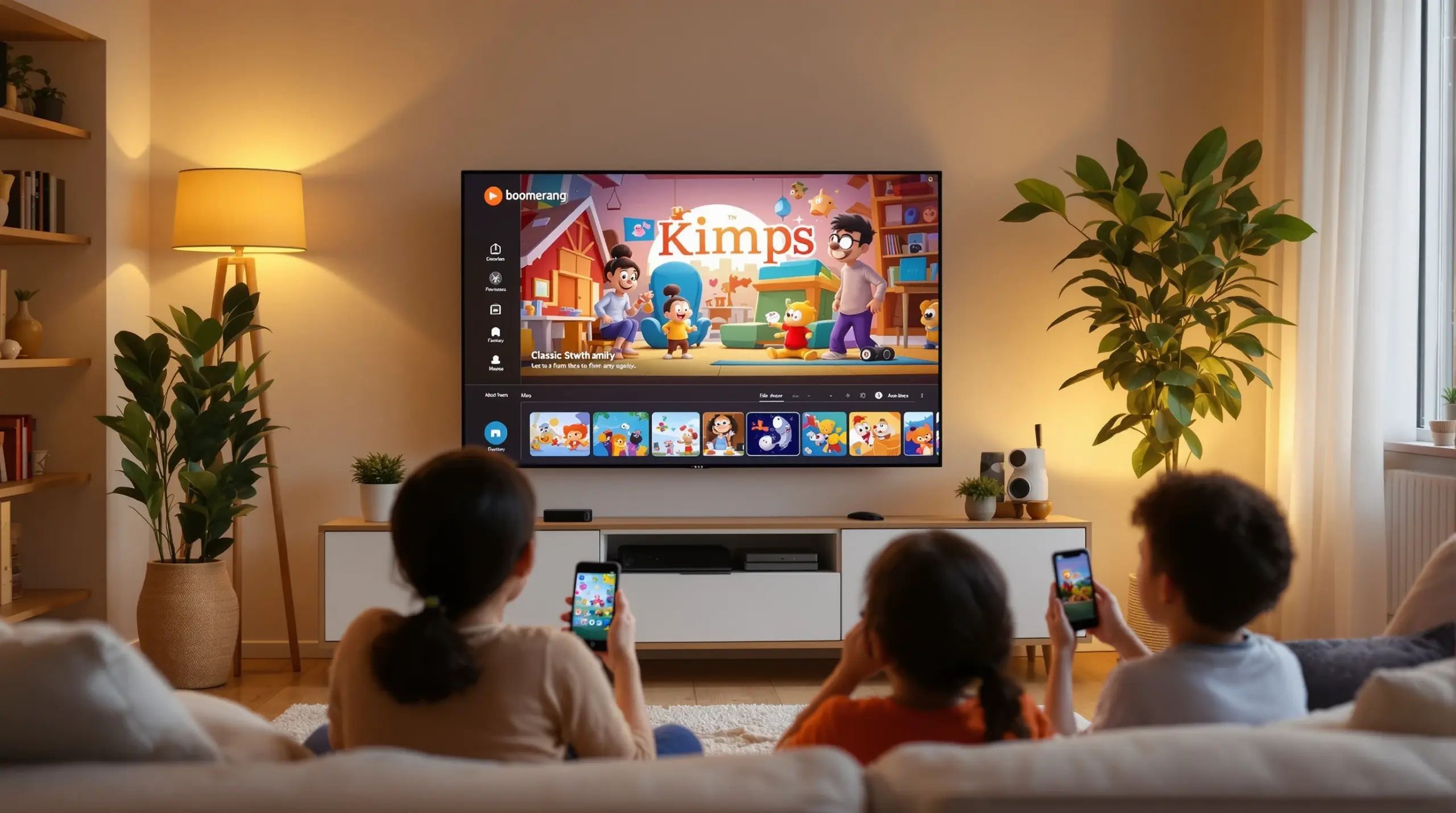
Does boomerang work with Amazon Fire TV? No. Boomerang Parental Control is a mobile app for Android and iOS smartphones and tablets – it cannot be installed on a Fire TV device and it cannot manage one. There is also a second Boomerang that families sometimes mean: the Boomerang cartoon streaming app, and that service was shut down by Warner Bros. Discovery on September 30, 2024, so it is no longer in the Amazon Appstore either. This guide gives you the direct answer, explains what actually protects children on Fire TV, and shows how Boomerang covers the smartphone and tablet your child carries.
Table of Contents
- Does Boomerang Work with Amazon Fire TV? The Direct Answer
- The Boomerang Streaming App Left Amazon Fire TV in September 2024
- How to Protect Your Child on Amazon Fire TV
- Amazon Kids: Age-Based Content for Younger Children
- Where Boomerang Parental Control Does Work
- Android vs. iOS: What Boomerang Supports on Each Platform
- Why Fire TV Rules Need Mobile Rules Alongside Them
- Comparison: Matching Each Device to the Right Tool
- How to Set Up Fire TV and Mobile Protection in 5 Steps
- Your Most Common Questions
- The Bottom Line
- Sources & Citations
Article Snapshot
Does boomerang work with Amazon Fire TV – the honest answer is no. Boomerang Parental Control is a mobile app for Android and iOS smartphones and tablets only, and it does not run on Fire TV sticks, cubes, or smart TVs. Separately, the Boomerang cartoon streaming app was discontinued on September 30, 2024, and removed from the Amazon Appstore. Protect Fire TV with Amazon’s built-in parental controls, and protect your child’s phone and tablet with Boomerang Parental Control.
Boomerang Platform Support in Context
- Boomerang Parental Control is available on Android smartphones and tablets via Google Play or sideload download
- iOS support is available with limited features: scheduled screen time, location tracking, SPIN Safe Browser, and notification-only tamper alerts
- Boomerang Parental Control cannot be installed on Amazon Fire TV, any smart TV, or any game console
- The Boomerang cartoon streaming app was discontinued on September 30, 2024 and its library moved to Max[1]
Does Boomerang Work with Amazon Fire TV? The Direct Answer
No. Boomerang Parental Control does not work with Amazon Fire TV. Our app is not available in the Amazon Appstore for Fire TV devices, it has no integration with Fire TV, and no mobile parental control app can manage a Fire TV stick, cube, or Fire TV Edition television. Boomerang is built exclusively for mobile devices: Android smartphones and tablets receive the full feature set, and iOS devices are supported with a limited feature set. Any page that tells you our parental control app runs on Fire TV is wrong.
Parents who search “does boomerang work with Amazon Fire TV” are usually in one of two situations. Either they want our parental control app to manage the Fire TV, which is not possible, or they remember the Boomerang cartoon app and are trying to find it again. The first case has a clear answer: use Amazon’s own Fire TV parental controls, which are free and built in. The second case has a surprising answer: the app is gone for good, and the next section explains what happened and where that content went.
START YOUR FREE TRIAL
Take control of screen time—free for 14 days, cancel anytime.




The Boomerang Streaming App Left Amazon Fire TV in September 2024
If you are trying to reinstall the Boomerang cartoon app on a Fire TV stick, you will not find it in the Amazon Appstore – and that is not a problem with your account. Warner Bros. Discovery shut down the Boomerang streaming app and website on September 30, 2024, after more than seven years of operation[1]. Paid subscribers were moved to Max, where the classic cartoon library was folded into the main service[2], and the standalone app was removed from TV platforms and app stores, including Amazon’s.
This matters because some older guides still describe installing the Boomerang app from the Amazon Appstore, subscribing through Amazon billing, or adding Boomerang as a Prime Video channel. All of that advice is obsolete. Today, the classic Boomerang cartoons are accessed through Max, including on Fire TV devices via the Max app, and parental controls for that viewing are handled through Max’s own profile and maturity settings rather than through any Boomerang-branded tool.
How to Protect Your Child on Amazon Fire TV
The right tool for Fire TV is Amazon’s own built-in parental controls, and they cover the things parents care about most on that platform:
- Parental PIN: create a PIN that gates purchases and restricted content, so children cannot buy movies or open apps above their level.
- Content restrictions: set maturity limits for movies, TV shows, and apps based on ratings.
- Purchase approval: prevent unauthorized spending in the Amazon store from the TV.
- Restricted profiles: keep children on a managed experience rather than the main profile.
You will find these under Settings, then Preferences, then Parental Controls on the Fire TV home screen. Setup takes a few minutes: choose a PIN your child does not know, set the restriction level, and the device enforces the rules on its own. Amazon’s own customer service help pages are the best reference for the exact steps on your Fire TV model[3].
Amazon Kids: Age-Based Content for Younger Children
For younger children, Amazon Kids (formerly FreeTime) is the purpose-built option on Fire TV devices. It wraps viewing in a child-appropriate experience with age-filtered content and parental controls managed from your own account. It is a separate subscription from the standard Fire TV experience, and it is worth evaluating if the TV is mainly used by pre-teen children. Whichever route you choose – standard parental controls or Amazon Kids – the key fact is the same: Fire TV protection comes from Amazon’s own tools, not from any third-party mobile app.
Where Boomerang Parental Control Does Work
Boomerang Parental Control works on the screens children carry everywhere: smartphones and tablets. On Android, install from Google Play or use the sideload download on our website for the complete feature set. On iOS, install from the App Store with limited features. Here is what Boomerang covers on mobile – and only on mobile.
- Screen Time Scheduling and Daily Limits: automatic lock windows for homework and bedtime, plus a total daily allowance on Android.
- Per-App Limits and Encouraged Apps (Android only): individual time budgets for specific apps, with educational apps exempted from limits.
- App Discovery and Approval: every new app install requires your sign-off before your child can use it.
- SPIN Safe Browser and web filtering: blocks inappropriate websites and enforces safe search.
- YouTube App History Monitoring (Android only): visibility into what your child watches and searches in the YouTube app.
- Call and Text Safety (Android only): call and SMS logs, keyword alerts, and optional blocking of unknown numbers.
- Location Tracking and Geofencing: real-time location and alerts when your child arrives at or leaves places like school.
- Uninstall Protection: reinforced with Samsung Knox integration on supported Samsung devices, making removal by a child very difficult.
Explore the complete feature set on the Boomerang Parental Control homepage, and see the sideload download page for how Android devices receive the full feature set including Call and Text Safety.
Android vs. iOS: What Boomerang Supports on Each Platform
We are direct about this because it affects your purchase decision: Boomerang is an Android-first product. Android smartphones and tablets receive the full feature set above because Android permits deeper device integration. iOS devices are supported, but Apple’s platform rules restrict what any third-party parental control app can do on an iPhone or iPad.
On iOS, Boomerang provides scheduled screen time, location tracking, the SPIN Safe Browser, and notification-only tamper alerts – you are notified if the app is removed, but the removal cannot be actively blocked. YouTube App History Monitoring, Call and Text Safety, keyword alerts in messages, per-app time limits, and allocated timers are Android-only features and are not available on iOS child devices. Our Android vs. iOS comparison page lists every difference, and we recommend reading it before you subscribe.
Why Fire TV Rules Need Mobile Rules Alongside Them
A Fire TV with a PIN still only covers the television. When viewing time ends, a child reaches for a phone or tablet – and if that device has no rules, the Fire TV settings only move the screen time problem rather than solve it. That is why the effective setup is layered: Amazon’s controls on the Fire TV, and Boomerang Parental Control on the smartphone and tablet, with the household totals aligned.
Match the allowances: if the TV gets one hour of cartoons on a school day, the mobile daily limit should leave room for homework and sleep rather than stacking more entertainment time on top. Boomerang’s automated scheduling enforces those windows without you playing police – the device locks itself at the appointed time, every day. Independent reviewers have covered how these mobile-side tools behave in real family use, including the TechRadar Boomerang review and the SafeWise Boomerang review. Review the daily activity reports Boomerang emails you each week, keep limits proportionate, and loosen them gradually as your child earns trust.
Comparison: Matching Each Device to the Right Tool
| Device | Right Tool | What It Controls |
|---|---|---|
| Fire TV stick, cube, or smart TV | Amazon’s built-in parental controls (free) | Parental PIN, purchases, content maturity restrictions |
| Fire TV for younger children | Amazon Kids (subscription) | Age-filtered content in a child-managed experience |
| Child’s Android phone or tablet | Boomerang Parental Control | Full feature set: daily limits, per-app timers, app approval, YouTube history, Call and Text Safety, location, uninstall protection |
| Child’s iPhone or iPad | Boomerang Parental Control (limited) plus Apple Screen Time | Scheduled screen time, location tracking, SPIN Safe Browser, notification-only tamper alerts |
How to Set Up Fire TV and Mobile Protection in 5 Steps
Step 1: Turn on Fire TV parental controls
Go to Settings, Preferences, Parental Controls on the Fire TV home screen. Create a PIN your child does not know and set the content restriction level for your household.
Step 2: Decide whether Amazon Kids fits younger children
If pre-teen children are the main viewers, evaluate Amazon Kids for an age-filtered, managed viewing experience instead of, or alongside, the standard controls.
Step 3: Set child profiles inside streaming apps
In each app the family uses on Fire TV – Max (where the old Boomerang cartoons now live), Netflix, YouTube – create a child profile with its own maturity restrictions.
Step 4: Install Boomerang on your child’s smartphone or tablet
On Android, use Google Play or the sideload download page on our website for the full feature set. On iOS, use the App Store. Start with the free 14-day trial to confirm everything works on your child’s exact device.
Step 5: Align totals and review weekly
Set mobile daily limits and scheduled downtime in Boomerang so total entertainment time across the TV and mobile devices stays within your household rules, then review Boomerang’s daily emailed activity reports each week and adjust as your child earns trust.
Your Most Common Questions
Does boomerang work with Amazon Fire TV as a parental control app?
No. Boomerang Parental Control does not work with Amazon Fire TV and cannot be installed on any Fire TV device, smart TV, or game console. It is a mobile app for Android and iOS smartphones and tablets only. For Fire TV protection, use Amazon’s built-in parental controls, and use Boomerang alongside it on your child’s mobile devices.
Can I still install the Boomerang cartoon app from the Amazon Appstore?
No. Warner Bros. Discovery shut down the Boomerang streaming app and website on September 30, 2024, and the app was removed from the Amazon Appstore along with other TV platforms. The classic cartoon library moved to Max, where it is managed through Max’s own profile and maturity settings.
What devices does Boomerang Parental Control work on?
Boomerang Parental Control works on Android smartphones and tablets with the full feature set, via Google Play or sideload download, and on iOS devices with limited features: scheduled screen time, location tracking, SPIN Safe Browser, and notification-only tamper alerts. It does not run on Amazon Fire TV, any smart TV, or any game console.
How do I limit my child’s Fire TV time if Boomerang cannot manage it?
Use Amazon’s built-in tools: the parental PIN and content restrictions for general use, or Amazon Kids for a managed child experience. Then cover the smartphone and tablet with Boomerang Parental Control so your household’s total screen time rules hold across every screen, not just the TV.
The Bottom Line
Does boomerang work with Amazon Fire TV? No – and that answer applies to both products people mean. Boomerang Parental Control is a mobile app for Android and iOS smartphones and tablets, and no version of it runs on any Fire TV device. The Boomerang cartoon streaming app was discontinued on September 30, 2024 and removed from the Amazon Appstore, with its library moved to Max. Fire TV itself is protected by Amazon’s own built-in parental controls and by Amazon Kids for younger children. The protection gap most families actually have is the smartphone and tablet in the child’s hands, and that is exactly where Boomerang works: automated daily limits, app approval, web filtering, YouTube visibility on Android, and location tools. Layer Amazon’s Fire TV controls with Boomerang on the mobile devices, align the totals, and your rules hold on every screen.
Sources & Citations
- Boomerang Streaming Service Is Shutting Down. Variety
https://variety.com/2024/digital/news/boomerang-streaming-shutting-down-1236094396/ - Classic Cartoon Streamer Boomerang Is Shutting Down. The Hollywood Reporter
https://www.hollywoodreporter.com/business/business-news/classic-cartoon-streamer-boomerang-shutting-down-1235965125/ - Amazon Customer Service Help Center. Amazon
https://www.amazon.com/gp/help/customer/display.html - Boomerang Parental Control – Android vs. iOS Feature Comparison. Boomerang
https://useboomerang.com/boomerang-android-vs-ios/ - Boomerang Parental Control software review. TechRadar
https://www.techradar.com/reviews/boomerang-parental-control-software - Boomerang Parental Control Review. SafeWise
https://www.safewise.com/boomerang-parental-control-review
START YOUR FREE TRIAL
Take control of screen time—free for 14 days, cancel anytime.
