
07
Aug
2026
What Parents Are Saying About Boomerang Parental Control
August 7, 2026
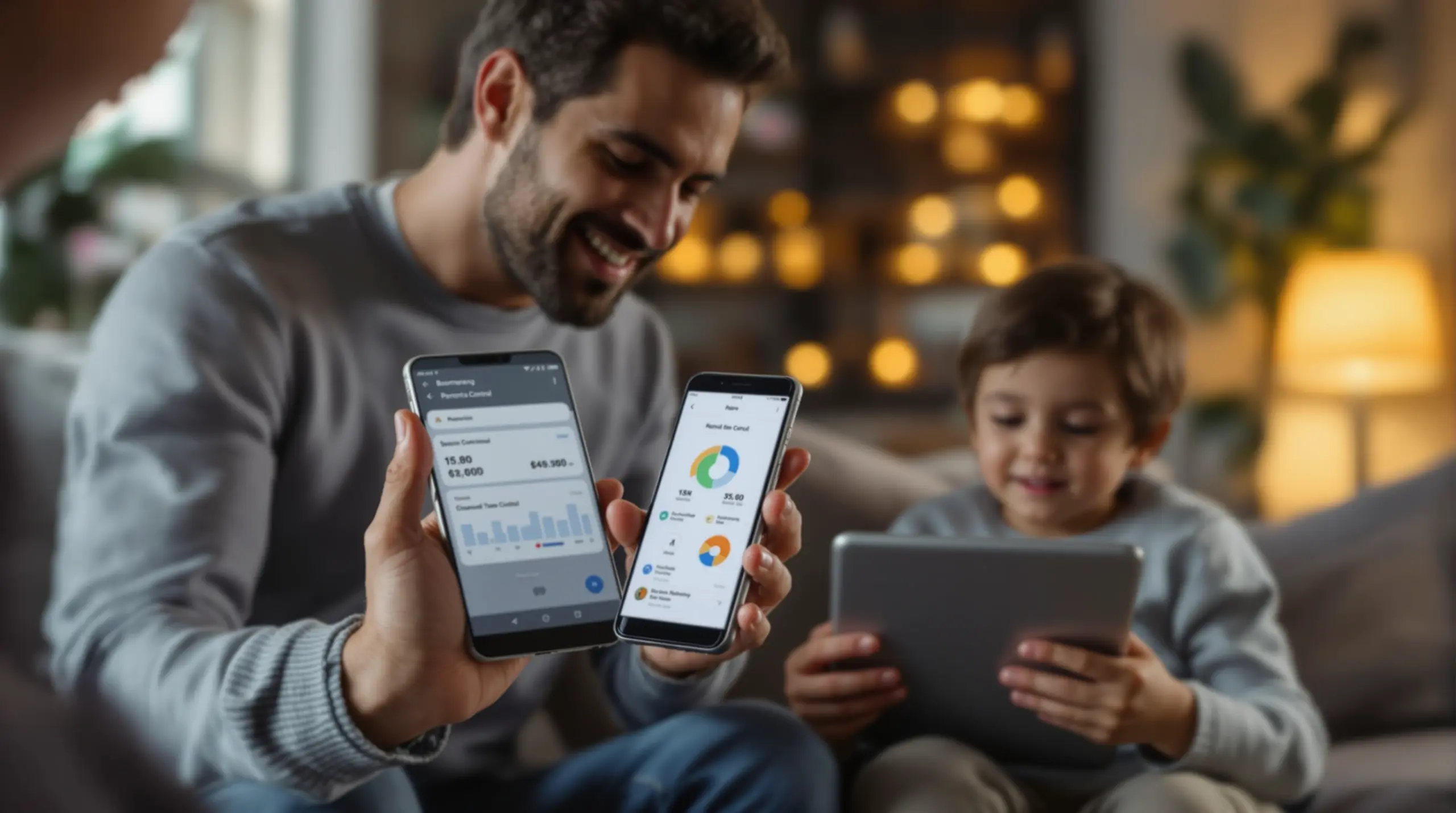
What parents are saying about Boomerang Parental Control reveals a clear pattern: families using this Android-focused app report fewer screen time arguments, stronger bypass protection, and genuine peace of mind – here’s the full picture.
Table of Contents
- Quick Summary
- By the Numbers
- What Parents Are Saying About Boomerang Parental Control
- How Does Boomerang Handle Screen Time and Daily Limits?
- Content Filtering, Safe Browsing, and Online Safety
- Does Boomerang Really Stop Kids from Bypassing Controls?
- Your Most Common Questions
- Comparing Parental Control Approaches
- How Boomerang Parental Control Can Help Your Family
- How to Set Up Boomerang Parental Control in 5 Steps
- The Bottom Line
- Sources & Citations
Quick Summary
What parents are saying about Boomerang Parental Control is that it reliably enforces screen time rules, blocks inappropriate content, and resists bypass attempts by tech-savvy kids – particularly on Android devices. Real parent reviews highlight reduced family conflict, stronger controls than built-in options, and confidence in their child’s online safety.
By the Numbers
- Boomerang’s web filter covers 47 content categories, according to an independent review (WizCase, 2025).[1]
- Independent reviewers in 2026 identified geofencing, filtering, scheduling, and web browsing as four key areas where Boomerang outperforms competitors (TechRadar, 2026).[2]
- Boomerang offers a 14-day free trial so families can test the full feature set before committing (Boomerang, 2019).[3]
- Boomerang’s annual subscription is priced at $19.99 per device per year according to Boomerang’s current official pricing, making it one of the more affordable options in the parental control market (FamiSafe, 2025).[4]
What Parents Are Saying About Boomerang Parental Control
What parents are saying about Boomerang Parental Control, drawn from Google Play reviews, App Store feedback, and independent publications, is consistently focused on three outcomes: the app enforces rules automatically, it holds up against kids who try to remove it, and it gives families real visibility into their child’s device use. Boomerang Parental Control, launched in 2015 and available at useboomerang.com, was built to address the everyday challenges parents face when managing a connected child on Android – with more limited iOS support.
Jason H., a Google Play reviewer, captured the sentiment shared by many parents: “So far this is the best parental control app, hands down. So far the only app my 11 year old was not able to bypass.” – Jason H., Google Play reviewer[5]
START YOUR FREE TRIAL
Take control of screen time—free for 14 days, cancel anytime.




Parent feedback consistently highlights four themes: ending screen time arguments, protecting children from inappropriate content, stopping kids from circumventing controls, and gaining location awareness. These aren’t abstract feature descriptions – they’re the outcomes real families report after using the app day to day. Parents of pre-teens setting up a first Android device are particularly vocal about how Boomerang gave them confidence to hand over the phone knowing guardrails were firmly in place.
Independent publications reinforce the parent narrative. SafeWise noted in 2026 that “the affordable Boomerang app is especially good for setting screen-time limits and blocking specific websites” (SafeWise, 2026).[6] TechRadar’s 2026 review acknowledged that Boomerang “is much stronger with geofencing, filtering, scheduling and web browsers” than in areas like iOS support or social media monitoring (TechRadar, 2026).[2] Together, parent reviews and independent assessments present an app that delivers on its core promise for Android households.
Sarah, a parent featured in a Boomerang user story, explained her motivation in 2019: “In this day and age of technology, kids are all too easily exposed to devices and easily become addicted. I felt this could be detrimental to my children, so I felt I needed to control the devices that my children use.” – Sarah, Boomerang user story[3] That concern – giving children access to technology without losing parental oversight – is the thread running through nearly every positive Boomerang review.
How Does Boomerang Handle Screen Time and Daily Limits?
Boomerang Parental Control handles screen time by automatically locking the device when a parent-set daily limit is reached or a scheduled downtime window begins – no manual intervention needed. This automated enforcement is the feature parents mention most often when explaining why they chose Boomerang over free built-in tools like Google Family Link or Apple Screen Time.
On Android, parents can set a total daily screen time allowance – for example, two hours – and assign individual per-app time limits so a child gets 30 minutes for games but unlimited access to a school reading app. Educational and health apps can be marked as “Encouraged Apps,” which exempts them from daily limits entirely. This distinction between entertainment time and learning time is a practical tool that many parents say reduced the daily negotiation around what counts as “productive” device use.
Scheduled Downtime and Bedtime Locks
Screen Time Scheduling in Boomerang allows parents to block device access during specific hours – bedtime, homework time, or family dinner – without lifting a finger once the schedule is configured. Parents reviewing the app regularly highlight this as the feature that ended nightly arguments. The device simply stops working at the scheduled time, and the child cannot override it. On iOS, Boomerang supports scheduled screen time windows, though the per-app allocated timers available on Android are not available on Apple devices.
Joe Eagles, a Google Play reviewer, described the practical impact: “Now with Boomerang, I can manage her time, what applications she uses and what sites she visits.” – Joe Eagles, Google Play reviewer[5] Parents who had previously tried free solutions – and watched their children find loopholes within days – frequently note that Boomerang’s automated enforcement holds firm where those tools failed.
The Boomerang screen time features are designed to act as a neutral enforcer, removing parents from the role of screen time police. When the app – not the parent – turns off the device, children have a consistent, non-negotiable boundary to adjust to. Families in the US and Canada who rely on consistent school night and weekend routines report this consistency as a significant quality-of-life improvement.
Content Filtering, Safe Browsing, and Online Safety
Boomerang Parental Control protects children from inappropriate online content through its built-in web filtering and the SPIN Safe Browser, which blocks harmful websites automatically across any network without requiring a VPN or router configuration. The web filter covers 47 categories of restricted content as of 2025, according to an independent WizCase review (WizCase, 2025).[1]
SPIN Safe Browser is a fully contained browser with pre-configured content filtering active from the first launch. It enforces strict SafeSearch on Google, Bing, and Yahoo automatically, so children cannot override search filtering settings. Parents value this because it works whether the child is on home Wi-Fi, a school network, or mobile data – the protection travels with the device.
App Approval and YouTube Monitoring on Android
Boomerang’s App Discovery and Approval feature requires a parent to sign off on every new app or game before the child can install it. This proactive gating prevents children from downloading risky applications without the parent’s knowledge. On Android devices, Boomerang also provides YouTube App History Monitoring, which shows parents what their child searched for and watched within the main YouTube app – a visibility feature unavailable in most competing solutions and not available on iOS.
Parents of pre-teens setting up a first Android smartphone consistently mention app approval control as a must-have feature. The ability to see a notification when their child wants to install a new app – and either approve or block it – replaces the anxiety of not knowing what’s appearing on the device. Combined with web filtering and SPIN Safe Browser, these features form a layered approach to online safety that parents describe as genuinely reassuring rather than just technically impressive. You can read the full SafeWise review for an independent assessment of Boomerang’s content safety features.
Call and Text Safety – available on Android only – logs call and SMS history and sends keyword alerts when messages contain potentially harmful language. This gives parents early warning of cyberbullying or contact from unknown adults without requiring them to read every message. Location Tracking with Geofencing rounds out the safety picture by providing real-time location updates and automatic alerts when a child arrives at or leaves a defined area like school or a friend’s house.
Does Boomerang Really Stop Kids from Bypassing Controls?
Boomerang Parental Control stops children from bypassing controls through Uninstall Protection, which on supported Samsung Android devices uses Samsung Knox enterprise security to make the app virtually impossible to remove without the parent’s PIN. This is the feature that consistently separates Boomerang from free alternatives in parent reviews.
Parents of tech-savvy teenagers who had already defeated Google Family Link or Apple Screen Time are among Boomerang’s most enthusiastic reviewers. A recurring pattern in feedback is that the child managed to remove or circumvent the previous solution – often within hours – and the parent switched to Boomerang because of its reputation for holding firm. Boomerang Parental Control is the only parental control app to use Samsung’s Knox, an enterprise mobile security solution pre-installed in most Samsung smartphones and tablets, which creates a level of tamper resistance that consumer-grade tools cannot match.
Samsung Knox Integration: What It Means for Parents
Samsung Knox integration means the parental control app is protected at the firmware level of the device, not just as a standard Android application. When a child tries to uninstall Boomerang, disable its permissions, or factory reset the device to bypass controls, Knox actively blocks those attempts. This is the same security architecture used by enterprises to protect corporate devices – applied to a family context at a consumer price point.
On iOS, Boomerang provides notification-only tamper alerts rather than active uninstall prevention, which is a meaningful limitation for Apple device households. Parents with Android devices – particularly Samsung Galaxy smartphones and tablets – get the full protection stack. Parents with mixed households are encouraged to use Boomerang on Android devices for the strongest controls, and supplement iOS devices with SPIN Safe Browser and scheduled screen time where possible. You can review TechRadar’s independent assessment of Boomerang’s strengths and limitations across platforms.
Your Most Common Questions
What are parents actually saying about Boomerang Parental Control in real reviews?
Parents say Boomerang Parental Control reliably enforces screen time rules, resists bypass attempts by tech-savvy kids, and delivers real peace of mind on Android devices. The most frequently repeated themes in Google Play and App Store reviews are: the app ends daily screen time arguments by enforcing limits automatically, it is the first solution many parents found that their child could not remove or work around, and it provides meaningful visibility into YouTube viewing habits and app installation activity on Android. Parents of pre-teens setting up a first phone highlight app approval control and bedtime scheduling as immediate wins. Parents of teenagers who had previously defeated simpler tools consistently mention Uninstall Protection and Samsung Knox integration as the reason they stayed with Boomerang long-term. Independent reviewers at SafeWise and TechRadar in 2026 corroborate the parent narrative, identifying screen time limits and content filtering as core strengths of the platform.[6][2]
Does Boomerang Parental Control work on both Android and iPhone?
Boomerang Parental Control works on both Android and iOS devices, but Android offers significantly more features than iOS. On Android, parents get the full feature set: per-app time limits, allocated daily screen time, YouTube App History Monitoring, Call and Text Safety monitoring, keyword alerts in SMS messages, and Uninstall Protection backed by Samsung Knox on supported Samsung devices. On iOS, the feature set is more limited: parents can set scheduled screen time windows and use location tracking, but per-app timers, YouTube monitoring, SMS monitoring, and active uninstall prevention are not available. iOS devices also receive notification-only tamper alerts rather than active bypass blocking. Families with Android child devices get the strongest protection Boomerang offers. Households with iPhones can still benefit from SPIN Safe Browser for content filtering and scheduled downtime, but should be aware of the iOS limitations before purchasing. The platform differences are clearly documented on the Boomerang website for parents comparing options.
How much does Boomerang Parental Control cost, and is there a free trial?
Boomerang Parental Control offers a 14-day free trial and an annual subscription priced at $19.99 per device per year according to Boomerang’s current official pricing, making it one of the most affordable full-featured parental control apps available. The 14-day trial gives families enough time to configure the app, test the screen time scheduling, web filtering, and app approval features, and assess whether it fits their household before paying (Boomerang, 2019).[3] The annual pricing of $19.99 per device is Boomerang’s current official price. A Family Pack subscription is also available for households managing up to 10 child devices at $39.99 per year, which makes Boomerang practical for larger families without a significant cost increase. Subscriptions are purchased annually. Parents frequently mention the price-to-value ratio in positive reviews, noting that the protection level exceeds what free built-in tools offer at a fraction of the cost of premium competitors.
Can a tech-savvy child bypass or remove Boomerang Parental Control?
A tech-savvy child will find it extremely difficult to bypass or remove Boomerang Parental Control on Android, especially on Samsung devices protected by Knox. Boomerang’s Uninstall Protection prevents children from removing the app through standard Android settings. On Samsung Galaxy smartphones and tablets, Samsung Knox integration adds a firmware-level security layer that blocks factory resets, permission changes, and app removal attempts that would defeat other parental control solutions. This is the reason parents who switched from Google Family Link or Apple Screen Time – after their child defeated those tools – report that Boomerang held firm where others failed. On iOS, the protection is limited to notification-only tamper alerts, meaning a determined teen with an iPhone has more options to work around restrictions. Parents seeking the strongest bypass protection should prioritize an Android device for their child, particularly a Samsung model, to get the full benefit of Boomerang’s Knox-backed Uninstall Protection.
Comparing Parental Control Approaches
Choosing the right parental control approach depends on your child’s device, age, and the specific risks you need to address. The table below compares four common approaches – built-in platform tools, monitoring-focused apps, comprehensive Android solutions like Boomerang, and network-level controls – across the dimensions parents care about most.
| Approach | Screen Time Limits | Bypass Resistance | Content Filtering | Platform Depth |
|---|---|---|---|---|
| Built-in tools (Google Family Link / Apple Screen Time) | Basic scheduling | Low – frequently bypassed | Basic SafeSearch | Cross-platform, shallow |
| Monitoring-focused apps (alert-based) | Limited | Low – passive monitoring only | Alert-based, not blocking | Cross-platform |
| Boomerang Parental Control (Android-first) | Daily limits + per-app timers (Android); scheduling only (iOS) | High – Knox-backed on Samsung devices[7] | 47 categories + SPIN Safe Browser[1] | Deep Android; limited iOS |
| Network/router-level controls | None on-device | Low – bypassed by mobile data | Home network only | Device-agnostic |
How Boomerang Parental Control Can Help Your Family
Boomerang Parental Control is built for parents who want more than a basic timer – it combines automated screen time enforcement, proactive content filtering, tamper-resistant controls, and real-time location tracking in a single platform designed primarily for Android families across the US and Canada.
For families setting up a first Android device for a pre-teen, Boomerang’s App Discovery and Approval feature means every new app requires your sign-off before it appears on the device. Combined with SPIN Safe Browser for content-safe browsing and YouTube App History Monitoring (Android only) for visibility into viewing habits, it gives parents a strong first line of defense from day one. Families can explore the full Boomerang screen time features to understand how daily limits, bedtime locks, and Encouraged Apps work together.
For parents of teenagers who have already defeated simpler controls, Boomerang’s Uninstall Protection – reinforced by Samsung Knox on supported devices – is the critical differentiator. Parents in this situation consistently report that Boomerang was the first solution that stayed in place after their tech-savvy teen had removed every other app they tried. The app enforces rules neutrally and automatically, which reduces the parent-as-enforcer dynamic that strains relationships with older children.
“This is a great application! I have control back over my child’s phone and applications because she managed to circumvent family link. I have no idea how she did that but she managed to find a way, as did other kids. That was a major frustration for us. But now with Boomerang, I can manage her time, what applications she uses and what sites she visits. I especially find the time-out and extend-time functionalities very useful.” – Joe Eagles, Google Play review
Boomerang’s Family Pack covers up to 10 child devices under one subscription, making it a practical choice for larger households. Daily emailed activity reports keep both parents informed without requiring them to log in constantly – a feature non-technical parents and busy guardians frequently highlight as important. To get started or learn more, visit the sideload download page for Android devices or contact the team at [email protected].
How to Set Up Boomerang Parental Control in 5 Steps
Step 1: Install Boomerang on the Parent and Child Devices
Download the Boomerang Parental Control app on your own smartphone (Android or iOS) and install the child-side app on your child’s Android device via Google Play or by sideloading from the Boomerang website. Sideloading is recommended for Samsung and non-standard Android devices to enable the full feature set including Call and Text Safety and Uninstall Protection.
Step 2: Set Up Screen Time Schedules and Daily Limits
In the parent app, configure your child’s daily screen time allowance and set scheduled downtime windows for bedtime, homework, and mealtimes. On Android, you can also set per-app time limits and designate educational apps as Encouraged Apps so they remain accessible even after the daily limit is reached.
Step 3: Enable Web Filtering and Install SPIN Safe Browser
Activate Boomerang’s built-in web filtering and install SPIN Safe Browser on your child’s device for a fully contained safe browsing environment. SPIN blocks inappropriate content across 47 categories and enforces SafeSearch on all major search engines automatically, with no VPN or router configuration required.
Step 4: Configure App Approval and Activate Uninstall Protection
Turn on App Discovery and Approval so you receive a notification every time your child attempts to install a new app – the app remains blocked until you approve it. On Samsung devices, enable Samsung Knox integration to activate firmware-level Uninstall Protection, which prevents your child from removing or bypassing Boomerang without your PIN.
Step 5: Set Up Location Tracking and Geofences
Enable Location Tracking in the parent app and create Geofences around key locations such as school, home, and after-school activity venues. You will receive automatic alerts when your child arrives at or leaves each defined area, giving you passive location awareness without relying on your child to remember to check in.
The Bottom Line
What parents are saying about Boomerang Parental Control is clear and consistent: on Android, it delivers the automated enforcement, tamper-resistant controls, and content visibility that free built-in tools cannot match. Families with Samsung devices get the strongest protection available through Knox integration – a feature that routinely turns frustrated parents of tech-savvy kids into long-term Boomerang advocates. iOS support exists but is more limited, and parents should factor that in when evaluating the platform for an Apple device household.
If you are ready to end the daily screen time arguments and put reliable safety tools in place, start with Boomerang’s 14-day free trial. Visit Boomerang Parental Control to get started, or reach out directly at [email protected] for questions about which plan fits your family.
Sources & Citations
- Boomerang Parental Control Review. WizCase, 2025.
https://www.wizcase.com/parental-control/boomerang/ - Boomerang Parental Control software review. TechRadar, 2026.
https://www.techradar.com/reviews/boomerang-parental-control-software - User Stories: Kids are all too easily exposed to mobile devices. Boomerang, 2019.
https://useboomerang.com/user-stories-kids-easily-exposed-mobile-devices/ - Boomerang Parental Control Review. FamiSafe, 2025.
https://famisafe.wondershare.com/app-review/boomerang-parental-control-review.html - Best Online Safety App for Kids: Parent’s Guide. Boomerang, 2025.
https://useboomerang.com/article/online-safety-app/ - Boomerang Parental Control Review. SafeWise, 2026.
https://www.safewise.com/kids-safety/parental-control-apps/boomerang/ - Boomerang Parental Control Samsung Knox Information. Boomerang.
https://useboomerang.com/boomerang-parental-control-samsung-knox-information/
START YOUR FREE TRIAL
Take control of screen time—free for 14 days, cancel anytime.
