
05
Oct
2026
Setup iPhone Family Sharing Parental Controls Fast
October 5, 2026
Learn how to configure iPhone family sharing parental controls to manage screen time, filter web content, and keep kids safe online with our expert guide.
Table of Contents
- Introduction
- What Are iPhone Family Sharing Parental Controls?
- How Do Apple Screen Time Limits Work?
- Why Do Families Need Advanced Content Filtering?
- Can You Prevent Children From Bypassing Rules?
- Your Most Common Questions
- Comparing Native iOS Tools and Third-Party Apps
- Enhancing iOS Safety with Boomerang
- How to Configure Apple Screen Time Settings in 4 Steps
- Before You Go
- Useful Resources
Quick Summary
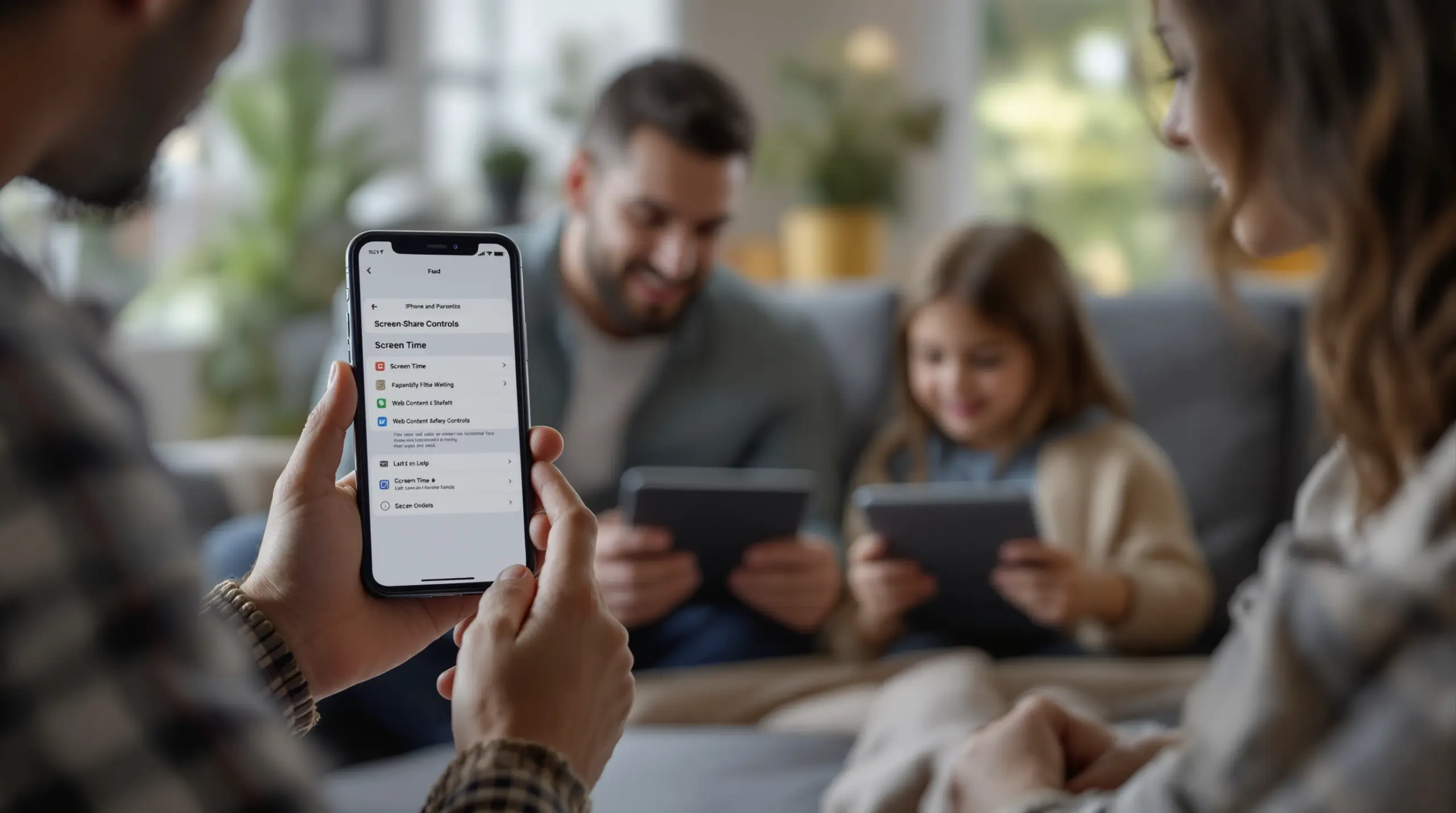
iPhone family sharing parental controls are built-in Apple settings that allow adults to manage a child’s device usage, app downloads, and web access. These tools help families establish healthy digital boundaries directly through the iOS platform.
Market Snapshot
- 51 percent of parents use parental controls on tablets to manage digital wellness (Family Online Safety Institute, 2025) [1] .
- 75 percent of households set app restrictions to limit access to specific games and social media platforms (Family Online Safety Institute, 2025) [2] .
- 65 percent of families using digital safety tools rely on activity monitors to track daily engagement (Family Online Safety Institute, 2026) [3] .
Introduction
Handing a child their first smartphone brings a complex mix of excitement and anxiety for any parent. iPhone family sharing parental controls offer a foundational way to manage that new device, providing a safety net as children use the digital world. While Apple provides native tools to help families set boundaries, managing a connected child requires more than just flipping a few switches in the settings menu. Boomerang Parental Control provides solutions relevant to iPhone family sharing parental controls, especially when families need deeper web filtering, cross-platform management, or stronger enforcement mechanisms.
This comprehensive guide explores the capabilities and limitations of Apple’s native platform. We will examine how screen time limits function, why basic web filtering falls short, and how tech-savvy children sometimes circumvent digital rules. Whether you are setting up a first phone for a pre-teen or trying to regain control over a teenager’s device, understanding these tools is the first step toward building responsible digital citizenship and reducing daily household conflict.
START YOUR FREE TRIAL
Take control of screen time—free for 14 days, cancel anytime.




What Are iPhone Family Sharing Parental Controls?
Understanding iPhone family sharing parental controls starts with recognizing how Apple designs its native platform for families. At its core, this system relies on creating a designated family group where an adult organizer can manage the digital experiences of younger members. According to official documentation, with Family Sharing, the organizer, or another adult designated as parent/guardian, can set up parental controls for children in the Family Sharing group (Apple Inc., 2026) [4] . The Family Sharing structure ensures that an adult maintains administrative oversight over app downloads, purchases, and privacy settings.
A critical feature within this platform is Ask to Buy. When enabled, any attempt by a child to download a new application or make an in-app purchase triggers a notification on the parent’s device. The parent must then explicitly approve or deny the request before the transaction completes. This proactive gatekeeping prevents children from accidentally downloading inappropriate games or racking up unexpected charges on a family credit card. The Ask to Buy feature also opens the door for conversations about why certain apps are not age-appropriate.
Location sharing is another pillar of the native Apple experience. By integrating Find My with family groups, parents can passively verify that a child has arrived safely at school or a friend’s house without needing to send a text message. As Lindsey O’Neal, a reporter for USA TODAY, notes, parents who own an Apple device can form a family group and establish a child account, which allows access to parental controls and monitoring of usage (O’Neal, 2024) [5] . Through these controls, parents can approve purchases in the App Store, share a child’s location, communicate with additional family members, and add another guardian to assist in managing the child’s settings.
How Do Apple Screen Time Limits Work?
Apple Screen Time limits function by allowing parents to set specific schedules and usage caps directly on a child’s iOS device. The system is divided into several distinct categories, including Downtime, App Limits, and Communication Limits. Downtime acts as a digital curfew, blocking access to most applications during designated hours, such as bedtime or during school hours. Only apps specifically marked as always allowed will remain accessible during these restricted windows.
App Limits provide more granular control over daily usage. Parents can impose limits on how long specific apps are used either individually or collectively, track usage, and receive weekly activity summaries (O’Neal, 2024) [5] . Children can also request additional time for an app, either by sending a request to their parent’s device or providing it to a parent for approval with a code. The request-and-approve workflow encourages children to think critically about their screen time rather than simply consuming content passively.
Despite these features, many families struggle to find the right balance between strict enforcement and flexible guidance. Recent data indicates that about one third of respondents limit screen use by setting one overall time limit on the device, regardless of how it is used (Family Online Safety Institute, 2026) [6] . While a single blanket limit is easy to configure, it fails to distinguish between time spent on educational homework portals and time spent on mindless social media scrolling. The lack of nuance in blanket limits is a primary reason why many parents eventually seek out third-party applications that offer per-app allocated timers and the ability to designate educational apps as always encouraged.
Why Do Families Need Advanced Content Filtering?
Native iOS web filtering relies heavily on Safari restrictions and content blockers, which leave significant gaps when children use alternative browsers or specific applications. While Apple allows parents to limit adult websites by toggling a setting in the Content & Privacy Restrictions menu, this filter is primarily optimized for Safari. If a child downloads a third-party browser or accesses web content embedded within a social media app, the native filters fail to block inappropriate material. The native filter vulnerability is a major concern for parents trying to shield pre-teens from explicit content.
The necessity for strong web filtering is underscored by industry research showing that 63 percent of parental-control users rely on web filters to manage online safety (Family Online Safety Institute, 2026) [7] . When native tools fall short, dedicated safe browsers become necessary. SPIN Safe Browser – Safe web browsing for Boomerang Parental Control provides a fully contained browsing environment with pre-configured content filtering that blocks millions of inappropriate websites across multiple categories. Unlike basic toggles, a dedicated safe browser enforces strict SafeSearch on popular search engines automatically, ensuring that explicit images and results are filtered without the child being able to override the settings.
Native iOS tools also lack visibility into what children are actually watching inside dedicated video applications. While parents can restrict the YouTube app entirely, they cannot easily monitor the specific search history or viewing habits within the app using only Apple’s built-in software. The lack of transparency forces parents to either ban video platforms entirely or allow unrestricted access, neither of which promotes healthy digital habits. Advanced third-party solutions bridge this gap by offering deeper insights into media consumption, enabling parents to have informed, proactive conversations about the content their children are engaging with online.
Can You Prevent Children From Bypassing Rules?
Preventing children from bypassing digital rules is one of the most persistent challenges in modern parenting, particularly on iOS devices where software loopholes frequently emerge. Tech-savvy teenagers discover workarounds for Apple Screen Time, such as exploiting the Screen Time passcode recovery feature, changing their Apple ID password, or using specific messaging apps to bypass communication limits during Downtime. When a child realizes they can disable the very tools meant to protect them, it undermines parental authority and creates an environment of digital cat-and-mouse.
While Apple continuously patches these vulnerabilities in iOS updates, the cycle of bypass and patch leaves families temporarily unprotected. Independent reviews, such as this Boomerang Parental Control software review , frequently highlight the frustration parents face when native controls are easily circumvented by determined users. The reality of easily circumvented native controls drives many families to explore alternative platforms or supplementary tools that offer more tamper-resistant enforcement mechanisms.
The contrast between iOS limitations and Android capabilities is stark in this regard. On supported Android devices, advanced parental control applications use enterprise-grade security frameworks, such as Samsung Knox integration, to make uninstallation or tampering virtually impossible without a parent’s PIN. For families managing a mix of devices, using a Sideload download page for Android devices ensures that the strongest protections are active where the operating system permits. Understanding these platform differences is important for parents who want to ensure their digital boundaries remain firmly in place, regardless of how technically adept their children become. You can learn more about how Boomerang Parental Control is the only parental control app to use Samsung’s Knox to prevent bypass attempts on compatible hardware.
Your Most Common Questions
How do I set up iPhone family sharing parental controls?
Enable iPhone family sharing parental controls by opening Settings, accessing Family Sharing, adding a child account, and turning on Screen Time. Once the child account is linked to your Apple ID, you can remotely configure app limits, downtime schedules, and content restrictions directly from your own device without needing physical access to the child’s phone.
Can my child turn off Screen Time on their iPhone?
Children cannot disable Screen Time without the parent passcode, though tech-savvy teens sometimes exploit software bugs to bypass native device restrictions. Because Apple allows account recovery through linked email addresses or trusted phone numbers, a determined teenager resets the Screen Time passcode if the parent has not secured the underlying Apple ID credentials with multi-factor authentication.
Does Apple Family Sharing filter inappropriate websites?
Apple Family Sharing filters inappropriate websites using Safari restrictions, but lacks cross-browser protection and requires manual configuration to block specific adult content. If a child downloads an alternative web browser from the App Store or accesses embedded web views inside social media applications, the native Safari content filters will not apply, leaving significant gaps in online safety.
What is the best alternative to Apple Screen Time?
The best alternative to Apple Screen Time is a third-party app offering web filtering, location tracking, and cross-platform management for complete online safety. Dedicated applications provide features that Apple omits, such as monitoring YouTube search history on Android, enforcing safe search across all browsers, and preventing children from uninstalling the monitoring software through advanced device administration privileges.
Comparing Native iOS Tools and Third-Party Apps
Choosing the right digital safety strategy requires understanding the functional differences between built-in operating system features and dedicated third-party software. While native tools offer smooth integration and zero cost, they lack the depth required for comprehensive family management. The following table illustrates how iPhone family sharing parental controls compare to dedicated solutions across important safety categories.
| Feature | Apple Screen Time (Native) | Boomerang (iOS Support) | Boomerang (Android Support) |
|---|---|---|---|
| Automated Downtime Scheduling | Yes | Yes | Yes |
| Per-App Allocated Timers | No (Collective limits only) | No (iOS restrictions) | Yes |
| Cross-Browser Web Filtering | No (Safari only) | Yes (via SPIN Safe Browser) | Yes (via SPIN Safe Browser) |
| YouTube History Monitoring | No | No (iOS restrictions) | Yes |
| Uninstall Protection | No (Easily bypassed) | Limited (Notification only) | Yes (Knox Integration) |
As the comparison shows, while Apple provides a solid baseline for scheduling and basic app limits, families requiring deep content filtering and tamper-proof enforcement must look toward specialized applications or consider the hardware platform they are deploying to their children.
Enhancing iOS Safety with Boomerang Parental Control
Managing a child’s digital life requires tools that adapt to your family’s specific needs, which is why Boomerang Parental Control – Taking the battle out of screen time for Android and iOS is designed to complement and enhance native device settings. While we always recommend using the built-in iOS family sharing setup for basic account management, Boomerang steps in to provide the advanced visibility and automated enforcement that modern parents demand. Our platform focuses on eliminating the daily arguments over device usage by acting as a neutral, un-bypassable enforcer of household rules.
For iOS devices, Boomerang integrates smoothly with our SPIN Safe Browser to ensure that web filtering remains active regardless of the network your child connects to. Also, our Boomerang Parental Control – screen time features allow parents to establish firm scheduled downtime that protects necessary routines like sleep and homework. We understand that parenting in the digital age is challenging, and our goal is to provide peace of mind without requiring you to constantly police your child’s device.
Parents who have transitioned to our platform frequently note the reduction in household stress. As one user shared, “Hey fellow parents, So far this the best parental control app .. hands down. So far the only app my 11 year old was not able to bypass. Big Shout out to developers for making such a great app.” – Jason H . This Boomerang Parental Control Review sentiment is echoed across our community, where families value the ability to guide their children toward digital balance rather than relying solely on punitive restrictions. To start building a safer digital environment for your family, visit our website to explore our family plans and download the app today.
How to Configure Apple Screen Time Settings in 4 Steps
Create a Family Sharing Group
Open the Settings app on your primary iPhone, tap your name at the top, and select Family Sharing to initiate a new group for your household. Creating a group establishes you as the primary organizer capable of managing digital boundaries for all added members.
Add a Child Account
Tap the add member icon within the Family Sharing menu and select Create Child Account to generate a dedicated Apple ID for your child. Adding a child account is mandatory for applying age-appropriate restrictions and ensuring the child cannot independently alter core privacy settings.
Enable Screen Time and Set Limits
Go to Settings, select Screen Time, and tap your child’s name under the Family section to activate usage tracking. Configure Downtime schedules to enforce bedtimes and establish App Limits to restrict access to social media or gaming categories during school hours.
Configure Content and Privacy Restrictions
Toggle on Content & Privacy Restrictions within the Screen Time menu to block explicit web content, prevent unauthorized app deletions, and disable location sharing modifications. Always set a secure, unique Screen Time passcode that your child cannot guess to lock these configurations in place.
Before You Go
Managing the complexities of iPhone family sharing parental controls is a necessary part of modern parenting, but relying solely on native tools leaves major safety gaps. By combining Apple’s foundational account management with advanced third-party solutions like Boomerang Parental Control and the SPIN Safe Browser, you can create a comprehensive, tamper-resistant digital environment for your child. Establishing these boundaries early builds healthy habits and significantly reduces daily household conflict over screen time. If you are ready to take control of your family’s digital wellness, contact our support team at [email protected] or download our app today to begin your path toward balanced, safe technology use.
Useful Resources
- Connected and Protected: Insights from FOSI’s 2025 Online Safety Survey. Family Online Safety Institute.
https://fosi.org/wp-content/uploads/2025/05/Connected-and-Protected-Insights-from-FOSIs-2025-Online-Safety-Survey.pdf - Beyond Borders: U.S. and Australian Families on Online Safety. Family Online Safety Institute.
https://fosi.org/wp-content/uploads/2026/07/FOSI-Beyond-Borders-U.S.-and-Australian-Families-on-Online-Safety-Screen-Use-and-the-Digital-Lives-of-Kids.pdf - Set up parental controls with Family Sharing on iPhone. Apple Inc.
https://support.apple.com/guide/iphone/set-up-parental-controls-iph00ba7d632/ios - Giving your child an iPhone this holiday season? Check these settings for them. USA TODAY.
https://www.usatoday.com/story/tech/2024/12/26/iphone-parental-controls-screen-time-settings/77108751007/
START YOUR FREE TRIAL
Take control of screen time—free for 14 days, cancel anytime.
