
08
Apr
2026
Call Monitoring iPhone: A Parent’s Complete Guide
April 8, 2026
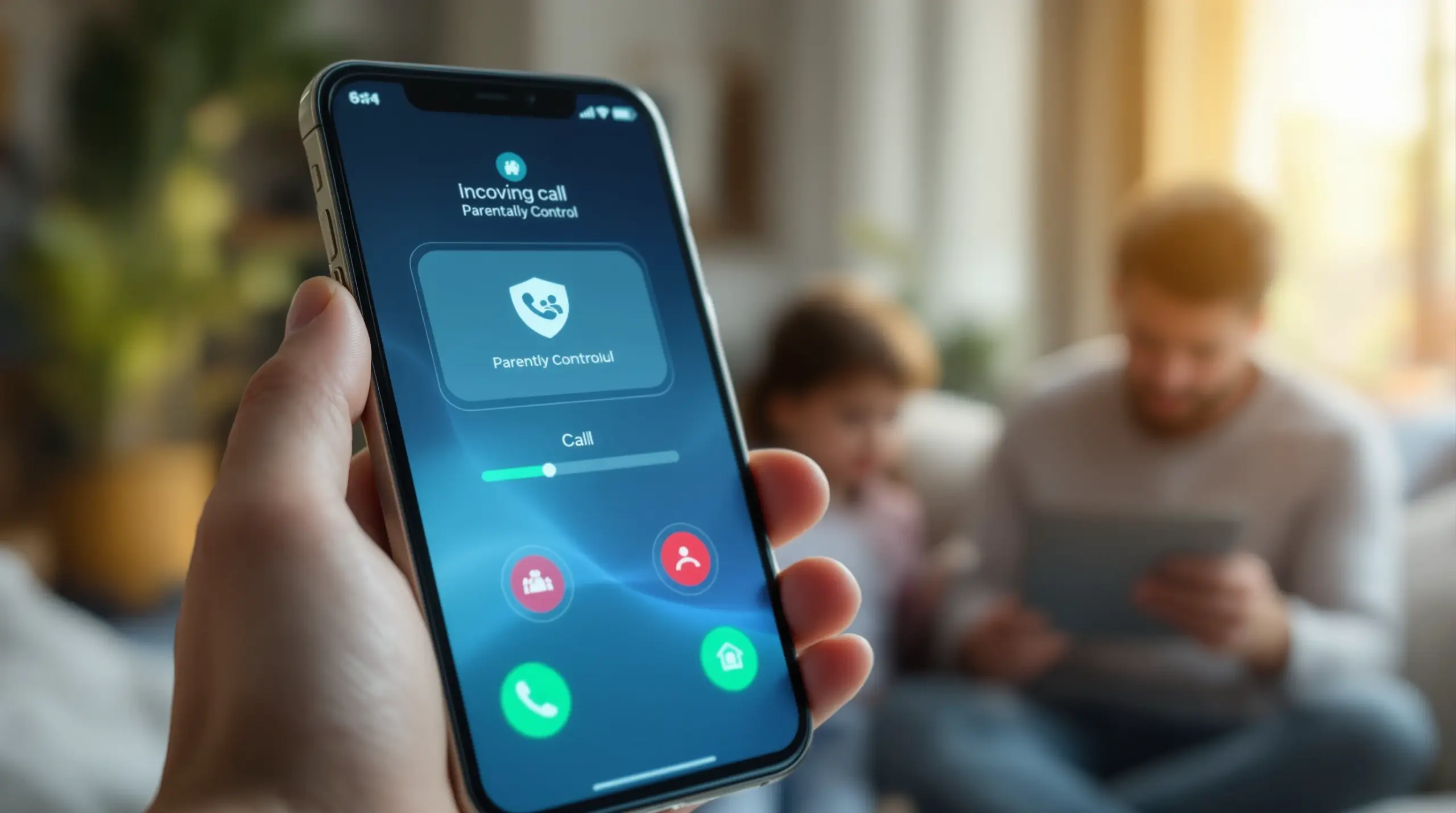
Call monitoring iPhone options range from Apple’s built-in Screen Unknown Callers feature to dedicated parental control apps – this guide explains every tool available to keep your child safe on iOS.
Table of Contents
- What Is Call Monitoring on iPhone?
- How Does Apple’s Built-In Call Screening Work?
- Why Built-In Controls Fall Short for Parents
- Android vs. iOS: What Parents Need to Know
- Frequently Asked Questions
- Comparing Call Monitoring Approaches
- How Boomerang Parental Control Can Help
- How to Set Up Call Monitoring on Your Child’s iPhone in 5 Steps
- The Bottom Line
- Sources & Citations
Article Snapshot
Call monitoring iPhone is the practice of reviewing, screening, or logging phone calls on an iPhone to protect children from unwanted or unsafe contact. Apple provides built-in screening tools, but comprehensive parental monitoring requires a dedicated app. iOS limits third-party monitoring more than Android does.
Call Monitoring iPhone in Context
- Apple’s Screen Unknown Callers feature offers 3 handling modes for unknown numbers on iPhone, as of 2026 (Apple Support, 2026).[1]
- iPhone call recording and transcription became available on compatible models running iOS 18.1 or later (MacRumors, 2026).[2]
- When call recording is active on iPhone, the recording and transcript are automatically saved in the Notes app (Zapier, 2026).[3]
- Apple’s call recording feature automatically notifies all participants that recording has begun – there is no silent recording option (MacRumors, 2026).[2]
What Is Call Monitoring on iPhone?
Call monitoring iPhone refers to any method a parent, guardian, or user employs to review, screen, or log incoming and outgoing phone calls on an Apple iPhone. For parents, this means understanding who is calling their child, whether unknown numbers are being silenced or screened, and whether a record of call activity is being maintained. Boomerang Parental Control, which specializes in family-focused digital safety tools, recognizes that parents of children with iPhones face a genuine challenge: Apple’s iOS platform is designed with user privacy at its core, which limits what third-party apps can access compared to Android.
Call monitoring for children’s iPhones falls into three practical categories: screening unknown callers using Apple’s native tools, reviewing call history through the Phone app, and using a parental control app to receive alerts or summaries of call activity. Each approach has different capabilities and different limitations on iOS. Understanding these distinctions helps parents make informed decisions rather than relying on tools that promise more than the iOS platform actually allows.
START YOUR FREE TRIAL
Take control of screen time—free for 14 days, cancel anytime.




Parents of pre-teens handing over a first iPhone discover quickly that iOS does not give third-party apps the same depth of access as Android. Features like per-call logging with contact names, SMS keyword alerts, and the ability to block calls from unknown numbers through a parental control app are far more limited on iOS. Knowing what is and is not possible on an iPhone is the first step in building a realistic safety plan for your child’s device.
How Does Apple’s Built-In Call Screening Work?
Apple’s built-in call screening tools give iPhone users meaningful control over unknown callers without requiring any third-party app. As of 2026, Apple’s guidance confirms that the Screen Unknown Callers feature offers three distinct options for handling numbers not saved in your contacts (Apple Support, 2026).[1] According to Apple Support documentation, “Screen Unknown Callers offers three options: Never, Ask Reason for Calling, and Silence.”[1] Each option gives parents a different level of filtering for their child’s incoming calls.
The Never option disables screening entirely and lets all calls ring through as normal. The Silence option sends unknown numbers directly to voicemail without ringing the device at all – a useful setting for younger children who should only receive calls from saved contacts. The most advanced option, Ask Reason for Calling, is a standout feature introduced in recent iOS versions. AP News reported that “the ‘Ask Reason for Calling’ option prompts unknown callers to state their name and reason before the iPhone rings.” (AP News, 2026).[4] This means your child’s phone only rings after an unknown caller has identified themselves – a practical filter against robocalls and unexpected contacts.
Setting up these features is straightforward. Apple Support explains that “on iPhone, you can go to Settings, tap Apps, then tap Phone to manage call screening and blocking options.” (Apple Support, 2026).[1] From this same screen, parents can also configure blocked numbers – manually adding any contact or number that should never reach the child’s device. This is a no-cost, no-download solution that works on any current iPhone.
Beyond screening, iPhone also supports call recording on compatible models running iOS 18.1 or later. MacRumors confirmed in 2026 that “phone call recording and transcription features are available on compatible iPhone models running iOS 18.1 and later.”[2] When a recording is saved, Zapier notes that “your recording, along with a transcript, is automatically saved in your Notes app.” (Zapier, 2026).[3] Apple automatically notifies all call participants that recording is active, so there is no hidden or silent recording capability (MacRumors, 2026).[2]
Accessing iPhone Call Screening Settings
Reaching the call screening controls on an iPhone takes just two navigation steps: open Settings, tap Apps, then tap Phone. From there, the Screen Unknown Callers toggle and the Blocked Contacts list are both accessible in the same menu. Parents managing a child’s device can configure these settings directly during initial setup, ensuring the right level of filtering is in place before handing over the phone. For families where the child is old enough to manage their own settings, discussing which option is enabled and why makes call safety a conversation rather than a silent restriction.
Why Built-In Controls Fall Short for Parents
Apple’s native call features protect against robocalls and unknown numbers, but they do not give parents the oversight that dedicated call monitoring iPhone tools are designed to provide. The Screen Unknown Callers feature silences or screens calls, but it does not generate a log that a parent can review remotely. There is no built-in way for a parent to see a summary of who called their child, when calls occurred, or whether any numbers outside the contact list made contact. For parents who want that layer of visibility, Apple’s built-in tools alone are not enough.
This gap is particularly significant for parents of teenagers. A teen who knows that only native iOS controls are in place can simply save an unknown contact under a trusted name, bypassing the Screen Unknown Callers filter entirely. Without a parental control layer, there is no alert system to flag unfamiliar numbers or unusual call patterns. Parents who have experienced their child working around Google Family Link or basic free controls will recognize this limitation immediately.
The iOS platform also restricts what third-party parental control apps can do with call data. Unlike Android, where apps like Boomerang Parental Control can log SMS history, send keyword alerts from text messages, and provide detailed call records, iOS does not grant third-party apps access to call logs or message content. This is a deliberate platform decision by Apple, tied to its privacy architecture. The result is that parental control apps on iOS have significantly more limited call and text monitoring capability than their Android counterparts.
Parents who need comprehensive call monitoring for a child’s device should factor this iOS limitation into their decision from the start. If call and SMS safety monitoring is a priority, an Android device running a full-featured parental control app will deliver capabilities that an iPhone cannot match under Apple’s current platform restrictions. This is not a flaw in any specific app – it is a structural reality of the iOS ecosystem.
Android vs. iOS: What Every Parent Needs to Know About Call Safety
The difference between call monitoring iPhone and Android call monitoring is significant enough to influence which device a parent chooses when setting up a child’s first phone. On Android, parental control apps can access call logs, monitor SMS content for inappropriate keywords, block calls from unknown or unsaved numbers programmatically, and send real-time alerts when flagged activity occurs. These features are available because Android grants third-party apps broader system-level permissions than iOS does.
On iPhone, the practical ceiling for third-party call monitoring is much lower. A parental control app on iOS can send a notification if the app itself is tampered with, manage screen time schedules, and filter web content – but it cannot read call logs or intercept SMS messages. This means that if a child receives a call from an unknown adult or a peer who is engaging in cyberbullying via phone calls, a parental control app on iOS has no mechanism to alert the parent in real time.
Boomerang Parental Control’s Android-first platform reflects this reality directly. On Android, Boomerang’s Call and Text Safety feature logs call and SMS history, sends alerts when text messages contain inappropriate keywords, and blocks calls from numbers not saved in the child’s contacts. These are Android-only capabilities – and they represent a meaningful difference in the level of protection a parent can put in place. For iOS child devices, Boomerang provides scheduled screen time, location tracking, content filtering through SPIN Safe Browser, and tamper notification alerts, but call and SMS monitoring is not available on iOS.
For families already committed to iPhone for their child, the most practical approach is to combine Apple’s native call screening tools with a parental control app that handles the areas iOS does support – screen time, content filtering, and location safety. This layered approach provides meaningful protection even within iOS’s constraints. For families still deciding which device to give a child, understanding the Android advantage in call and communication monitoring is an important part of that conversation.
Your Most Common Questions
Can I monitor my child’s phone calls on their iPhone using a parental control app?
No parental control app on iPhone can monitor your child’s call logs or listen to calls because Apple’s iOS platform does not grant those permissions to external apps. This is a platform-level restriction, not a limitation of any specific parental control app. iOS is designed to protect user privacy by preventing apps from accessing call history, SMS content, or microphone access for monitoring purposes without explicit per-call user action. What you can do on your child’s iPhone is use Apple’s built-in Screen Unknown Callers feature to silence or screen calls from numbers not in their contacts, manually block specific numbers through Settings, and set up a parental control app that manages screen time, filters web content, and tracks location. If comprehensive call and SMS monitoring is a priority for your family, an Android device running a full-featured parental control app like Boomerang provides significantly more capability – including call log access, SMS keyword alerts, and the ability to block unknown callers through the app itself.
How do I set up call screening on my child’s iPhone?
To set up call screening on your child’s iPhone, go to Settings, tap Apps, tap Phone, and then enable Screen Unknown Callers with your preferred option. Apple offers three settings for unknown callers: Never (all calls ring through), Silence (unknown numbers go directly to voicemail without ringing), and Ask Reason for Calling (unknown callers must state their name and reason before the phone rings). For a younger child, the Silence option is the most protective – it means only people already saved in their contacts can make the phone ring. For an older child or teen, Ask Reason for Calling provides a useful filter that screens out robocalls and unexpected contacts while still allowing legitimate unknown callers to reach them if they identify themselves. You can also add specific numbers to the Blocked Contacts list from the same settings screen. These built-in tools are free, require no additional app, and work on any current iPhone model, though the Ask Reason for Calling option requires a recent iOS update to appear in the menu.
Does iPhone have call recording for parental monitoring purposes?
iPhone call recording is available as a native feature on compatible models running iOS 18.1 or later, but it is not a parental monitoring tool because all participants are automatically notified when recording begins. MacRumors confirmed in 2026 that phone call recording and transcription features are available on compatible iPhone models running iOS 18.1 and later (MacRumors, 2026).[2] The recording and transcript are automatically saved in the Notes app on the device (Zapier, 2026).[3] Because the notification is automatic and cannot be disabled, this feature does not function as a covert or background monitoring tool. A parent cannot remotely activate call recording on a child’s iPhone or receive recordings through a parental control app. In practice, iPhone’s call recording is most useful for a child who wants to save a conversation for reference – not for a parent who wants ongoing oversight of their child’s call activity. Parents looking for that level of monitoring should consider an Android device, where parental control apps like Boomerang can log call history with caller details through system-level permissions that iOS does not extend to third-party apps.
What is the best approach to child call safety on an iPhone?
The best approach to child call safety on an iPhone combines Apple’s built-in Screen Unknown Callers feature with a parental control app that handles screen time, content filtering, and location monitoring. Start by enabling the Silence or Ask Reason for Calling option in Settings > Apps > Phone so that unknown numbers cannot ring the device without going through a screening step first. Add any specific numbers you want permanently blocked to the Blocked Contacts list. Layer a parental control app on top to manage how long the child can use the device, what websites they can visit, and where they are at any given time. Review call history periodically through the Phone app directly – the recent calls list shows dates, times, and contact names for all incoming and outgoing calls. Have ongoing conversations with your child about who they are in contact with and what to do if an unknown person calls or texts. For families where call and SMS safety monitoring is the highest priority – particularly for parents managing a teen who has already bypassed simpler controls – switching to an Android device provides access to a deeper set of monitoring tools that iOS structurally cannot match.
Comparing Call Monitoring Approaches for Parents
Parents choosing between iPhone’s native tools, a parental control app on iOS, and a full Android-based parental control solution will find meaningful differences in what each approach delivers. The table below compares the four most common call monitoring approaches on key dimensions relevant to family safety.
| Approach | Unknown Caller Screening | Call Log Access for Parents | SMS Keyword Alerts | Remote Parental Control |
|---|---|---|---|---|
| iPhone Built-In (Screen Unknown Callers) | Yes – 3 modes (Apple Support, 2026)[1] | No – device only | No | No |
| iPhone + Parental Control App (iOS) | Yes (via native settings) | No – iOS restricts access | No – iOS restricts access | Partial – screen time and location only |
| Android + Basic Free Controls (Google Family Link) | Limited | Limited | No | Partial |
| Android + Boomerang Parental Control | Yes – block unknown callers | Yes – full call log | Yes – Android only | Yes – comprehensive |
How Boomerang Parental Control Supports Call Safety
Boomerang Parental Control approaches call safety as one part of a broader family digital wellness strategy, with the most comprehensive tools available on Android and a meaningful (if more limited) feature set for iOS child devices. For parents managing a child’s Android device, Boomerang Parental Control provides Call and Text Safety monitoring that logs call and SMS history, sends keyword alerts when a text message contains flagged language, and blocks calls from numbers not saved in the child’s contacts. These features directly address the concerns parents face about cyberbullying, unknown adult contact, and communication risks that cannot be spotted from the surface.
On iOS child devices, Boomerang’s role shifts to the areas where it makes a real difference within Apple’s platform constraints. Screen Time Scheduling enforces device-free periods automatically – bedtime, homework hours, mealtimes – without requiring a parent to physically take the phone. Boomerang’s screen time features allow parents to set daily time budgets and designate educational apps as always-on, so learning tools are never blocked even when entertainment limits are reached. SPIN Safe Browser provides strong web content filtering that works on any network without a VPN, blocking inappropriate websites and enforcing SafeSearch on major search engines from the first launch.
Location Tracking with Geofencing gives parents passive confirmation that their child arrived at school, a friend’s house, or an after-school activity – without requiring the child to remember to text. Automatic alerts trigger when the child enters or leaves a designated location. For families with both Android and iOS devices across multiple children, Boomerang’s Family Pack covers up to ten child devices under a single annual subscription, making it a practical and affordable solution for mixed-device households. You can download Boomerang for Android devices directly from our website for full feature access, including the call and SMS safety tools that set it apart from iOS-limited alternatives.
“This is a great application! I have control back over my child’s phone and applications because she managed to circumvent family link. I have no idea how she did that but she managed to find a way, as did other kids. That was a major frustration for us. But now with Boomerang, I can manage her time, what applications she uses and what sites she visits.” – Joe Eagles, Google Play review
“Hey fellow parents, So far this the best parental control app .. hands down. So far the only app my 11 year old was not able to bypass. Big Shout out to developers for making such a great app.” – Jason H, Google Play review
How to Set Up Call Monitoring on Your Child’s iPhone in 5 Steps
Step 1: Enable Screen Unknown Callers in iPhone Settings
Open Settings on your child’s iPhone, tap Apps, then tap Phone, and select Screen Unknown Callers. Choose Silence to send unknown numbers straight to voicemail, or select Ask Reason for Calling so unknown callers must identify themselves before the phone rings. For most children under 13, Silence is the safest starting point.
Step 2: Build a Blocked Contacts List
From the same Phone settings screen, open Blocked Contacts and add any specific numbers you want permanently prevented from reaching your child’s device. Include numbers from any prior unwanted contacts and revisit this list regularly as new concerns arise.
Step 3: Review Call History Regularly Through the Phone App
Open the Phone app on your child’s device and tap Recents to see a chronological list of all incoming, outgoing, and missed calls with timestamps and contact names. Make this a regular habit – weekly for younger children, monthly for older teens who have shown responsible behavior. Spot-checking call history is one of the most practical call monitoring iPhone methods available natively on iOS.
Step 4: Install a Parental Control App for Screen Time and Content Filtering
Add a parental control app to handle the areas Apple’s native tools do not cover – particularly screen time scheduling, web content filtering, and location tracking. On iOS, SPIN Safe Browser provides automatic content filtering and SafeSearch enforcement that works on any network without router configuration or a VPN. Pairing it with Boomerang’s screen time and location tools gives your child’s iPhone a meaningful safety layer even within iOS’s limits.
Step 5: Have an Ongoing Conversation About Safe Communication
Talk with your child about who they are in contact with, what to do if an unknown number calls or texts, and how to tell a trusted adult if something feels wrong. Tools enforce rules, but open communication builds the judgment children need to handle contact safely when no filter is in place. Review your screening and blocking settings together every few months as your child grows and their social circle changes.
The Bottom Line
Call monitoring iPhone is a realistic and important goal for parents – but it works best when you understand exactly what Apple’s platform allows and where it draws the line. Apple’s built-in Screen Unknown Callers feature, with its three handling modes, is a genuinely useful first layer of protection that every parent of an iPhone-carrying child should enable today. For comprehensive call log access, SMS keyword alerts, and the ability to block unknown callers through a parental control app, Android devices running Boomerang Parental Control deliver capabilities that iOS structurally cannot match.
If your child already has an iPhone, combine Apple’s native call screening with a parental control app that handles screen time, safe browsing, and location – and keep the conversation with your child open and ongoing. If you are still deciding on a device for your child and call safety monitoring is a top priority, the Android advantage is real and worth considering. Reach out to us at [email protected] or visit our contact page to learn how Boomerang can work for your family’s specific setup.
Sources & Citations
- Screen and block calls on iPhone. Apple Support.
https://support.apple.com/guide/iphone/screen-and-block-calls-iphe4b3f7823/ios - iOS 18.1: How to Record and Transcribe iPhone Calls. MacRumors.
https://www.macrumors.com/how-to/ios-record-your-phone-calls/ - How to record a phone call on an iPhone. Zapier.
https://zapier.com/blog/how-to-record-a-phone-call-on-iphone/ - How to use the iPhone’s new call screening feature. AP News.
https://apnews.com/article/apple-iphone-robocall-screening-4f395e9c6154a8a21db933dc4bd44868
START YOUR FREE TRIAL
Take control of screen time—free for 14 days, cancel anytime.
