
23
Apr
2026
Parental Control Amazon Fire: Complete Setup Guide
April 23, 2026
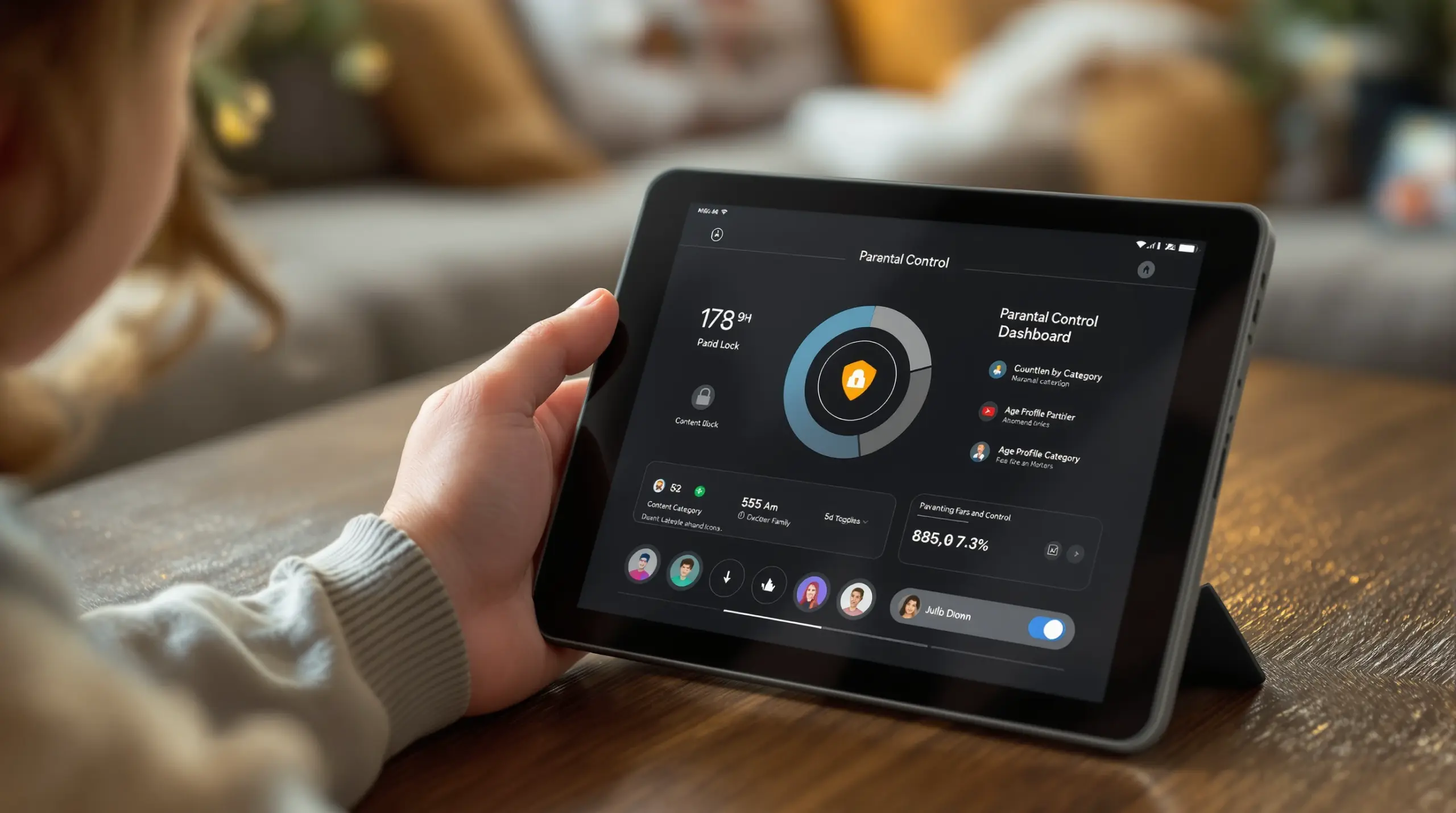
Parental control Amazon Fire tablets offer built-in tools to manage screen time, filter content, and keep kids safe online – this guide covers everything families need to get started and what to do when you need more.
Table of Contents
- What Is Parental Control on Amazon Fire?
- Amazon’s Built-In Controls: What They Cover
- Where Amazon Fire Parental Controls Fall Short
- Extending Protection with Third-Party Apps
- Frequently Asked Questions
- Comparison: Amazon Fire Controls vs. Third-Party Apps
- How Boomerang Parental Control Can Help
- Practical Tips for Amazon Fire Safety
- The Bottom Line
- Sources & Citations
Quick Summary
Parental control Amazon Fire is a suite of built-in features on Amazon Fire tablets – covering screen time scheduling, content filtering, and purchase restrictions – designed to help parents manage how children use their device. These tools are free, easy to activate, and form a solid first layer of family digital safety.
Quick Stats: parental control amazon fire
- Amazon Fire tablets support up to 4 child profiles via the Amazon Kids Parent Dashboard (Google Play Store, 2025)[1]
- Amazon Kids parental controls are built into every Fire tablet at no cost – no subscription required (Kidslox, 2025)[2]
- The Fire HD parental controls menu covers 6 categories, including content, purchases, and screen time (Internet Matters, 2025)[3]
- The Amazon Kids Parent Dashboard is compatible with 5 device categories, including Fire tablets, Echo, Kindle, and Fire TV (About Amazon, 2025)[4]
What Is Parental Control on Amazon Fire?
Parental control Amazon Fire is a set of free, built-in tools that let you manage what your child can see, download, and do on their Amazon Fire tablet. These controls are available from the moment you turn on the device – no third-party app or subscription is required to get started. Boomerang Parental Control works alongside these built-in features to give families an even deeper layer of oversight, especially for Android-based devices in the household.
Amazon’s approach to child device safety centers on two main systems: the Amazon Kids feature built directly into the tablet and the Amazon Kids Parent Dashboard, which you access from a separate app or browser on your own phone or computer. Together, they give you a centralized way to set boundaries across multiple devices and children.
START YOUR FREE TRIAL
Take control of screen time—free for 14 days, cancel anytime.




As the Kidslox Guide Author explains, “Every Fire tablet comes with Amazon Kids built in at no extra cost. This gives you a variety of parental controls within the Amazon Kids app.” (Kidslox, 2025)[2] This means even families who have never used parental control software before have a working foundation from day one.
The built-in system covers several key areas of concern for parents: age-appropriate content filtering, daily screen time limits, purchase controls, and the ability to restrict specific apps and features. Activating these controls takes as few as two main steps from the home screen (Internet Matters, 2025)[3], making it accessible even for non-technical parents who feel intimidated by setup processes.
Understanding exactly what these controls do – and where they stop – is the first step toward making sure your child’s Fire tablet is genuinely protected, not just partially managed.
Amazon’s Built-In Controls: What They Cover
Amazon’s built-in parental control system for Fire tablets is comprehensive enough to serve as the primary safety layer for younger children and first-time device owners. The controls are organized into clear categories that address the most common parental concerns around content, spending, and time spent on screens.
Amazon Kids and the Parent Dashboard
The Amazon Kids Parent Dashboard is the hub where most parental configuration happens. The Amazon Team describes it this way: “The Amazon Kids Parent Dashboard is a free hub where parents and guardians can manage and customize their kids’ experiences across compatible Amazon devices.” (About Amazon, 2025)[4] From the dashboard, you can manage up to 4 child profiles (Google Play Store, 2025)[1] and apply settings across Fire tablets, Echo devices, Kindle e-readers, and Fire TV.
The dashboard lets you set daily screen time limits, schedule time windows when the device is accessible, and separate educational content time from entertainment time. For example, you can allow two hours of use between 4 p.m. and 6 p.m. (YouTube Tutorial, 2025)[5] while keeping the device locked during homework and bedtime.
Content Filtering and Purchase Restrictions
Amazon Fire’s parental controls include age-based content filtering that restricts what apps, games, videos, and websites a child can access. You can set the content level by age group, which automatically adjusts what appears in the child’s profile. The system also blocks in-app purchases and the ability to download new apps without entering your parental control PIN – a feature that matters greatly for parents of children who might otherwise rack up charges or install inappropriate apps.
The Internet Matters Team reinforces why these steps matter: “If your child uses an Amazon Fire HD tablet, setting up parental controls is a key part of helping them stay safe online.” (Internet Matters, 2025)[3]
The six control categories available on the Fire HD cover content restrictions, browser access, purchase controls, screen time limits, app and game access, and social features (Internet Matters, 2025)[3]. This breadth gives parents meaningful tools right out of the box without requiring any extra configuration beyond the initial setup.
Where Amazon Fire Parental Controls Fall Short
Amazon Fire’s built-in controls are a strong starting point, but they have real limitations that become more apparent as children grow older or become more tech-savvy. Parents who rely solely on these tools find gaps that leave children with more unsupervised access than intended.
Limited Control Over Side-Loaded Apps and Browsers
Fire tablets allow users to install apps from outside the Amazon Appstore – a process called sideloading. Once a child has access to a standard Android browser or a sideloaded app, Amazon’s built-in content filtering does not apply. A determined teenager can bypass Amazon Kids entirely by switching out of the managed profile or installing an alternative browser that ignores age restrictions.
Amazon Kids is also not designed with teenagers in mind. The content levels and interface are geared toward younger children, and older kids find the restrictions feel patronizing or are simple to work around. The managed profile on a Fire tablet does not offer the same depth of per-app time controls or keyword monitoring that a dedicated third-party parental control app provides.
No YouTube App History Monitoring or Text Safety
Amazon Fire’s built-in tools have no visibility into what a child watches within the full YouTube app if it is installed or accessed via a browser. There is no call and text safety monitoring, no keyword alerts for concerning messages, and no geofencing or real-time location tracking. These are features that many parents of older children or teenagers specifically need – and they are simply outside the scope of what Amazon’s built-in system offers.
The Boomerang Parental Control software review on TechRadar highlights how third-party apps fill exactly these gaps for families who need deeper oversight than platform-native tools provide.
Bypass Vulnerability with Older Kids
Because the Fire tablet runs a modified version of Android, children who are familiar with Android devices can exit Amazon Kids and access the full tablet interface. Without strong uninstall protection or device-level enforcement, the rules you set can be undone by a determined child in a matter of minutes. This is one of the most common frustrations reported by parents of tech-savvy pre-teens and teenagers who have already bypassed simpler controls on other platforms.
Extending Protection with Third-Party Apps
Third-party parental control apps extend and strengthen the protection that Amazon’s built-in tools provide, particularly for families with older children or those who need features that go beyond content filtering and basic screen time scheduling. Because Amazon Fire tablets run a version of Android, many Android-compatible parental control apps can be installed and used alongside – or instead of – the native Amazon controls.
What Third-Party Apps Add to the Mix
Dedicated parental control apps designed for Android devices offer a significantly broader feature set than what Amazon builds into its tablets. Per-app time limits let you set specific allowances for individual apps rather than applying a single daily limit to everything. This means a child can have 30 minutes for a game while educational apps remain unrestricted. Encouraged Apps features take this further by exempting learning tools from daily time totals entirely, helping you guide your child toward balanced digital habits rather than just imposing blanket restrictions.
For families with Android smartphones and Fire tablets in the same household, a single third-party parental control platform manages all devices from one parent dashboard, simplifying oversight rather than requiring you to manage Amazon’s system separately from your phone controls. You can read an independent Boomerang Parental Control Review on SafeWise for a detailed look at how these capabilities compare in practice.
Stronger Tamper Protection
One of the most important differences between built-in tools and dedicated parental control apps is tamper resistance. Apps like Boomerang Parental Control are specifically designed to be difficult to remove without the parent’s PIN. On supported Samsung Android devices, Knox-level integration makes the app virtually impossible for a child to uninstall or bypass – a level of enforcement that Amazon’s own profile system cannot match. For parents of teenagers who have already figured out how to exit managed profiles or delete monitoring apps, this kind of protection is not optional – it is the whole point.
The SafeWise review of Boomerang confirms that uninstall protection is one of the features parents most frequently cite as the reason they chose a dedicated app over built-in solutions. The SPIN Safe Browser, available for both Android and iOS, provides an additional layer of web filtering that works on any network – including home wifi, mobile data, and school networks – without requiring a VPN or router configuration. Learn more at SPIN Safe Browser.
Monitoring Features That Go Deeper
For Android devices specifically, third-party apps offer YouTube App History Monitoring, which shows parents exactly what their child is searching for and watching within the YouTube app – not just what content was downloaded or purchased. Call and Text Safety features log SMS history and send keyword alerts when concerning words appear in messages. Real-time location tracking with geofencing sends automatic alerts when a child arrives at or leaves a designated location, like school or home. None of these capabilities are available through Amazon’s built-in parental control system.
Your Most Common Questions
Can I use Boomerang Parental Control on an Amazon Fire tablet?
Yes, Amazon Fire tablets run a modified version of Android, which means Android-compatible parental control apps can be installed on them. Boomerang Parental Control is designed for Android devices and can be sideloaded onto a Fire tablet to provide deeper control and monitoring than Amazon’s built-in tools offer. The sideloading process involves downloading the app directly from our website rather than through the Amazon Appstore. Once installed, Boomerang’s core features – including screen time scheduling, app management, web filtering via SPIN Safe Browser, and location tracking – work on the device. Note that Samsung Knox integration is exclusive to Samsung devices, so Knox-level tamper protection does not apply to a Fire tablet. However, standard uninstall protection and automated screen time enforcement remain active. If your household includes both an Amazon Fire tablet and an Android smartphone for your child, Boomerang helps you manage both from a single parent account, simplifying oversight rather than requiring separate management systems.
Is the Amazon Kids Parent Dashboard free to use?
Yes, the Amazon Kids Parent Dashboard is completely free. No Amazon Kids+ subscription is required to access the core parental control features (Google Play Store, 2025)[1]. The dashboard lets you create up to four child profiles, set screen time limits, manage content filters, control purchases, and apply settings across compatible Amazon devices including Fire tablets, Echo devices, Kindle e-readers, and Fire TV. Amazon Kids+ is a separate paid subscription that unlocks a curated library of child-friendly content, books, apps, and games – but the parental controls themselves do not depend on it. As the Amazon Kids product team describes it, “Parent Dashboard is a free tool that helps parents manage their children’s digital experiences across Amazon devices, with customizable screen time limits and age filters.” (About Amazon, 2025)[4] This makes Amazon’s built-in system a genuinely useful starting point for families managing younger children’s Fire tablet use without any additional cost barrier.
What happens when my child’s screen time limit runs out on a Fire tablet?
When the screen time limit you have set through Amazon Kids or the Parent Dashboard is reached, the tablet locks and the child cannot continue using it without parent approval. This automated lockout is one of the most practical benefits of using digital screen time controls – it removes the parent from the role of having to physically enforce the limit. The child sees a screen indicating time is up, and they need to ask a parent to unlock it or wait until the next permitted time window. This is exactly how Boomerang’s screen time scheduling works on Android devices too: the phone or tablet locks automatically when daily time is up or the scheduled downtime period begins, ending the daily argument about turning off the device. For parents who set both a total daily limit and specific time windows – for example, allowing use only between 4 p.m. and 6 p.m. – the device will lock either when the daily total is reached or when the time window closes, whichever comes first. This gives you layered control over both duration and timing of device use.
Can my child bypass Amazon Fire parental controls?
Unfortunately, yes – determined and tech-savvy children sometimes find ways around Amazon Fire’s built-in parental controls. Because Fire tablets run a version of Android, children who are familiar with the platform are able to exit the Amazon Kids managed environment, sideload alternative browsers, or reset device settings if they can access the parental control PIN. Amazon’s system is designed with younger children in mind and is not built to withstand the kind of deliberate bypass attempts that older pre-teens and teenagers make. This is one of the core reasons many parents move to a dedicated third-party parental control app as their children get older. Boomerang Parental Control specifically addresses this frustration: its Uninstall Protection makes it extremely difficult for children to remove or disable the app without the parent’s PIN. On Samsung Android devices, Knox integration takes this even further – enforcing controls at the device firmware level, which is virtually impossible for a child to override. If your child has already bypassed Amazon’s native controls or simpler tools like Google Family Link or Apple Screen Time, a dedicated app with strong tamper protection is the logical next step.
Comparing Amazon Fire Built-In Controls vs. Third-Party Parental Apps
Choosing between Amazon’s native parental tools and a dedicated third-party app depends on your child’s age, how tech-savvy they are, and what level of oversight your family needs. The table below compares the key capabilities of each approach to help you make an informed decision.
| Feature | Amazon Fire Built-In Controls | Third-Party App (e.g., Boomerang) |
|---|---|---|
| Cost | Free (0 dollars)[2] | Annual subscription (low cost per device) |
| Screen time scheduling | Yes – time windows and daily limits | Yes – scheduled downtime and daily totals |
| Per-app time limits | No | Yes (Android only) |
| Content filtering | Yes – age-based categories | Yes – web filtering + SPIN Safe Browser |
| YouTube history monitoring | No | Yes (Android only) |
| Call and text safety | No | Yes (Android only) |
| Uninstall/tamper protection | Limited | Strong – Knox integration on Samsung |
| Location tracking and geofencing | No | Yes |
| App approval workflow | Partial – purchase controls only | Full – approve every new install |
| Child profiles supported | Up to 4[1] | Family Pack – up to 10 child devices |
How Boomerang Parental Control Can Help
Boomerang Parental Control – Taking the battle out of screen time for Android and iOS – is a dedicated parental control app built specifically to give parents deeper control than built-in platform tools offer. While Amazon Fire’s native system works well for younger children on a tightly managed tablet, Boomerang fills the gaps that matter most for families with older kids or households that include Android smartphones alongside Fire tablets.
Boomerang’s screen time features go beyond simple daily totals. You can set per-app time limits on Android devices – for example, 30 minutes for a game while educational apps remain unrestricted as “Encouraged Apps.” The daily limit enforces automatically when time is up, locking the device without any parental intervention needed. That means no argument, no negotiation, and no having to play screen time police every evening.
For families using Android devices, the deeper monitoring features are where Boomerang stands apart. YouTube App History Monitoring shows you exactly what your child is searching for and watching in the YouTube app. Call and Text Safety (Android only) logs SMS history and sends keyword alerts for concerning messages. Real-time location tracking with geofencing sends you an automatic alert when your child arrives at or leaves a set location – no check-in text required.
Tamper protection is one of Boomerang’s most important differentiators. Boomerang is the only parental control app to use Samsung’s Knox – an enterprise mobile security solution pre-installed in most Samsung smartphones and tablets – making it extremely difficult for even the most tech-savvy teenager to remove or bypass the app.
“Hey fellow parents, So far this the best parental control app .. hands down. So far the only app my 11 year old was not able to bypass. Big Shout out to developers for making such a great app.” – Jason H, Google Play review
“I have control back over my child’s phone and applications because she managed to circumvent family link. I have no idea how she did that but she managed to find a way, as did other kids. That was a major frustration for us. But now with Boomerang, I can manage her time, what applications she uses and what sites she visits.” – Joe Eagles, Google Play review
Boomerang is available for Android via Google Play or as a sideload download for Android devices that unlocks call and text safety features plus app removal protection. iOS support is available with limited features. Subscriptions are available on an annual basis for a single device or as a Family Pack covering up to 10 child devices. Contact us at [email protected] or visit our support portal for help getting started.
Practical Tips for Amazon Fire Safety
Setting up parental control on an Amazon Fire tablet is straightforward, but getting the most out of it – and knowing when to add additional tools – takes a bit more planning. These tips will help you build a safer, more balanced device environment for your child from day one.
Start with Amazon Kids before adding anything else. If your child is under 10 and using the tablet for age-appropriate content, Amazon’s built-in controls are a genuine starting point. Activate Amazon Kids from the Home screen, set a parental control PIN you will remember, and configure the age filter to match your child’s actual age rather than defaulting to the broadest setting available.
Use the Parent Dashboard app on your phone. Managing settings from your phone means you can adjust screen time limits, check usage, and respond to your child’s requests without touching the tablet itself. The Amazon Kids Parent Dashboard app is free and compatible with both Android and iOS parent devices (Google Play Store, 2025)[1].
Set both a daily time limit and a schedule. Using only a daily total limit means your child could use all their time before dinner and then have no access for homework help later. Combine a daily total with a time window – for example, 4 p.m. to 7 p.m. – so screen time is available when it should be and locked when it should not.
Restrict the browser and sideloading settings. In the Fire tablet’s parental controls, turn off the built-in Silk browser for younger children or restrict it to Amazon Kids content only. Also disable the ability to install apps from unknown sources to prevent sideloading of alternative apps that bypass content filters.
Review what your child is actually doing, not just the time totals. Amazon’s dashboard shows time spent by category, but it does not show YouTube search history or which specific content was viewed. If your child uses YouTube frequently, consider adding an app like Boomerang to your Android devices for YouTube App History Monitoring – or install SPIN Safe Browser to add another layer of content filtering that works on any network without VPN setup.
Revisit the settings as your child gets older. Controls that worked well at age 8 may be too restrictive or not restrictive enough at age 12. Set a reminder every six months to review your settings, have a conversation with your child about what they are doing online, and gradually adjust limits as they show responsible habits. Parental controls work best as a framework for building digital trust, not as a permanent lock.
The Bottom Line
Parental control Amazon Fire tablets provide a solid, free foundation for managing younger children’s device use – covering screen time scheduling, content filtering, and purchase restrictions with minimal setup. The Amazon Kids Parent Dashboard makes it easy to manage multiple child profiles across compatible devices from your own phone, and it costs nothing to use.
That said, Amazon’s built-in tools have real limits when children get older, more independent, and more determined to find workarounds. Features like per-app time limits, YouTube history monitoring, call and text safety, location tracking, and strong tamper protection require a dedicated third-party app to fill the gap.
Boomerang Parental Control is built specifically for families who need that next level of oversight – primarily for Android devices, with iOS support available. Whether you are setting up your child’s first device or managing a teenager who has already bypassed simpler controls, Boomerang gives you the tools to enforce boundaries without having to argue about them every day.
Ready to take the next step? Visit useboomerang.com to learn more, or email us at [email protected]. Our support team is available through the help portal at community.useboomerang.com to answer your questions and help you get set up.
Sources & Citations
- Amazon Kids Parent Dashboard – Apps on Google Play. Google Play Store, 2025.
https://play.google.com/store/apps/details?id=com.amazon.tahoe.grownups&hl=en_US - A Guide to Using Kindle Fire Parental Controls (Updated for 2025). Kidslox, 2025.
https://kidslox.com/guide-to/using-kindle-fires-parental-controls/ - Amazon Fire HD safety – Parental Controls – Internet Matters. Internet Matters, 2025.
https://www.internetmatters.org/parental-controls/smartphones-and-other-devices/amazon-fire-hd/ - Set parental controls with the Amazon Kids Parent Dashboard. About Amazon, 2025.
https://www.aboutamazon.com/news/devices/set-parental-controls-using-amazon-parent-dashboard - Amazon Fire HD Parental Controls Setup Tutorial. YouTube, 2025.
https://www.youtube.com/watch?v=2izbJFZUdAE
START YOUR FREE TRIAL
Take control of screen time—free for 14 days, cancel anytime.
