
24
Apr
2026
Parental Controls for Fire Tablet: Complete Guide
April 24, 2026
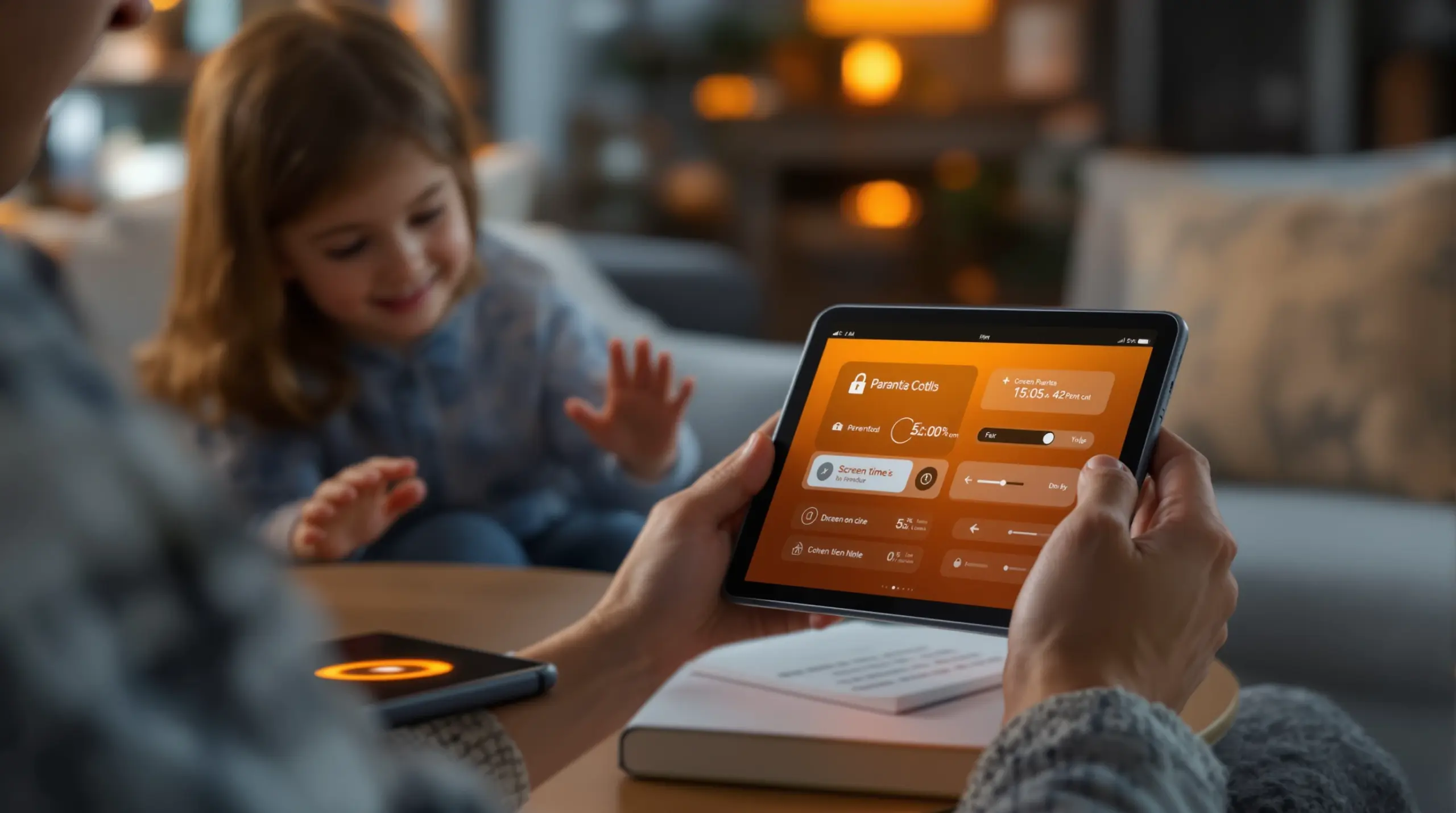
Parental controls for Fire tablet let families manage screen time, block inappropriate content, and approve purchases – here’s everything you need to set them up correctly and fill the gaps.
Table of Contents
- What Are Parental Controls for Fire Tablet?
- Built-In Amazon Controls and Their Limits
- Advanced Monitoring Beyond the Amazon Dashboard
- Why Kids Bypass Fire Tablet Controls – and How to Stop It
- Frequently Asked Questions
- Comparing Fire Tablet Parental Control Approaches
- How Boomerang Parental Control Helps
- Practical Tips for Fire Tablet Safety
- The Bottom Line
- Sources & Citations
Article Snapshot
Parental controls for Fire tablet is a set of built-in and third-party tools that restrict content, limit screen time, and block unauthorized purchases on Amazon Fire HD devices. Amazon’s native dashboard covers the basics, but families seeking deeper app-level controls and bypass-proof enforcement need a dedicated solution like Boomerang Parental Control.
Market Snapshot
- Up to 4 child profiles can be registered on a single Amazon Fire tablet (Protect Young Eyes, 2025)[1]
- 5 features are blocked by default when parental controls are enabled – Alexa, browser, email, contacts, and camera (USA it’s Tech YouTube, 2025)[2]
- 3 main parental control categories are available on Amazon Fire HD tablets: content restrictions, purchases, and screen time (Internet Matters, 2025)[3]
- 4 Amazon device categories are compatible with the Amazon Kids Parent Dashboard – Fire Tablets, Echo, Fire TV, and Kindle (About Amazon, 2026)[4]
What Are Parental Controls for Fire Tablet?
Parental controls for Fire tablet are the combination of Amazon’s native restrictions and optional third-party apps that together let parents manage what children can see, download, and do on an Amazon Fire HD device. These tools address one of the most common challenges parents face today: handing a child a connected device and feeling confident the content they encounter is age-appropriate. Boomerang Parental Control, a dedicated family safety app launched in 2015, works alongside Amazon’s own controls to close the gaps that the built-in system leaves open.
Amazon Fire tablets are popular first devices for children, particularly for pre-teens receiving their first personal tablet. The Fire HD range runs a customized version of Android, which means it supports both Amazon’s ecosystem controls and, with some configuration, a broader set of parental control apps designed for Android. Understanding both layers is important before you hand the device to your child.
START YOUR FREE TRIAL
Take control of screen time—free for 14 days, cancel anytime.




At the most basic level, Amazon’s built-in parental controls lock the device behind a PIN when time limits are reached, restrict purchases to parent-approved transactions, and filter content by category. According to the Internet Matters Team, “There are a variety of parental controls that you can set up with Amazon Fire HD, including content restrictions, purchases and screen time” (Internet Matters, 2025)[3]. That framework is a solid starting point, but it is not the complete picture for families managing a determined or tech-savvy child.
Parents of pre-teens in the United States and Canada find that Fire tablet controls work well when a child is young and less motivated to work around them. As children get older, the gaps in Amazon’s native toolset become more apparent – particularly around app-level time limits, YouTube monitoring, and the ability to prevent the child from simply turning off restrictions altogether.
Built-In Amazon Controls and Their Limits
Amazon’s native parental control system gives parents a genuine set of tools, but every parent should understand exactly what those tools cover before relying on them exclusively.
Amazon Kids and the Parent Dashboard
Amazon Kids is the child-profile mode built directly into Fire tablets. When you set up a child profile, the device enters a curated environment where only approved content is accessible. The Amazon Team describes the Amazon Kids Parent Dashboard as “a free hub where parents and guardians can manage and customize their kids’ experiences across compatible Amazon devices and the Amazon Kids+ subscription” (About Amazon, 2026)[4]. That dashboard is accessible from any web browser or the Amazon Parent Dashboard app, meaning you can adjust settings without touching the child’s device.
Parents can use the dashboard to configure age-appropriate settings, set screen time limits, review activity, and manage content – including books, apps, games, videos, and Alexa skills – across up to 4 child profiles on a single device (About Amazon, 2026)[4]. The web browsing controls inside Amazon Kids offer two restriction levels: Hand-Selected Websites and Videos, or Filtered Websites and Videos, giving parents a meaningful choice between tighter and looser browsing environments (About Amazon, 2026)[4].
As tech reviewer Tim from USA it’s Tech explains when walking through the settings: “We have access to all these different options under here for the parental controls so if we want to turn on password protect purchases this is turned on by default then you can set a curfew for your child you can monitor this profile and you can restrict the content” (USA it’s Tech YouTube, 2025)[2]. The default setup when parental controls are first enabled blocks five features automatically: Alexa, the browser, email, contacts, and camera (USA it’s Tech YouTube, 2025)[2].
Account Structure Changes Parents Must Know
One important update affects how you structure your child’s account. As Chris McKenna, CEO of Protect Young Eyes, notes: “Important to Note: Amazon no longer allows for new Teen Accounts. It’s either child or adult. So, it’s crucial to ensure the proper controls are set!” (Protect Young Eyes, 2025)[1]. This means that older children – including early teenagers – will be placed into either a fully restricted child account or a completely unrestricted adult account with no middle ground. Parents need to decide deliberately which profile type fits their child and supplement the child account with appropriate controls where needed.
Where the Built-In System Falls Short
Amazon’s controls handle content filtering and purchase restrictions well, but they do not offer per-app time limits, YouTube watch history visibility, call and text monitoring, or bypass-proof enforcement at the device level. A child who exits the Amazon Kids environment and accesses the standard Fire OS – which is possible if a parent has not configured the exit PIN carefully – can work around several restrictions. For families where these gaps matter, a third-party solution running on top of Fire OS addresses what Amazon’s system cannot.
If you want a safe browsing experience that works outside the Amazon Kids browser, SPIN Safe Browser provides pre-configured content filtering and strict SafeSearch enforcement on Android-based devices, including Fire tablets, without requiring any VPN or router configuration.
Advanced Monitoring Beyond the Amazon Dashboard
Families who need more than Amazon’s built-in tools provide can layer additional parental controls on top of Fire OS, taking advantage of the tablet’s underlying Android architecture.
Why Fire Tablets Support Third-Party Parental Controls
Amazon Fire tablets run a forked version of Android. While they do not ship with the Google Play Store pre-installed, parents can sideload Android APKs directly onto the device. This opens the door to dedicated parental control apps – including Boomerang Parental Control – that provide features Amazon’s own dashboard does not offer. Sideloading requires enabling installation from unknown sources in the Fire tablet’s settings, a process that takes a few minutes and is straightforward to complete. The sideload download page for Android devices provides direct access to the Boomerang APK and step-by-step instructions specifically designed for this process.
App-Level Controls and Screen Time Scheduling
One of the most requested features that Amazon’s native controls lack is the ability to set individual time limits per app – for example, allowing 30 minutes of a gaming app while keeping a learning app completely unrestricted. Dedicated parental control apps deliver this level of granularity. The Boomerang Parental Control screen time features include per-app daily limits, scheduled downtime for bedtime or homework hours, and the ability to designate educational apps as Encouraged so they remain accessible even after the daily entertainment limit has been reached. This approach replaces daily arguments with an automated, neutral system that enforces the rules without the parent having to intervene every time the child wants more screen time.
YouTube and Content Visibility
A significant blind spot in Amazon’s controls is YouTube. While Amazon Kids restricts the standard YouTube app by default, many children access YouTube through the browser or request it as an approved app as they get older. On Android-based devices, Boomerang’s YouTube App History Monitoring feature gives parents a clear record of what their child has searched for and watched inside the main YouTube app – visibility that neither Amazon’s dashboard nor most competing apps provide. This feature is available on Android only, which includes Fire tablets running sideloaded Android apps.
For a broader independent perspective on what Boomerang offers Fire tablet users, the Boomerang Parental Control software review on TechRadar provides a detailed third-party assessment of the app’s capabilities and real-world performance.
Location Tracking and Communication Safety
As children grow older and begin carrying Fire tablets outside the home, location awareness becomes a priority. Parental control apps with real-time location tracking and geofencing let parents receive automatic alerts when a child arrives at or leaves a specific location – school, a friend’s house, or an after-school activity – without requiring the child to remember to check in. Combined with call and text monitoring on Android devices, these features extend protection beyond digital content into physical and social safety.
Why Kids Bypass Fire Tablet Controls – and How to Stop It
Child circumvention of parental controls is one of the most common frustrations parents report, and Fire tablets are not immune to it.
Common Bypass Tactics on Fire Tablets
The most straightforward bypass on a Fire tablet is simply exiting the Amazon Kids environment by entering the parent PIN – which children sometimes observe over a parent’s shoulder or guess from common sequences like 1111 (USA it’s Tech YouTube, 2025)[2]. Once outside Amazon Kids, the child has access to standard Fire OS with far fewer restrictions. Other bypass attempts include factory resetting the device to remove controls entirely, or accessing content through a browser that was not fully restricted in the dashboard settings.
Tech-savvy older children may also attempt to uninstall third-party parental control apps. This is a specific area where Boomerang’s Uninstall Protection provides a meaningful advantage. On supported Samsung Android devices, Boomerang integrates with Samsung Knox to make removal virtually impossible without the parent PIN. For non-Samsung Android devices, including Fire tablets, strong uninstall protection is still available through Boomerang’s standard device administrator permissions, which prevent simple deletion.
Building a Layered Defense
The most effective approach combines Amazon’s built-in controls with a dedicated parental control app and clear household rules. Amazon Kids handles the content library curation and purchase restrictions. A dedicated app like Boomerang handles screen time enforcement, app-level limits, and bypass prevention. Household rules – agreed to by the child upfront – handle the behavioral layer. None of these elements replaces the others; together they create a defense that is genuinely difficult for a child to defeat.
Use a PIN that your child cannot easily guess or observe. Change it periodically. Enable the setting that requires the PIN to exit Amazon Kids. Install a dedicated parental control app with uninstall protection. And have an honest conversation with your child about why the controls exist – research consistently shows that children who understand the purpose of restrictions are less motivated to work around them.
For further independent analysis of how Boomerang compares to other options on Android-based devices, the Boomerang Parental Control Review on SafeWise covers real-world testing and parent-focused evaluation criteria.
Your Most Common Questions
Can I use Boomerang Parental Control on an Amazon Fire tablet?
Yes. Amazon Fire tablets run a customized version of Android, which means you can sideload Android APK files onto the device. Boomerang Parental Control is available as a direct download APK, making it compatible with Fire tablets. The setup process involves enabling installation from unknown sources in the Fire tablet’s settings, downloading the Boomerang APK, and completing the guided setup. Once installed, Boomerang operates on top of Fire OS and provides features that Amazon’s built-in controls do not offer – including per-app time limits, YouTube App History Monitoring, and stronger uninstall protection. This layered approach gives parents both the Amazon Kids content library curation they already have and the deeper device-level management that Boomerang adds. YouTube App History Monitoring, per-app time limits, and Call and Text Safety are Android-only features and apply to the Fire tablet through the sideloaded app. iOS-specific limitations do not apply to Fire tablets since they run an Android-based OS.
What does the Amazon Kids Parent Dashboard control on a Fire tablet?
The Amazon Kids Parent Dashboard is a free web-based and app-based control center that lets parents manage up to 4 child profiles across compatible Amazon devices including Fire tablets, Echo devices, Fire TV, and Kindle e-readers (About Amazon, 2026)[4]. From the dashboard, parents can set daily screen time limits, configure age filters for content, approve or restrict specific books, apps, games, videos, and Alexa skills, and review activity reports. The dashboard also manages web browsing restrictions, offering two levels: Hand-Selected Websites and Videos for the tightest control, or Filtered Websites and Videos for a broader but still filtered browsing experience. While the dashboard is genuinely useful for managing content access and setting daily time allowances, it does not provide per-app time limits, YouTube watch history outside the Amazon ecosystem, or bypass-proof app-level enforcement – gaps that a dedicated parental control app fills.
How do I stop my child from turning off parental controls on a Fire tablet?
The first line of defense is a strong, non-obvious PIN for both the Amazon Kids exit screen and the Fire tablet’s built-in parental controls password. Avoid common sequences and avoid entering the PIN where your child can watch. Beyond that, enabling the Amazon Kids exit PIN is important – this setting requires the parent password any time a child tries to leave the Amazon Kids environment and access standard Fire OS. For a more complete solution, installing a dedicated parental control app with device administrator permissions – such as Boomerang – means the child cannot simply delete the monitoring app without knowing the parent PIN. On Samsung Android devices, Boomerang integrates with Samsung Knox for an even higher level of protection, though Fire tablets use a different chipset and do not support Knox. Combining a strong PIN, the Amazon Kids exit lock, and a dedicated parental control app with uninstall protection creates a layered defense that significantly reduces successful bypass attempts.
Is Amazon’s built-in parental control enough, or do I need a third-party app?
Amazon’s built-in parental controls are a solid foundation for younger children who are not yet motivated to work around restrictions and whose main use case is accessing age-appropriate content from the Amazon Kids library. The three core categories – content restrictions, purchases, and screen time – cover the basics well (Internet Matters, 2025)[3]. However, for families with older pre-teens, children who have already attempted to bypass simpler controls, or parents who want per-app time limits and YouTube viewing history, the built-in system has real limitations. Amazon’s controls do not differentiate between a gaming app and a homework app when applying time limits, do not surface what a child watches in a standard YouTube app, and do not prevent a determined child from removing a third-party monitoring app. A dedicated parental control app fills these gaps. For most families, the best outcome comes from using both: Amazon’s native tools manage the content library and purchases, while a dedicated app handles the deeper device-level enforcement, visibility, and bypass prevention that Amazon’s system does not provide.
Comparing Fire Tablet Parental Control Approaches
Choosing the right level of parental control for a Fire tablet depends on your child’s age, how tech-savvy they are, and how much visibility you need. The table below compares the three main approaches families use, covering the features that matter most to parents managing a child’s Amazon Fire HD device.
| Approach | Screen Time Scheduling | Per-App Time Limits | Content Filtering | YouTube History (Android) | Bypass / Uninstall Protection | Purchase Controls |
|---|---|---|---|---|---|---|
| Amazon Kids Built-In | Yes – daily limits and curfew | No | Yes – 2 web browsing levels[5] | No | Limited – PIN-based exit only | Yes – password-protected by default[2] |
| Amazon Kids + Boomerang Parental Control | Yes – scheduled downtime and daily limits | Yes – per-app limits with Encouraged Apps | Yes – SPIN Safe Browser + Amazon Kids filtering | Yes – Android only | Strong – device admin uninstall protection | Yes – Amazon handles purchases |
| No Controls (Standard Fire OS) | No | No | No | No | None | No restrictions |
How Boomerang Parental Control Helps Fire Tablet Families
Boomerang Parental Control – Taking the battle out of screen time for Android and iOS is purpose-built to address the gaps that Amazon’s native controls leave open for families managing Android-based devices, including Fire tablets. Since 2015, we have focused on giving parents the tools they actually need – not just content filtering, but real daily peace of mind.
When you install Boomerang on a Fire tablet via sideloading, you gain access to per-app daily time limits that treat a learning app differently from a gaming app. You can mark educational tools as Encouraged Apps so they remain available even after a child’s entertainment screen time runs out – a feature that supports healthy digital habits rather than pure restriction. Scheduled downtime enforces bedtime and homework hours automatically, so the device locks without requiring you to step in and trigger a negotiation every evening.
For parents concerned about YouTube, Boomerang’s YouTube App History Monitoring gives you a clear picture of what your child has searched and watched in the standard YouTube app – visibility that Amazon’s dashboard does not provide. This Android-only feature is especially valuable on Fire tablets where older children have access to the full YouTube app outside the Amazon Kids environment.
Our uninstall protection ensures that once Boomerang is set up, your child cannot simply delete it from the device settings. Combined with real-time location tracking and geofencing alerts, Boomerang gives you both digital safety and physical safety monitoring in a single app.
“Hey fellow parents, So far this the best parental control app .. hands down. So far the only app my 11 year old was not able to bypass. Big Shout out to developers for making such a great app.” – Jason H, Google Play review
“This is a great application! I have control back over my child’s phone and applications because she managed to circumvent family link. I have no idea how she did that but she managed to find a way, as did other kids. That was a major frustration for us. But now with Boomerang, I can manage her time, what applications she uses and what sites she visits.” – Joe Eagles, Google Play review
Subscriptions are available annually for a single device or as a Family Pack covering up to 10 child devices. Setup support is available through the help portal and our knowledge base for parents who want guidance through the sideloading process. Visit the Boomerang Parental Control screen time features page to see the full feature set, or reach out at [email protected] with any questions.
Practical Tips for Fire Tablet Safety
Setting up parental controls for a Fire tablet is most effective when you treat it as a one-time configuration that then runs automatically rather than a daily manual task. Here are the steps and strategies that make the biggest difference for families.
Set a strong, unique PIN immediately. The first thing to do when enabling parental controls on a Fire tablet is to choose a PIN your child cannot guess and cannot observe you entering. Avoid birth years, repeated digits like 1111 (USA it’s Tech YouTube, 2025)[2], or sequences associated with the household. Change it every few months or whenever you suspect it has been observed.
Enable the Amazon Kids exit PIN. This setting requires your PIN any time someone tries to leave the Amazon Kids environment and access standard Fire OS. Without it, the child’s profile is only one swipe away from full device access. This is one of the most overlooked settings in the default Amazon Kids setup.
Configure the Amazon Kids Parent Dashboard before handing over the device. Spending 15 minutes in the dashboard to set age filters, select the right web browsing restriction level, and establish a daily screen time schedule means the device arrives in your child’s hands already configured correctly – rather than open while you catch up later. The dashboard works from any browser, so you do not need the physical tablet to make changes.
Layer a dedicated parental control app for deeper coverage. Amazon’s controls handle content and purchases. A dedicated app handles per-app limits, YouTube visibility, and bypass prevention. Installing Boomerang via the sideload download adds these capabilities without replacing what Amazon’s system already does well.
Use Encouraged Apps to reward learning without extending entertainment time. Designating homework apps, reading apps, and educational tools as Encouraged Apps means they stay accessible even after the daily entertainment time has been used up. This removes the incentive for a child to avoid using them during the day and builds positive digital habits from the start.
Review activity reports regularly, not reactively. Boomerang’s daily emailed activity reports give you a picture of your child’s device use without requiring you to log in and manually check. Make it a weekly habit to scan the report so you can spot any content or usage patterns that warrant a conversation early, before they become bigger concerns.
Have an upfront conversation with your child about the controls. Children who understand why rules are in place are less motivated to work around them. Frame the controls as a tool that protects their independence – by keeping the relationship positive, you stay connected to their digital life rather than locked out of it.
The Bottom Line
Parental controls for Fire tablet give families a meaningful starting point through Amazon’s built-in tools – covering content filtering, purchase restrictions, and basic screen time scheduling across up to 4 child profiles (Protect Young Eyes, 2025)[1]. But for families with pre-teens, tech-savvy children, or parents who want per-app limits and YouTube visibility, Amazon’s native controls alone leave real gaps.
Layering a dedicated parental control solution on top of Fire OS fills those gaps with features designed specifically for the challenges parents face: automated enforcement that removes daily conflict, bypass-resistant protection that sticks, and visibility tools that make informed conversations possible. The goal is never pure restriction – it is giving your child a device that supports good habits from day one.
Ready to take the next step? Visit Boomerang Parental Control to explore the full feature set, or contact us at [email protected] to get started. If you have questions about setup on a Fire tablet, our support team is available through the help portal at community.useboomerang.com.
Sources & Citations
- Kindle Fire Parental Controls: The Complete Guide from PYE. Protect Young Eyes.
https://www.protectyoungeyes.com/devices/kindle-fire-hd-parental-controls - How to Turn On Parental Controls on Amazon Fire HD 10. USA it’s Tech YouTube.
https://www.youtube.com/watch?v=WHzb7kc5ccc - Parental Controls – Amazon Fire Tablet. Internet Matters.
https://www.internetmatters.org/wp-content/uploads/parent-controls-docs/parental-control-amazon-fire-hd.pdf - Set parental controls with the Amazon Kids Parent Dashboard. About Amazon.
https://www.aboutamazon.com/news/devices/set-parental-controls-using-amazon-parent-dashboard - Set parental controls with the Amazon Kids Parent Dashboard – browsing levels. About Amazon.
https://www.aboutamazon.com/news/devices/set-parental-controls-using-amazon-parent-dashboard
START YOUR FREE TRIAL
Take control of screen time—free for 14 days, cancel anytime.
