
24
Apr
2026
Parental Controls Kindle Fire: A Complete Guide
April 24, 2026
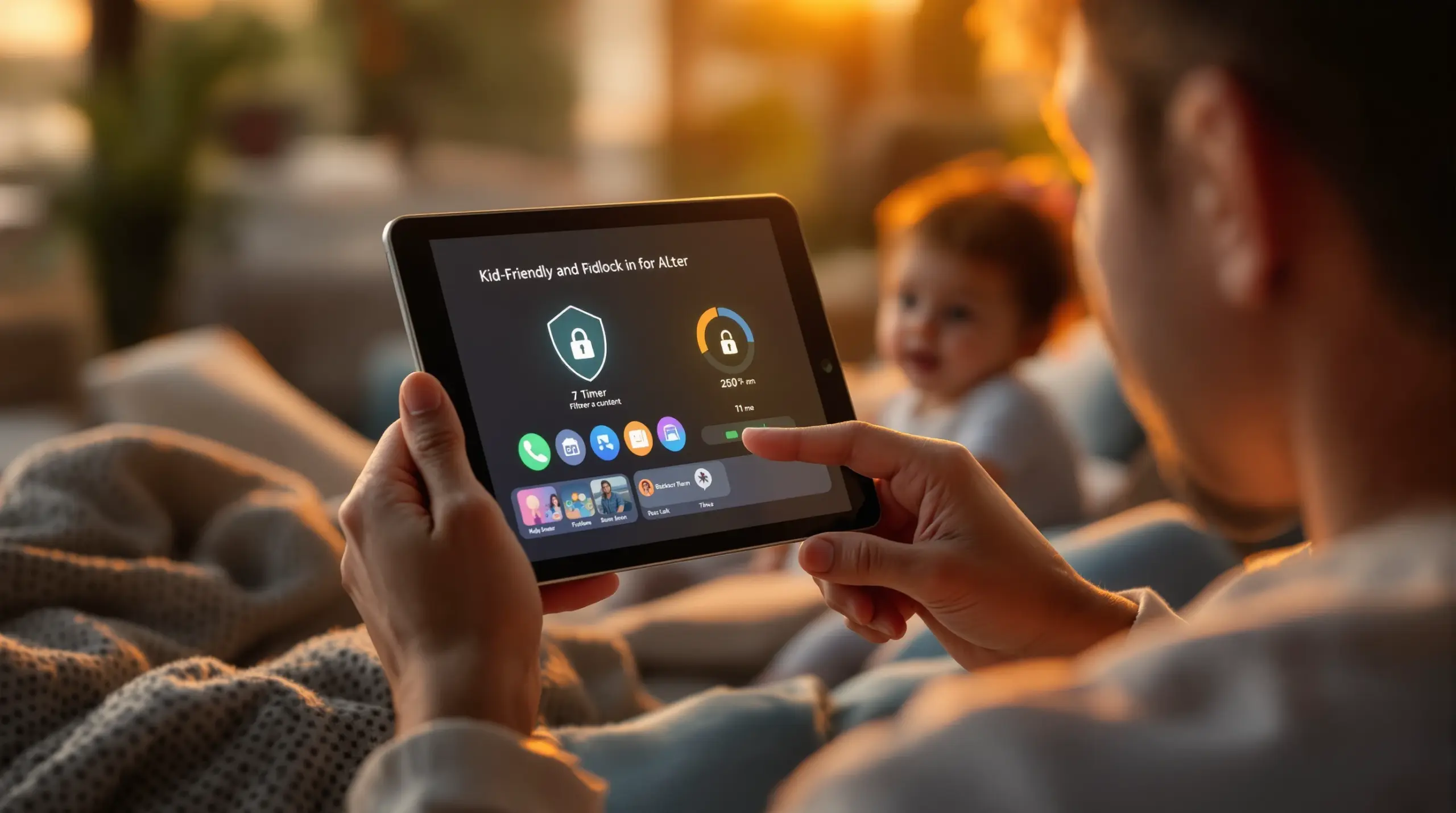
Parental controls Kindle Fire settings help families limit screen time, filter content, and manage app access – here’s what every parent needs to know to keep kids safe on Amazon’s popular tablet.
Table of Contents
- What Are Parental Controls on Kindle Fire?
- Built-In Kindle Fire Controls: What They Can and Can’t Do
- Going Beyond Kindle Fire’s Native Controls
- The Android Advantage for Deeper Parental Control
- Frequently Asked Questions
- Comparing Parental Control Approaches for Kindle Fire
- How Boomerang Parental Control Helps
- Practical Tips for Parents
- The Bottom Line
- Sources & Citations
Quick Summary
Parental controls Kindle Fire is a built-in suite of tools Amazon provides to help parents restrict content, manage screen time, and control app access on Fire tablets. While Amazon’s native controls work well for young children, many parents find they need a more strong, bypass-resistant solution as kids grow older.
What Are Parental Controls on Kindle Fire?
Parental controls Kindle Fire refers to the set of built-in restrictions Amazon has embedded directly into its Fire tablet operating system, giving parents a way to limit what their child can access, how long they can use the device, and what content they can view. Because Kindle Fire tablets run a heavily customized version of Android, they sit in an interesting middle ground: they share much of Android’s underlying capability, yet Amazon’s locked-down storefront and interface mean standard Android parental control apps don’t always install or behave the same way they would on a Google Play device.
Understanding how these controls work – and where they fall short – is the first step toward building a genuinely safe digital environment for your child. Whether you’ve handed your eight-year-old a Fire HD 8 Kids edition or your twelve-year-old is using a standard Fire 10, the parental control experience differs significantly based on which version of Fire OS is running and how your child’s account is configured.
START YOUR FREE TRIAL
Take control of screen time—free for 14 days, cancel anytime.




Amazon offers two main access pathways for families: Amazon Kids (formerly FreeTime) and the standard Parental Controls toggle accessible through the device settings menu. Amazon Kids is the more comprehensive of the two, offering a curated content library and a dedicated interface designed specifically for younger children. The standard Parental Controls setting is a simpler password-protected restriction layer that parents can toggle on without switching the device into the full Amazon Kids experience.
Boomerang Parental Control, which specializes in Android device management, is a solution parents frequently consider when they realize Kindle Fire’s native tools leave gaps – particularly for older kids who know their way around device settings.
Built-In Kindle Fire Controls: What They Can and Can’t Do
Amazon’s native parental control features cover the basics well, but they carry meaningful limitations that become more apparent as children get older and more technically confident.
The Amazon Kids subscription service is the strongest built-in option. It wraps the tablet in a child-friendly interface, blocks access to the standard Amazon store, and lets parents set daily time limits through the Amazon Parent Dashboard – accessible from a browser or the Amazon Parent app. Parents can set different time budgets for different content types: reading time, educational time, and entertainment screen time can each have their own daily cap. This level of granularity is genuinely useful for families who want to reward reading without cutting into it when general screen time runs out.
Standard device-level Parental Controls, accessed through Settings, let parents password-protect purchases, restrict content by rating, block specific apps and features like the web browser or the camera, and prevent the child from turning off wi-fi. These controls are straightforward to configure and don’t require an Amazon Kids subscription.
However, there are clear boundaries to what Amazon’s tools can do. The web browser blocking, for example, only disables the native Silk browser – a child who sideloads a third-party browser or accesses content through a social media app’s in-app browser can bypass that restriction entirely. Time limits set through Amazon Kids don’t carry over to apps the child accesses outside the Amazon Kids walled garden. And a child who knows the parental control PIN can disable restrictions, and PIN-guessing is not rate-limited in older Fire OS versions.
For parents of younger children using an Amazon Kids-enrolled device, these built-in tools are more than sufficient. For parents of older children – particularly those who have already tested the boundaries of simpler controls – the gaps are real and worth addressing with additional tools.
Going Beyond Kindle Fire’s Native Controls
Parents who find Amazon’s built-in restrictions insufficient have several options for supplementing them, and the right approach depends on the child’s age, the specific risk areas the parent is most concerned about, and how technically comfortable the parent is with device configuration.
One of the most effective supplementary layers is a dedicated safe browser. Because Kindle Fire’s Silk browser can be blocked through standard Parental Controls, the goal becomes ensuring any alternative browsing the child accesses is equally filtered. The SPIN Safe Browser is a purpose-built safe browsing solution that installs on Android devices and blocks millions of inappropriate websites automatically, enforces strict SafeSearch on major search engines, and requires no VPN or router configuration to work. Because it functions at the browser application level rather than at the network level, it works on any wi-fi connection the child’s tablet joins – at home, at a friend’s house, or on mobile data.
Web filtering that depends on router-level settings only protects children when they’re on your home network. A child who takes their Kindle Fire to school, a library, or a friend’s house is browsing without that protection the moment they connect to a different wi-fi network. Browser-level filtering closes that gap.
App management is another area where third-party tools add value. Amazon’s app approval process works within the Amazon Kids ecosystem, but children using a standard Fire account can browse and install apps from the Amazon Appstore without parental sign-off unless the purchase restriction PIN is enabled. For free apps, the PIN restriction does not trigger at all, depending on device settings. A parental control solution that requires parent approval before any new app becomes usable adds an important gatekeeping layer that Amazon’s native tools don’t consistently provide.
Location awareness is a feature entirely absent from Amazon’s built-in controls. If your child takes the tablet outside the home, Amazon gives you no way to know where it is. For parents who want passive location confirmation – knowing the device (and presumably the child) arrived at school or a friend’s house – a third-party parental control solution with location tracking fills that gap directly.
The Android Advantage for Deeper Parental Control
Kindle Fire tablets run Fire OS, which is Amazon’s fork of Android. This matters for parents because it means that, with some configuration, the Kindle Fire can access Android-native parental control tools that go significantly deeper than what Amazon’s built-in options provide.
The most important step for parents who want to use a full-featured Android parental control app on a Kindle Fire is enabling the installation of apps from outside the Amazon Appstore – a process called sideloading. Amazon’s Fire OS permits this through the device settings under Security, where you can allow apps from unknown sources. Once enabled, parents can install Android APK files directly onto the tablet, including parental control solutions that would otherwise only be available through Google Play.
This approach gives access to a much broader set of controls. Android-native parental control apps can monitor and restrict individual apps, enforce screen time limits at a granular per-app level, provide content filtering that works across all browsers (not just a blocked native one), and offer uninstall protection that makes it genuinely difficult for a child to remove the monitoring app. These capabilities go well beyond what Amazon’s built-in tools offer.
One important distinction to be clear about: Kindle Fire is not a standard Android device. It doesn’t come with Google Play Services pre-installed, and some Android apps that rely on Google Play frameworks do not function fully on Fire OS. Parents should verify compatibility before relying on any third-party app on a Kindle Fire. That said, many parental control apps distribute their child-side app as a downloadable APK file precisely to support devices like Kindle Fire that don’t have Google Play access. Boomerang Parental Control, for example, offers a sideload download page for Android devices specifically for situations like this.
Once a strong Android parental control solution is installed via sideloading, parents gain access to features like real-time location tracking, per-app time limits, new app install notifications and approval workflows, and – on supported devices – uninstall protection that prevents the child from removing the monitoring app without the parent’s PIN. These are the tools that make parental oversight genuinely resistant to a determined child’s attempts to bypass it.
As TechRadar notes in its review of Boomerang Parental Control software, the combination of deep Android integration and bypass-resistant design is what separates purpose-built parental control tools from the basic controls built into devices and operating systems.
Your Most Common Questions
Can I use a third-party parental control app on a Kindle Fire?
Yes, you can install third-party parental control apps on a Kindle Fire, but the process requires a few extra steps compared to a standard Android phone. Because Kindle Fire doesn’t include Google Play, you can’t download apps directly from the Google Play Store. However, Fire OS does allow sideloading – installing apps from outside the Amazon Appstore by enabling the “Apps from Unknown Sources” option in Security settings. Many parental control apps, including Boomerang Parental Control, distribute an Android APK file that can be sideloaded directly onto a Kindle Fire tablet. Once installed, the app functions much as it would on any Android device, giving you access to screen time management, content filtering, location tracking, and app approval controls. The key is to check that the specific parental control app you’re considering offers a sideloadable APK – some apps are Google Play exclusive and won’t work on Fire OS without Google Play Services installed. Always download APK files directly from the official developer’s website to avoid security risks.
What does Amazon Kids include, and is it worth the subscription cost?
Amazon Kids (formerly FreeTime) is Amazon’s subscription-based child safety layer for Fire tablets. It includes access to a curated library of age-appropriate books, apps, games, and videos; a child-friendly interface that hides the standard Amazon store; content controls that let parents filter by age rating; daily time limits that can be set separately for educational content, reading, and entertainment; and a web browser filtered for child-appropriate content. The Parent Dashboard, accessible from a browser or the Amazon Parent app, lets you manage settings remotely without picking up the tablet. For children under ten, particularly those using one of Amazon’s Kids Edition tablets, Amazon Kids is worth the cost and covers the majority of parental concern areas. For older children – especially those in the ten to fourteen age range who are more digitally confident – the walled garden approach starts to show its limits. Determined children find ways to access content outside the curated library, and Amazon Kids does not provide call or text monitoring, location tracking, or app-level controls beyond its own ecosystem. Families with older kids find that supplementing or replacing Amazon Kids with a more comprehensive parental control solution delivers better results.
parental controls kindle fire: can my child bypass the screen time limits?
This is one of the most common concerns parents raise, and honestly, it depends on how the controls are configured and how determined your child is. Amazon’s built-in screen time limits are PIN-protected, which means a child who doesn’t know the PIN can’t disable them directly. However, there are workarounds that technically proficient children discover: resetting the device to factory settings removes all parental controls (though it also erases everything on the tablet), older Fire OS versions have known PIN vulnerabilities, and limits set within Amazon Kids don’t apply to content accessed through apps running outside the Kids environment. A third-party parental control app installed via sideloading adds a more strong layer of protection. Apps like Boomerang Parental Control include uninstall protection, which makes it significantly harder for a child to simply delete the monitoring app and regain unrestricted access. On supported Samsung Android devices, Boomerang integrates with Samsung Knox for an even stronger tamper-resistant layer – though this specific feature applies to Samsung hardware, not Kindle Fire. The broader principle holds: the more layers of protection you have in place, the harder it is for a determined child to find a reliable workaround.
Does content filtering on Kindle Fire work on all wi-fi networks?
Amazon’s built-in content filtering within the Amazon Kids environment is applied at the account and app level, which means it travels with the device regardless of which wi-fi network the tablet is connected to – as long as the child stays within the Amazon Kids walled garden. The web browser within Amazon Kids is filtered by Amazon’s own content policies, and that filtering applies on any network. However, if your filtering relies on router-level settings or parental controls applied through your home network, those restrictions only apply when the device is on your home wi-fi. The moment your child’s Kindle Fire connects to a different network – at school, a library, a coffee shop, or a friend’s house – router-based filtering provides zero protection. This is a significant gap for families who have invested in router-level solutions. Browser-based filtering tools, like the SPIN Safe Browser, close this gap because the filtering logic is built into the browser application itself and works on any network connection the device uses, including mobile data. If your child’s Kindle Fire uses a mobile data plan or SIM card in addition to wi-fi, network-level filtering becomes even less reliable as the primary safety layer.
Comparing Parental Control Approaches for Kindle Fire
Choosing the right approach to parental controls Kindle Fire depends on your child’s age, their technical sophistication, and which risk areas concern you most. The table below compares four common approaches across key capability areas to help you make an informed decision.
| Approach | Screen Time Limits | Content Filtering | App Approval | Location Tracking | Bypass Resistance | Works Off Home Network |
|---|---|---|---|---|---|---|
| Amazon Kids (Built-In) | Yes – by content type | Yes – within Kids environment | Within Kids library only | No | Moderate – PIN only | Yes (within Kids ecosystem) |
| Standard Fire Parental Controls | Basic daily limits | Content rating blocks only | Purchase PIN only | No | Low – PIN guessing possible | Partial |
| Router-Level Filtering | Schedule-based blocking | Yes – on home network only | No | No | Low – ineffective off-network | No |
| Third-Party Android App (Sideloaded) | Yes – per-app granularity | Yes – any network | Yes – full approval workflow | Yes | High – uninstall protection | Yes |
How Boomerang Parental Control Helps
Boomerang Parental Control is built specifically for Android devices and gives parents the tools to move beyond basic restrictions into genuinely comprehensive digital oversight. Because Kindle Fire runs a version of Android, parents can sideload Boomerang’s child-side app directly onto the tablet using the sideload download page for Android devices – no Google Play required.
Once installed, Boomerang brings a full suite of screen time management tools that Amazon’s native controls simply don’t match. Parents set a total daily screen time allowance, configure scheduled downtime for bedtimes and homework hours, and the device enforces those limits automatically. That means the app handles the turn-off – you don’t have to be the one telling your child to put the tablet down. For families where screen time arguments are a daily reality, that automated enforcement is one of the most meaningful changes a parental control app can deliver.
Content filtering through the integrated SPIN Safe Browser blocks millions of inappropriate websites and enforces strict SafeSearch on Google, Bing, and Yahoo – on any network the tablet connects to. Unlike Silk browser blocking, which simply redirects a determined child to find another browser, SPIN Safe Browser gives children a functional browser that filters content at the application level. There’s no VPN to configure and no router settings to manage.
The App Discovery and Approval feature notifies you whenever a new app is installed and requires your sign-off before the child can use it. This gives you a genuine gatekeeping role over what lands on the tablet, rather than relying on rating restrictions that a child can navigate around.
Boomerang also offers real-time location tracking and geofencing, so you can confirm your child’s whereabouts without relying on them to text you. Set a geofence around school and you’ll get an automatic alert when the tablet arrives and when it leaves – passive safety confirmation with no effort required.
“Hey fellow parents, So far this the best parental control app .. hands down. So far the only app my 11 year old was not able to bypass. Big Shout out to developers for making such a great app.” – Jason H, Google Play review
“I have control back over my child’s phone and applications because she managed to circumvent family link. I have no idea how she did that but she managed to find a way, as did other kids. That was a major frustration for us. But now with Boomerang, I can manage her time, what applications she uses and what sites she visits.” – Joe Eagles, Google Play review
Subscriptions are available on an annual basis for a single device, with a Family Pack covering up to ten child devices – making it practical for households with multiple tablets or phones. Learn more about what Boomerang can do at Boomerang Parental Control – Taking the battle out of screen time for Android and iOS, or explore the Boomerang Parental Control screen time features in detail.
Practical Tips for Parents
Getting the most out of parental controls on a Kindle Fire – whether you’re using Amazon’s built-in tools or supplementing with a third-party solution – comes down to a handful of consistent practices that experienced parents find genuinely effective.
Start with a strong PIN. This sounds obvious, but many parents use predictable PINs like birth years or simple sequences. Your parental control PIN is only as strong as your child’s inability to guess it. Use something your child genuinely doesn’t know, and don’t store it somewhere they might find it.
Set content controls before handing over the device. Configure content filtering, browser restrictions, and app approval workflows before your child starts exploring. It’s significantly harder to add restrictions after a child has experienced unrestricted access and views the restrictions as a punishment rather than a normal baseline.
Use scheduled downtime, not just daily limits. A daily time limit of two hours is useful, but it doesn’t stop a child from using all two hours at midnight. Scheduled downtime locks the device during specific hours – bedtime, homework time, family dinner – regardless of how much daily allowance remains. Using both controls together gives you full coverage.
Check your filtering coverage off your home network. If your child ever takes the tablet outside your home, test whether your content filtering still works on a mobile hotspot or a friend’s wi-fi. If it doesn’t, you have a gap. Browser-level filtering tools like the SPIN Safe Browser close that gap because they work on any connection.
Review the App Approval list regularly. Children who need parent approval for new apps sometimes forget to ask, or they test the approval workflow repeatedly until a parent approves something without reading the description carefully. Set a recurring reminder to review the installed apps on the device every two weeks and remove anything that wasn’t intentionally approved.
Have the conversation with your child. Parental controls work best as part of a broader conversation about digital boundaries, not as a secret surveillance system. Telling your child that you’ve set up monitoring – without detailing exactly what you can and can’t see – tends to produce better behavior outcomes than silent monitoring alone. Children who know they’re being held accountable are less likely to test boundaries aggressively. As one parent put it: you can find out if they try to disable it or go around it, and rules should be established up front.
Pair screen time limits with Encouraged Apps. If you’re using Boomerang, designate genuinely educational apps as Encouraged so they don’t count against the daily entertainment limit. This teaches children that the goal isn’t restriction – it’s balance – and it reduces conflict because the child can still use learning tools even after entertainment screen time is finished.
The Bottom Line
Parental controls Kindle Fire gives families a solid starting point for managing what children access on Amazon’s popular tablets, but built-in controls have real limits – particularly for older children who are motivated and technically capable of finding workarounds. Router-level filtering doesn’t protect kids off your home network. PIN-only restrictions can be bypassed. And Amazon’s native tools don’t offer location tracking, strong app approval workflows, or the kind of uninstall protection that keeps rules in place when a determined child pushes back.
Supplementing Amazon’s controls with a dedicated Android parental control solution closes those gaps. Boomerang Parental Control is built for exactly this – giving parents automated screen time enforcement, browser-level content filtering through SPIN Safe Browser, new app approval, and location tracking, all in one platform that works across any network the tablet connects to.
Ready to take back control without the daily arguments? Email us at [email protected] or visit our contact page to learn more about how Boomerang works on Android devices including sideloading onto Kindle Fire tablets.
Sources & Citations
- Boomerang Parental Control software review. TechRadar.
https://www.techradar.com/reviews/boomerang-parental-control-software - Boomerang Parental Control Review. SafeWise.
https://www.safewise.com/boomerang-parental-control-review
START YOUR FREE TRIAL
Take control of screen time—free for 14 days, cancel anytime.
