
29
Oct
2026
Android tablet parental monitoring guide
October 29, 2026
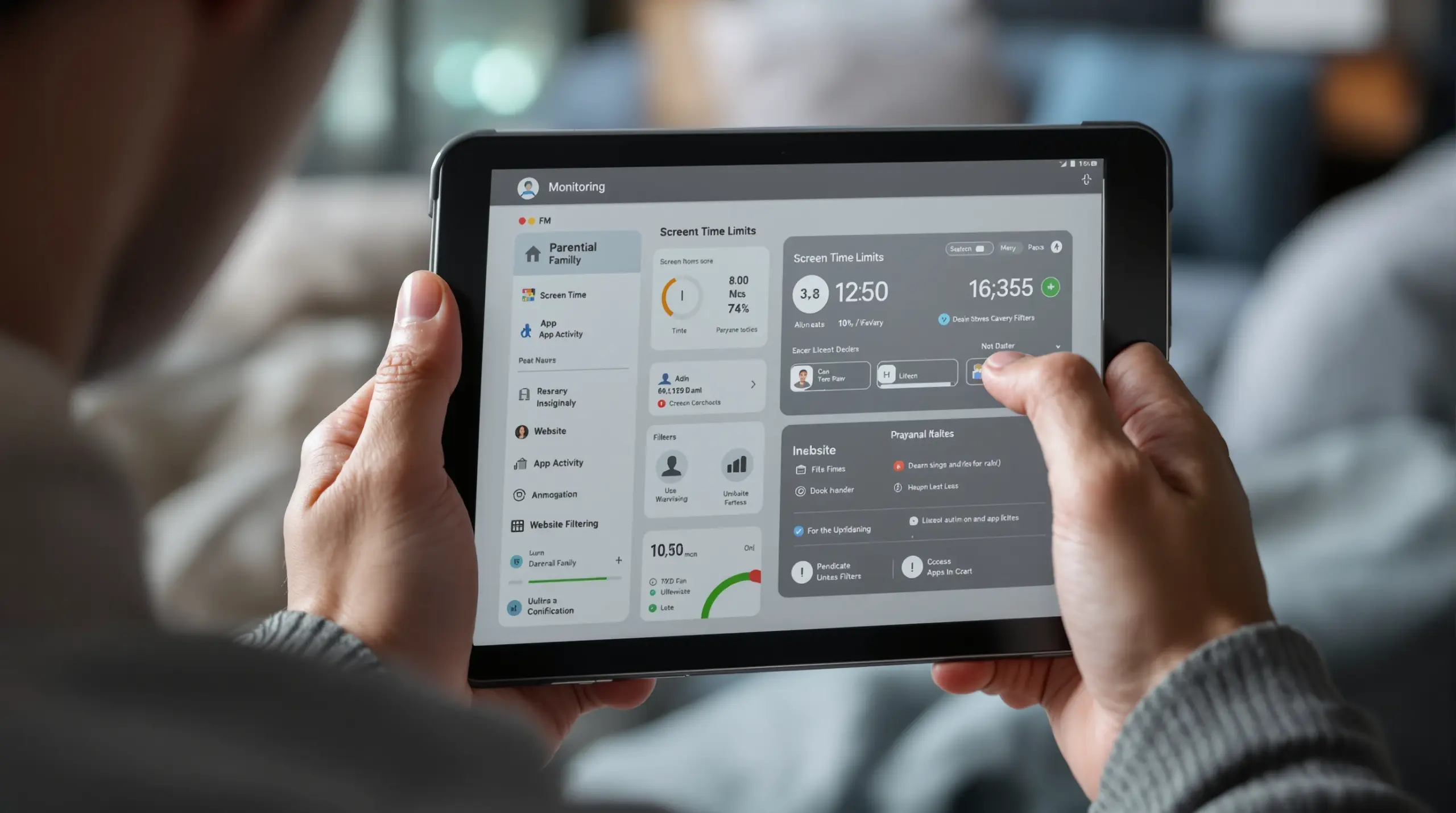
Android tablet parental monitoring helps you set screen time limits, filter websites, and review app activity. Learn the features, steps, and tools that work.
Table of Contents
- Introduction
- What is Android tablet parental monitoring?
- Which features matter most for monitoring a child’s Android tablet?
- How do Android and iOS differ for tablet monitoring?
- How do you keep tablet monitoring effective as your child grows?
- Important Questions About Android tablet parental monitoring
- How do the main approaches to tablet monitoring compare?
- How Boomerang Parental Control supports Android tablet parental monitoring
- How to set up Android tablet parental monitoring in five steps
- Summing Up
- Sources & Citations
Quick Summary
Android tablet parental monitoring is the use of apps and device settings that let parents limit screen time, filter websites, approve new apps, and review activity on a child’s Android tablet. A strong setup combines scheduled downtime, app controls, and safe browsing, and it changes as your child grows.
Market Snapshot
- As of July 2026, 54 percent of parents and children who own tablets report having parental controls on the device (Family Online Safety Institute, 2026)[1].
- As of October 2025, parents of children ages 12 and younger report that 68 percent of their children use a tablet (Pew Research Center, 2025)[2].
- As of 2024, 58 percent of children have their own tablet by age 4 (North Dakota State University Extension, 2026)[3].
- As of 2024, children ages 8 and younger spend an average of about two and a half hours per day on screens (North Dakota State University Extension, 2026)[3].
Introduction
Android tablet parental monitoring gives you a practical way to keep a shared or personal tablet safe without hovering over your child’s shoulder. At Boomerang Parental Control, we build tools for parents who want fewer screen time arguments and clearer visibility into what happens on an Android device, and this guide walks you through the decisions every parent faces when handing over a tablet.
Tablets sit at the center of family life. They hold games, school apps, videos, and a web browser, all on a home wifi connection that never turns off. Parents of younger children want clear rules from day one, and parents of older kids want controls that hold up. The right approach combines time rules, app control, safe web browsing, and honest conversation.
START YOUR FREE TRIAL
Take control of screen time—free for 14 days, cancel anytime.




This article covers what monitoring means, which features matter, how Android and iOS differ, and how to keep your approach working as your child grows. You will also find a comparison of common approaches, answers to frequent questions, and a five-step setup process. Families across the United States and Canada face the same questions, so the advice applies on both sides of the border.
What is Android tablet parental monitoring?
Android tablet parental monitoring is the combination of apps, account settings, and family rules that lets a parent guide how a child uses an Android tablet. It covers time limits, app and website controls, location awareness, and visibility into activity. Parental monitoring on an Android tablet works best when your child knows the rules before the software starts enforcing them.
Tablets reach children early. In October 2025, parents of children ages 12 and younger reported that 68 percent of their children use a tablet (Pew Research Center, 2025)[2]. Ownership starts young too: as of 2024, 51 percent of children ages 8 and younger have their own mobile device (North Dakota State University Extension, 2026)[3]. A tablet that a young child uses every day deserves the same planning you would give a first phone.
Why Android tablet parental monitoring starts with rules, not software
Software enforces limits, but a conversation sets them. Sit down with your child, explain why bedtime locks and app approvals exist, and agree on what counts as good screen time before you turn anything on. Children accept limits more readily when they helped shape them, and the app then acts as a neutral referee instead of you. That shift removes much of the daily friction, because the tablet locks on schedule and nobody has to argue about it.
How a tablet differs from a phone
A tablet behaves differently from a phone, and your monitoring plan should reflect that. Many tablets stay at home, join your wifi, and get passed between siblings, so the main risks are long sessions, unapproved app installs, and open web browsing. Parental controls for Android tablets therefore lean on scheduled downtime, app control, and safe browsing, while call and text features matter only on Android devices that handle calls and texts.
Digital wellness matters here too. A child who spends a long evening on a tablet loses sleep and focus, which is why we pair limits with encouraged apps for learning and reading.
Which features matter most for monitoring a child’s Android tablet?
The features that matter most for monitoring a child’s Android tablet are scheduled downtime, app controls, safe browsing, and activity visibility. Families already lean on these tools. Among parents and children who use parental controls on tablets, 76 percent report using app restrictions to limit access to certain content and apps, 65 percent report using activity monitoring features, 64 percent report using privacy settings, and 63 percent report using web filters, as of July 2026 (Family Online Safety Institute, 2026)[1].
Independent reviewers value the same basics. SafeWise found Boomerang especially good for setting screen-time limits and blocking specific websites in its Boomerang Parental Control Review (SafeWise)[4]. Here is what each core feature does on an Android tablet with Boomerang Parental Control:
- Scheduled downtime and daily limits: on Android, you can lock the tablet during set hours, such as bedtime, and set a total daily allowance for screen time.
- Per-app limits and encouraged apps (Android only): you can cap a game at a set amount of time while marking school or reading apps as encouraged for unrestricted use.
- App discovery and approval on Android: when your child installs a new app, you approve or block it before your child can use it.
- SPIN Safe Browser: this contained browser filters inappropriate websites and enforces SafeSearch without a VPN or router, and on Android its filtering also applies to Chrome.
- YouTube app history monitoring (Android only): you can see what your child searches for and watches in the YouTube app, a feature that ships outside the Google Play build.
Location tracking and geofencing work on Android and iOS, so you can see where a tablet is and receive alerts when it arrives at or leaves a place such as school. Boomerang also sends daily emailed activity reports and offers a web dashboard, so you can stay informed without opening the app each day. You can explore the full list on our Boomerang Parental Control – screen time features page.
How do Android and iOS differ for tablet monitoring?
Android tablets support the full Boomerang feature set, while iPads support a limited set. On iOS, Boomerang covers scheduled screen time, hiding apps by age rating, SPIN Safe Browser, location and geofencing, family messaging, and tamper notification. Per-app limits, app blocking, YouTube history, call and text safety, and uninstall protection are Android only.
The install channel on Android also decides which features you get. The Google Play build does not include Call and SMS permissions, so call and text safety is not in it, and YouTube history ships outside the Play build as well. Samsung Galaxy tablets get the full feature set from the Galaxy Store, and non-Samsung tablets get it by sideloading from the Sideload download page for Android devices. Child devices need Android 9 or higher.
Samsung tablets add another layer. Devices running Android 9.x or higher are supported for Knox features, which work with our uninstall protection on supported devices.
On iOS, app removal cannot be enforced, so Boomerang notifies the parent of tampering instead. A Boomerang Parental Control software review by Mike Jennings describes Boomerang as the cheapest parental control application available, and the same review states that Boomerang underperforms on iOS (TechRadar)[5]. We describe our iOS support plainly for that reason and recommend Android for the deepest controls.
Your own phone can run either platform. Parent Mode, our parent app for Android and iOS, lets you manage an Android tablet from an iPhone or an Android phone, and the web dashboard works from a browser. Parent devices do not need a license. Rules reach the tablet whenever it is online over wifi or mobile data, so a change you make at work applies when your child’s tablet next connects.
If your household mixes devices, use an Android tablet when you want per-app control, and treat an iPad as a scheduling, location, and safe-browsing device.
How do you keep tablet monitoring effective as your child grows?
Tablet monitoring stays effective when you review it regularly, adjust limits by age, and keep talking with your child. Parents and children who use these tools find them worthwhile: between 81 percent and 86 percent report that individual parental-control features are effective, depending on the control, as of July 2026 (Family Online Safety Institute, 2026)[1].
Match limits to age
Younger children need tighter structure. For a child on a first device, turn on app approval, keep safe browsing active, and set a firm bedtime lock. As your child shows good judgment, loosen limits one step at a time, such as adding an hour to the daily allowance or moving an app from limited to encouraged. Older children and teens want more freedom and also test boundaries, so explain each change and the reason behind it.
Review reports without turning them into surveillance
Daily emailed activity reports let you stay informed without opening the app. Use them as conversation starters rather than evidence. If you see a long YouTube session on Android, ask what your child watched and what they enjoyed about it. Topics such as cyberbullying and unwanted contact are also easier to raise when your child knows you are looking out for them, not looking to punish them.
Plan for bypass attempts
Older children sometimes try to remove or disable controls. On Android, uninstall protection is designed to keep a child from removing the app, and Samsung devices add Knox integration. On iOS, app removal cannot be enforced, so you receive a tamper notification and can talk about it right away. Neither feature replaces parenting, so pair the tools with expectations and consequences you agreed on together.
Review how you monitor your child’s Android tablet at the start of each school term. New homework apps appear, bedtimes shift, and a child who earned one extra privilege last term deserves a fresh look now.
Important Questions About Android tablet parental monitoring
What does Android tablet parental monitoring include?
Android tablet parental monitoring covers time limits, app controls, web filtering, location awareness, and activity reports.
A setup with Boomerang Parental Control adds scheduled downtime and daily limits, app approval for new installs, and SPIN Safe Browser for filtered web use. On Android, you can also set per-app limits, mark learning apps as encouraged, and view YouTube app history. Location tracking and geofencing work on Android and iOS. Daily emailed activity reports and a web dashboard keep you informed without constant checking. Features vary by platform and install channel, so confirm which build your child’s tablet uses before you rely on a specific feature.
Can I monitor my child’s Android tablet from my iPhone?
Yes, Parent Mode is available for both Android and iOS, so you can manage a child’s Android tablet from your own iPhone.
Parent Mode on your iPhone lets you manage rules and review activity, while the child app runs on the tablet itself, which needs Android 9 or higher. Parent devices do not need a license, so you pay only for the child device. If your child uses an iPad instead, remember that iOS support is limited to scheduled screen time, hiding apps by age rating, SPIN Safe Browser, location and geofencing, family messaging, and tamper notification.
How much does Boomerang cost for an Android tablet?
Boomerang costs $19.99 USD per child device per year, or $39.99 USD for a Family Pack covering up to 10 device licenses per year.
Parent devices do not need a license, and licenses do not auto-renew, so we email you before the renewal date. A 14-day free trial covers all premium features on both Android and iOS child devices, which gives you time to test scheduling, app controls, and safe browsing on your child’s tablet before you pay. A single license suits one tablet, and the Family Pack suits households with several child devices.
Does the Google Play version of Boomerang include call and text monitoring?
No, the Google Play build does not include Call and SMS permissions, so call and text safety is not available in it.
Google Play carries the core Boomerang product, but Call and SMS permissions are not part of that build. Samsung child devices get the full feature set from the Galaxy Store, and non-Samsung devices sideload the full build from our download page. Call and text safety is Android only, so it is also not available on iOS. Always match the install channel to the feature you want before you set up your child’s tablet.
How do the main approaches to tablet monitoring compare?
Families can monitor an Android tablet through house rules, built-in tools, a dedicated app, or a safe browser, and each approach fits a different situation. The table below compares four options on who they suit, what they do well, and where they stop.
| Approach to Android tablet parental monitoring | Best for | Strengths | Limits |
|---|---|---|---|
| House rules and shared supervision | House rules suit very young children who use a tablet only while a parent is in the room. | House rules cost nothing and build the habit of talking about screen time. | House rules depend on a parent being present, so nothing locks the tablet automatically at bedtime. |
| Built-in tablet and account controls | Built-in controls suit families who want basic limits at no added cost. | Built-in controls need no extra purchase and are quick to start. | Feature depth depends on the device and account, so features such as YouTube history or app approval are not always included. |
| Dedicated Android-first app such as Boomerang Parental Control | A dedicated app suits families who want scheduling, per-app limits, app approval, and safe browsing in one place. | Boomerang automates downtime and daily limits, adds YouTube history on Android, and costs $19.99 USD per device per year. | Boomerang offers its deepest controls on Android, iOS child devices get a limited feature set, and call and text safety is outside the Google Play build. |
| Safe browser only | A safe browser suits families whose main concern is what a child sees on the web. | SPIN Safe Browser filters inappropriate websites and enforces SafeSearch without a VPN or router. | A safe browser covers web use only, so time rules and app control need a separate tool. |
How Boomerang Parental Control supports Android tablet parental monitoring
Boomerang Parental Control, a National Education Technologies Inc. product, was built to take the battle out of screen time, and it puts Android tablet parental monitoring in your hands from a phone or a web browser. Our Boomerang Parental Control – Taking the battle out of screen time for Android and iOS page lists every feature and shows how families set it up.
We focus on a few jobs that matter most to parents. Automated scheduling and daily limits remove the nightly argument. App approval and SPIN Safe Browser keep new apps and websites under your control. On Android, YouTube history, per-app limits, and uninstall protection give you depth that iOS cannot match. Samsung owners also get Knox integration, which we explain here: Boomerang Parental Control is the only parental control app to use Samsung’s Knox, an enterprise mobile security solution pre-installed in most of Samsung’s smartphones and tablets.
SPIN Safe Browser filters websites and enforces SafeSearch without a VPN, router, or network setup, and you can read more at SPIN Safe Browser – Safe web browsing for Boomerang Parental Control.
A single license costs $19.99 USD per device per year, and the Family Pack costs $39.99 USD for up to 10 device licenses per year. Start with the 14-day free trial of all premium features, then decide. If you have questions, our help center at community.useboomerang.com and our support team at [email protected] are ready to help you choose the right install channel for your child’s tablet.
How to set up Android tablet parental monitoring in five steps
Android tablet parental monitoring comes together fastest when you follow a clear order. These five steps move from compatibility checks to ongoing review, and each step depends on the one before it.
Check the tablet and choose the install channel
Confirm the tablet runs Android 9 or higher. Samsung tablets install the full feature set from the Galaxy Store, non-Samsung tablets sideload from the download page, and the Google Play build omits call and text safety.
Install the child app and link your parent account
Install Boomerang on the tablet, then install Parent Mode on your own phone or open the web dashboard. Start the 14-day free trial so every premium feature is available while you test.
Set time rules together with your child
Choose a bedtime lock and a daily allowance, then add per-app limits for games on Android and mark learning apps as encouraged. Share the schedule with your child before it begins so the rules feel fair.
Turn on safe browsing, app approval, and uninstall protection
Install SPIN Safe Browser for filtered web use with SafeSearch, enable approval for new apps on Android, and switch on uninstall protection. Samsung tablets running Android 9.x or higher can also use Knox features.
Review reports and adjust each school term
Read the daily emailed activity reports, talk with your child about what you see, and adjust limits as habits improve. Revisit the setup at the start of each school term and after changes such as a new tablet or a new favorite app.
Summing Up
Android tablet parental monitoring works when rules, tools, and conversation support each other. Scheduled downtime ends the nightly argument, app approval and safe browsing protect your child’s first steps online, and regular reviews keep limits matched to your child’s age. Android gives you the deepest controls, while iPads get a limited but useful set, so choose the platform with that in mind.
Boomerang Parental Control keeps the price simple at $19.99 USD per device per year, or $39.99 USD for up to 10 device licenses, and the 14-day free trial lets you test every premium feature first. Start your trial at useboomerang.com today, or reach our team through the help center at community.useboomerang.com or by email at [email protected].
Sources & Citations
- Beyond Borders: U.S. and Australian Families on Online Safety, Screen Use, and the Digital Lives of Kids. Family Online Safety Institute, 2026.
https://fosi.org/wp-content/uploads/2026/07/FOSI-Beyond-Borders-U.S.-and-Australian-Families-on-Online-Safety-Screen-Use-and-the-Digital-Lives-of-Kids.pdf - Parents, Kids and Screens report. Pew Research Center, 2025.
https://www.pewresearch.org/wp-content/uploads/sites/20/2025/10/PI_2025.10.08_Parents-Kids-Screens_REPORT.pdf - Children and screen time fact sheet (FS2294). North Dakota State University Extension, 2026.
https://www.ndsu.edu/agriculture/sites/default/files/2026-04/fs2294.pdf - Boomerang Parental Control Review. SafeWise.
https://www.safewise.com/boomerang-parental-control-review - Boomerang Parental Control software review. TechRadar.
https://www.techradar.com/reviews/boomerang-parental-control-software
START YOUR FREE TRIAL
Take control of screen time—free for 14 days, cancel anytime.
