
28
Nov
2025
Apple iPad Parental Controls: A Parent’s Guide
November 28, 2025
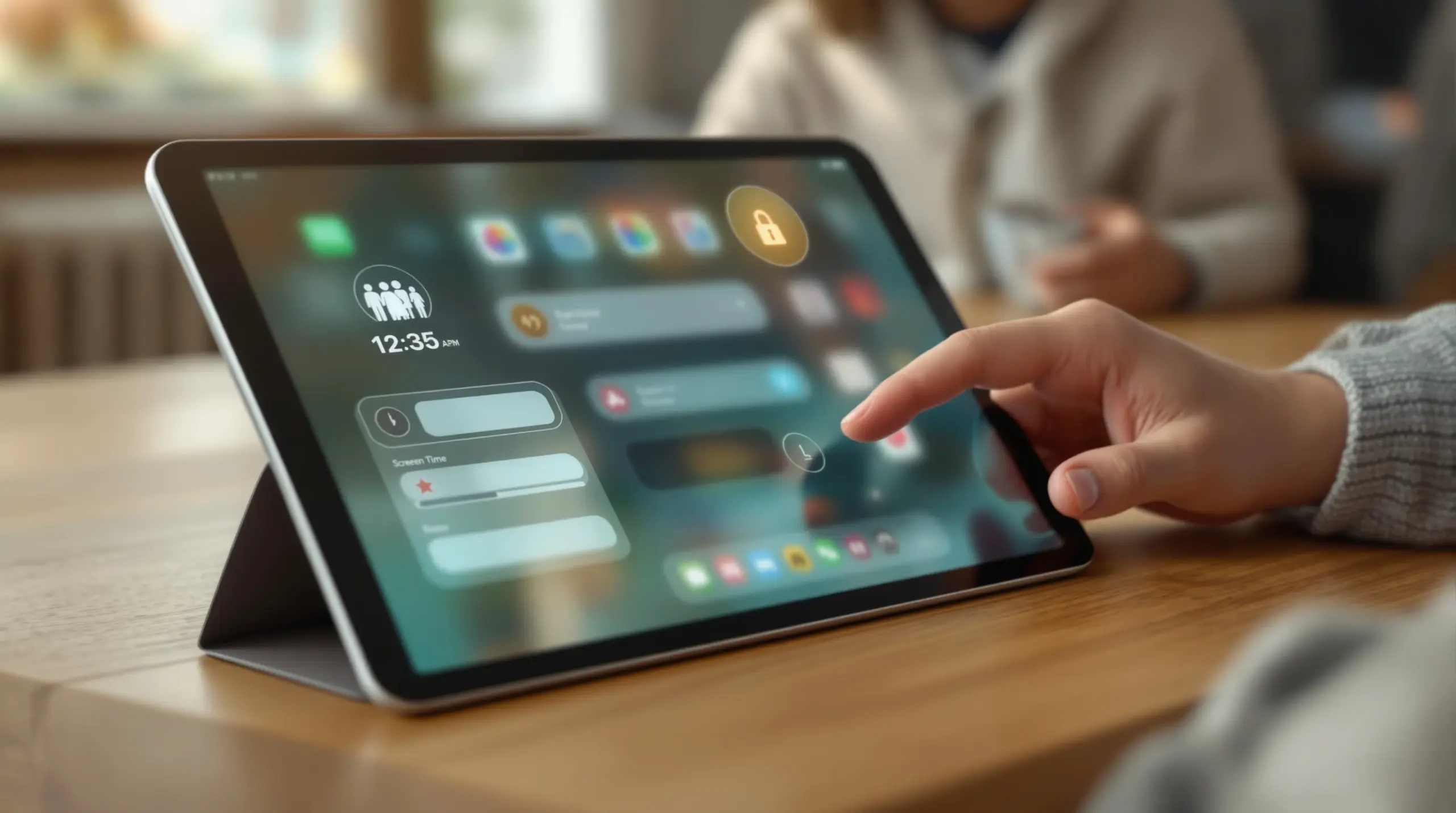
Apple iPad parental controls let parents manage screen time, block inappropriate content, and set app limits directly through iOS – here’s everything you need to set them up confidently.
Table of Contents
- What Are Apple iPad Parental Controls?
- Using Screen Time to Manage Your Child’s iPad
- Content and Privacy Restrictions Explained
- The Limitations of Built-In iPad Controls
- Frequently Asked Questions
- Comparing iPad Parental Control Approaches
- How Boomerang Parental Control Helps Families
- Practical Tips for iPad Safety
- Key Takeaways
- Sources & Citations
Article Snapshot
Apple iPad parental controls is the built-in system that lets parents restrict content, set daily screen time limits, block app purchases, and manage communications on a child’s iPad. Accessible through Screen Time and Family Sharing, these tools provide a solid foundation for online safety – though many families layer in dedicated apps for stronger enforcement.
Apple iPad Parental Controls in Context
- Screen Time on iPad gives parents access to 4 core management features: Limit Usage, Communication, Restrictions, and App exception requests (Apple Support, 2026).[1]
- Content & Privacy Restrictions cover 8 settings categories, from app purchases to location services and privacy controls (Apple Support, 2026).[1]
- Parents can restrict 7 Intelligence & Siri features individually through iPad’s Screen Time settings (Apple Support, 2026).[2]
- Activating parental controls via Family Sharing on iPad takes as few as 3 steps from the Settings app (Internet Matters, 2025).[3]
What Are Apple iPad Parental Controls?
Apple iPad parental controls are a set of built-in tools that allow parents and guardians to manage how a child uses their device, covering everything from daily screen time allowances to content age-ratings and communication limits. At Boomerang Parental Control, we work with thousands of families navigating exactly these questions – and understanding what’s built into the iPad is always the right place to start.
As the Apple Support Team explains in their official documentation, “Parental controls are built directly into iPhone, iPad, and Mac, and can help you manage the downloads and purchases your child can make.” (Apple Support Team, 2026)[1] These controls live inside the Screen Time section of the Settings app and are protected by a separate passcode your child cannot access.
START YOUR FREE TRIAL
Take control of screen time—free for 14 days, cancel anytime.




The system works in two main ways. First, you can manage the iPad directly by going to Settings and enabling Screen Time for your child’s account. Second, and more powerfully, you can use Family Sharing to manage your child’s device remotely from your own iPhone or iPad. The Apple Support Team notes that “with Family Sharing, the organizer, or another adult designated as a parent/guardian, can set up parental controls for children in the Family Sharing group.” (Apple Support Team, 2026)[4]
Family Sharing is the recommended approach for most parents because it means you manage the rules from your device – your child never has access to the settings panel where restrictions are configured. This remote management capability is a genuine advantage of Apple’s ecosystem, and it works across iPhones and iPads in the same family group.
The controls themselves cover a wide range: scheduled downtime when the device locks, per-app daily time limits, content ratings filters, web content filtering, communication limits, and the ability to restrict changes to privacy settings. For parents handing a child their first iPad, activating these settings from the beginning builds a safe foundation before any habits form.
Using Screen Time to Manage Your Child’s iPad
Screen Time is the central hub for all parental oversight on an iPad, and activating it correctly is the foundation of any effective digital safety strategy for your child’s device. Once you enable Screen Time – either directly on the device or through Family Sharing on your own iPhone – you gain access to four core management areas: Limit Usage, Communication, Restrictions, and App exception requests (Apple Support, 2026).[1]
The most practical feature for day-to-day family life is Downtime. The Internet Matters Team describes it clearly: “Apple iPhones and iPads have a feature called Downtime. This lets you set times each day where they cannot use their device.” (Internet Matters Team, 2025)[3] You set a start and end time – say, 9:00 PM to 7:00 AM – and the iPad locks automatically. Phone calls and apps you’ve specifically allowed remain usable, but everything else is blocked until morning. This single feature alone resolves bedtime device battles for many families.
Beyond Downtime, App Limits let you set daily time allowances by app category or for individual apps. You might allow two hours of entertainment apps on weekdays and three on weekends, while leaving educational apps completely unrestricted. This is where the iPad’s built-in controls genuinely shine – the granularity available is better than most parents expect.
Enabling Screen Time for a Child’s iPad
If you’re setting up a new device, go to Settings, tap Screen Time, and select “This is My Child’s iPad.” You’ll be prompted to set a Screen Time passcode – a separate code from the device unlock passcode. This passcode is what prevents your child from simply going into Settings and turning the controls off. Keep it private and different from anything the child might guess.
If you’re managing your child’s iPad remotely through Family Sharing, open Settings on your own device, tap your name, then Family Sharing, and select your child’s account. From there, you can configure all Screen Time settings for their device without touching it. Changes apply within minutes. This remote-management capability is one of the most convenient aspects of the Apple parental control system for busy parents.
The Apple Support Team also highlights that parents can use these tools to “set downtime and app limits, guard your child’s vision health, protect them from explicit photos.” (Apple Support Team, 2026)[5] The vision health feature – which sends reminders to hold the device further away and take breaks – is a newer addition that reflects how far Apple’s child safety toolkit has matured.
Content and Privacy Restrictions Explained
Content and Privacy Restrictions form the protective layer of Apple iPad parental controls, letting parents block age-inappropriate material, lock down privacy settings, and prevent unauthorized purchases across the entire device. This section of Screen Time covers 8 distinct settings categories (Apple Support, 2026),[2] giving parents a comprehensive set of rules that go well beyond simple time limits.
To access these settings, go to Screen Time, tap Content & Privacy Restrictions, and toggle them on. You’ll need your Screen Time passcode. From here, you can work through each category to configure exactly what your child can and cannot access.
App Purchases and Downloads
Under iTunes & App Store Purchases, you can require a password for every purchase, disable in-app purchases entirely, and prevent the child from installing or deleting apps without your approval. For parents worried about accidental spending or app installs they haven’t reviewed, this is a critical first step. Set “Installing Apps” to Don’t Allow and “In-app Purchases” to Don’t Allow as baseline settings for younger children.
Allowed Apps and Content Ratings
The Allowed Apps section lets you hide built-in Apple apps your child doesn’t need – things like Safari, FaceTime, or the App Store itself. Hiding Safari, for example, forces your child to use a safer browser instead of the open web. Under Content Restrictions, you set age ratings for apps, movies, TV shows, books, and music. A 10-year-old’s iPad might be set to allow only apps rated 9+ or 12+, blocking anything above that rating from appearing in searches or being downloaded.
Web Content filtering sits here too. You can choose Unrestricted Access, Limit Adult Websites (which uses automatic filtering), or Allowed Websites Only (a strict allowlist). The automatic adult content filter is a reasonable middle ground for most families, though it won’t catch everything – which is why many parents also install a dedicated SPIN Safe Browser for more reliable content filtering across both iOS and Android devices.
Privacy and Allow Changes
The Allow Changes section covers 8 categories of device settings (Apple Support, 2026)[2] that you can lock so your child cannot modify them. This includes location services, contacts, microphone access, and advertising settings. Locking these prevents a child from, for example, disabling location access for the parental control app or turning off Share My Location so you can no longer see where they are. Setting these to Don’t Allow ensures your visibility settings stay in place regardless of what the child tries to change.
The Limitations of Built-In Apple iPad Parental Controls
Apple’s built-in iPad parental controls are a strong starting point, but they have meaningful gaps that become more apparent as children grow older and more technically capable. Understanding these limitations helps parents make informed decisions about whether additional tools are needed.
Digital safety experts at Protect Young Eyes describe Apple’s Screen Time as “decent but complicated,” noting that the step-by-step configuration process is overwhelming for parents who aren’t confident with technology (Protect Young Eyes Team, 2025).[6] The settings are spread across multiple sub-menus, and it’s genuinely easy to miss a critical toggle during setup – leaving gaps in protection you notice only when something goes wrong.
The Bypass Problem
The most significant limitation parents encounter is that determined children – particularly teenagers – find ways around Apple’s Screen Time controls. Resetting a device to factory settings, creating a second Apple ID, using a Screen Time passcode reset through Apple ID recovery, or exploiting edge cases in how Downtime applies to certain apps are all documented workarounds that tech-savvy kids discover and share with each other. Parents who move from basic controls to Boomerang often describe exactly this experience – their child has already beaten the built-in system by the time they start looking for alternatives.
No YouTube Viewing History
Apple Screen Time cannot show you what your child has actually watched or searched for inside the YouTube app. You can see how much time they spent in the app, but the content is invisible to built-in controls. For many parents, this is a critical blind spot. Knowing your child spent 90 minutes on YouTube tells you very little without knowing what they were watching. On Android devices, tools like Boomerang’s screen time features include YouTube App History Monitoring – a capability Apple’s ecosystem does not offer natively.
No SMS or Call Content Monitoring
Apple Screen Time sets communication limits – restricting who a child can call or message – but it cannot flag keyword alerts in text messages, detect potential cyberbullying language, or alert parents when an unknown number contacts the child. These communication safety features are outside the scope of what Apple’s built-in tools do. Families concerned about who their child is communicating with need a third-party solution for this level of oversight, particularly on Android devices where these capabilities are more fully developed.
iOS-Only Ecosystem
If your family uses a mix of Android and Apple devices, Apple Screen Time only covers the Apple side. A child who uses an Android tablet or phone alongside their iPad falls entirely outside the reach of Family Sharing controls. A cross-platform parental control app that manages both Android and iOS from a single parent dashboard is a more practical solution for mixed-device households. This is a real consideration for families where children use whatever device is available rather than a single dedicated iPad.
Your Most Common Questions
How do I set up parental controls on my child’s iPad for the first time?
The quickest path is through Family Sharing, which lets you manage your child’s iPad from your own iPhone or iPad. Open Settings on your device, tap your name at the top, select Family Sharing, and add your child’s Apple ID. If your child doesn’t have an Apple ID yet, you can create one for them during this process – Apple will prompt you to set up parental controls as part of the account creation for children under 13.
Once Family Sharing is active, go to Settings on your device, tap Screen Time, select your child’s name, and work through the Downtime, App Limits, and Content & Privacy Restrictions sections. You’ll create a Screen Time passcode that your child cannot use to override your settings. Keep this passcode separate from the device unlock PIN and never share it with your child.
If you’re configuring the iPad directly rather than through Family Sharing, go to Settings on the child’s device, tap Screen Time, enable it, and select “This is My Child’s iPad.” The setup wizard will guide you through the core options. Plan on 15 to 20 minutes for a thorough first-time setup, and revisit the settings every few months as your child’s needs change.
Can my child turn off parental controls on their iPad without my permission?
With a Screen Time passcode in place, your child cannot simply go into Settings and disable the controls – they need the passcode to make any changes. However, this protection has real limits. Tech-savvy children, particularly teenagers, have discovered various workarounds: resetting the device to factory settings removes all Screen Time settings, creating a second Apple ID bypasses restrictions tied to the first account, and in some iPadOS versions there are edge cases around how Downtime applies to specific apps.
Apple has improved Screen Time security over successive iPadOS updates, but it remains less tamper-resistant than dedicated parental control apps that use deeper device integration. If your child has already defeated simpler controls, the combination of a strong Screen Time passcode, disabling the ability to change the Apple ID through Content & Privacy Restrictions, and turning off Screen Time passcode recovery through Apple ID in your Family Sharing settings will close the most common loopholes.
For families where bypass is a genuine concern – particularly with older children – a dedicated parental control app with stronger uninstall protection offers a more reliable solution on top of Apple’s built-in tools.
What is the difference between Downtime and App Limits on iPad?
Downtime and App Limits serve different purposes and work best when used together. Downtime is a schedule-based lock: you set specific hours each day – for example, 9:00 PM to 7:00 AM – when the device is completely locked except for apps and contacts you have explicitly allowed. It is primarily designed to protect sleep time, family dinners, and homework hours. When Downtime is active, the iPad shows a lock screen and the child cannot open apps without requesting an extension from the parent.
App Limits, by contrast, are usage-based rather than time-based. They cap how many minutes or hours per day a child can spend in a particular app or app category. You might set a 60-minute daily limit on games, a 30-minute limit on social media, and no limit on educational apps. When the limit is reached, the app icon grays out and the child gets a notification. They can request more time, which you approve or deny from your own device via Family Sharing.
Think of Downtime as the bedtime rule and App Limits as the daily allowance. Most families benefit from setting both: Downtime enforces the non-negotiable off-hours, while App Limits manage how screen time is distributed throughout the day across different types of content.
Do Apple iPad parental controls work without Family Sharing?
Yes, you can configure Screen Time directly on the child’s iPad without setting up Family Sharing. Go to Settings, tap Screen Time, and enable it for the device. You’ll set a Screen Time passcode and configure all the restrictions from the child’s device itself. This approach works and gives you access to all the same features – Downtime, App Limits, Content & Privacy Restrictions – as the Family Sharing method.
The key disadvantage of managing controls directly on the child’s device is that you need physical access to the iPad to make any changes. If your child is at school and you want to adjust their screen time allowance or check their activity report, you cannot do it remotely. Family Sharing solves this by letting you manage everything from your own iPhone or iPad, wherever you are.
For most families with young children, Family Sharing is the better setup because it keeps the parent in control without requiring access to the child’s device. For older teenagers where the relationship is more trust-based, managing restrictions directly on the device is a simpler arrangement. Either way, the Screen Time passcode is what keeps the controls secure – without it, the child can simply turn off Screen Time in Settings.
Comparing iPad Parental Control Approaches
Parents managing an iPad for their child have three main approaches available: Apple’s built-in Screen Time controls alone, Screen Time combined with a dedicated parental control app, or a third-party app as the primary solution. The right choice depends on your child’s age, technical confidence, and how comprehensive you need the oversight to be.
| Approach | Setup Complexity | Bypass Resistance | YouTube Visibility | SMS/Call Monitoring | Cost |
|---|---|---|---|---|---|
| Apple Screen Time (built-in) | Moderate | Moderate – known workarounds exist | None | Communication limits only, no content alerts | Free |
| Screen Time + SPIN Safe Browser | Low-Moderate | Moderate | None | Communication limits only | Free browser app |
| Dedicated parental control app (Android) | Low-Moderate | High – uninstall protection available | Available on Android[1] | Available on Android only | Subscription |
| Screen Time + Dedicated App (combined) | Moderate | Highest | Android devices only | Android devices only | Subscription |
For iOS-only households with younger children, Apple Screen Time paired with SPIN Safe Browser for stronger web filtering provides a practical, low-cost foundation. Families with Android devices, or those whose children have already bypassed simpler controls, benefit significantly from adding a dedicated parental control app for deeper enforcement and visibility.
How Boomerang Parental Control Helps Families
Boomerang Parental Control is designed to go further than what Apple’s built-in iPad parental controls offer, particularly for families managing Android devices or looking for bypass-resistant enforcement that holds up against tech-savvy kids.
On Android devices, Boomerang Parental Control – Taking the battle out of screen time for Android and iOS delivers a comprehensive set of tools that the built-in Apple system cannot match. YouTube App History Monitoring gives parents visibility into exactly what their child is searching for and watching inside the YouTube app – not just how long they spent there. Per-App time limits let you set specific daily allowances for individual apps, not just categories. Call and Text Safety (Android only) monitors SMS history and sends keyword alerts when concerning language appears in messages, giving parents an early warning for cyberbullying or unknown adult contact.
Where Boomerang stands apart from Apple Screen Time most clearly is uninstall protection. On Android devices, particularly Samsung devices using Boomerang Parental Control and Samsung Knox integration, removing the app without the parent’s PIN is exceptionally difficult – even for teenagers who are used to defeating simpler controls. On iOS, Boomerang offers notification-based tamper alerts.
For families with mixed Android and iOS devices, Boomerang manages both from a single parent dashboard. You configure rules, review activity reports, and receive location alerts all in one place, regardless of whether the child’s device runs Android or iOS.
“So far this the best parental control app .. hands down. So far the only app my 11 year old was not able to bypass. Big Shout out to developers for making such a great app.” – Jason H, Google Play review
“I have control back over my child’s phone and applications because she managed to circumvent family link. I have no idea how she did that but she managed to find a way, as did other kids. That was a major frustration for us. But now with Boomerang, I can manage her time, what applications she uses and what sites she visits.” – Joe Eagles, Google Play review
You can explore Boomerang Parental Control’s screen time features to see how automated scheduling and daily limits work alongside Apple’s built-in tools for a stronger family safety setup. Subscriptions are available on an annual basis, with a Family Pack covering up to 10 child devices – making it practical for households with multiple children on different devices.
Practical Tips for iPad Safety
Getting the most from Apple iPad parental controls comes down to a few consistent habits, not just a one-time setup. Here are the practices that make the biggest difference for families.
Create your Screen Time passcode before handing over the device. This is the single most important step. A Screen Time passcode that the child never sees is what makes every other setting enforceable. Use something unguessable – not your birthday or a PIN they already know. Write it down and store it somewhere safe that only adults access.
Enable Family Sharing from the start. Remote management means you can adjust limits, approve extension requests, and review activity reports from your own phone without needing the child’s iPad in your hands. For busy parents, this convenience is what makes consistent oversight realistic rather than aspirational.
Set Downtime to start 30 minutes before your child’s actual bedtime. This buffer gives wind-down time and removes the device from the equation before sleep pressure builds. A child whose iPad locks automatically at 8:30 PM is far less likely to negotiate for five more minutes than one whose device is still accessible at bedtime.
Review the activity report weekly, not just when there’s a problem. Screen Time generates a detailed weekly usage summary showing which apps were used, for how long, and how many notifications came in. Reviewing this together with your child opens natural conversations about their digital habits without making it feel like a monitoring session.
Install SPIN Safe Browser alongside Safari restrictions. Hiding Safari via Content & Privacy Restrictions and replacing it with a dedicated safe browser adds a meaningful layer of web filtering that Apple’s automatic adult content filter does not fully cover. This is particularly valuable for younger children who may stumble onto inappropriate content through seemingly innocent searches.
Revisit settings every school term. A child’s digital needs change as they get older, and restrictions that made sense at age 9 create unnecessary friction at age 12. Scheduled reviews let you adjust controls deliberately rather than reactively, and they reinforce to your child that the rules are fair and considered rather than arbitrary.
For parents concerned about their child bypassing controls – whether on an iPad or an Android device – reading the Boomerang Parental Control software review on TechRadar gives a useful independent assessment of how dedicated parental control tools compare to built-in options for older, more tech-savvy children.
Key Takeaways
Apple iPad parental controls give parents a genuine set of tools to manage screen time, filter content, and set communication boundaries – and for many families with younger children, they provide a solid foundation that costs nothing extra. Screen Time, Downtime, App Limits, and Content & Privacy Restrictions cover the basics well when configured carefully with a secure passcode and Family Sharing enabled.
Where the built-in system falls short – YouTube visibility, SMS monitoring, bypass resistance for older children, and cross-platform management for Android devices – dedicated parental control apps fill the gap. Boomerang Parental Control is built specifically for families navigating these challenges, with stronger enforcement on Android and a parent dashboard that works across device types.
If you’re ready to go further than iPad’s built-in controls allow, visit the Boomerang sideload download page for Android devices to get started, or reach out at [email protected] for guidance on the right setup for your family.
Sources & Citations
- Use parental controls to manage your child’s iPhone or iPad. Apple Support.
https://support.apple.com/en-us/105121 - Content & Privacy Restrictions on iPad. Apple Support.
https://support.apple.com/en-us/105121 - Apple iPhone and iPad parental controls. Internet Matters.
https://www.internetmatters.org/parental-controls/smartphones-and-other-devices/apple-iphone-and-ipad-parental-control-guide/ - Set up parental controls with Family Sharing on iPad. Apple Support.
https://support.apple.com/en-ca/guide/ipad/ipad02e876e6/ipados - Customize iPad for your child. Apple Support.
https://support.apple.com/guide/ipad/customize-ipad-for-your-child-ipad9950a506/ipados - iOS Parental Controls (Screen Time) Complete Guide. Protect Young Eyes.
https://www.protectyoungeyes.com/devices/apple-ios-iphone-ipad-parental-controls
START YOUR FREE TRIAL
Take control of screen time—free for 14 days, cancel anytime.
