
03
Jul
2026
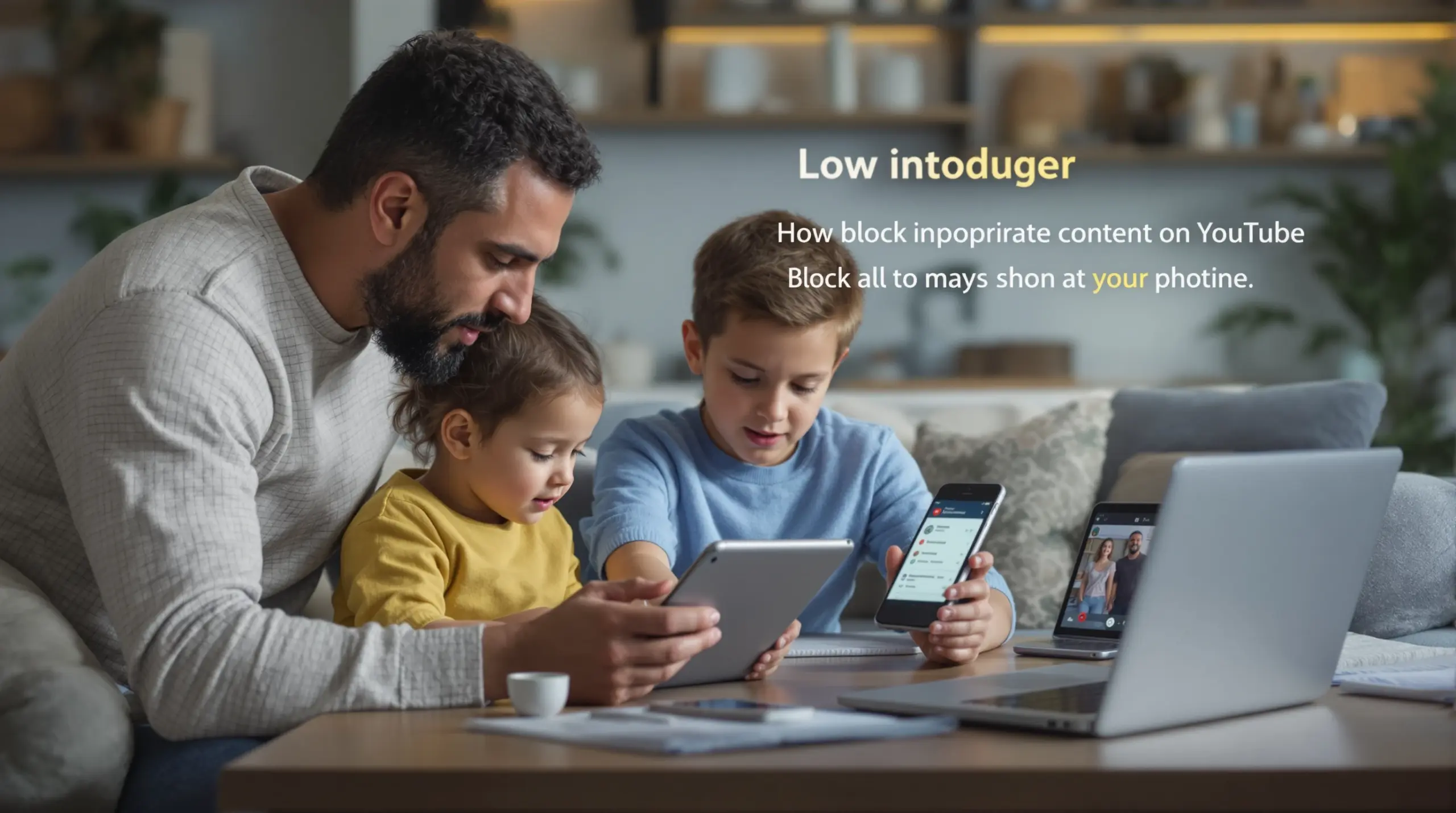
How to Block Inappropriate Content on YouTube
July 3, 2026
Learn how to block inappropriate content on YouTube using built-in filters, parental controls, and third-party apps – practical steps for parents protecting kids on Android and iOS devices.
Table of Contents
- What Is YouTube Content Blocking and Why Does It Matter?
- How Do YouTube’s Built-In Controls Actually Work?
- Why Built-In Controls Aren’t Enough for Most Families
- How Content Blocking Differs Between Android and iOS
- Frequently Asked Questions
- Comparing YouTube Content Blocking Methods
- How Boomerang Parental Control Helps
- How to Block Inappropriate Content on YouTube in 5 Steps
- The Bottom Line
- Sources & Citations
Quick Summary
How to block inappropriate content on YouTube is the process of using YouTube’s built-in Restricted Mode, platform parental controls, or third-party apps to prevent children from accessing mature videos, harmful search results, and age-inappropriate content on Android and iOS devices.
By the Numbers
- YouTube Restricted Mode is Google’s built-in content filter designed to reduce potentially mature videos across the app and web experience (Google Help, 2026).[1]
- Google Family Link provides a dedicated parental-control pathway to manage YouTube content filters for a child’s account directly from a parent’s device (Google Help, 2026).[1]
- On iPhone and iPad, Apple’s Screen Time feature allows parents to block youtube.com entirely by adding it to the Never Allow list in web content restrictions (Internet Matters, 2026).[2]
- Childnet International confirms that Restricted Mode can be enabled from the account icon in the top right corner of YouTube on both the website and the app (Childnet International, 2026).[3]
What Is YouTube Content Blocking and Why Does It Matter?
How to block inappropriate content on YouTube is one of the most searched questions among parents today, and for good reason – YouTube is the world’s largest video platform and children use it constantly. Blocking inappropriate YouTube content means putting filters, restrictions, or supervised browsing tools in place so that kids can only access age-appropriate videos, search results, and recommendations. Boomerang Parental Control was built specifically to help families solve exactly this kind of challenge on Android and iOS devices.
YouTube hosts hundreds of millions of videos, and despite the platform’s own content policies, age-inappropriate material – including violence, adult themes, and harmful challenges – surfaces in search results and recommendations. Children who are handed a smartphone without any content controls are exposed to this material by default. For parents of pre-teens receiving their first device, the risk is especially high in the early days before any guardrails are in place.
START YOUR FREE TRIAL
Take control of screen time—free for 14 days, cancel anytime.




Content blocking on YouTube works on a spectrum. At one end, you have YouTube’s native Restricted Mode, which filters obviously mature content but leaves meaningful gaps. At the other end, you have dedicated parental control apps that combine app-level controls, screen time scheduling, and viewing history monitoring into a single solution. Understanding where each method fits helps you choose the right level of protection for your child’s age and your family’s needs.
The goal of YouTube content filtering isn’t to ban the internet – it’s to give children access to the genuinely useful, educational, and entertaining content YouTube offers while removing the material that isn’t appropriate for their stage of development. Getting this balance right is what separates effective digital parenting from either total restriction or total permissiveness.
How Do YouTube’s Built-In Controls Actually Work?
YouTube’s built-in parental controls center on Restricted Mode, a filter that reduces the likelihood of mature content appearing in search results, recommendations, and video playback. As Google Help explains, “Restricted Mode helps filter out potentially mature videos on YouTube” (Google Help, 2026).[1] Restricted Mode is the first line of defense parents should activate on any child’s device, and it takes less than a minute to turn on.
To enable Restricted Mode on the YouTube app, tap the account icon in the top right corner of the screen, scroll to Settings, and look for the Restricted Mode toggle. Childnet International confirms that “Restricted Mode can be turned on by going to the account icon in the top right corner on the YouTube site or app, then toggling Restricted Mode on” (Childnet International, 2026).[3] On a desktop browser, the same account icon menu gives access to this setting.
For families using Google accounts for their children, Google Family Link offers a more integrated pathway. As Google Help states, “You can manage filters on YouTube in Family Link to restrict content for a child’s account” (Google Help, 2026).[1] Family Link lets parents approve or restrict YouTube access from their own device, and it ties YouTube content settings to the child’s Google account rather than just the app on one device.
YouTube Kids is another option worth considering for younger children. The YouTube Kids app is a separate application designed specifically for pre-school and elementary-age children, with a curated library that excludes most adult content by design. Parents can filter content further within the app by age group, which gives an extra layer of reassurance for younger viewers.
The critical limitation of all native YouTube controls is that they are relatively easy for children to bypass. Restricted Mode can be turned off by any user who knows where to look, and it does not lock behind a parental PIN by default unless additional steps are taken through Family Link. A review of parental control software by TechRadar highlights that dedicated apps provide meaningfully stronger protection than platform-native settings alone.
Why Built-In Controls Aren’t Enough for Most Families
Built-in YouTube controls provide a useful starting point, but they leave significant gaps that dedicated parental control apps are specifically designed to close. The core problem is enforcement: YouTube’s Restricted Mode can be disabled by the child, a shared device setting doesn’t follow the child to other networks, and platform tools offer parents no visibility into what their child actually watched.
Visibility is where many parents feel most exposed. Knowing that Restricted Mode is on tells you what your child can’t see – but it tells you nothing about what they are actively searching for and watching. YouTube viewing history gives some insight, but children can clear that history independently. What parents need is monitored viewing history that the child cannot erase.
On Android devices, Boomerang Parental Control’s YouTube App History Monitoring feature addresses this directly. It gives parents a clear record of what their child has searched for and watched inside the main YouTube application – without relying on the child to leave their history intact. This is an Android-only feature and is not available on iOS child devices.
Beyond visibility, enforcement is the second major gap. A tech-savvy child can locate and disable Restricted Mode in under a minute, uninstall a basic monitoring app, or switch to a different browser to sidestep web filters entirely. Dedicated parental control apps like Boomerang use Uninstall Protection – and on supported Samsung devices, Samsung Knox integration – to make it extremely difficult for children to remove or bypass controls. You can read more about how this works on Boomerang Parental Control’s Samsung Knox information page.
App-level blocking is another capability that native YouTube settings don’t provide. If your child’s device has the main YouTube app installed, Restricted Mode is their only in-app barrier. A parental control app can block the YouTube app entirely during specific hours, set a daily time limit for YouTube use, or require parental approval before the app can be accessed – giving parents control over not just what their child watches, but when and for how long.
How Content Blocking Differs Between Android and iOS
How to block inappropriate content on YouTube works differently depending on whether your child’s device runs Android or iOS, and parents need to understand these platform differences before choosing their approach. Android devices offer significantly more control options for dedicated parental control apps, while iOS restricts third-party access to system-level functions.
On Android, parental control apps can interact directly with installed apps, enforce usage limits on a per-app basis, monitor YouTube viewing history, block specific applications, and prevent their own uninstallation using device administrator permissions. This makes Android the stronger platform for comprehensive YouTube content management. Boomerang Parental Control is designed primarily for Android and delivers its deepest feature set on Android devices, including YouTube App History Monitoring, per-app time limits, and Call & Text Safety features that have no iOS equivalent.
On iOS, the built-in Screen Time feature is the primary tool available to parents. Internet Matters confirms that “on an iPhone or iPad, Screen Time can be used to limit websites and add youtube.com to the Never Allow list” (Internet Matters, 2026).[2] This means parents can block YouTube entirely on an iPhone or iPad through Screen Time’s web content restrictions, which is a clean solution for younger children who don’t need YouTube access at all. For older children, parents can restrict YouTube to certain hours using Screen Time’s app limits.
The limitation on iOS is that third-party parental control apps – including Boomerang – cannot monitor YouTube viewing history, cannot enforce per-app time limits the same way Android apps can, and cannot use the equivalent of Samsung Knox-level uninstall protection. Boomerang does support iOS with scheduled screen time and location tracking, and the SPIN Safe Browser provides strong web filtering on iOS without requiring a VPN – but parents of iOS users should understand that the feature set is more limited compared to Android.
Choosing the right device for a child’s first smartphone is itself a parenting decision. Families who want the most comprehensive parental control capabilities – particularly YouTube monitoring and app-level enforcement – will find Android devices give them meaningfully more control than iOS.
Your Most Common Questions
Does YouTube Restricted Mode actually block all inappropriate content?
YouTube Restricted Mode does not block all inappropriate content – it filters potentially mature videos but is not a complete or bypass-proof solution. Google Help describes Restricted Mode as a tool that “helps filter out potentially mature videos on YouTube” (Google Help, 2026),[1] which signals that the filter reduces exposure rather than eliminating it entirely. Videos that don’t meet the threshold for the Restricted Mode filter still appear in search results and recommendations, and the setting itself can be turned off by anyone who knows where to look in the account menu. Restricted Mode works best as a baseline layer of protection – appropriate for a household device or a shared family computer – but it shouldn’t be your only tool on a child’s personal device. For stronger protection, combining Restricted Mode with a dedicated parental control app that enforces the setting and monitors viewing history provides much better coverage. On Android devices, Boomerang Parental Control adds YouTube App History Monitoring on top of any native filter, giving parents real visibility into what their child is watching even when Restricted Mode is active.
How do I stop my child from turning off YouTube Restricted Mode themselves?
To stop a child from disabling YouTube Restricted Mode, use Google Family Link to lock the setting to the child’s Google account, which requires parental approval to change. When YouTube content restrictions are managed through Family Link rather than set directly in the app, the child cannot independently toggle Restricted Mode off – the parent controls that setting from their own device. For Android users, a dedicated parental control app adds a further enforcement layer: the app itself can be protected against uninstallation, meaning the child cannot remove it to regain unrestricted access. On Samsung Galaxy devices, Boomerang Parental Control uses Samsung Knox integration to make the app exceptionally difficult to tamper with or remove – a critical advantage over basic controls that tech-savvy children routinely defeat. On iOS, Screen Time’s Content & Privacy Restrictions can be locked behind a separate Screen Time passcode that the child does not know, preventing them from altering web content limits or app access settings. The most secure approach combines platform-level locks (Family Link on Android, Screen Time passcode on iOS) with a dedicated parental control app that enforces rules independently of what the child does inside the YouTube app itself.
Can I block YouTube entirely on my child’s phone instead of just filtering it?
Yes, you can block YouTube entirely on your child’s phone using either built-in platform controls or a dedicated parental control app, depending on the device. On Android, a parental control app like Boomerang can block the YouTube app outright or restrict it to specific hours of the day, preventing access during school hours, homework time, or at bedtime. You can also require parental approval for any new app installation, which means your child cannot simply download an alternative YouTube client to get around the block. On iOS, Apple Screen Time allows parents to add youtube.com to the Never Allow list in web content restrictions, which blocks access through Safari and other browsers (Internet Matters, 2026).[2] Parents can also delete the YouTube app from an iOS device and use Screen Time’s App Store restrictions to prevent it from being reinstalled. For families who want their child to have some YouTube access under controlled conditions rather than none at all, a time-limited approach – allowing YouTube only during certain hours or for a set number of minutes per day – often works better than an outright block, particularly for older children and teenagers who will simply find workarounds on other devices.
What is the safest YouTube option for younger children under ten?
YouTube Kids is the safest YouTube option for children under ten, offering a dedicated app with a curated content library specifically designed to exclude adult material. YouTube Kids allows parents to filter content by age group – Preschool, Younger, or Older – and can be set to an approved-videos-only mode where only channels and videos manually approved by the parent are accessible. This is a significantly stronger protection model than applying Restricted Mode to the standard YouTube app. YouTube Kids also prevents search entirely if the parent chooses, which removes the risk of a child finding inappropriate content through search queries. The tradeoff is that YouTube Kids has a smaller content library than the main YouTube platform, which some older children find limiting. For children aged eight to twelve who are starting to use the main YouTube app, the combination of Restricted Mode, Google Family Link account controls, and a parental control app with YouTube history monitoring provides the most layered protection. On Android devices, Boomerang Parental Control’s YouTube App History Monitoring gives parents visibility into what their child watches in the full YouTube app – something YouTube Kids doesn’t require because its library is pre-curated, but essential when children graduate to the main platform.
Comparing YouTube Content Blocking Methods
Choosing the right method to block inappropriate YouTube content depends on your child’s age, their device type, and how much enforcement strength your family needs. The table below compares the four main approaches across the criteria that matter most to parents.
| Method | Ease of Setup | Child Can Bypass? | Viewing History for Parents | Works on Android & iOS |
|---|---|---|---|---|
| YouTube Restricted Mode | Very easy – account menu toggle (Google Help, 2026)[1] | Yes – easily disabled by child | No parental visibility | Yes – both platforms |
| Google Family Link | Moderate – requires child Google account setup | Harder – parent controls the setting | Limited account-level data | Android-focused; limited iOS |
| Apple Screen Time (iOS) | Easy – built into iOS Settings | Harder – passcode locked | No YouTube-specific history | iOS only |
| Boomerang Parental Control (Android) | Guided setup – works once configured | Very difficult – Uninstall Protection + Knox | Yes – YouTube App History Monitoring | Android-first; limited iOS features |
How Boomerang Parental Control Helps
Boomerang Parental Control – Taking the battle out of screen time for Android and iOS addresses the full range of YouTube content challenges that native platform tools leave unsolved. Where Restricted Mode filters content passively and Family Link locks account settings, Boomerang combines enforcement, visibility, and time management into a single app that parents configure once and the phone enforces automatically.
The YouTube App History Monitoring feature – available on Android child devices – gives you a clear record of every search your child has made and every video they have watched inside the main YouTube app. You don’t need to check their watch history manually, and your child cannot clear it to hide their activity. This visibility lets you have informed conversations about what they’re watching rather than relying on guesswork.
Screen time scheduling within Boomerang means YouTube access is automatically cut off at bedtime, during homework hours, or during family meals – without you needing to ask your child to put the phone down. You can set a daily limit specifically for entertainment apps while marking educational apps as Always Allowed, so school portals and learning tools remain accessible even when YouTube is locked. Explore the full range of Boomerang Parental Control screen time features to see how these controls work together.
For parents who want to install Boomerang with the strongest possible protection, the sideload download page for Android devices provides access to the version that enables Call & Text Safety features and full App Removal Protection – particularly useful for families with Samsung Galaxy devices where Knox integration is available.
Two parents who switched to Boomerang after simpler tools failed share their experience. “I have control back over my child’s phone and applications because she managed to circumvent Family Link. I have no idea how she did that but she managed to find a way, as did other kids. That was a major frustration for us. But now with Boomerang, I can manage her time, what applications she uses and what sites she visits.” – Joe Eagles, Google Play review
“Hey fellow parents, so far this is the best parental control app – hands down. So far the only app my 11 year old was not able to bypass. Big shout out to developers for making such a great app.” – Jason H, Google Play review
Boomerang subscriptions are available on an annual basis for a single device, with a Family Pack option covering up to ten child devices. For families just getting started, the support portal and walkthrough videos make setup straightforward even for non-technical parents.
How to Block Inappropriate Content on YouTube in 5 Steps
Step 1: Enable YouTube Restricted Mode on the Child’s Device
Open the YouTube app on your child’s device, tap the account icon in the top right corner, scroll to Settings, and toggle Restricted Mode on. As Google Help confirms, you activate the filter by selecting “Activate Restricted mode” directly within the YouTube interface (Google Help, 2026).[1] This is your baseline – it takes under a minute and immediately reduces the volume of mature content that appears in search and recommendations.
Step 2: Lock the Setting Through Google Family Link or Apple Screen Time
Restricted Mode alone can be disabled by your child in seconds, so the next step is locking it through your platform’s parental control layer. On Android, connect your child’s Google account to Family Link and manage YouTube filters from there – the child cannot change the setting without your approval. On iOS, use Screen Time’s Content & Privacy Restrictions protected by a passcode your child does not know, and add youtube.com to the Never Allow list if full blocking is your goal (Internet Matters, 2026).[2]
Step 3: Install a Safe Browser to Block YouTube Access Through Other Channels
Children who cannot access YouTube through the app will often try opening it through a web browser instead. Installing SPIN Safe Browser on the child’s device blocks access to inappropriate web content – including unfiltered YouTube – without requiring a VPN or any router configuration. SPIN Safe Browser works on both Android and iOS, enforces strict SafeSearch on all major search engines, and integrates with Boomerang’s screen time schedules so it locks automatically when daily limits are reached.
Step 4: Add App-Level Time Limits and Schedule YouTube Downtime
Filtering content is one layer of protection; controlling when and how long your child can access YouTube is another. On Android, Boomerang Parental Control lets you set a daily time limit specifically for the YouTube app – for example, thirty minutes per day – while scheduling automatic lockouts during homework hours and at bedtime. The phone enforces these limits automatically, removing the need for daily negotiation. Educational apps you designate as Always Allowed continue to work even after YouTube’s time limit is exhausted.
Step 5: Monitor Viewing History and Have Regular Conversations
The final step is ongoing visibility. On Android, Boomerang’s YouTube App History Monitoring surfaces what your child has searched for and watched inside the YouTube app – giving you conversation starters rather than surprises. Review the history regularly, not to police every video, but to stay informed about your child’s interests and spot any patterns that warrant a conversation. Consistent, low-pressure check-ins about what they’re watching builds trust and teaches children to self-manage their viewing habits over time.
The Bottom Line
How to block inappropriate content on YouTube is a layered challenge that no single tool solves completely on its own. Restricted Mode is the right starting point, Family Link or Screen Time locks it in place, and a dedicated parental control app closes the gaps that platform-native tools leave open – particularly around enforcement, viewing history, and app-level time limits. Android devices give parents the most comprehensive set of options, including YouTube App History Monitoring through Boomerang Parental Control, which is unavailable on iOS. For families setting up a child’s first device or dealing with a tech-savvy child who has already defeated simpler controls, Boomerang’s Uninstall Protection and Samsung Knox integration provide the enforcement strength that free tools cannot match. Ready to take control? Visit useboomerang.com or reach out at [email protected] to get started today.
Sources & Citations
- How to restrict the adult content on my YouTube app? Google Help.
https://support.google.com/youtube/thread/286491639/how-to-restrict-the-adult-content-on-my-youtube-app?hl=en - YouTube parental controls guide. Internet Matters.
https://www.internetmatters.org/parental-controls/entertainment-search-engines/youtube-app/ - A parent’s guide to YouTube Restricted Mode. Childnet International.
https://www.childnet.com/blog/a-parents-guide-to-youtube-restricted-mode/ - Turn Restricted mode on or off on YouTube – Android. Google Help.
https://support.google.com/youtube/answer/174084?hl=en-gb
START YOUR FREE TRIAL
Take control of screen time—free for 14 days, cancel anytime.
