
08
Oct
2026
Guide to an iPhone with Parental Controls
October 8, 2026
Learn how to set up an iPhone with parental controls to manage screen time, filter web content, and ensure online safety for your child’s Apple device.
Table of Contents
- Introduction
- What Are iPhone Parental Controls?
- Built-In vs. Third-Party iOS Solutions
- Setting Up an iPhone with Parental Controls
- Best Practices for Digital Wellbeing
- Questions from Our Readers
- Comparing iOS Safety Approaches
- How Boomerang Enhances Family Safety
- How to Configure iOS Safety in 5 Steps
- The Bottom Line
- Useful Resources
Article Snapshot
An iPhone with parental controls is a mobile device configured with native Screen Time settings or third-party applications to restrict inappropriate content, limit daily usage, and actively monitor digital activity to ensure child safety.
By the Numbers
- 49 percent of smartphone owners with children use parental controls on those devices (Family Online Safety Institute, 2026) [1] .
- 67 percent of households report instituting some restrictions on screen time for their children (Family Online Safety Institute, 2025) [2] .
- Pediatric experts recommend limiting entertainment screen time to less than 2 hours per day for older children (Yale School of Medicine, 2013) [3] .
Introduction
Managing an iPhone with parental controls is important for modern families handling the complexities of digital childhood. As children receive their first smartphones, parents face the immediate challenge of balancing connectivity with online safety. Apple devices offer built-in tools to help manage this transition, but establishing a secure environment requires deliberate configuration and ongoing dialogue. At Boomerang Parental Control , we understand that effective digital parenting goes beyond simply blocking websites; it involves building responsible habits and maintaining open communication. While our core platform provides deep, granular management for Android devices, we also support iOS families with core tools like scheduled screen time and safe browsing to ensure comprehensive protection.
Setting up an iPhone with parental controls involves using Apple’s native Screen Time framework alongside specialized third-party applications to fill important safety gaps. Parents must configure content filters, establish app limits, and restrict unauthorized downloads to protect pre-teens from inappropriate material. This guide explores the capabilities and limitations of iOS device management, compares native features with dedicated safety apps, and provides actionable steps to secure your child’s digital experience. By understanding these tools, you create a balanced media plan that prioritizes your family’s wellbeing.
START YOUR FREE TRIAL
Take control of screen time—free for 14 days, cancel anytime.




What Are iPhone Parental Controls?
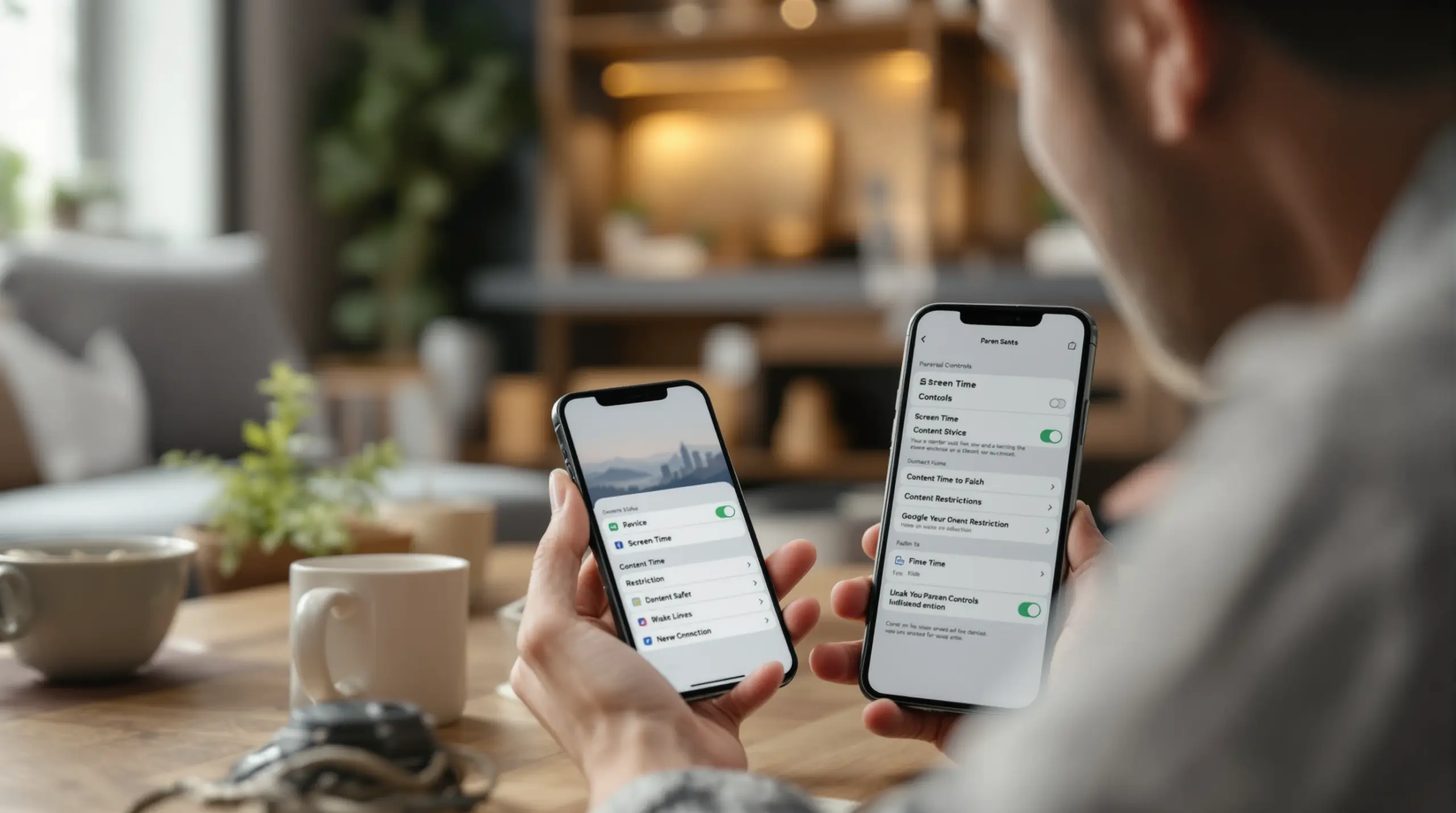
An iPhone with parental controls uses a combination of Apple’s native Screen Time features and external safety applications to manage a child’s digital environment. These controls encompass content filtering, app usage limits, privacy restrictions, and location tracking designed specifically for minors. When parents configure an iPhone with parental controls, they activate a layered defense system that prevents access to mature websites, restricts in-app purchases, and enforces daily schedules.
Apple’s built-in framework relies on Family Sharing, allowing a parent’s Apple ID to govern the settings on a child’s device remotely. Through this system, caregivers set communication limits, approve or deny app downloads via the ‘Ask to Buy’ feature, and enforce SafeSearch on Safari. However, the native iOS architecture is intentionally restrictive regarding third-party app integration. Unlike Android devices, which allow deep system-level monitoring, Apple’s privacy sandbox prevents external apps from reading text messages, monitoring specific in-app YouTube history, or enforcing strong uninstall protection. Industry analyses, such as this Boomerang parental control app tells parents to switch to Android report, highlight how platform architecture dictates the depth of available monitoring.
Consequently, while an iPhone with parental controls provides a strong baseline for content filtering and time management, it lacks the granular visibility that many parents of pre-teens require. For instance, if a child downloads a new social media application, native tools block the download or limit its daily usage, but they do not alert a parent to the specific conversations happening within that app. This architectural limitation means that families relying solely on Apple’s native tools must supplement them with active supervision and regular device checks. Understanding these boundaries is the first step toward building a comprehensive digital safety strategy that adapts as your child grows and their technical proficiency increases.
Pediatric experts emphasize that technology rules should evolve with a child’s developmental stage. The American Academy of Pediatrics notes that there is not enough evidence to support one specific screen time limit for all children and teens, recommending individualized family media plans instead (American Academy of Pediatrics, 2025) [4] . Therefore, configuring an iPhone with parental controls is not about applying a universal template, but rather customizing boundaries that reflect your family’s unique values and your child’s maturity level. By combining Apple’s native restrictions with dedicated safe browsing tools, parents create a tailored environment that encourages healthy digital citizenship while mitigating the risks of unmonitored internet access.
How Do Built-In and Third-Party iOS Solutions Compare?
Evaluating the differences between native Apple features and third-party applications is important when securing a child’s smartphone. Apple’s Screen Time is deeply integrated into the iOS operating system, offering smooth performance and battery efficiency. Because it is a native feature, it is not easily uninstalled or bypassed through standard app management menus. Parents set scheduled downtimes, app limits, and content restrictions directly from their own devices using Family Sharing. However, this native integration comes with strict privacy boundaries. Apple does not allow third-party developers to access the deep system telemetry required to monitor specific app usage histories, such as viewing a child’s YouTube search history or reading SMS keywords for cyberbullying alerts.
Third-party safety applications attempt to bridge these visibility gaps, but they face significant hurdles on iOS. While an iPhone with parental controls benefits from external web filters and location tracking, the operating system prevents external apps from enforcing strict uninstall protection or monitoring internal app communications. For families requiring deep behavioral insights – such as keyword alerts in text messages or per-app allocated time limits – Android devices offer a fundamentally more open architecture for parental oversight. On iOS, third-party apps primarily function as supplementary tools, offering safe browsers, geofencing, and cross-platform dashboard consolidation. Dedicated safe browsers like the SPIN Safe Browser use advanced, constantly updated databases to enforce strict SafeSearch protocols across all major search engines, ensuring that inappropriate images and results are filtered automatically.
Despite these platform limitations, third-party solutions provide immense value in areas where Apple’s native tools fall short. For example, while Safari’s native content filter blocks known adult domains, it struggles with dynamically generated content or sophisticated search engine workarounds. Third-party apps also provide cross-platform compatibility, allowing parents who use Android devices to monitor and manage their child’s iOS device from a single, unified dashboard. This centralized control is invaluable for households with mixed device environments, ensuring that safety rules remain consistent regardless of the hardware your child uses.
Ultimately, the choice between relying solely on native tools or integrating third-party software depends on your family’s specific supervision needs. If your primary goal is basic time management and blocking explicit websites, Apple’s built-in features are highly effective. However, if you require proactive alerts, detailed location histories, and strong web filtering that operates independently of the default browser, integrating a specialized application is a necessary enhancement to your child’s digital safety plan.
How Do You Configure an iPhone with Parental Controls?
Configuring an iPhone with parental controls requires a systematic approach to ensure all safety parameters are correctly applied before handing the device to your child. The foundation of Apple’s device management is Family Sharing, which links your child’s Apple ID to your own. This connection is mandatory for activating the ‘Ask to Buy’ feature, which requires your explicit approval before any app, game, or in-app purchase is downloaded. Without this initial setup, a child freely accesses the App Store and bypasses basic content restrictions.
Once Family Sharing is established, the next important step is activating Screen Time and setting a dedicated passcode. This passcode must be different from the device’s standard unlock code to prevent your child from altering the restrictions. Within the Screen Time menu, parents should go to ‘Content & Privacy Restrictions’ to block explicit music, podcasts, and web content. It is also important to restrict account changes, preventing a child from signing out of their Apple ID or creating new, unmonitored accounts to circumvent the established rules.
Communication limits form the third pillar of iOS device management. Apple allows parents to restrict who their child communicates with during allowed screen time and during scheduled downtimes. By limiting contacts to ‘Contacts Only,’ you prevent unknown numbers from calling or texting your child, significantly reducing the risk of contact from strangers or spam. Also, setting a firm ‘Downtime’ schedule ensures that the device automatically locks during bedtime and school hours, allowing only core apps like Maps or Phone to remain accessible.
While these native configurations provide a strong baseline, they require regular maintenance. Children frequently discover workarounds, such as using third-party browsers that do not inherit Safari’s content restrictions. To counter this, parents must go to the ‘Allowed Apps’ section within Screen Time and disable the installation of new apps, or manually delete alternative browsers that bypass web filters. Maintaining an iPhone with parental controls is an ongoing process of adjusting boundaries as your child shows responsibility and as new digital risks emerge in the evolving online environment.
What Are the Best Practices for iOS Digital Wellbeing?
Establishing healthy technology habits requires more than just configuring an iPhone with parental controls; it demands a proactive, family-wide approach to digital wellness. Pediatric health experts emphasize that the quality and context of media consumption are just as important as the total hours spent online. The American Academy of Pediatrics advises that parents prioritize quality, context, and conversation over strict time limits, particularly for younger children (CHOC Children’s Hospital, 2026) [5] . This means co-viewing content when possible and discussing the media your child consumes to build critical thinking skills.
One of the most effective strategies for promoting digital balance is the creation of a Family Media Plan. This document outlines specific tech-free zones and times, such as the dinner table, bedrooms during sleep hours, and during family outings. When these boundaries are established collaboratively, children are more likely to respect them, viewing the rules as a family agreement rather than a punitive measure. An iPhone with parental controls enforces these boundaries automatically through scheduled downtimes, removing the parent from the role of the daily enforcer and reducing household conflict.
Parents must also model the digital behaviors they wish to see in their children. If caregivers are constantly checking notifications during family time, children will internalize that behavior as acceptable. The American Academy of Pediatrics notes that reducing notifications and setting downtimes are available on most phones and should be used by adults as well (American Academy of Pediatrics, 2026) [6] . By placing your own devices in ‘Do Not Disturb’ mode during designated family hours, you show that technology serves the family, not the other way around.
Maintaining open lines of communication is the ultimate safety net. No software replaces the protective power of a trusting parent-child relationship. Regularly review the device’s activity reports together, not as an interrogation, but as a collaborative review of their digital footprint. Ask open-ended questions about the apps they enjoy, the videos they watch, and any uncomfortable interactions they have experienced online. By combining the technical guardrails of an iPhone with parental controls with empathetic, ongoing dialogue, you enable your child to handle the digital world safely and responsibly.
Questions from Our Readers
Can my child bypass Apple Screen Time restrictions?
Children bypass Apple Screen Time restrictions by exploiting software bugs, using alternative browsers, or resetting the device if the parent passcode is compromised. Apple frequently patches these vulnerabilities through iOS updates, making it important to keep the child’s device updated to the latest software version. To prevent unauthorized resets, parents must restrict account changes and disable the ability to erase content and settings within the Screen Time menu. While native tools are strong, tech-savvy teenagers still find workarounds, which is why many families supplement Apple’s features with dedicated third-party monitoring applications that offer additional layers of uninstall protection and behavioral alerts. Maintaining strict passcode security and regularly auditing the device’s installed applications are important steps in ensuring that the configured safety boundaries remain intact and effective over time.
Does Apple Screen Time monitor text messages for cyberbullying?
Apple Screen Time does not monitor text message content or read SMS communications for cyberbullying keywords because of strict user privacy architecture. The native iOS framework only allows parents to restrict who a child communicates with during specific hours, limiting interactions to approved contacts without analyzing the actual conversation. If a parent requires deep visibility into text message content, keyword alerts, or communication monitoring to detect predatory behavior, they must rely on an Android device, which permits third-party applications to access SMS logs. On an iPhone, parents must rely on manual device checks, open conversations about digital etiquette, and teaching their child to report uncomfortable interactions directly. This privacy-first design protects user data but requires parents to be more proactive in building trust and communication regarding online social dynamics.
How do I block inappropriate websites on my child’s iPhone?
You block inappropriate websites on a child’s iPhone by enabling the Limit Adult Websites feature within the Screen Time Content and Privacy Restrictions menu. This native setting automatically filters known explicit domains and allows parents to manually add specific URLs to an ‘Always Allow’ or ‘Never Allow’ list. However, this native filter only applies to the Safari browser and does not restrict content accessed through third-party applications or alternative browsers downloaded from the App Store. To ensure comprehensive web filtering across all network connections, many parents install dedicated safe browsing applications that enforce strict SafeSearch protocols and block millions of categorized domains automatically. These specialized browsers operate independently of the device’s native network settings, providing consistent protection whether the child is connected to home Wi-Fi, school networks, or mobile data.
What is the recommended daily screen time limit for children?
Experts recommend limiting entertainment screen time to under two hours daily for older children and one hour for children aged two to five. The American Psychological Association and the American Academy of Pediatrics emphasize that these limits should focus on high-quality, educational content rather than passive consumption. For children aged six and up, experts advise establishing consistent limits on the time spent using media and the types of media consumed, ensuring that screen use does not displace adequate sleep, physical activity, or face-to-face social interactions. Rather than enforcing a rigid universal number, pediatricians encourage families to create individualized media plans that balance digital engagement with offline responsibilities, adjusting the daily allowances as the child matures and shows responsible device management.
Comparing iOS Safety Approaches
Choosing the right safety configuration depends on your child’s age, technical proficiency, and your family’s specific supervision requirements. The table below compares the primary methods for securing an iPhone with parental controls, highlighting the strengths and limitations of each approach.
| Approach | Content Filtering | App Monitoring | Bypass Resistance |
|---|---|---|---|
| Native Apple Screen Time | Strong (Safari only) | Basic (Time limits only) | Moderate (Vulnerable to workarounds) |
| Third-Party Safe Browsers | Excellent (Cross-browser) | None (Browser only) | High (If app deletion is blocked) |
| Dedicated iOS Safety Apps | Good (Via custom browser) | Limited (Location & Web) | Moderate (iOS sandbox limits) |
Native Apple Screen Time provides the deepest system integration but lacks cross-browser filtering. Third-party safe browsers excel at blocking explicit content but do not manage overall device time. Dedicated iOS safety apps offer centralized dashboards and location tracking but are constrained by Apple’s privacy sandbox, preventing deep app monitoring.
How Boomerang Enhances Family Safety
At Boomerang Parental Control, we are dedicated to enabling parents with the tools necessary to guide their children toward responsible digital citizenship. While our platform is renowned for its deep, granular management on Android devices, we also provide core solutions for families managing an iPhone with parental controls. Our system is designed to eliminate daily screen time conflicts and ensure online safety without requiring constant parental supervision.
For iOS devices, our screen time features integrate smoothly with Apple’s native frameworks to enforce scheduled downtimes and daily limits, ensuring that bedtime and homework routines are consistently protected. To address the important need for strong web filtering, independent evaluations like this Boomerang Parental Control software review consistently highlight our cross-platform solutions. We developed the SPIN Safe Browser, a fully contained browser that automatically blocks millions of inappropriate websites and enforces strict SafeSearch protocols across all major search engines. This ensures your child is protected from explicit content, whether they are on your home Wi-Fi or using mobile data at school.
For families with mixed device households, where parents use iOS but children use Android, our platform offers unparalleled visibility. Our Android download page provides access to advanced features like YouTube App History Monitoring and Call & Text Safety, while our Samsung Knox integration ensures that tech-savvy children do not bypass or uninstall the app. We invite you to explore how our comprehensive suite of tools brings peace and balance back to your home. Visit our website today to start your family’s path toward healthier digital habits.
How to Configure iOS Safety in 5 Steps
Enable Family Sharing and Ask to Buy
Open your device settings, go to Family Sharing, and add your child’s Apple ID. Activate the Ask to Buy feature to ensure you receive a notification and must approve every app download or in-app purchase before it is installed on their device.
Activate Screen Time and Set a Passcode
Go to Settings, select Screen Time, and tap Turn On Screen Time for your child’s device. Immediately set a unique Screen Time passcode that differs from the device unlock code, preventing your child from altering the restrictions you are about to configure.
Configure Content and Privacy Restrictions
Within the Screen Time menu, enable Content & Privacy Restrictions. Set web content to Limit Adult Websites, block explicit music and podcasts, and restrict account changes to prevent your child from signing out of their Apple ID to bypass the established rules.
Establish Communication Limits and Downtime
Set Communication Limits to Contacts Only during allowed screen time to block unknown callers. Configure a strict Downtime schedule that automatically locks the device during bedtime and school hours, allowing only core apps like Maps or Phone to remain accessible.
Install a Dedicated Safe Browser
Download a specialized safe browsing application from the App Store to enforce strict SafeSearch protocols and block dynamically generated explicit content that native Safari filters miss. Set this as the primary browser and use Screen Time to block the installation of alternative browsers.
The Bottom Line
Securing an iPhone with parental controls is a foundational step in protecting your child’s digital wellbeing, but it is only one component of a comprehensive family media strategy. While Apple’s native Screen Time provides excellent baseline restrictions for app limits and content filtering, the platform’s privacy architecture inherently limits deep behavioral monitoring and cross-browser enforcement. By combining native iOS settings with dedicated safe browsing tools and maintaining open, empathetic dialogue, you create a secure environment that builds responsible digital citizenship. If your family requires deeper visibility, such as text message monitoring or granular YouTube history tracking, transitioning your child’s primary device to an Android smartphone provides a significantly more comprehensive suite of safety features. To explore how our platform helps you eliminate screen time conflicts and ensure online safety, contact our team at [email protected] or visit our support portal today.
Useful Resources
- Beyond Borders: U.S. and Australian Families on Online Safety. Family Online Safety Institute.
https://fosi.org/wp-content/uploads/2026/07/FOSI-Beyond-Borders-U.S.-and-Australian-Families-on-Online-Safety-Screen-Use-and-the-Digital-Lives-of-Kids.pdf - Connected and Protected: Insights from FOSI’s 2025 Online Safety Survey. Family Online Safety Institute.
https://fosi.org/wp-content/uploads/2025/05/Connected-and-Protected-Insights-from-FOSIs-2025-Online-Safety-Survey.pdf - Keep Your Kids Healthy by Unplugging Their Screens. Yale School of Medicine.
https://medicine.yale.edu/news-article/keep-your-kids-healthy-by-unplugging-their-screens/ - Screen Time Guidelines. American Academy of Pediatrics.
https://www.aap.org/en/patient-care/media-and-children/center-of-excellence-on-social-media-and-youth-mental-health/qa-portal/qa-portal-library/qa-portal-library-questions/screen-time-guidelines/ - Updated AAP Recommendations for Screen Time. CHOC Children’s Hospital.
https://health.choc.org/updated-aap-recommendations-for-screen-time/ - Understanding the New AAP Digital Media Guidelines. American Academy of Pediatrics.
https://www.aap.org/en/patient-care/media-and-children/center-of-excellence-on-social-media-and-youth-mental-health/understanding-the-new-AAP-digital-media-guidelines/
START YOUR FREE TRIAL
Take control of screen time—free for 14 days, cancel anytime.
