
07
Jul
2026
Mastering motorola parental controls: A Complete Guide
July 7, 2026
Learn how motorola parental controls manage screen time and online safety. Review setup steps, built-in features, and advanced third-party app alternatives.
Table of Contents
- Introduction
- What Are Built-in Motorola Parental Controls?
- How Do Motorola Screen Time Limits Work?
- Can Native Moto G Parental Controls Block Inappropriate Content?
- Why Do Parents Upgrade to Third-Party Alternatives?
- What People Are Asking
- Comparing Native and Third-Party Tools
- Advanced Protection with Boomerang
- How to Set Up Controls in 4 Steps
- Key Takeaways
- Sources & Citations
Article Snapshot
Motorola parental controls are built-in and third-party device management tools that restrict app access, filter web content, and enforce daily screen time limits on Motorola smartphones to protect children from inappropriate material and excessive device usage.
Market Snapshot
Introduction
Handing your child their first Motorola smartphone is a major milestone, but it also brings immediate concerns about screen time and online safety. Configuring motorola parental controls is necessary for establishing healthy digital boundaries from day one. While Motorola offers native tools like Family Space, many parents find they need more comprehensive protection, which is where Boomerang Parental Control provides advanced Android-first monitoring and un-bypassable restrictions.
Modern mobile devices are powerful gateways to the internet, social media, and endless entertainment. Without proper device restrictions, children easily stumble upon inappropriate content, download risky applications, or lose sleep due to late-night scrolling. Understanding the native Motorola child safety settings helps you take the first step toward digital wellbeing. However, built-in options lack the deep visibility and tamper-proof enforcement that growing families require.
START YOUR FREE TRIAL
Take control of screen time—free for 14 days, cancel anytime.




In this detailed guide, we will break down exactly how to configure Motorola screen time limits, examine the capabilities of the native family hub, and compare these built-in features against premium mobile device management alternatives. Whether you are setting up a new moto g 5G or managing a hand-me-down device, you will learn how to create a secure, balanced digital environment for your child.
What Are Built-in Motorola Parental Controls?
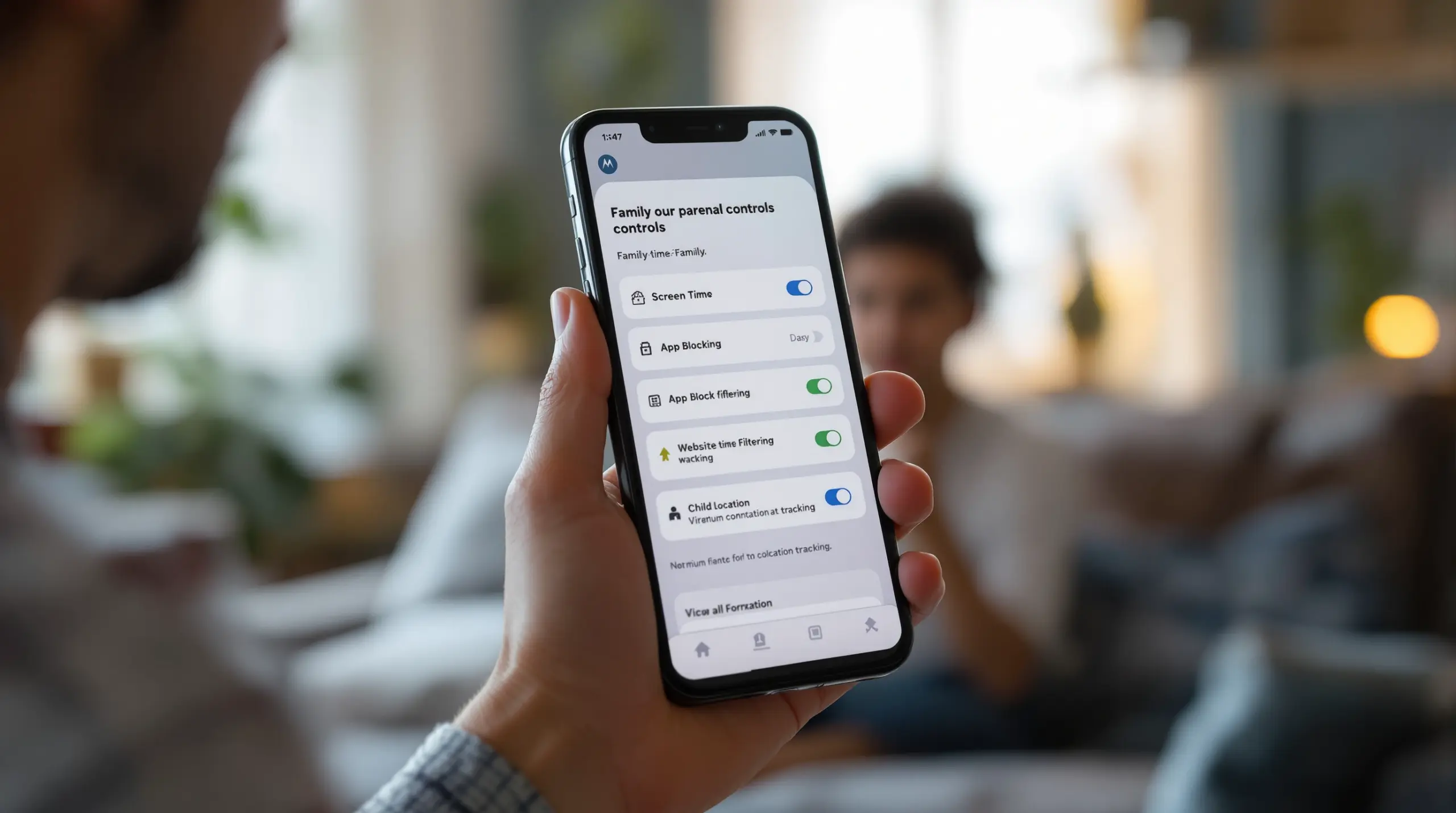
Understanding motorola parental controls begins with recognizing that these native device management tools primarily consist of the Family Space application and Google Family Link integration. These native features allow parents to create restricted user profiles, manage basic digital wellbeing metrics, and establish foundational boundaries on Motorola smartphones. According to official guidance, “Family Space allows you to create a space on your phone where family can play safely, without disrupting your settings and privacy” (Motorola support, 2025) [3] .
The native family hub acts as a centralized dashboard where caregivers oversee device usage without needing to physically handle the child’s phone. Motorola describes this platform by stating, “Family hub: Take the reins of your family’s digital experience with parental control features. Set time limits, monitor app usage, see their location and ensure your children are engaged in content that aligns with your family values” (Motorola, 2026) [4] . The Family Space integration is particularly useful for parents who are setting up a first smartphone for a younger child and want a straightforward, out-of-the-box solution.
However, as children grow older and become more technologically adept, the limitations of these native Motorola child safety settings become apparent. The built-in tools are designed for basic restriction rather than comprehensive monitoring. They lack advanced features like deep YouTube history tracking, SMS keyword alerting, and strong uninstall protection. For families managing the complex digital environment of pre-teens and teenagers, relying solely on native software leads to frustration when children discover simple workarounds to bypass the established rules.
Because Motorola devices run on the Android operating system, they inherit both the strengths and weaknesses of the broader Google platform. While this allows for smooth integration with Google Play Store restrictions, it also means that tech-savvy kids exploit known Android loopholes to regain access to blocked apps or bypass screen time limits. Parents quickly realize that native tools are a great starting point, but they require a more specialized, third-party solution to maintain consistent enforcement as the child’s digital literacy increases.
How Do Motorola Screen Time Limits Work?
Motorola screen time limits function through a combination of native digital wellbeing timers and the Family Space scheduling system, which automatically lock the device or specific applications once a predefined daily allowance is exhausted. The core mechanism is straightforward: parents “Set a timer to limit screen time” (Motorola support, 2025) [3] directly from the family dashboard. Parents apply this as a hard daily cap, such as allowing exactly two hours of recreational use, or as scheduled downtime that locks the phone during bedtime and school hours.
The necessity for these automated boundaries is backed by extensive public health data. Recent reports indicate that 80.2% of adolescents aged 12-17 spend over two hours on screens per weekday, while 50.4% spend four or more hours outside of schoolwork (NCHS, 2024) [2] . Also, 65.7% of boys aged 2-17 exceed two hours of daily recreational screen time (CDC, 2025) [1] . Without automated Motorola screen time limits, parents are forced into the exhausting role of manually confiscating devices, which inevitably leads to daily arguments and emotional friction.
While native tools provide basic timers, they lack the nuance required to promote healthy digital habits. For example, native systems apply a blanket lock when time runs out, which inadvertently blocks access to educational apps, health trackers, or school portals. Advanced third-party applications solve this by allowing parents to designate specific learning tools as “Encouraged Apps” that remain accessible even after entertainment limits are reached. The Encouraged Apps approach shifts the focus from pure restriction to guided habit-building, teaching children how to balance their digital lives responsibly.
Scheduled downtime is another key component of effective screen time management. By configuring the device to automatically enter a locked state at a specific hour, such as 8:00 PM, parents protect their child’s sleep hygiene without having to physically enforce a bedtime curfew. The phone simply becomes unusable for entertainment, removing the temptation to scroll through social media or watch videos late into the night. When the device itself acts as the neutral enforcer, the parent-child relationship is preserved, and the household enjoys a more peaceful evening routine.
Can Native Moto G Parental Controls Block Inappropriate Content?
Native Moto g parental controls rely heavily on Google Play Store restrictions and basic SafeSearch enforcement to block inappropriate content, but they lack comprehensive, device-wide web filtering for third-party browsers. When you configure the native family hub, you prevent the child from downloading mature applications and ensure that Google search results are filtered. This provides a solid baseline of protection for younger children who are just beginning to explore the internet on their personal devices.
However, the modern mobile web is filled with pathways that easily circumvent basic SafeSearch enforcement. Children access explicit material through in-app browsers embedded within social media platforms, messaging apps, or alternative search engines that do not respect native Motorola child safety settings. To close these dangerous loopholes, many parents deploy dedicated safe browsing environments. For instance, the SPIN Safe Browser provides a fully contained web experience with pre-configured content filtering that blocks millions of inappropriate websites across all networks, without requiring complex router configurations or VPN setups.
App discovery and approval is another key layer of content protection. Native tools allow parents to require approval for new app installations, which prevents children from secretly downloading risky games or unmoderated chat platforms. When a child attempts to install a new application, a notification is sent to the parent’s device, allowing the caregiver to review the app’s purpose and age rating before granting access. App approval gatekeeping is necessary for maintaining a secure device environment, especially when children are influenced by peer pressure to join the latest social media trends.
Despite these native capabilities, web filtering on Motorola devices remains fragmented without a unified, third-party browser solution. Ensuring that every webview, social media link, and embedded browser is protected requires a level of deep system integration that goes beyond standard Android permissions. Parents who prioritize absolute online safety find that combining native app approval with a dedicated safe browser yields the most reliable protection against age-inappropriate material.
Why Do Parents Upgrade to Third-Party Android Family Link Alternatives?
Parents frequently upgrade to third-party Android family link alternatives because native Motorola tools lack uninstall protection, deep communication monitoring, and the ability to prevent tech-savvy children from circumventing device restrictions. As children enter their pre-teen and teenage years, their technical skills outpace the basic security measures provided by free, built-in operating system features. A common frustration occurs when a child discovers how to delete the native monitoring profile or exploit a settings loophole to regain unrestricted access to their smartphone.
Advanced monitoring capabilities are a primary driver for this upgrade. Native motorola parental controls do not monitor text messages, SMS keywords, or specific YouTube app viewing history on the device. Third-party solutions fill this critical gap by offering Call and Text Safety features that alert parents to cyberbullying, inappropriate language, or contact from unknown numbers. Also, dedicated Android monitoring apps provide a clear history of what a child is searching for and watching within the main YouTube application, giving parents the visibility needed to initiate proactive conversations about online risks.
Industry experts consistently highlight the need for strong, un-bypassable controls when reviewing family safety software. As noted in a comprehensive Boomerang Parental Control software review , dedicated applications offer superior tamper resistance compared to native OS features. Similarly, an independent Boomerang Parental Control Review emphasizes that enterprise-grade security features, adapted for consumer use, are necessary for keeping older children accountable.
Ultimately, the transition from native tools to premium software is about shifting from reactive restriction to proactive digital parenting. When parents invest in a solution that resists deletion or bypassing, they eliminate the daily cat-and-mouse game of device management. Removing this friction allows families to focus on building trust, teaching digital citizenship, and ensuring that the mobile device remains a positive, educational tool rather than a source of constant household conflict.
What People Are Asking
How do I set up motorola parental controls on a new device?
You set up motorola parental controls by opening the Family Space app, creating a child profile, and linking it to your parent Google account. After establishing the profile, you configure daily time limits, approve specific applications, and enforce safe browsing restrictions directly from the family hub dashboard. The native Family Space setup provides a foundational layer of protection for younger children receiving their first smartphone.
Can my child delete the native Motorola family space app?
Tech-savvy children bypass or delete native Motorola family space controls by exploiting Android settings loopholes or removing the associated Google account. Because native tools lack enterprise-grade uninstall protection, many parents upgrade to dedicated third-party applications that prevent tampering and ensure safety rules remain permanently enforced. Advanced solutions use deep system integrations to make unauthorized removal virtually impossible without a parent PIN.
Do motorola parental controls monitor text messages and YouTube history?
Native motorola parental controls do not monitor text messages, SMS keywords, or specific YouTube app viewing history on the device. To gain visibility into private communications and detailed video consumption, parents must install advanced third-party monitoring software that offers deep Android integration and real-time keyword alerting. These premium features are necessary for identifying early signs of cyberbullying or exposure to harmful content.
What is the best third-party app for Motorola screen time limits?
The best third-party app for Motorola screen time limits is Boomerang Parental Control, which offers automated scheduling, un-bypassable uninstall protection, and per-app timers. Unlike basic free alternatives, this dedicated Android solution provides comprehensive YouTube monitoring, call and text safety alerts, and the ability to designate educational apps as always allowed. Boomerang’s combination of features ensures that children develop healthy digital habits while remaining protected from online risks.
Comparing Native and Third-Party Tools
Choosing the right digital wellbeing strategy requires understanding the functional gaps between native operating system features and dedicated family safety software. While built-in tools offer convenient baseline protections, they fall short in areas requiring deep system integration and tamper resistance. The following table illustrates how native Motorola options compare against premium third-party solutions.
| Feature | Native Motorola (Family Space) | Google Family Link | Boomerang Parental Control |
|---|---|---|---|
| Uninstall Protection | Weak (Easily bypassed) | Moderate (Account removal loophole) | Strong (Advanced MDM integration) |
| YouTube History Monitoring | No | No | Yes (Android only) |
| Call & Text Safety | No | No | Yes (Keyword alerts & logs) |
| Encouraged Apps (Always Allowed) | No | Limited | Yes (Bypasses daily limits) |
As the data shows, native motorola parental controls are best suited for basic scheduling and app approval. For comprehensive visibility and unbreakable enforcement, a dedicated Android-first application provides the necessary tools to manage modern digital risks effectively.
Advanced Protection with Boomerang
Boomerang Parental Control is engineered specifically to address the limitations of native device management tools, providing families with a comprehensive, Android-first solution for screen time and online safety. We understand that modern parents need more than just basic timers; they need un-bypassable enforcement and deep visibility into their child’s digital life. Our platform acts as a remote control for your child’s mobile device, eliminating daily arguments by automatically enforcing bedtimes and daily usage limits without requiring you to act as the constant enforcer.
Our comprehensive suite of features includes Boomerang Parental Control – screen time features that allow you to set per-app limits while keeping educational tools accessible. For families seeking the highest level of tamper resistance, our advanced security architecture ensures that children are unable to delete the app or find simple workarounds. While we specialize in Android, our platform supports broad device management needs, and we offer a Sideload download page for Android devices to enable deep system integrations like Call and Text Safety.
Also, for families managing mixed-device households, Boomerang Parental Control is the only parental control app to use Samsung’s Knox, an enterprise mobile security solution pre-installed in most of Samsung’s smartphones and tablets. This enterprise-grade approach to consumer safety ensures that your rules remain firmly in place, regardless of the device brand. Experience the peace of mind that comes with Boomerang Parental Control – Taking the battle out of screen time for Android and iOS by exploring our tailored family plans today.
How to Set Up Motorola Parental Controls in 4 Steps
Access the Family Hub and Create a Child Profile
Open the native Family Space application or download your preferred third-party monitoring app from the Google Play Store. Follow the guided setup wizard to create a dedicated child profile, link it to your parent account, and establish the foundational age-appropriate restrictions for the device.
Configure Daily Screen Time Limits and Bedtime Schedules
Open the screen time management dashboard and set a hard daily allowance for recreational apps. Next, configure scheduled downtime to automatically lock the device during critical hours, such as school time and bedtime, ensuring your child’s sleep and focus are consistently protected.
Enable App Approval and Content Filtering
Activate the app discovery and approval workflow so that every new download requires your explicit permission. Pair this with a dedicated safe browser or native SafeSearch enforcement to block millions of inappropriate websites and filter search engine results automatically.
Secure the Device Against Tampering and Bypassing
Enable uninstall protection within your chosen parental control application to prevent the child from deleting the monitoring software. If using an advanced third-party solution, ensure that deep system permissions are granted so that the safety rules remain permanently enforced.
Key Takeaways
Managing your child’s digital wellbeing requires a proactive approach that goes beyond basic operating system features. While native motorola parental controls provide a helpful starting point for app approval and basic scheduling, they lack the deep monitoring, web filtering, and tamper-proof enforcement necessary for older children. By understanding the limitations of built-in tools and exploring advanced third-party alternatives, you create a secure, balanced digital environment that promotes responsible technology use.
Protecting your family online should not result in daily arguments or constant anxiety. If you are ready to implement un-bypassable screen time limits, monitor YouTube history, and ensure comprehensive online safety, we are here to help. Contact our support team at [email protected] or visit our website to start your free trial and take the battle out of screen time today.
Sources & Citations
- Morbidity and Mortality Weekly Report. Centers for Disease Control and Prevention (CDC).
https://www.cdc.gov/mmwr/volumes/71/wr/mm7103a6.htm - National Center for Health Statistics Data Brief. Centers for Disease Control and Prevention.
https://www.cdc.gov/nchs/data/databriefs/db513.pdf - Using Family Space on your motorola phone. Motorola Support.
https://en-us.support.motorola.com/app/answers/detail/a_id/172626/~/family-space - Family Space – Apps on Google Play. Motorola.
https://play.google.com/store/apps/details?id=com.motorola.spaces&hl=en_US
START YOUR FREE TRIAL
Take control of screen time—free for 14 days, cancel anytime.
