
17
Feb
2026
Complete Guide to Parental Control Software
February 17, 2026
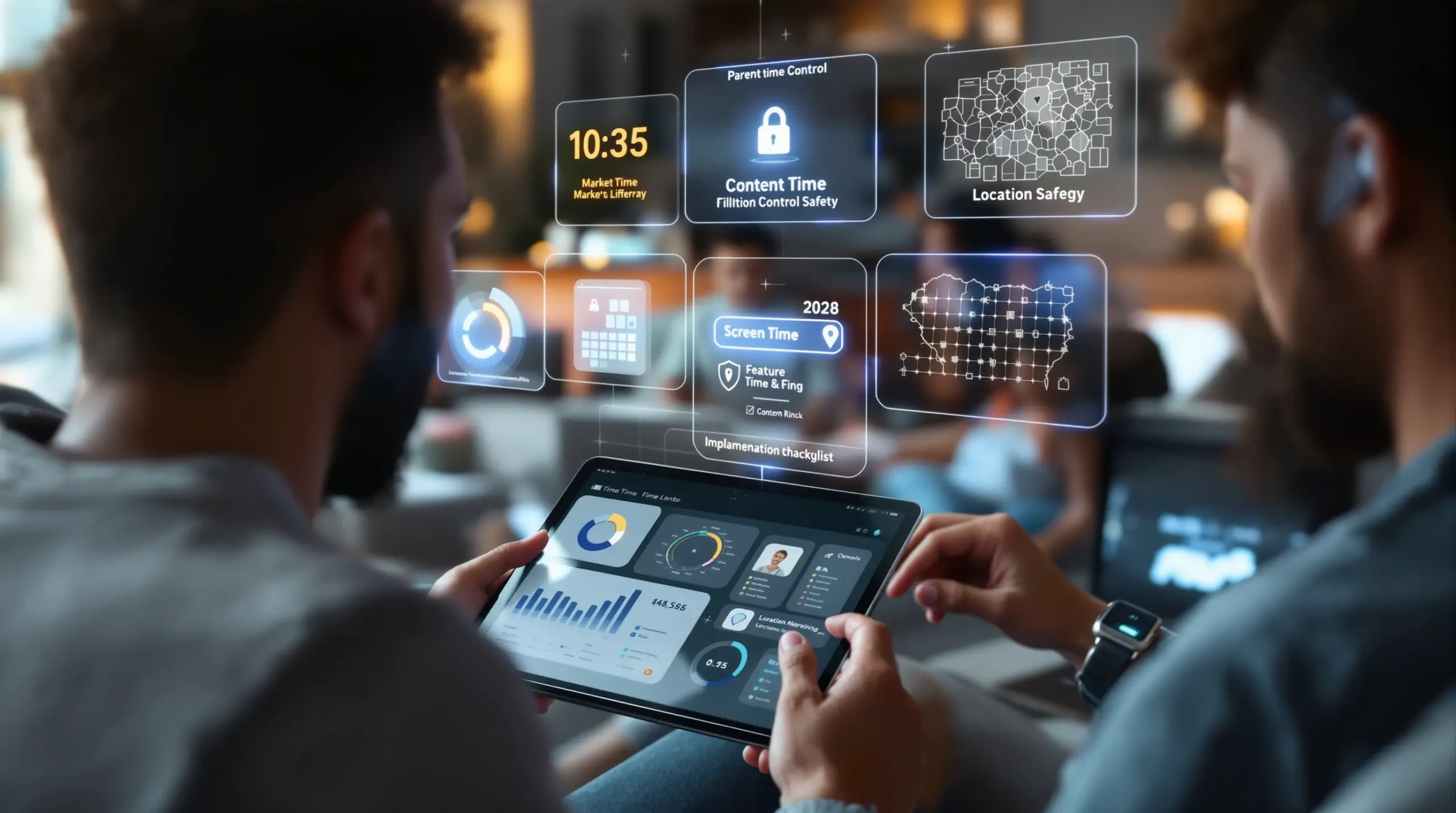
Parental control software helps families manage screen time, block inappropriate content, and keep children safe online – here’s everything you need to choose the right app for your family.
Table of Contents
- What Is Parental Control Software?
- Key Features Every Parent Should Look For
- Android vs. iOS: Why Your Child’s Device Matters
- Age-Appropriate Parental Control Strategies
- Frequently Asked Questions
- Comparing Parental Control Approaches
- How Boomerang Parental Control Helps Families
- Practical Tips for Getting Started
- The Bottom Line
- Sources & Citations
Article Snapshot
Parental control software is a category of app or platform that lets parents set screen time limits, block harmful websites, approve app installs, and monitor a child’s device activity. The right solution balances protection with age-appropriate freedom, helping families build healthy digital habits rather than simply restricting access.
By the Numbers
- The global parental control software market is projected to reach $1.76 billion USD in 2026, growing to $4.12 billion USD by 2034 (Fortune Business Insights, 2026)[1]
- The market is forecast to grow at a compound annual rate of 11.20% from 2026 to 2034 (Fortune Business Insights, 2026)[1]
- Residential households account for 73.80% of the global parental control software market in 2026 (Fortune Business Insights, 2026)[1]
- Only 47% of parents report fully using the parental controls available to them (Fortune, 2025)[2]
What Is Parental Control Software?
Parental control software is a dedicated tool that gives parents direct oversight of their child’s device activity, including what apps they use, which websites they visit, and how long they spend on a screen each day. At its core, this type of software puts practical guardrails in place before problems arise, rather than reacting after the fact. Boomerang Parental Control is built around this exact philosophy – giving families the tools to set firm boundaries, automate enforcement, and stay informed without turning every evening into a negotiation.
The concept covers a wide range of capabilities. Some platforms focus on content filtering alone, blocking websites that fall into categories like adult content, violence, or gambling. Others go further, offering app-level management, daily time limits, scheduled downtime, real-time location tracking, and even visibility into text message activity. The best solutions combine several of these layers into a single interface that parents manage remotely from their own phone.
START YOUR FREE TRIAL
Take control of screen time—free for 14 days, cancel anytime.




Understanding what parental control software actually does is the first step toward using it effectively. It is not a substitute for parenting – it is a tool that makes consistent rule enforcement possible without requiring a parent to physically supervise every moment of device use. When a child knows the app enforces the rules automatically, it removes the parent from the role of daily enforcer and replaces arguments with a neutral, automated system.
For families setting up a first smartphone for a pre-teen, this kind of protection matters from day one. App approval controls, web filtering, and screen time scheduling are all configured before the device is handed over, creating a safe starting environment that is gradually opened up as the child earns trust. That foundation is what separates a well-managed first device experience from one that spirals into conflict within weeks.
Key Features Every Parent Should Look For
Effective parental control software delivers a combination of time management, content protection, and communication visibility that works together as a complete family safety system. No single feature is enough on its own – the real value comes from how well these tools work together to cover the gaps where children are most at risk.
Screen Time Management and Scheduling
Screen time scheduling lets you set fixed hours when a device automatically locks – for example, no phones after 9 p.m. or during homework hours from 4 to 6 p.m. This is separate from daily usage limits, which cap total device time regardless of when it is used. On Android, the most capable platforms let you set both types of controls simultaneously, giving you a total daily allowance alongside a hard bedtime cutoff. The combination eliminates the two most common arguments in family households: how long and how late.
Platforms that support per-app time limits add another layer of precision. You might allow unlimited use of a school reading app while capping a gaming app at 30 minutes per day. The ability to designate certain apps as “Encouraged” – exempt from time limits entirely – is particularly useful for families that want to promote educational or fitness tools without inadvertently restricting them.
Content Filtering and Safe Browsing
Web filtering blocks access to harmful categories of content – adult material, violent sites, unfiltered search engines – before a child encounters them. The most reliable approach uses a dedicated safe browser rather than relying on system-level DNS filtering, which tech-savvy children sometimes bypass by switching networks. A self-contained browser like SPIN Safe Browser applies filtering on any network – home wifi, school, or mobile data – without requiring a VPN or router configuration.
SafeSearch enforcement is an often-overlooked component. Even if a website is blocked, search engine results surface inappropriate images and descriptions. Locking Google, Bing, and Yahoo to their strictest safe search settings automatically closes this gap, ensuring that what children find in search results is age-appropriate.
App Approval and Install Control
Children regularly discover new apps from friends, social media, and in-app recommendations. Without an app approval gate, a risky app is installed and in use before a parent is ever aware of it. App Discovery and Approval features notify parents immediately when a child attempts to install something new and require explicit parental sign-off before the app becomes usable. This workflow is particularly important for families handing a child their first device, where establishing the expectation of parental oversight from the start shapes long-term behavior more effectively than reactive measures.
Uninstall Protection
The single most common frustration parents report with parental control apps is that their children figure out how to delete them. Strong uninstall protection – particularly on Android, where Boomerang Parental Control is the only parental control app to use Samsung’s Knox, an enterprise mobile security solution pre-installed in most Samsung smartphones and tablets – makes it exceptionally difficult for a child to remove or disable the app without the parent’s PIN. This is a critical differentiator between apps that actually enforce rules and apps that only work until a determined teenager decides to push back.
Android vs. iOS: Why Your Child’s Device Matters
The operating system your child’s device runs on directly determines which parental control features are available to you, and understanding this difference is important before choosing any monitoring or management platform. Android and iOS approach third-party app permissions differently, and that gap produces a significant difference in what parental control software actually does on each platform.
Android: Deeper Control and More Features
Android’s architecture gives third-party apps broader access to device functions, which is why the most capable parental control features are available on Android only. Features that require this deeper level of access include YouTube App History Monitoring, per-app time limits with allocated usage timers, Call and Text Safety monitoring with keyword alerts, and strong uninstall protection through Samsung Knox integration on supported devices.
YouTube monitoring is worth highlighting specifically. The YouTube app is one of the most-used platforms among children and teenagers, yet most parental control solutions – including built-in options like Google Family Link – cannot provide a clear view of what a child is actually searching for and watching within the standard app. On Android, Boomerang surfaces this history directly to the parent’s dashboard, enabling informed conversations about viewing habits rather than guesswork.
For families using Samsung Galaxy smartphones or tablets, Knox integration provides an additional layer of tamper resistance that goes beyond what standard Android permissions allow. This enterprise-grade security layer, used by corporations to manage employee devices, is available to families at a consumer price point – a meaningful advantage when managing a tech-savvy teenager who has already defeated simpler controls.
iOS: Solid Basics with Important Limitations
On iOS, Apple’s strict permission model limits what third-party parental control apps access. Screen time scheduling, location tracking, content filtering through a dedicated browser, and app-age-based hiding are available. However, per-app time limits with custom allocated timers, SMS and call monitoring, YouTube app history, and uninstall protection beyond a notification are not available on iOS through third-party apps.
This does not mean iOS is unprotected – it means parents using iPhones or iPads for their children should understand where the gaps are and supplement with Apple’s built-in Screen Time feature where necessary. For families that want the deepest level of control, an Android device managed with a capable parental control platform gives significantly more visibility and enforcement power.
According to a 2025 report, only 47% of parents are fully using the parental controls available to them (Fortune, 2025)[2]. For many families, the platform difference between Android and iOS is a significant part of why – the tools simply don’t exist on one platform that are readily available on the other.
Age-Appropriate Parental Control Strategies
Parental control software works best when the level of restriction and monitoring is matched to the child’s age, maturity, and track record with technology. A one-size-fits-all configuration either over-restricts older teens, creating conflict and resentment, or under-protects younger children who are not yet equipped to navigate digital risks independently.
Younger Children and First Devices (Ages 8-12)
For children receiving their first smartphone or tablet, the priority is establishing clear boundaries before patterns form. App approval controls should be active from day one, requiring a parent to sign off on every new install. Web filtering and SafeSearch enforcement should be set to their strictest levels. Screen time schedules should protect homework hours, mealtimes, and bedtime automatically, without requiring a parent to remind the child every evening.
Amy Nathanson, Professor of Communication at Ohio State University, makes the case for active oversight at this stage: “With younger children or children who are just acquiring a device, parents should monitor their use more heavily in order to help them navigate options and make good choices.” (Children and Screens, 2026)[3]
The goal at this stage is not punishment – it is building a foundation of habits and expectations. Children who grow up understanding that device use comes with boundaries are better prepared to self-regulate as those boundaries gradually loosen.
Pre-Teens and Early Teens (Ages 12-15)
As children move into middle school, the social dimension of device use expands significantly. Group chats, social media discovery, and peer pressure around app use all increase the risk surface. At this stage, call and text safety monitoring on Android becomes particularly valuable – not to read every message, but to surface keyword alerts that indicate cyberbullying, inappropriate contact, or exposure to harmful content.
Location tracking with geofencing also becomes more relevant as children spend more time away from home. Rather than requiring constant check-in texts, geofencing sends an automatic alert when a child arrives at or leaves a specific location – school, a friend’s house, a sports field – giving parents passive confirmation of physical safety without hovering.
Professor Nathanson notes that strategy must evolve with the child: “As children get older, parents will need to re-evaluate their strategies and adapt to their child’s needs and circumstances.” (Children and Screens, 2026)[3] Reviewing and adjusting parental control settings every few months – rather than setting and forgetting – keeps the configuration relevant to where the child actually is developmentally.
Teenagers (Ages 15-17)
Teenagers present the most complex challenge for parental control software. They are more technically capable, more motivated to find workarounds, and have a legitimate developmental need for increasing independence. The most effective approach at this age focuses on accountability rather than blanket restriction – maintaining location sharing, monitoring for high-risk communication patterns, and using automated scheduling to protect sleep without micromanaging every app.
Uninstall protection becomes the most important feature at this stage. A teenager who knows they can simply delete a monitoring app has effectively no oversight at all. Platforms with Samsung Knox integration on supported Android devices address this gap, making it significantly harder for a determined teenager to remove or disable controls. This shifts the dynamic from a technical arms race to a conversation about trust and boundaries – which is where the real work of parenting teenagers happens.
The long-term goal is articulated clearly by Professor Nathanson: “Ultimately, parents should aim to develop trust-based strategies, even if they have to begin with more controlling strategies, as they’re more likely to be successful in the long run.” (Children and Screens, 2026)[3]
Your Most Common Questions
What is the difference between parental control software and built-in options like Google Family Link or Apple Screen Time?
Built-in options like Google Family Link and Apple Screen Time are free tools provided by the device manufacturer, and they cover the basics – app approvals, daily limits, and content restrictions. However, they have notable gaps that dedicated parental control software is designed to fill. Google Family Link, for example, does not provide visibility into what a child watches within the YouTube app itself, only YouTube Kids. It also lacks strong uninstall protection; a sufficiently motivated child finds ways around it, which is a common complaint among parents of older pre-teens and teenagers.
Dedicated parental control software offers deeper integration, additional features, and stronger tamper resistance. On Android specifically, platforms with Samsung Knox integration provide an enterprise-grade security layer that makes it exceptionally difficult for a child to remove or bypass controls – something that built-in solutions do not offer. If your child has already bypassed Google Family Link or Apple Screen Time, a dedicated app is the logical next step. The trade-off is a subscription cost, but for many families, the added reliability and peace of mind justify the investment.
Does parental control software work on both Android and iOS devices?
Most dedicated parental control apps support both Android and iOS, but the feature set is not identical across platforms. Android’s more open architecture allows third-party apps to access device functions at a deeper level, which is why features like YouTube App History Monitoring, per-app allocated time limits, call and SMS safety monitoring, and Samsung Knox-backed uninstall protection are only available on Android devices.
On iOS, third-party parental control apps are restricted by Apple’s permission model. You access screen time scheduling, location tracking, age-based app restrictions, and safe browsing through a dedicated browser – but the deeper monitoring and enforcement features are not available. For families where online safety and tamper-resistance are the top priorities, an Android device managed by a capable parental control platform gives significantly more control. iOS users should supplement third-party apps with Apple’s built-in Screen Time settings to cover the gaps that third-party tools cannot address on that platform.
Can my child bypass or delete parental control software?
Whether a child bypasses parental control software depends heavily on the specific app and the device it runs on. Basic or free monitoring apps are frequently defeated by tech-savvy children, especially teenagers, who reset device settings, delete the app, or use a second device or browser to circumvent restrictions. This is one of the most common frustrations parents report when using entry-level tools.
Dedicated apps with strong uninstall protection are specifically designed to prevent this. On Android, the most strong protection comes from Samsung Knox integration, which uses the same enterprise-level security layer that corporations use to manage employee devices. This makes it genuinely difficult – not just inconvenient – for a child to remove or disable the parental control app without the parent’s PIN. On iOS, uninstall protection is limited to notifications, meaning the parent is alerted if tampering is attempted but cannot technically prevent it through a third-party app. If bypass resistance is a priority for your family, an Android device with a Knox-capable parental control app is the most reliable configuration available to consumers.
How do I choose the right parental control software for my family?
Choosing the right parental control software starts with identifying your primary concerns. If screen time arguments are your biggest challenge, prioritize platforms with automated daily limits and scheduling that removes the parent from the enforcement role. If online safety is the top priority, look for strong web filtering, SafeSearch enforcement, and a dedicated safe browser that works across all networks without a VPN. If you are managing a teenager who has already bypassed simpler tools, uninstall protection and Samsung Knox integration on Android should be at the top of your checklist.
Consider your child’s device platform before committing to any app – Android users have access to significantly more features than iOS users on most platforms. Also consider how many devices you need to cover; family pack subscriptions support multiple child devices at a lower per-device cost than individual licenses. Finally, look for a platform that offers daily activity reports delivered to your email, so you stay informed without needing to log in constantly. A good parental control app should fit into your life, not add another daily task to manage.
Comparing Parental Control Approaches
Not all parental control solutions are built the same way. The table below compares the four main approaches families use to manage children’s devices, ranging from built-in free tools to dedicated third-party apps. Understanding where each approach falls short helps you identify which solution fits your family’s actual needs.
| Approach | Screen Time Limits | Content Filtering | Uninstall Protection | Android Deep Features | Best For |
|---|---|---|---|---|---|
| Built-in OS Tools (e.g., Google Family Link, Apple Screen Time) | Basic daily limits | Basic category blocking | Minimal – easily bypassed | Limited (no YouTube history, no SMS monitoring) | Younger children on first devices, low-risk households |
| Router-Based Controls | Network-level scheduling only | DNS-level filtering | None – device leaves home wifi | None | Home network management only |
| Monitoring-Only Apps (e.g., alert-focused platforms) | Alerts only, no enforcement | Risk detection, not blocking | Varies | Varies by platform | Older teens where monitoring replaces restriction |
| Dedicated Parental Control Software (e.g., Boomerang)[1] | Automated daily limits + per-app timers (Android) | Safe browser + SafeSearch enforcement | Strong – Knox integration on Samsung (Android) | YouTube history, SMS monitoring, per-app limits | Pre-teens and teenagers on Android; families needing reliable enforcement |
How Boomerang Parental Control Helps Families
Boomerang Parental Control – Taking the battle out of screen time for Android and iOS is built specifically for parents who need reliable, automated enforcement – not just a tool that works until their child figures out how to delete it. Available for Android and iOS, with the deepest feature set on Android, Boomerang addresses the core challenges that cause the most stress in family households: daily screen time arguments, hidden content risks, and children who bypass simpler controls.
For families managing Android devices, Boomerang’s screen time features go beyond basic daily limits. You can set a total daily usage allowance, schedule hard device locks for bedtime and homework, and apply individual per-app limits – all from one parent dashboard. Educational and health apps are designated as “Encouraged,” exempting them from time limits so a child always accesses their school portal or fitness app even when their entertainment screen time is used up. This promotes digital balance rather than pure restriction, which research shows produces better long-term habits.
YouTube App History Monitoring on Android gives parents visibility into what their child is actually searching for and watching in the standard YouTube app – a gap that built-in tools like Google Family Link cannot fill. Call and Text Safety on Android surfaces keyword alerts in SMS messages and logs call history, helping parents spot early signs of cyberbullying or inappropriate contact without reading every message.
Tamper resistance is a genuine differentiator. Boomerang’s uninstall protection, backed by Samsung Knox on supported devices, makes it significantly harder for a tech-savvy child to remove or disable the app. As one parent shared: “I have control back over my child’s phone and applications because she managed to circumvent family link. I have no idea how she did that but she managed to find a way, as did other kids. That was a major frustration for us. But now with Boomerang, I can manage her time, what applications she uses and what sites she visits.” – Joe Eagles, Google Play review
Subscriptions are available as a single-device annual plan or a Family Pack covering up to 10 child devices. For questions or setup support, visit the contact section or reach the team at [email protected]. The TechRadar review of Boomerang Parental Control software provides an independent look at how the platform performs in real-world family settings.
Practical Tips for Getting Started
Setting up parental control software effectively takes about 30 minutes the first time, but the decisions you make during that initial configuration shape how well the app works for your family long-term. These practical tips help you avoid the most common setup mistakes and get the most out of whichever platform you choose.
Start with scheduling before limits. Configure your device-lock schedule first – bedtime, homework hours, mealtimes – before you set daily time limits. Scheduled locks are non-negotiable and time-of-day specific, which means they protect the routines that matter most regardless of how much screen time the child has used. Daily limits then act as a secondary cap on top of the schedule.
Use app approval from day one. If your child is receiving a new device, activate app approval before you hand it over. This establishes the expectation from the start that new app installs require parent sign-off. Retrofitting this control after a child has already installed a library of apps is more complicated and more contentious than building it into the initial setup.
Install a dedicated safe browser alongside your parental control app. System browsers like Chrome and Safari are difficult to fully restrict on some devices. A self-contained safe browser with built-in filtering – one that works on any network without a VPN – closes the gap reliably. For Android and iOS families, independent reviewers consistently highlight SPIN Safe Browser as one of the most reliable options for families wanting no-configuration content protection.
Review activity reports weekly, not daily. Daily check-ins of monitoring data create anxiety and make you more reactive than necessary. A weekly review of app usage, YouTube history, and location patterns gives you a more accurate picture of your child’s habits and makes for more productive conversations than reacting to individual incidents.
Revisit settings every three to six months. Children’s needs, maturity levels, and risk profiles change quickly. A configuration that was appropriate for a 10-year-old is too restrictive for the same child at 12. Scheduled reviews keep your parental control setup aligned with where your child actually is, rather than where they were when you first set it up.
Talk to your child about the controls you have in place. Research supports transparency as a more effective long-term strategy than covert monitoring. Telling your child what you can see and why you have set the rules you have builds trust, reduces the motivation to find workarounds, and teaches the self-regulation skills that ultimately matter more than any app.
The Bottom Line
Parental control software is one of the most practical tools available to families raising children in a connected world. The right platform automates the rules you would otherwise have to enforce manually every single day – protecting sleep, blocking harmful content, and giving you the visibility to have informed conversations about your child’s digital life.
Platform matters. Android users have access to the deepest feature set, including YouTube monitoring, SMS safety alerts, per-app time limits, and tamper-resistant uninstall protection through Samsung Knox integration. iOS users should combine a capable third-party app with Apple’s built-in Screen Time to cover the gaps that the platform’s permission model creates for third-party developers.
If you are ready to stop arguing about screen time and start trusting that the rules will hold, Boomerang Parental Control is designed for exactly that. Visit the Android sideload download page to get started, or reach out at [email protected] with any questions about which plan fits your family.
Sources & Citations
- Parental Control Software Market Size, Share & Industry Analysis. Fortune Business Insights.
https://www.fortunebusinessinsights.com/parental-control-software-market-104282 - Why less than half of parents utilize parental controls on their kids’ devices. Fortune, 2025.
https://fortune.com/well/2025/05/29/parental-controls-kids-smartphone-social-media/ - All in the Family: How Parental Controls, Monitoring Apps, and Digital Safety Shape Children’s Online Experiences. Children and Screens, 2026.
https://www.childrenandscreens.org/learn-explore/research/all-in-the-family/
START YOUR FREE TRIAL
Take control of screen time—free for 14 days, cancel anytime.
