
19
Oct
2026
Best Parental Controls iPhone for Safe Kids
October 19, 2026
Explore the best parental controls iPhone solutions to manage screen time, filter web content, and keep your kids safe online with our complete family guide.
Table of Contents
- Introduction
- What Are Built-In Parental Controls iPhone?
- Why Do Native Parental Controls iPhone Have Limitations?
- How Do Third-Party Apps Enhance Parental Controls iPhone?
- Can Parental Controls iPhone Protect Against Online Predators?
- Questions from Our Readers
- Comparing Family Safety Approaches
- Comprehensive Family Safety with Boomerang
- How to Configure Parental Controls iPhone in 4 Steps
- Key Takeaways
- Further Reading
Quick Summary
Parental controls iPhone is a comprehensive suite of native Apple settings and third-party applications designed to restrict mature content, limit daily screen time, and monitor digital activity. These tools help parents establish healthy device boundaries, enforce bedtime routines, and protect children from inappropriate online material.
Quick Stats: Parental Controls iPhone
- 76.2 percent of parents report limiting their adolescent’s screen time during the week (National Center for Biotechnology Information, 2024) [1] .
- 67.4 percent of parents actively monitor their adolescent’s screen time on a weekly basis (National Center for Biotechnology Information, 2024) [1] .
- 46.2 percent of children have access to a mobile screen-based device in bed, highlighting the need for automated downtime (National Center for Biotechnology Information, 2024) [1] .
- Testing of a parental control time lock app showed a 32 percent reduction in children’s device usage (International Journal of Scientific Research in Engineering and Technology, 2024) [2] .
Introduction
Handing your child their first smartphone is a major milestone, but it also brings immediate concerns about digital safety and screen time management. When setting up a new device, configuring parental controls iPhone is the most critical step you can take to ensure your child’s online experience remains positive and age-appropriate. Apple provides built-in tools to help manage these boundaries, but many families quickly discover that native settings alone are not always enough to handle the complexities of modern digital parenting. At Boomerang Parental Control, we understand the unique challenges families face when balancing technology use with real-world responsibilities, and we provide strong solutions to help you maintain peace of mind. This guide explores the capabilities and limitations of native Apple restrictions, examines how third-party applications can fill the gaps, and provides actionable steps to secure your child’s device. Whether you are managing a pre-teen’s first phone or trying to stop a tech-savvy teenager from bypassing your rules, understanding the full range of family safety tools is important for supporting healthy digital habits.
What Are Built-In Parental Controls iPhone?
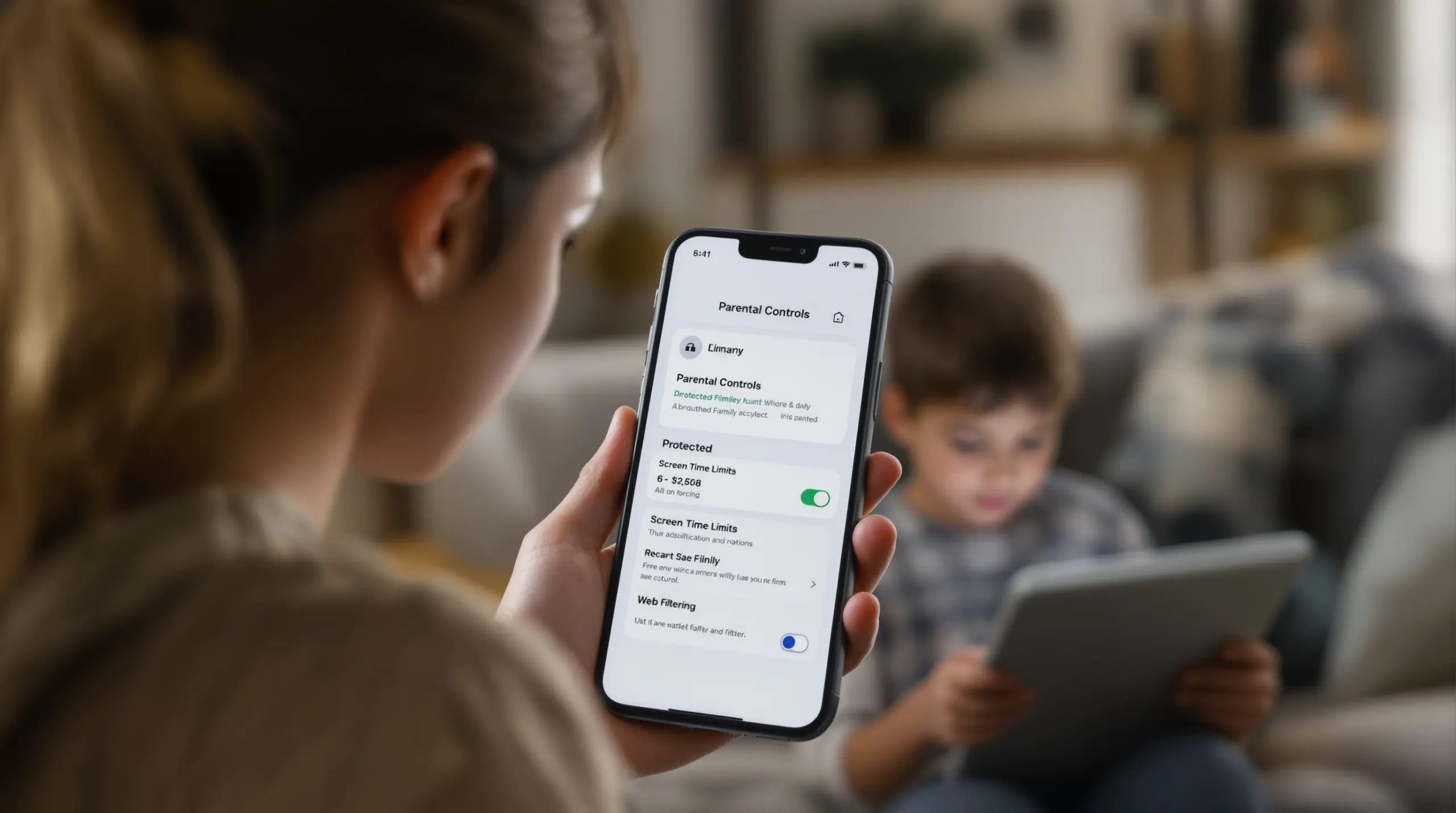
Built-in parental controls iPhone refers to the native Screen Time and Family Sharing features integrated directly into Apple’s iOS operating system. These tools allow parents to manage device usage, restrict access to mature content, and monitor daily activity without needing to install additional software. Apple designed these features to provide a foundational layer of protection for children using iPhones and iPads, giving caregivers a centralized dashboard to oversee digital habits. According to official documentation, “On iOS devices, parents can use the Screen Time feature in Settings to set limits, view activity reports, and manage content and privacy restrictions for their child’s device” (Apple Support Editors, 2024) [3] .
START YOUR FREE TRIAL
Take control of screen time—free for 14 days, cancel anytime.




The core of the native parental controls iPhone system revolves around three main pillars: Downtime, App Limits, and Content & Privacy Restrictions. Downtime allows you to schedule specific hours, such as bedtime or school hours, during which only approved applications and phone calls are accessible. App Limits let you set daily time allowances for specific categories of apps, like social media or games, helping to prevent endless scrolling. Content & Privacy Restrictions provide a shield against inappropriate material by blocking explicit websites, restricting movie ratings, and preventing unauthorized app purchases or deletions.
To activate parental controls iPhone, parents use Family Sharing to link their child’s Apple ID to their own, enabling remote management from the parent’s device. This setup ensures that children cannot simply turn off the restrictions without the designated passcode. While these native tools are incredibly convenient and deeply integrated into the iOS platform, they primarily focus on time management and broad content filtering. Establishing these boundaries early helps children understand that technology is a tool with specific purposes, rather than an endless source of entertainment. When parents use Downtime effectively, they protect important developmental windows, such as the hour before sleep, where blue light exposure can severely disrupt circadian rhythms. By restricting app purchases and deletions, parents prevent impulsive spending and the accidental loss of important educational applications. The integration of Family Sharing also means that if a child attempts to download a new game, the parent receives an instant notification and must explicitly approve the request, creating a natural pause that encourages mindful consumption of digital media.
Why Do Native Parental Controls iPhone Have Limitations?
Native parental controls iPhone fall short because tech-savvy children easily bypass them, and they lack deep visibility into specific app usage like YouTube history or text message content. While Apple’s Screen Time is a powerful foundational tool, it operates within the strict privacy sandbox of the iOS platform, which inherently limits what any monitoring software can see on the device. This privacy-first architecture means that parents cannot read their child’s SMS messages, view their social media direct messages, or see exactly what videos they are watching inside the YouTube app.
Children are remarkably resourceful when it comes to circumventing digital boundaries. Common workarounds include guessing the Screen Time passcode, using web browsers to access blocked apps, or exploiting glitches in the iOS operating system to reset the device and remove restrictions. As technology and online safety expert Brian Kerbs notes, “Don’t just presume it’s completely secure because the tech companies assure you it is. This is seldom the reality” (USA Today, 2024) [4] . When a child successfully bypasses native controls, parents are left entirely in the dark, defeating the purpose of the monitoring setup.
The emotional toll on parents when they discover their child has circumvented these rules is significant, leading to feelings of frustration and a breakdown of trust within the household. Children share these bypass methods with peers on social media platforms, creating a continuous arms race between software developers and tech-savvy youth. For example, some children have discovered that changing the device’s time zone or manipulating the Screen Time passcode recovery prompts can temporarily disable restrictions. This constant need to update and patch native settings is exhausting for busy parents who simply want a reliable solution that works in the background without requiring daily maintenance or technical troubleshooting.
For families managing a mix of devices, relying solely on native Apple tools can create inconsistent safety standards across the household. If your family uses a combination of iPhones and Android devices, you need a more unified approach. For the Android devices in your home, our Sideload download page for Android devices provides deeper system-level integration, including call and text safety monitoring. Also, our Samsung Knox integration offers enterprise-grade tamper protection that prevents children from deleting the app or force-stopping its services. While native iPhone tools are a great starting point, understanding their blind spots is important for parents who need reliable, unbreakable boundaries for their children’s digital well-being.
How Do Third-Party Apps Enhance Parental Controls iPhone?
Third-party applications enhance parental controls iPhone by providing advanced web filtering, cross-platform management, and tamper-resistant features that native Apple settings cannot offer. Because native iOS restrictions rely heavily on broad category blocking and time limits, families turn to specialized software to secure the actual browsing experience and manage complex family dynamics. One of the most significant vulnerabilities on any smartphone is the web browser, where children accidentally stumble upon explicit material or intentionally search for inappropriate content.
To address web browser vulnerabilities, many parents use dedicated safe browsing applications that operate independently of the default Safari browser. For instance, the SPIN Safe Browser provides a fully contained web environment with pre-configured content filtering that blocks millions of inappropriate websites automatically. Unlike basic native filters that are sometimes circumvented by using alternative search engines or private browsing modes, a dedicated safe browser enforces strict SafeSearch protocols across all major search engines and works smoothly on any Wi-Fi or cellular network without requiring complex router configurations.
Beyond web filtering, third-party apps excel at providing cross-platform consistency and specialized safety alerts. While Apple’s platform is strong, it does not natively monitor for cyberbullying keywords in text messages or provide real-time geofencing alerts when a child leaves a designated safe zone. Third-party solutions bridge these gaps by offering location tracking with customizable digital boundaries, ensuring parents know when their child arrives at school or a friend’s house. Maintaining consistency across different operating systems is one of the most challenging aspects of modern parenting. A household has a mother using an iPhone, a father using an Android tablet, and children with a mix of hand-me-down devices from various manufacturers. Native tools are inherently siloed; Apple’s Screen Time cannot communicate with Google’s Family Link, leaving parents to manage multiple dashboards with conflicting rules. Third-party platforms solve this fragmentation by providing a single, unified command center where parents can apply the same bedtime schedules, web filters, and app limits across every device in the home. This unified approach not only saves time but also prevents children from exploiting the gaps between different operating systems, ensuring that the family’s digital rules are enforced equally regardless of the hardware being used. According to independent evaluations, solutions like Boomerang are frequently highlighted for their ability to manage complex family needs, as noted in this Boomerang Parental Control Review .
Can Parental Controls iPhone Protect Against Online Predators?
Parental controls iPhone significantly reduce the risk of online predators by restricting communication channels, filtering mature web content, and preventing unauthorized app installations. Online predators use social media platforms, multiplayer games, and unmonitored messaging apps to initiate contact with minors. By using native Content & Privacy Restrictions alongside third-party safety tools, parents effectively close the digital doors that predators use to access vulnerable children.
The first line of defense is preventing the installation of unapproved applications. Apple’s native settings allow parents to disable the ability to install new apps entirely, or require a passcode for every download. This ensures that a child cannot secretly download a hidden messaging app or a game with unmoderated chat features. Restricting access to the web and limiting search engine results to SafeSearch modes prevents children from accidentally going to dangerous forums or explicit websites where predators lurk. Brian Kerbs emphasizes the importance of these boundaries, noting that parents should “impose limits on how long specific apps can be used either individually or collectively, track usage, and receive weekly activity summaries” to maintain visibility over their child’s digital interactions (USA Today, 2024) [4] .
True protection against online predators requires more than just blocking content; it requires supporting open communication and maintaining ongoing visibility. While native tools cannot read the contents of your child’s messages due to Apple’s strict privacy policies, they can restrict who your child is allowed to communicate with during Downtime and limit contact to approved family members. For families using Android devices alongside iPhones, tools that offer Call & Text Safety monitoring can flag inappropriate keywords or unknown numbers, providing an early warning system. Independent evaluations, such as this Boomerang Parental Control software review , consistently highlight the importance of combining native tools with dedicated monitoring software. Ultimately, while no software can entirely replace active parenting and open dialogue, configuring strong restrictions creates a secure digital environment that drastically minimizes the opportunities for malicious actors to reach your child.
Questions from Our Readers
How do I set up parental controls iPhone for my child?
Set up parental controls iPhone by opening Settings, tapping your name, selecting Family Sharing, and adding your child’s Apple ID. Once added, tap Screen Time, select your child’s name, and follow the onscreen prompts to configure Downtime, App Limits, and Content & Privacy Restrictions. Ensure you create a unique four-digit Screen Time passcode that your child does not know, as this PIN is required to change any settings or grant time extensions. It is highly recommended to create a dedicated Apple ID for your child rather than sharing your own account, as this ensures their personal data, photos, and messages remain separate while still allowing you to manage their restrictions remotely. If your child already has an account, you can migrate it into your Family Sharing group without losing their purchased content or game progress.
Can my child turn off screen time restrictions on their iPhone?
Your child cannot turn off screen time restrictions on their iPhone without the designated Screen Time passcode or the primary account holder’s Apple ID credentials. However, tech-savvy children attempt workarounds such as guessing the PIN, exploiting iOS glitches, or using web browsers to access blocked content. To prevent this, always use a randomized passcode, keep your iOS software updated to patch security loopholes, and consider supplementing native tools with third-party safe browsers that enforce filtering at the application level. Avoid using easily guessable numbers like birth years or sequential digits for your Screen Time passcode. Also, ensure that the ‘Forgot Passcode’ recovery option is linked to your own Apple ID and email address, preventing your child from initiating a password reset to regain unrestricted access to their device.
What is the best alternative to Apple Screen Time for families?
The best alternative to Apple Screen Time is a dedicated third-party application like Boomerang Parental Control, offering advanced monitoring and tamper-resistant protection. While native Apple tools are excellent for basic time management, third-party apps provide deeper visibility into digital habits and cross-platform consistency for households that use a mix of iOS and Android smartphones. Many parents combine native iOS restrictions with specialized safe browsers to create a comprehensive safety net. Boomerang’s unique approach focuses on eliminating the daily friction of screen time enforcement by acting as a neutral third party; the app locks the device when time is up, removing the parent from the role of the ‘bad guy’ and preserving the parent-child relationship while maintaining strict digital boundaries.
Do parental controls iPhone work on both Wi-Fi and cellular data?
Yes, native parental controls iPhone work smoothly on both Wi-Fi and cellular data because the iOS operating system enforces restrictions locally. Whether your child is connected to your home Wi-Fi, using mobile data on the bus, or joining a public network at a cafe, the Screen Time limits and Content & Privacy Restrictions remain active. For enhanced web filtering, using a dedicated safe browser app ensures that inappropriate content is blocked regardless of the network connection. It is important to remember that while native iOS settings travel with the device, public Wi-Fi networks at cafes or libraries lack their own content filters. By pairing native restrictions with a dedicated safe browser application, you guarantee that your child’s web searches remain protected and filtered, regardless of how they are connecting to the internet.
Comparing Family Safety Approaches
Choosing the right safety strategy depends on your family’s specific needs, the devices your children use, and the level of visibility you require. Comparing native Apple tools with third-party applications and network-level filters helps parents understand which combination provides the most reliable protection against digital risks and excessive screen time.
| Feature | Native Apple Screen Time | Boomerang Parental Control (Mixed Devices) | Basic Router Filtering |
|---|---|---|---|
| App Installation Control | Yes (Requires Passcode) | Yes (App Discovery & Approval) | No |
| Web Content Filtering | Basic Category Blocking | Advanced (via SPIN Safe Browser) | Moderate (Network-wide) |
| YouTube History Monitoring | No | Yes (Android Devices Only) | No |
| Tamper Protection | Moderate (Passcode reliant) | High (Samsung Knox on Android) | Low (Easily bypassed) |
| Location Geofencing | Basic (Find My) | Advanced (Custom Alerts) | No |
While native tools are sufficient for basic time limits, families dealing with tech-savvy children or mixed-device households benefit from the Boomerang Parental Control – screen time features that offer deeper integration and automated enforcement.
Comprehensive Family Safety with Boomerang
At Boomerang Parental Control, we believe that effective digital parenting goes beyond simply locking down a device; it is about supporting responsible digital citizenship and eliminating the daily conflicts that arise over screen time. Our platform is designed to enable parents with the tools necessary to set healthy boundaries, monitor online activities, and protect children from inappropriate content across both Android and iOS platforms. While native parental controls iPhone provide a solid foundation for Apple devices, our comprehensive Boomerang Parental Control – Taking the battle out of screen time for Android and iOS solution ensures that your entire household is protected, regardless of the hardware your children prefer.
For families managing a mix of smartphones, our Android-specific features offer unparalleled depth, including YouTube App History Monitoring, Call & Text Safety alerts, and strong Uninstall Protection powered by Samsung Knox. On iOS devices, we complement native settings by offering scheduled screen time management, real-time location tracking, and smooth integration with the SPIN Safe Browser to guarantee a secure web experience. We understand that non-technical parents need solutions that work reliably out of the box, which is why our automated scheduling and daily emailed activity reports keep you informed without requiring constant manual intervention.
Our philosophy is rooted in the belief that technology should serve families, not divide them. We know that handing over a smartphone is a major milestone, and our tools are designed to support dialogue and teach self-management rather than simply imposing punitive measures. Our dedicated support team is always available to help non-technical parents complete the setup process, ensuring that you never feel overwhelmed by complex configurations. Whether you need help configuring geofences around your child’s school or setting up automated daily reports, our comprehensive knowledge base and responsive email support are here to guide you every step of the way.
How to Configure Parental Controls iPhone in 4 Steps
Enable Family Sharing and Screen Time
Open the Settings app on your parent device, tap your name at the top, and select Family Sharing to invite your child’s Apple ID to your family group. Once they are added, go back to Settings, tap Screen Time, and select your child’s name from the family list to begin the configuration process.
Set Downtime and App Limits
Configure Downtime to establish firm boundaries during critical hours, such as bedtime or homework time, ensuring the device automatically locks when the schedule begins. Next, use App Limits to set daily time allowances for specific categories like Games or Social Media, helping your child develop self-regulation and healthy digital habits.
Configure Content and Privacy Restrictions
Toggle on Content & Privacy Restrictions and go to Content Restrictions to filter web content, block explicit media, and prevent unauthorized app installations or deletions. Set Web Content to ‘Limit Adult Websites’ to automatically filter out inappropriate material while allowing access to educational and age-appropriate resources.
Secure Settings with a Passcode
Create a unique, four-digit Screen Time passcode that is different from your device unlock code and unknown to your child. This passcode is the ultimate safeguard, required to approve time extension requests, modify restrictions, or turn off the monitoring features entirely.
Key Takeaways
Managing the digital environment with your child requires a proactive approach, and configuring parental controls iPhone is an important first step in ensuring their online safety and well-being. While Apple’s native Screen Time features offer excellent foundational tools for managing device usage and filtering basic content, they are not foolproof against determined teenagers or the complex realities of modern social media. By understanding the limitations of built-in settings and supplementing them with specialized third-party applications and safe browsers, parents can create a strong, multi-layered defense system that supports healthy digital habits.
Whether you are setting up a first smartphone for a pre-teen or trying to regain control over a tech-savvy adolescent’s device, consistency and open communication are your greatest assets. Remember that no software can entirely replace active parenting, but the right tools can eliminate daily arguments and provide the peace of mind you deserve. If you need further assistance securing your family’s devices or want to explore advanced monitoring options for your household, contact our support team at [email protected] today.
Further Reading
- National Center for Biotechnology Information (NCBI) / PMC.
https://pmc.ncbi.nlm.nih.gov/articles/PMC11626836/ - International Journal of Scientific Research in Engineering and Technology (IJSRET).
https://ijsret.com/wp-content/uploads/IJSRET_V11_issue6_190.pdf - Parental Controls through Screen Time for a Child in your Family. Apple Support Community.
https://discussions.apple.com/docs/DOC-250006652 - Giving your child an iPhone this holiday season? Check these settings for them. USA Today.
https://www.usatoday.com/story/tech/2024/12/26/iphone-parental-controls-screen-time-settings/77108751007/
START YOUR FREE TRIAL
Take control of screen time—free for 14 days, cancel anytime.
