
02
Jul
2026
Complete Guide to Parental Lock on Android
July 2, 2026
Parental lock on Android gives families the tools to set screen time limits, block inappropriate content, and keep kids safe online – here’s everything you need to know to set it up right.
Table of Contents
- What Is a Parental Lock on Android?
- Using Android’s Built-In Parental Controls
- Locking Down Google Play with Content Ratings
- Going Further with Third-Party Parental Control Apps
- Frequently Asked Questions
- Comparing Your Parental Lock Options on Android
- How Boomerang Parental Control Helps Your Family
- Practical Tips for Setting Up Parental Locks
- The Bottom Line
- Sources & Citations
Article Snapshot
Parental lock on Android is a set of built-in and third-party controls that let parents restrict app access, set screen time limits, filter mature content, and protect those settings with a PIN. Android 16 introduced a dedicated Parental Controls menu directly in device Settings, making these tools more accessible than ever for families.
By the Numbers
- Android 16 introduced a brand-new dedicated Parental Controls menu directly inside Android Settings – 1 unified hub for on-device family controls (Google, 2025)[1]
- The new Android on-device controls cover 4 core control types: screen time limits, downtime schedules, individual app limits or blocking, and mature-content filtering (Google, 2025)[1]
- Google Family Link requires Android 7.0 or higher on the parent’s phone, and also works for parents on iOS 16 or above (Google, 2025)[2]
- Google Play parental controls use a content-rating limit system that restricts what is downloaded or purchased based on a maturity level set by the parent (Google, 2025)[3]
What Is a Parental Lock on Android?
Parental lock on Android refers to a collection of tools – both built into the operating system and available through third-party apps – that allow parents to control what children access, download, and do on their Android device. These controls range from simple Google Play content-rating filters to screen time schedulers, app blockers, and web filters. At Boomerang Parental Control, we’ve been helping families use these tools since 2015, translating complex device settings into practical, everyday protection for kids.
Setting up a parental lock on Android is one of the most effective steps you take when handing your child their first smartphone or tablet. Without it, a child has unrestricted access to every app, website, and piece of content available on the open internet. With it, you decide what’s appropriate, when the device is used, and what content is off-limits.
START YOUR FREE TRIAL
Take control of screen time—free for 14 days, cancel anytime.




Internet Matters, an online safety charity, confirms that “Android smartphones have parental controls built-in to devices that let you set screen time limits, restrict apps and limit inappropriate content” (Internet Matters, 2026)[4]. These controls apply whether your child uses a Samsung Galaxy, a Google Pixel, or another Android device.
The most important thing to understand is that not all Android parental lock tools are equal. Built-in options are a good starting point, but they have real limitations – and tech-savvy kids find workarounds faster than most parents expect. This guide walks you through every layer of protection available, from Android’s native settings to strong third-party solutions designed specifically for family safety.
Using Android’s Built-In Parental Controls
Android’s built-in parental controls have improved significantly with Android 16, giving parents a centralized place to manage device access without installing anything extra. Google confirmed this directly: “We are adding a new ‘Parental Controls’ option inside Android Settings, where parents can find both built-in controls and Google Family Link” (Google, 2025)[1]. This unified menu is one of the biggest usability improvements for families in recent Android updates.
Setting Up On-Device Controls in Android 16
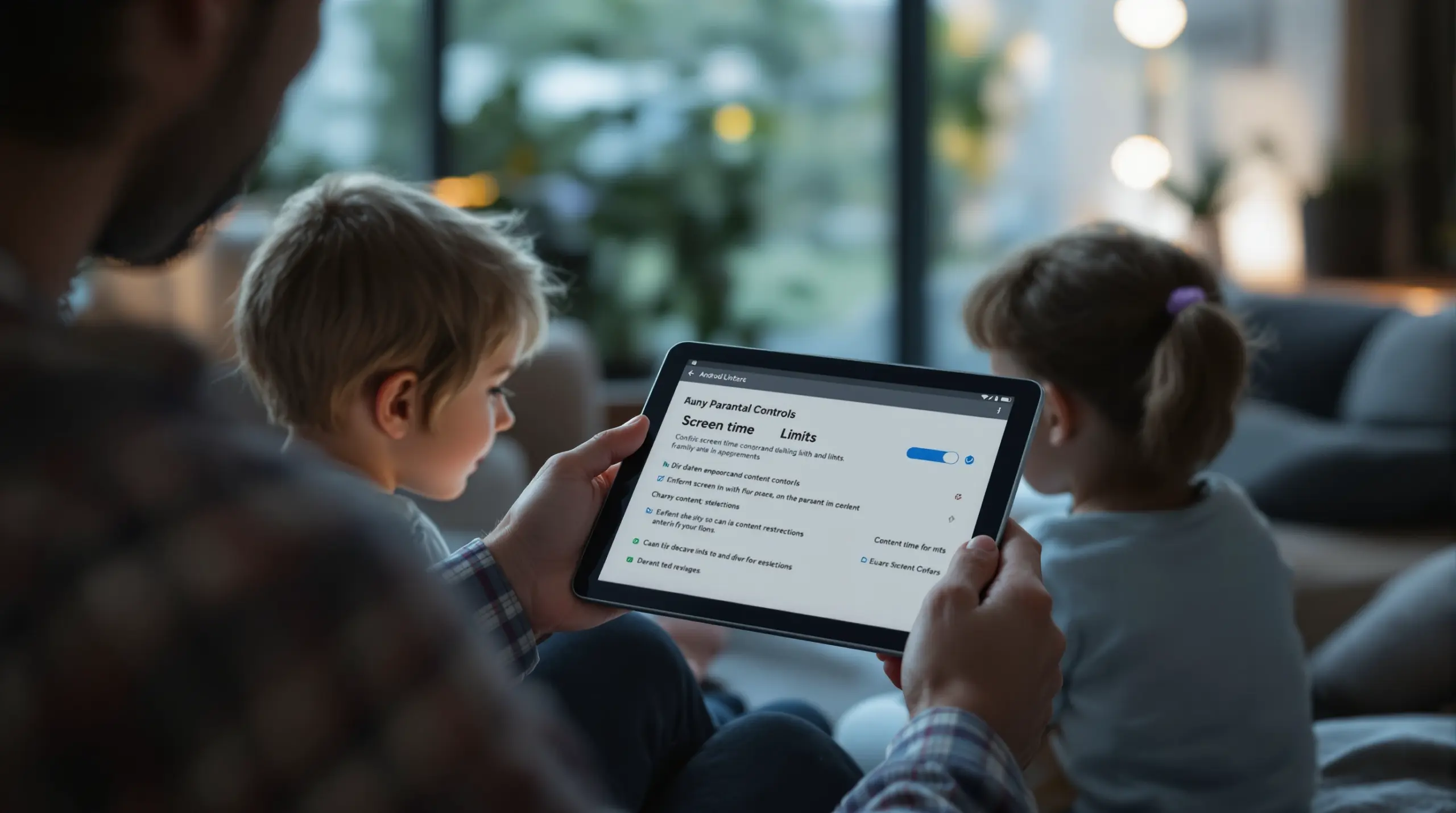
The new on-device controls are available with the Android 16 update and are found directly in your device’s Settings app under the Parental Controls section. Google described them this way: “One such option is our new on-device controls, available with the update for Android 16, which can be found directly in your Android settings, under Parental Controls, allowing for quick, on-device management, safeguarded by an easy-to-set PIN” (Google, 2025)[2].
Once you open the Parental Controls menu, you’ll be prompted to create a PIN that your child won’t know. This PIN protects every setting you configure – your child cannot adjust or disable the controls without it. Google says these PIN-protected controls are “used to set screen time limits, downtime schedules, time limits for individual apps or block specific apps, and filter out mature content” (Google, 2025)[1].
This is a meaningful upgrade from previous Android versions, where parental controls were scattered across different menus and required parents to know exactly where to look. The new single-entry-point design makes digital wellness management more accessible for non-technical parents who want a quick, reliable setup.
Google Family Link: A Free Companion Option
Alongside the new on-device controls, Google offers Family Link as a free companion app for more remote supervision. Family Link works across devices and lets a parent’s phone serve as the control center for the child’s Android device. From there, parents approve or block app downloads, set daily screen time limits, lock the device remotely, and receive location alerts.
Family Link supports parents whose phones run Android 7.0 or higher, and it also works for parents using an iPhone running iOS 16 or above (Google, 2025)[2]. This cross-platform flexibility means you don’t need to switch devices to manage your child’s Android phone.
That said, Family Link has well-documented limitations. Many parents find that tech-savvy children work around its restrictions, particularly on older devices or when the child knows their Google account credentials. For families who need stronger protection, especially for teenagers, layering Family Link with a dedicated parental control app is a smarter approach. You can explore Boomerang Parental Control’s screen time features to see what deeper control looks like in practice.
Locking Down Google Play with Content Ratings
Google Play parental controls are a separate layer of protection focused specifically on what your child downloads or buys from the app store. Google explains the scope clearly: “When you put parental controls on an Android device, you can restrict what content is downloaded or purchased from Google Play on that device based on maturity level” (Google, 2025)[3].
This matters because even if your child’s device has screen time restrictions in place, without a Play Store content lock they still search for and install apps rated for adults, games with violent content, or apps that connect to unfiltered social platforms. The Play Store content rating system is your first gate against inappropriate app installation.
How to Enable Google Play Parental Controls
To set up Play Store restrictions, open the Google Play app on your child’s device and navigate to Settings, then Family, then Parental Controls. Toggle the feature on and create a PIN that only you know. From there, you choose the maximum content rating allowed for apps, games, movies, TV shows, books, and music.
The PIN requirement is non-negotiable – Google Play parental controls require a parent to create a PIN the child does not know (Google, 2025)[3]. Without the PIN, the child cannot raise the content restriction level or disable the controls. Keep this PIN different from your device unlock PIN or the child’s lock screen code.
Google Play controls only restrict what is downloaded through the Play Store. They don’t prevent access to apps already installed, and they don’t apply to content accessed through a browser or sideloaded apps. That’s why Play Store restrictions work best as one layer in a broader parental lock on Android strategy, not as a standalone solution.
For parents looking for a safe, pre-filtered browsing experience that complements Play Store controls, SPIN Safe Browser provides automatic content filtering that works on any network – home wifi, school, or mobile data – without any VPN or router setup required.
Going Further with Third-Party Parental Control Apps
Third-party parental control apps extend far beyond what Android’s built-in tools and Google Play restrictions offer, giving parents deeper visibility, stronger enforcement, and features designed specifically around the challenges of raising kids in a connected household. These apps address gaps that built-in controls cannot fill – YouTube content monitoring, SMS safety alerts, app-by-app time limits, and uninstall protection that children can’t bypass.
Why Built-In Controls Often Aren’t Enough
The core limitation of Android’s native parental lock tools is that they are relatively easy to work around for a determined child, particularly a teenager who is familiar with Android settings. Google Family Link, for example, is disrupted by factory resetting the device or signing into a different Google account. On-device PIN controls are bypassed if the child gains access to the Settings app through a workaround.
Third-party apps address this through dedicated uninstall protection. The best solutions use device administrator permissions that prevent the app from being removed without the parent’s PIN. On Samsung devices, some apps go even further by integrating with Samsung Knox – an enterprise-grade security layer built into Samsung hardware – to make the parental control app virtually impossible to remove without parent authorization. This level of protection is specifically designed for tech-savvy kids who have already defeated simpler controls.
You can read the TechRadar review of Boomerang Parental Control software for an independent assessment of how these protections hold up in real-world use.
Features That Go Beyond Android’s Built-In Options
The most effective third-party parental control apps on Android provide capabilities that no built-in tool currently matches. These include per-app time limits (so a child gets 30 minutes on a game but unlimited time on a homework app), YouTube app history monitoring so parents see what their child searched for and watched in the YouTube app itself, and call and SMS safety features that alert parents when a message contains an inappropriate keyword or an unknown number makes contact.
App discovery and approval control is another feature that dramatically changes the first-smartphone experience. Rather than discovering after the fact that your child installed a new social app, an approval-gated system requires you to sign off on every new install before the child opens it. This turns app management from a reactive cleanup task into a proactive parenting conversation. For families setting up a child’s first device, this single feature alone is worth the investment in a dedicated solution.
Frequently Asked Questions
How do I set up a parental lock on Android without using a third-party app?
You have two main built-in options. First, if your device runs Android 16, go to Settings and look for the Parental Controls section. From there you set screen time limits, schedule downtime, set per-app limits or block specific apps, and filter mature content – all protected by a PIN you create. Second, open the Google Play app, go to Settings, then Family, then Parental Controls, and turn the feature on. You’ll create a PIN and choose the maximum content rating allowed for app and content downloads on that device. For younger children on their first device, combining both methods gives you a basic but meaningful safety layer. Keep in mind these built-in controls do not cover YouTube app content monitoring, SMS safety, or strong uninstall protection, so they work best for young children on supervised devices rather than teenagers who know their way around Android settings.
Can my child bypass or remove a parental lock on Android?
With built-in Android controls and Google Family Link, yes – a determined and tech-savvy child finds workarounds. Common methods include factory resetting the device, signing into a second Google account, or navigating to hidden settings menus. This is one of the most frequent frustrations parents report after relying solely on free, built-in tools. Third-party apps that use device administrator permissions are significantly harder to remove because they require a parent PIN before uninstallation proceeds. On Samsung devices specifically, apps that integrate with Samsung Knox go a step further by using enterprise-level hardware security to lock the parental control app in place. If your child has already defeated Google Family Link or Apple Screen Time, a Knox-integrated solution on a Samsung Android device is the most resilient option available to consumers without enterprise IT support.
Does a parental lock on Android work on YouTube?
Android’s built-in parental controls and Google Play restrictions do not give parents visibility into what a child watches or searches for inside the YouTube app. YouTube Kids is a separate app designed for younger children with a curated content library, but many older children use the main YouTube app where standard parental controls have no reach. This is a significant gap in native Android protection. Dedicated third-party parental control apps with YouTube app history monitoring close this gap by recording what the child searched for and watched within the main YouTube application, giving parents a clear picture of viewing habits. This feature is specific to Android devices – it is not available on iOS due to platform limitations. If YouTube visibility is a priority for your family, this is one of the strongest reasons to choose a dedicated Android parental control solution over relying solely on built-in tools.
What’s the difference between Google Family Link and a paid parental control app?
Google Family Link is free and covers the basics: app approval, screen time limits, device lock, location, and Google Play content filtering. It’s a solid starting point, particularly for younger children on supervised devices. However, it has real limitations that become more apparent as children get older. It lacks per-app time limits with educator exemptions, YouTube app history monitoring, SMS and call safety alerts, keyword detection in text messages, and strong uninstall protection against tech-savvy teens. Paid third-party apps fill these gaps with Android-specific features that go much deeper into device activity. They also offer stronger tamper resistance, meaning the controls are harder for children to circumvent. For families with pre-teens or teenagers – especially those who have already bypassed Family Link – a paid app with dedicated Android features provides the reliability and depth that free tools cannot match. The price difference is modest for an annual subscription covering the whole family.
Comparing Your Parental Lock Options on Android
Choosing the right approach to parental lock on Android depends on your child’s age, how tech-savvy they are, and which specific risks matter most to your family. The table below compares the four main options available to Android parents, covering the features that matter most for real-world family use.
| Option | Screen Time Limits | App Control | YouTube Monitoring | SMS Safety Alerts | Uninstall Protection | Best For |
|---|---|---|---|---|---|---|
| Android 16 On-Device Controls | Yes – PIN protected (Google, 2025)[1] | Block or limit specific apps | No | No | PIN only – can be bypassed | Young children on supervised devices |
| Google Family Link | Yes – remote management | App approval required | No | No | Moderate – factory reset bypasses it | Elementary-age children, basic supervision |
| Google Play Content Controls | No | Content rating filter only (Google, 2025)[3] | No | No | No | Supplementary layer for any age |
| Third-Party App (e.g., Boomerang) | Yes – daily limits + per-app timers | Full approval workflow + encouraged apps | Yes (Android only) | Yes (Android only) | Strong – Samsung Knox on supported devices | Pre-teens and teenagers, first smartphones |
How Boomerang Parental Control Helps Your Family
Boomerang Parental Control is designed specifically for the challenges Android families face every day – from daily arguments about screen time to the anxiety of not knowing what your child is watching or who is contacting them. Our platform combines proactive content protection with automated time management, so the rules you set are enforced without you having to be the one who says “put the phone down” every evening.
Our Samsung Knox integration is one of our most important differentiators. By using the enterprise-grade security layer built into Samsung smartphones and tablets, Boomerang makes it exceptionally difficult for tech-savvy children to remove or bypass the app. This is the feature that matters most for parents of teenagers who have already defeated Google Family Link or Apple Screen Time.
For parents managing a first smartphone, Boomerang Parental Control gives you a gate on every new app install through our App Discovery and Approval feature – your child cannot open a newly downloaded app until you approve it. Combined with our SPIN Safe Browser for automatic web filtering and our YouTube App History Monitoring (Android only), you get full visibility into your child’s digital life from day one.
Our customers describe the difference this makes in practical terms:
“This is a great application! I have control back over my child’s phone and applications because she managed to circumvent family link. I have no idea how she did that but she managed to find a way, as did other kids. That was a major frustration for us. But now with Boomerang, I can manage her time, what applications she uses and what sites she visits.” – Joe Eagles, Google Play review
“Hey fellow parents, So far this the best parental control app .. hands down. So far the only app my 11 year old was not able to bypass. Big Shout out to developers for making such a great app.” – Jason H, Google Play review
Subscriptions are available on an annual basis for single devices, with a Family Pack covering up to 10 child devices for families with multiple children. You can get started or reach out to our team at [email protected] with any questions.
Practical Tips for Setting Up Parental Locks on Android
Getting your parental lock on Android set up correctly from the start saves a lot of frustration later. These practical steps help you build a layered, reliable protection system for your child’s device.
Start with a layered approach. No single tool covers every risk. Enable Google Play content rating controls first – this takes less than two minutes and prevents inappropriate app downloads at the source. Then add on-device screen time controls or a dedicated parental control app on top. Treating these as complementary layers rather than choosing one gives you much broader coverage.
Use a PIN your child genuinely doesn’t know. The effectiveness of every parental control on Android depends entirely on the child not knowing the parent’s PIN. Don’t use your device unlock PIN, your birthday, or any number your child might guess. Use a dedicated PIN kept only by the adults in the household. If you think your child has already seen it, change it immediately.
Set up “Encouraged Apps” for educational tools. If you’re using a third-party parental control app with per-app controls, designate homework platforms, reading apps, and learning tools as always-allowed. This prevents your child from running out of screen time in the middle of a school assignment and removes the temptation to argue for exceptions. The app enforces the distinction automatically.
Use geofencing for passive location safety. Rather than relying on your child to text you when they arrive somewhere, set up geofence alerts around school, home, and after-school activity locations. You’ll receive an automatic notification when your child arrives or leaves, eliminating the need for check-in calls and giving you quiet confidence about their whereabouts throughout the day.
Review YouTube history weekly on Android. If your child’s device is Android, make it a habit to check their YouTube App History through your parental control dashboard once a week. You don’t need to watch every video – looking at search terms and channel patterns gives you a clear picture of what’s capturing their attention and opens natural conversation starters about what they’re interested in and why.
For families who want safe browsing protection that works on any network without any technical setup, the SafeWise review of Boomerang Parental Control provides an independent look at how these features perform across different family scenarios. You can also download Boomerang directly for non-Samsung Android devices that benefit from sideloaded installation for full call, text, and uninstall protection features.
The Bottom Line
Parental lock on Android is not a single switch – it’s a layered system that works best when you combine Android’s built-in tools with a dedicated parental control app designed for the realities of family life. Android 16’s new Parental Controls menu is a genuine step forward for accessibility, but built-in controls alone leave significant gaps around YouTube monitoring, SMS safety, and tamper resistance that tech-savvy children exploit.
For families who need reliable, daily enforcement – especially parents of pre-teens getting their first smartphone or teenagers who have already defeated simpler tools – a dedicated app with strong uninstall protection and Android-specific features like YouTube App History Monitoring and Call and Text Safety is the practical choice. The goal isn’t to lock your child out of technology. It’s to build guardrails that let you hand them a device with confidence, reduce daily conflict, and stay informed without hovering.
Ready to take the next step? Visit Boomerang Parental Control or email us at [email protected] to find the right plan for your family.
Sources & Citations
- There’s a new way to manage parental controls on Android. Google.
https://blog.google/feed/2025-new-parental-controls-android/ - How to get started with parental controls on Android. Google / Android.
https://www.android.com/articles/get-started-with-android-parental-controls/ - How to set up parental controls on Google Play. Google Play Help.
https://support.google.com/googleplay/answer/1075738?hl=en - Android smartphone parental controls. Internet Matters.
https://www.internetmatters.org/parental-controls/smartphones-and-other-devices/android-smartphone/
START YOUR FREE TRIAL
Take control of screen time—free for 14 days, cancel anytime.
