
08
Jul
2026
Parental Lock on Android Phone: Complete Guide
July 8, 2026
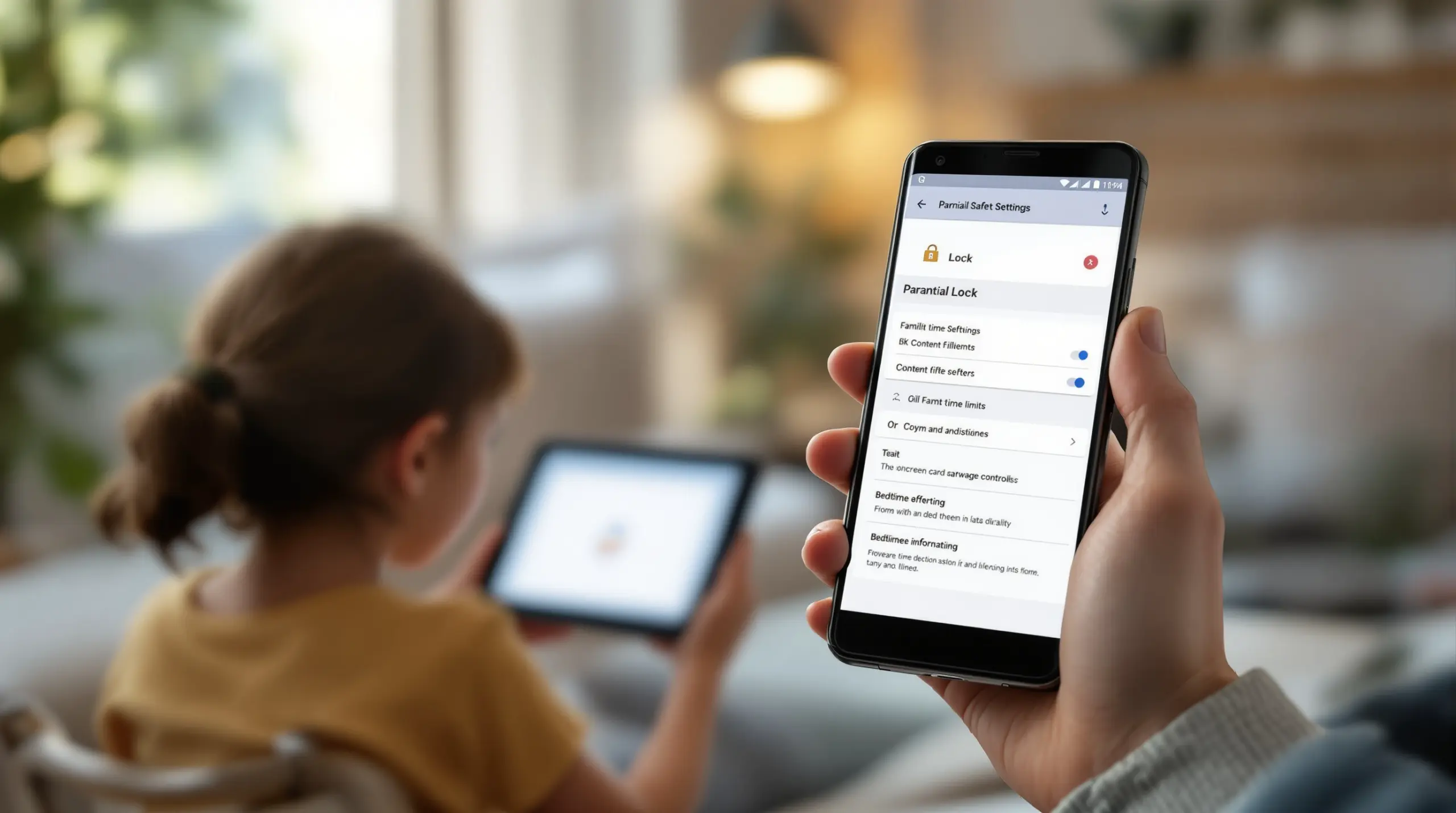
Setting a parental lock on Android phone gives you real, enforceable boundaries over your child’s device – from app access and screen time to content filtering and bedtime locks.
Table of Contents
- What Is a Parental Lock on Android Phone?
- Built-In Android Parental Controls Explained
- Why Third-Party Apps Go Further
- Stopping Kids From Bypassing Controls
- Frequently Asked Questions
- Comparing Your Parental Lock Options
- How Boomerang Parental Control Helps
- Practical Tips for Parents
- Before You Go
- Sources & Citations
Article Snapshot
Parental lock on Android phone is a set of built-in and third-party controls that restrict app access, filter content, limit screen time, and enforce bedtime schedules on a child’s device. Android offers native options through device Settings and Google Family Link, while dedicated apps provide stronger, bypass-resistant enforcement.
By the Numbers
- Android’s new on-device parental controls – including screen time limits, downtime schedules, per-app restrictions, and content filtering – are available in beta on supported devices (Google Blog, 2025)[1]
- Google Family Link is available across 3 platforms: Android, iOS, and web (Android.com, 2025)[2]
- Family Link requires the child’s device to run Android 7.0 (Nougat) or above (Android.com, 2025)[2]
- Google Play parental controls require a PIN your child does not know to prevent them from changing content restrictions (Google Play Help, 2025)[3]
What Is a Parental Lock on Android Phone?
A parental lock on Android phone is a collection of software controls that let you decide what your child can access, when they can use their device, and what content is visible to them. These controls live inside Android’s own Settings menu, inside Google Play, or inside a dedicated parental control app – and the level of protection each layer provides varies considerably.
Android has offered some form of built-in restriction for years, but Google significantly expanded its approach in early 2025 with a dedicated parental controls section inside the Android Settings app. Boomerang Parental Control, which has been building family-focused tools since 2015, sits at the other end of the spectrum – a dedicated app designed to go well beyond what any built-in option provides, particularly for Android devices.
START YOUR FREE TRIAL
Take control of screen time—free for 14 days, cancel anytime.




Understanding all three layers – Android Settings controls, Google Play restrictions, and Google Family Link – helps you make an informed choice about how much protection your child’s device actually needs. For many families, built-in tools are a starting point, not a complete solution. This guide walks you through each layer, explains where the gaps are, and shows you why so many parents eventually move to a dedicated app.
The practical goal is simple: you want a lock that sticks. Your child’s Android phone should enforce your rules automatically, without you having to police it every evening. Whether you’re setting up a first device for a pre-teen or trying to regain control from a teenager who has already bypassed simpler tools, the right parental lock setup can genuinely change how your household manages screen time.
Built-In Android Parental Controls Explained
Android’s built-in parental controls now cover four core areas: screen time limits, downtime schedules, per-app restrictions, and content filtering – all accessible from a single location inside device Settings.
In March 2025, Google announced a dedicated parental controls section within Android Settings. The Google Android team described the update this way: “We are adding a new ‘Parental Controls’ option inside Android Settings, where parents can find both built-in controls and Google Family Link.” (Google Android team, 2025)[1] That consolidation makes it easier for parents to find and configure controls without hunting through nested menus.
The same announcement confirmed what those controls do. According to the Google Android team: “These new, on-device controls can be used to set screen time limits, set downtime schedules, restrict access to individual apps, and filter out mature content from browsers and search engines.” (Google Android team, 2025)[1] That covers most of the basics a parent would want from a first layer of protection.
Google Play Content Restrictions
Inside the Google Play Store, you can set content maturity ratings to restrict what your child downloads or purchases. These controls filter apps, games, movies, and books by age rating. Google Play Help guidance is clear on one important step: “To protect parental controls, create a PIN your child doesn’t know.” (Google Play Help, 2025)[3] Without a PIN, any child old enough to navigate Settings can remove the restrictions themselves.
The Google Play restrictions are useful but narrow. They govern what gets installed from the store – they do not control how long a child uses an app once it is installed, nor do they restrict access to the browser or YouTube beyond basic safe search enforcement. That boundary is important to understand before deciding these controls are sufficient on their own.
Google Family Link
Google Family Link extends the built-in Android parental lock approach into a free, cross-platform app. The Google Android team describes it as “a free app for parents, available on Android, iOS and web designed to help families build healthy digital habits together.” (Google Android team, 2025)[2] Family Link requires the child’s device to run Android 7.0 or above (Google Android team, 2025)[2] and lets parents approve app downloads, view activity reports, set daily screen time limits, and lock the device remotely.
Family Link is a genuine improvement over no controls at all. For younger children on their first device, it provides meaningful guardrails at no extra cost. The limitations become apparent as children get older and more technically curious – which is exactly when many parents begin searching for something stronger. You can explore how dedicated parental control apps compare to built-in solutions to understand where built-in tools fall short for tech-savvy kids.
Why Third-Party Apps Go Further Than Built-In Controls
Third-party parental control apps deliver capabilities that Android’s native tools and Family Link cannot match, particularly around per-app time limits, YouTube monitoring, call and text safety, and bypass prevention.
The most important gap in built-in controls is visibility. Android Settings and Family Link show you how long your child used their phone overall, but they cannot show you what your child searched for or watched inside the YouTube app. For many parents, that is the single most concerning blind spot – children consume hours of content on YouTube without any of it appearing in a meaningful parental report. Dedicated apps built for this purpose fill that gap on Android devices.
Per-App Time Limits and Encouraged Apps
Built-in Android controls set an overall daily screen time limit, but per-app time allocation – where you give your child 30 minutes for a game but unlimited access to a homework tool – requires a third-party solution. This distinction matters in real family life. Blocking a device entirely after a daily limit is reached punishes educational use alongside entertainment use. A dedicated app lets you designate learning apps as “Encouraged,” so they keep working even after a child’s fun screen time has run out.
This approach to Boomerang Parental Control’s screen time features reflects a philosophy of guided digital balance rather than blunt restriction. The goal is to teach children that time on a device has structure – not just to lock the phone and create a conflict.
Content Filtering Beyond the Browser
Android’s native content filtering targets browsers and search engines. A dedicated safe browser – like SPIN Safe Browser, which integrates directly with Boomerang – extends that filtering to work on any network, including school Wi-Fi, a friend’s house, or mobile data, without requiring a VPN or router configuration. That network-independent approach addresses a real vulnerability: children access unsecured content when their device leaves the home Wi-Fi network that a router-based filter would protect. SPIN Safe Browser handles filtering at the app level, so the protection travels with the device.
Stopping Kids From Bypassing Android Parental Controls
The most significant failure point of any parental lock on Android phone is bypass – a determined child, especially a teenager, can remove or circumvent controls that are not specifically designed to resist tampering.
Google Family Link and basic built-in controls have a well-documented weakness: children who know where to look can remove or work around them. Resetting the device, creating a new Google account, or simply deleting the monitoring app are common tactics. Once the app is gone, all the rules you set disappear with it. This frustration is one of the most frequently reported reasons parents move from free tools to a dedicated solution.
Uninstall Protection and Samsung Knox
Dedicated parental control apps address bypass risk through uninstall protection – a mechanism that prevents the child from simply deleting the app from their device. On Samsung devices, this protection is reinforced through Samsung Knox, Samsung’s enterprise-grade security framework that is pre-installed on most Samsung smartphones and tablets. Boomerang Parental Control is the only parental control app to use Samsung Knox, an enterprise mobile security solution that makes the app exceptionally difficult to remove without the parent’s PIN.
This matters most for parents of teenagers. A tech-savvy 14-year-old who has already bypassed Google Family Link will not be deterred by another easily deleted app. The combination of dedicated uninstall protection and Knox integration creates a layer of enforcement that matches the technical capability of older children. For iOS devices, Boomerang provides tamper notifications rather than full uninstall blocking – a real distinction worth understanding if your household is mixed-platform.
App Approval as a Prevention Layer
Another bypass vector is the app store itself. A child who can install any app they want can simply download a secondary browser, a VPN, or a communication app that bypasses monitoring entirely. Requiring parent approval for every new app install closes that door. When your child tries to install something new, you receive a notification and can approve or block it before they ever open it. This gate-keeping control is proactive rather than reactive – you stop the risk before it enters the device rather than discovering it afterward.
For families setting up a first device for a pre-teen, this app approval workflow is one of the most valuable tools available. It creates a conversation between parent and child about what apps are appropriate, which is a healthier foundation for digital trust than simply blocking everything or allowing everything.
Your Most Common Questions
How do I set up a parental lock on an Android phone using built-in tools?
Open the Settings app on the child’s Android device and look for the Parental Controls section, which Google added as a dedicated menu in early 2025. From there, you can set screen time limits, configure downtime schedules for bedtime, restrict individual apps, and filter mature content in browsers and search. You will also want to open the Google Play Store, go to Settings, and set a content maturity rating backed by a PIN your child does not know. For more comprehensive management – including remote oversight from your own phone – set up Google Family Link, which works on child devices running Android 7.0 or above. Built-in controls work best as a starting layer. They do not provide YouTube app history monitoring, per-app time allocation, call and text safety monitoring, or meaningful bypass resistance. Families who need those capabilities add a dedicated parental control app on top of the built-in setup.
Can my child bypass a parental lock on their Android phone?
Yes – built-in controls and free tools like Google Family Link have known vulnerabilities that tech-savvy children exploit. The most common methods include factory resetting the device to remove all restrictions, creating a secondary Google account that is not linked to Family Link supervision, deleting the parental control app if it lacks uninstall protection, or sideloading browsers and apps that bypass content filters. Teenagers find these workarounds quickly. The most effective defense is an app with dedicated uninstall protection that the child cannot remove without a parent PIN. On Samsung devices, Samsung Knox integration goes a step further by using enterprise-grade security to protect the app at a system level. If your child has already bypassed simpler controls, this level of protection is specifically designed for that situation.
Does a parental lock on Android phone work on YouTube?
Built-in Android controls and Google Family Link enforce safe search and restrict the YouTube Kids app, but they do not provide visibility into what your child searches for or watches inside the main YouTube app. That is a significant gap, since most children over age 10 use the standard YouTube app rather than YouTube Kids. A dedicated parental control app with YouTube App History Monitoring – available on Android devices – gives you a clear view of search terms and videos your child has accessed in the main app. This feature is Android-only; iOS does not support the same depth of YouTube monitoring. If understanding your child’s YouTube viewing habits is a priority, an Android device paired with a dedicated monitoring app is the combination that makes that visibility possible.
What is the difference between Android parental controls and a dedicated parental control app?
Android’s built-in parental controls and Google Family Link cover the basics: overall screen time limits, content filtering in browsers and Google Search, app purchase restrictions, and remote device locking. They are free, easy to set up, and appropriate for young children who are unlikely to look for workarounds. A dedicated parental control app goes significantly further. It adds per-app time limits with exceptions for educational tools, YouTube App History Monitoring on Android, call and text safety monitoring including keyword alerts, location tracking with geofencing, and – critically – uninstall protection that prevents children from removing the app. The core difference is enforcement depth. Built-in tools set rules; a dedicated app enforces them in ways that are much harder for children to circumvent. For pre-teens receiving their first device or teenagers who have already bypassed free tools, the added capabilities of a dedicated app provide protection that built-in controls cannot replicate.
Comparing Your Parental Lock Options
Choosing the right parental lock for an Android phone depends on your child’s age, their technical ability, and how much enforcement depth your family needs. The table below compares the three main approaches across the features parents care about most.
| Feature | Android Built-In Controls | Google Family Link (Free) | Dedicated App (e.g., Boomerang) |
|---|---|---|---|
| Screen time daily limits | Yes (beta)[1] | Yes | Yes – with per-app allocation |
| Bedtime / downtime scheduling | Yes (beta)[1] | Yes | Yes – automated enforcement |
| Content filtering | Browsers & search only | Browsers & search only | Browsers, search, and safe browser app |
| YouTube App History Monitoring | No | No | Yes (Android only) |
| Per-app time limits | Basic app blocking only | App approval only | Yes – individual timers per app |
| Call & text safety monitoring | No | No | Yes (Android only) |
| Location tracking & geofencing | No | Basic location only | Yes – with geofence alerts |
| Uninstall protection | None | None – easily removed | Yes – Samsung Knox on supported devices |
| Cost | Free | Free | Paid subscription |
How Boomerang Parental Control Helps Your Family
Boomerang Parental Control delivers a comprehensive parental lock on Android phone that goes well beyond built-in options – combining automated screen time enforcement, content filtering, YouTube visibility, and bypass-resistant protection in one platform.
For families with Android devices, Boomerang Parental Control – Taking the battle out of screen time for Android and iOS provides the tools to set firm rules once and have them enforced automatically. Daily screen time limits lock the device when time is up. Scheduled downtime protects bedtime without you having to ask. Educational apps can be marked as Encouraged so they remain accessible even after entertainment time runs out – a practical way to guide digital balance rather than just cut off access entirely.
Two of our Google Play users speak directly to the results families experience:
“I have control back over my child’s phone and applications because she managed to circumvent family link. I have no idea how she did that but she managed to find a way, as did other kids. That was a major frustration for us. But now with Boomerang, I can manage her time, what applications she uses and what sites she visits.” – Joe Eagles, Google Play review
“Hey fellow parents, So far this the best parental control app .. hands down. So far the only app my 11 year old was not able to bypass. Big Shout out to developers for making such a great app.” – Jason H, Google Play review
On Samsung devices, Knox integration reinforces uninstall protection at a system level – making Boomerang one of the hardest parental control apps for tech-savvy children to defeat. For iOS child devices, Boomerang offers scheduled screen time, location tracking, SPIN Safe Browser, and tamper notifications, though the deep Android-only features like YouTube monitoring and call and text safety are not available on iOS.
Our subscription plans cover individual devices and a Family Pack for households with up to 10 child devices. You can get started at the Android sideload download page for devices that need our full feature set, or visit the main site to explore all available options. Reach us at [email protected] or through our contact form with any questions before you begin.
Practical Tips for Setting Up a Parental Lock on Android
Setting up a parental lock on Android phone works best when you treat it as a system rather than a single toggle. Here are the steps and habits that make the difference between a lock that sticks and one your child works around in a week.
Start with a PIN your child cannot guess. Every layer of Android parental control – from Google Play restrictions to a dedicated app – relies on a PIN or password to prevent the child from changing settings themselves. Use something your child genuinely cannot guess, and do not use the same PIN you use for your own device unlock.
Set downtime schedules from day one. Bedtime and homework hour locks are most effective when established before a child builds expectations of unrestricted access. Configure scheduled downtime on the first day of setup, not after problems start. Automated enforcement removes you from the role of daily enforcer and puts the neutral app in that position instead.
Use Encouraged Apps to avoid punishing learning. If your child has a school portal, reading app, or homework tool, mark it as always available. This teaches the right lesson – that technology time has structure, and that useful tools are not penalized by entertainment limits.
Enable app approval before handing over the device. Requiring your sign-off for every new app install prevents your child from downloading a VPN, secondary browser, or communication app that bypasses your monitoring. Set this up on day one, especially for pre-teens receiving their first device.
Review activity reports regularly. Boomerang sends daily emailed activity summaries so you stay informed without logging in every day. When something unexpected appears – a new app you did not approve, a YouTube search term that concerns you – it opens a conversation rather than a confrontation. That informed conversation approach is more effective long-term than reactive punishment.
Test the controls from your child’s perspective. After setup, pick up the child’s device and try to remove the parental control app, change the screen time limit, or install a new app. If you can do it without the PIN, your child can too. Fix the gaps before handing the device over. On Samsung devices, verify that Knox integration is active for the strongest available bypass protection.
Before You Go
Setting up a parental lock on Android phone is one of the most practical things you can do to protect your child’s digital experience and your family’s daily peace. Built-in Android controls and Google Family Link provide a useful starting point – especially for younger children on their first device – but they leave real gaps in YouTube visibility, per-app time management, and bypass resistance that tech-savvy kids will find.
A dedicated solution closes those gaps with automated enforcement, uninstall protection, and the depth of monitoring that built-in tools cannot provide. If your child has already bypassed simpler controls, or if you are setting up a first device and want to get it right from day one, Boomerang Parental Control is built precisely for that situation.
Visit useboomerang.com to explore features and pricing, or email us at [email protected]. You can also reach our support team through the help portal – we are here to help you get the right setup in place.
Sources & Citations
- There’s a new way to manage parental controls on Android. Google Blog, 2025.
https://blog.google/feed/2025-new-parental-controls-android/ - How to get started with parental controls on Android. Android.com, 2025.
https://www.android.com/articles/get-started-with-android-parental-controls/ - How to set up parental controls on Google Play. Google Play Help, 2025.
https://support.google.com/googleplay/answer/1075738?hl=en
START YOUR FREE TRIAL
Take control of screen time—free for 14 days, cancel anytime.
