
07
Aug
2026
Does Boomerang Work on Smart TVs? Full Guide
August 7, 2026
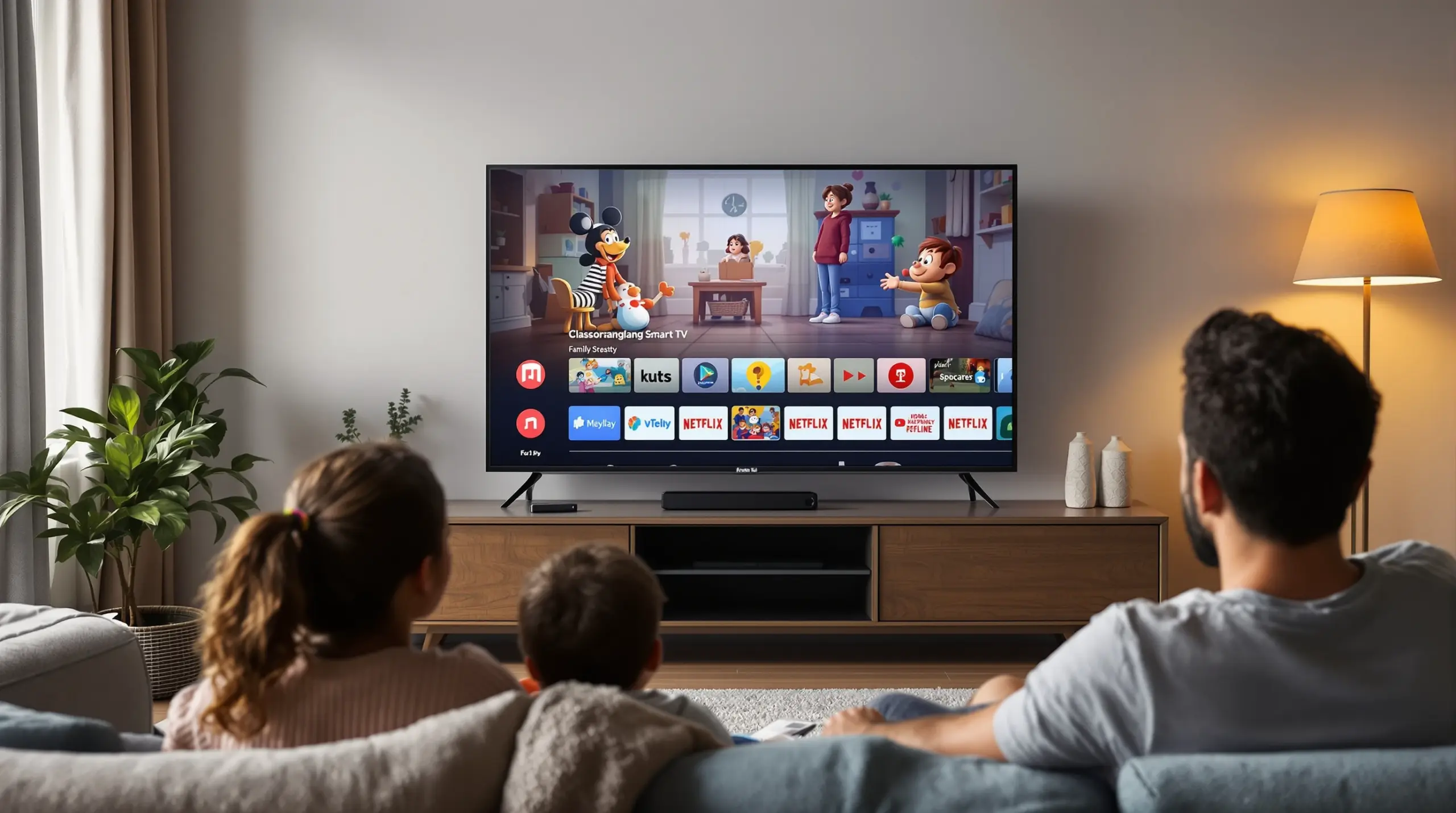
Does boomerang work on smart TVs? No. Boomerang Parental Control is a mobile app for Android and iOS smartphones and tablets – it cannot be installed on a smart TV and it cannot manage one. There is also a second Boomerang that families sometimes mean: the Boomerang cartoon streaming app, and that service was shut down by Warner Bros. Discovery on September 30, 2024, so it no longer exists on any TV either. This guide explains both facts clearly, shows which tools actually protect children on television screens, and details how Boomerang Parental Control covers the smartphone and tablet your child carries.
Table of Contents
- Does Boomerang Work on Smart TVs? The Direct Answer
- The Boomerang Streaming App Was Discontinued in September 2024
- How to Protect Your Child on a Smart TV
- Parental Controls on Streaming Sticks and Boxes
- Where Boomerang Parental Control Does Work
- Android vs. iOS: What Boomerang Supports on Each Platform
- Why TV Rules Need Mobile Rules Alongside Them
- Comparison: Matching Each Screen to the Right Tool
- How to Set Up TV and Mobile Protection in 5 Steps
- Your Most Common Questions
- The Bottom Line
- Sources & Citations
Article Snapshot
Does boomerang work on smart TVs – the honest answer is no. Boomerang Parental Control is a mobile app for Android and iOS smartphones and tablets only, and it does not run on any television. Separately, the Boomerang cartoon streaming app was discontinued on September 30, 2024, so it is not available on smart TVs anymore either. Protect the TV with its built-in controls, and protect your child’s phone and tablet with Boomerang Parental Control.
Boomerang Platform Support in Context
- Boomerang Parental Control is available on Android smartphones and tablets via Google Play or sideload download
- iOS support is available with limited features: scheduled screen time, location tracking, SPIN Safe Browser, and notification-only tamper alerts
- Boomerang Parental Control cannot be installed on smart TVs, streaming sticks, game consoles, or any non-mobile platform
- The Boomerang cartoon streaming service was shut down by Warner Bros. Discovery on September 30, 2024[1]
Does Boomerang Work on Smart TVs? The Direct Answer
No. Boomerang Parental Control does not work on smart TVs. There is no TV version of our app for Samsung, LG, Sony, TCL, Roku TV, Fire TV Edition, or any other television platform, and no mobile parental control app can reach inside a television’s operating system to manage it. Boomerang is built exclusively for mobile devices: Android smartphones and tablets receive the full feature set, and iOS devices are supported with a limited feature set. Any article or listing that tells you our parental control app works on a smart TV is wrong.
When families search “does boomerang work on smart TVs,” they are usually thinking of one of two things. The first is our parental control app, and the answer for it is no – TVs are not a supported platform. The second is the Boomerang cartoon service, which used to stream Looney Tunes, Tom and Jerry, and Scooby-Doo, and the answer there is also no, but for a different reason: that service no longer exists. The next section explains what happened to it so you are not chasing a dead app around your TV’s app store.
START YOUR FREE TRIAL
Take control of screen time—free for 14 days, cancel anytime.




The Boomerang Streaming App Was Discontinued in September 2024
If you are looking for the Boomerang cartoon app on your smart TV, you will not find it – and that is not your TV’s fault. Warner Bros. Discovery shut down the Boomerang streaming app and website on September 30, 2024, after more than seven years of operation[1]. Paid subscribers were moved over to Max, where the classic cartoon library was folded into the main service[2]. The standalone app was removed from TV platforms and app stores as part of that shutdown.
This matters because some older guides on the internet still describe installing the Boomerang app on Roku, Fire TV, Apple TV, Android TV, or Samsung TVs, and even describe paying for a Boomerang subscription. That advice is obsolete. Today, the classic Boomerang cartoons are accessed through Max rather than through any Boomerang-branded app, and parental controls for that viewing are handled through Max’s own profile and rating controls – not through any Boomerang tool. If you find content your child watches on a TV service, manage it with that service’s own maturity settings.
How to Protect Your Child on a Smart TV
Every major smart TV platform includes built-in parental controls, and they are the right tool for the television side of the house. They work at the TV level, protected by a PIN you set, which is exactly where TV rules need to live.
- Content ratings: restrict movies and shows above a chosen maturity rating on the TV’s own platform.
- PIN protection: a parent PIN prevents children from changing the settings or making purchases.
- App-level maturity settings: streaming apps on the TV (such as Max, Netflix, or YouTube) each carry their own profile and rating controls, which you configure inside the app.
- Input and channel locks: some TVs let you lock specific inputs or channels.
You will find these options in the TV’s settings menu, usually under a heading like Parental Controls, Family Settings, or Restrictions – the exact name varies by brand. Set the PIN to something your child does not know, configure the maturity level once, and the television enforces the rules on its own. For the specific steps for your brand, the manufacturer’s support site is the reliable source.
Parental Controls on Streaming Sticks and Boxes
If your child watches through a streaming stick or box rather than the TV’s own apps, the controls live in that device instead. Each platform has its own free, built-in parental controls:
- Roku: PIN-protected purchase restrictions, content maturity ratings, and the option to require a PIN for certain content types.
- Amazon Fire TV: a PIN for purchases and restricted content, plus Amazon Kids for child-appropriate profiles.
- Apple TV: content restrictions by rating, purchase approval, and screen time integration.
- Chromecast and Google TV: maturity-level restrictions and restricted profiles protected by PIN.
The pattern is the same everywhere: the platform owner provides the TV-side controls, and no third-party parental control app – including ours – can manage a television or a streaming stick. That is by design, and it is why any honest answer to “does boomerang work on smart TVs” has to start with no.
Where Boomerang Parental Control Does Work
Boomerang Parental Control works on the screens children actually carry: smartphones and tablets. On Android, install from Google Play or use the sideload download on our website for the complete feature set. On iOS, install from the App Store with limited features. Here is what Boomerang covers on mobile – and only on mobile.
- Screen Time Scheduling and Daily Limits: automatic lock windows for homework and bedtime, plus a total daily allowance on Android.
- Per-App Limits and Encouraged Apps (Android only): individual time budgets for specific apps, with educational apps exempted from limits.
- App Discovery and Approval: every new app install requires your sign-off before your child can use it.
- SPIN Safe Browser and web filtering: blocks inappropriate websites and enforces safe search.
- YouTube App History Monitoring (Android only): visibility into what your child watches and searches in the YouTube app.
- Call and Text Safety (Android only): call and SMS logs, keyword alerts, and optional blocking of unknown numbers.
- Location Tracking and Geofencing: real-time location and alerts when your child arrives at or leaves places like school.
- Uninstall Protection: reinforced with Samsung Knox integration on supported Samsung devices, making removal by a child very difficult.
Explore the complete feature set on the Boomerang Parental Control homepage, and see the sideload download page for how Android devices receive the full feature set including Call and Text Safety.
Android vs. iOS: What Boomerang Supports on Each Platform
We are direct about this because it affects your purchase decision: Boomerang is an Android-first product. Android smartphones and tablets receive the full feature set above because Android permits deeper device integration. iOS devices are supported, but Apple’s platform rules restrict what any third-party parental control app can do on an iPhone or iPad.
On iOS, Boomerang provides scheduled screen time, location tracking, the SPIN Safe Browser, and notification-only tamper alerts – you are notified if the app is removed, but the removal cannot be actively blocked. YouTube App History Monitoring, Call and Text Safety, keyword alerts in messages, per-app time limits, and allocated timers are Android-only features and are not available on iOS child devices. Our Android vs. iOS comparison page lists every difference, and we recommend reading it before you subscribe.
Why TV Rules Need Mobile Rules Alongside Them
A television with a PIN still only covers one screen in the house. When the TV locks or the show ends, a child reaches for a phone or tablet – and if that device has no rules, the TV settings only move the screen time problem rather than solve it. That is why the effective setup is layered: the TV’s built-in controls on the television, and Boomerang Parental Control on the smartphone and tablet, with the household totals aligned.
Match the allowances: if the living room gets one hour of cartoons on a school day, the mobile daily limit should leave room for homework and sleep rather than stacking more entertainment time on top. Boomerang’s automated scheduling enforces those windows without you playing police – the device locks itself at the appointed time, every day. Independent reviewers have covered how these mobile-side tools behave in real family use, including the TechRadar Boomerang review and the SafeWise Boomerang review. Review the daily activity reports Boomerang emails you each week, keep limits proportionate, and loosen them gradually as your child earns trust.
Comparison: Matching Each Screen to the Right Tool
| Screen | Right Tool | What It Controls |
|---|---|---|
| Smart TV (any brand) | The TV’s built-in parental controls | Content ratings, PIN protection, purchases |
| Streaming stick or box | The device’s built-in controls (Roku PIN, Fire TV PIN, Apple TV restrictions, Google TV restricted profiles) | Maturity ratings, purchases, restricted profiles |
| Child’s Android phone or tablet | Boomerang Parental Control | Full feature set: daily limits, per-app timers, app approval, YouTube history, Call and Text Safety, location, uninstall protection |
| Child’s iPhone or iPad | Boomerang Parental Control (limited) plus Apple Screen Time | Scheduled screen time, location tracking, SPIN Safe Browser, notification-only tamper alerts |
How to Set Up TV and Mobile Protection in 5 Steps
Step 1: Set the TV’s built-in parental controls
Open your TV’s settings, find Parental Controls or Family Settings, set a PIN your child does not know, and choose a maturity level appropriate for your household.
Step 2: Configure the streaming apps your child actually uses
Inside each app on the TV – Max, Netflix, YouTube, and so on – set up a child profile with its own maturity restrictions. Remember the Boomerang cartoon library now lives on Max, so manage it there.
Step 3: Secure any streaming sticks
If your child uses a Roku, Fire TV, Apple TV, or Chromecast device, enable that device’s PIN and maturity restrictions so rules hold no matter which input they use.
Step 4: Install Boomerang on your child’s smartphone or tablet
On Android, use Google Play or the sideload download page on our website for the full feature set. On iOS, use the App Store. Start with the free 14-day trial to confirm everything works on your child’s exact device.
Step 5: Align totals and review weekly
Set mobile daily limits and scheduled downtime in Boomerang so total entertainment time across TV and mobile stays within your household rules, then review Boomerang’s daily emailed activity reports each week and adjust as your child earns trust.
Your Most Common Questions
Does boomerang work on smart TVs as a parental control app?
No. Boomerang Parental Control does not work on smart TVs and cannot be installed on any television, streaming stick, or game console. It is a mobile app for Android and iOS smartphones and tablets only. For TV-level protection, use the television’s built-in parental controls, and use Boomerang alongside it on your child’s mobile devices.
Can I still install the Boomerang cartoon app on my smart TV?
No. Warner Bros. Discovery shut down the Boomerang streaming app and website on September 30, 2024. The classic cartoon library moved to Max, where it is managed through Max’s own profile and maturity settings. Any guide that still describes installing or subscribing to a standalone Boomerang TV app is outdated.
What devices does Boomerang Parental Control work on?
Boomerang Parental Control works on Android smartphones and tablets with the full feature set, via Google Play or sideload download, and on iOS devices with limited features: scheduled screen time, location tracking, SPIN Safe Browser, and notification-only tamper alerts. It does not run on smart TVs, streaming sticks, Xbox, PlayStation, Nintendo Switch, or any other non-mobile platform.
How do I limit my child’s TV time if Boomerang cannot manage the TV?
Use the tools built into the television and any streaming device: PIN-protected parental controls, maturity ratings, and child profiles inside each streaming app. Then cover the smartphone and tablet with Boomerang Parental Control so your household’s total screen time rules hold across every screen, not just the TV.
The Bottom Line
Does boomerang work on smart TVs? No – and that answer applies to both products people mean. Boomerang Parental Control is a mobile app for Android and iOS smartphones and tablets, and no version of it runs on any television. The Boomerang cartoon streaming app was discontinued on September 30, 2024, with its library moved to Max, so it is not on your TV either. The television is protected by its own built-in parental controls and by the maturity settings inside each streaming app. The protection gap most families actually have is the smartphone and tablet in the child’s hands, and that is exactly where Boomerang works: automated daily limits, app approval, web filtering, YouTube visibility on Android, and location tools. Layer the TV’s own controls with Boomerang on the mobile devices, align the totals, and your rules hold on every screen.
Sources & Citations
- Boomerang Streaming Service Is Shutting Down. Variety
https://variety.com/2024/digital/news/boomerang-streaming-shutting-down-1236094396/ - Classic Cartoon Streamer Boomerang Is Shutting Down. The Hollywood Reporter
https://www.hollywoodreporter.com/business/business-news/classic-cartoon-streamer-boomerang-shutting-down-1235965125/ - Boomerang Parental Control – Android vs. iOS Feature Comparison. Boomerang
https://useboomerang.com/boomerang-android-vs-ios/ - Boomerang Parental Control software review. TechRadar
https://www.techradar.com/reviews/boomerang-parental-control-software - Boomerang Parental Control Review. SafeWise
https://www.safewise.com/boomerang-parental-control-review
START YOUR FREE TRIAL
Take control of screen time—free for 14 days, cancel anytime.
