
07
Aug
2026
Does Boomerang Work on Nintendo Switch? Full Guide
August 7, 2026
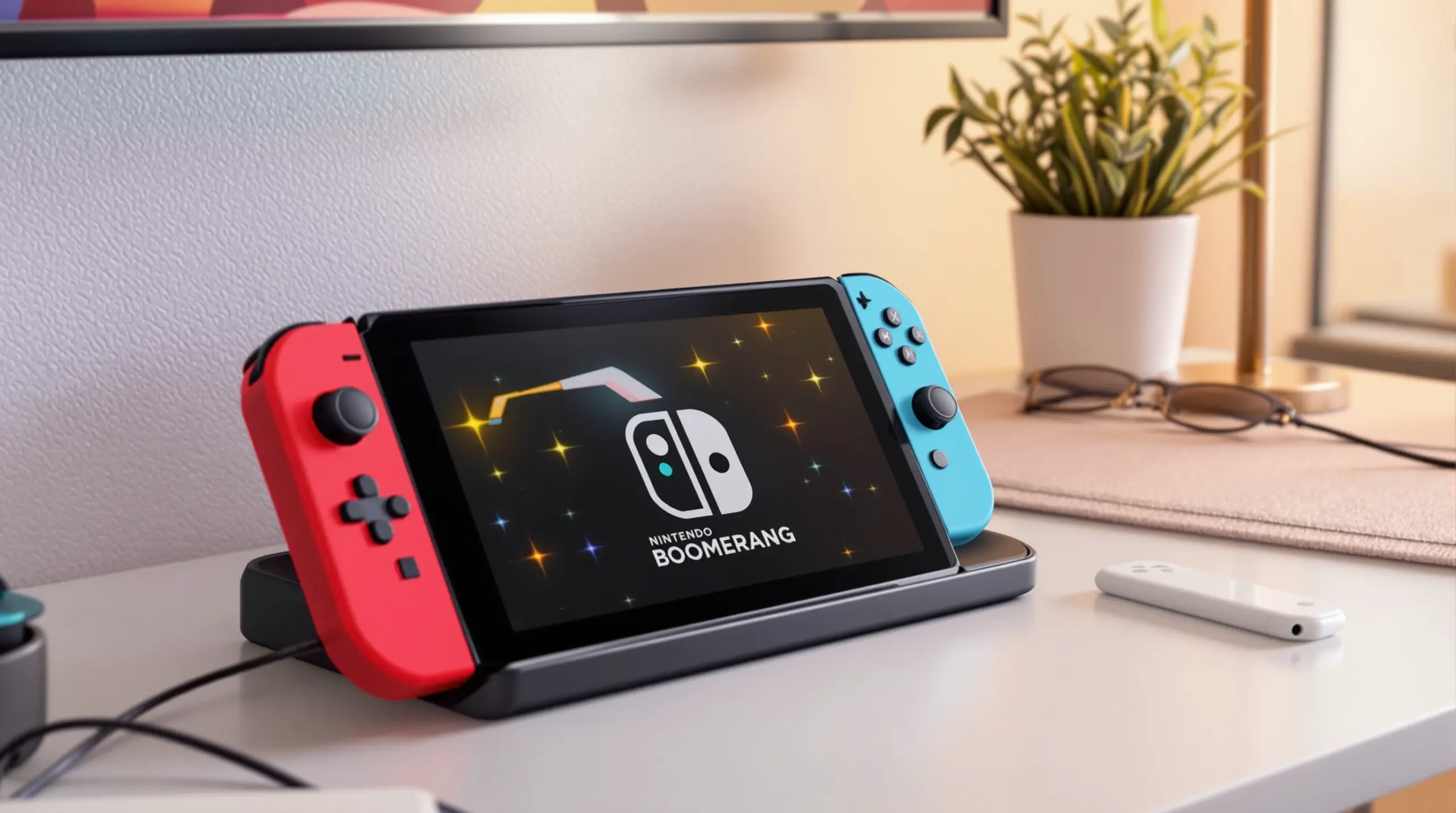
Does boomerang work on Nintendo Switch? No. Boomerang Parental Control is a mobile app for Android and iOS smartphones and tablets – it cannot be installed on a Nintendo Switch and it cannot manage one. The confusion comes from boomerang-themed games sold in the Nintendo eShop, especially Boomerang Fu, which shares our name but is made by an unrelated game studio. This guide gives you the direct answer, explains the right console tool to use, and shows how Boomerang protects your child on the mobile devices they actually carry.
Table of Contents
- Does Boomerang Work on Nintendo Switch? The Direct Answer
- Why the Confusion Exists: Boomerang Games vs. Boomerang Parental Control
- How to Protect Your Child on Nintendo Switch
- Where Boomerang Parental Control Does Work
- Android vs. iOS: What Boomerang Supports on Each Platform
- Why Console Rules Need Mobile Rules Alongside Them
- Comparison: Matching Each Device to the Right Tool
- How to Set Up Switch and Mobile Protection in 5 Steps
- Your Most Common Questions
- The Bottom Line
- Sources & Citations
Article Snapshot
Does boomerang work on Nintendo Switch – the honest answer is no. Boomerang Parental Control is a mobile app for Android and iOS smartphones and tablets only, and it does not run on Nintendo Switch. For console-level rules, use Nintendo’s own free Switch Parental Controls app. For your child’s smartphone or tablet, Boomerang Parental Control provides screen time limits, app approval, web filtering, and location tools.
Boomerang Platform Support in Context
- Boomerang Parental Control is available on Android smartphones and tablets via Google Play or sideload download
- iOS support is available with limited features: scheduled screen time, location tracking, SPIN Safe Browser, and notification-only tamper alerts
- Boomerang Parental Control cannot be installed on Nintendo Switch, Xbox, PlayStation, smart TVs, or any other console or TV platform
- Nintendo’s free Switch Parental Controls app is the official tool for limiting play time and content on the console[1]
Does Boomerang Work on Nintendo Switch? The Direct Answer
No. Boomerang Parental Control does not work on Nintendo Switch. There is no version of our app in the Nintendo eShop, no integration with the console, and no way for any mobile parental control app to manage the Switch itself. Boomerang is built exclusively for mobile devices: Android smartphones and tablets get the full feature set, and iOS devices are supported with a limited feature set. If you were planning to install Boomerang on a Switch, Switch Lite, or Switch 2, that is not possible – and any page claiming otherwise is wrong.
Parents who search “does boomerang work on Nintendo Switch” are usually in one of two positions. Either they saw a game with Boomerang in the title while browsing the eShop and wondered whether it was our parental control app, or they want a single app that controls both the console and the smartphone. The first case is a name collision with unrelated games. The second is understandable but not achievable with one app: Nintendo keeps console controls in its own hands, and mobile parental control apps run on mobile operating systems. The working solution is the layered one – Nintendo’s tools on the Switch, Boomerang on the phone.
START YOUR FREE TRIAL
Take control of screen time—free for 14 days, cancel anytime.




Why the Confusion Exists: Boomerang Games vs. Boomerang Parental Control
Several unrelated games in the Nintendo eShop include the word Boomerang in their titles, and that is where the mix-up comes from. Boomerang Fu, a cartoon-style party game by Cranky Watermelon, supports local multiplayer for up to six players and is a common pick for family game nights[2]. Other eShop titles use the word similarly. None of these games has any connection to Boomerang Parental Control – different companies, different purposes, different platforms.
If your child asks about Boomerang on the Switch, they almost certainly mean one of these games. If you are the parent researching protection, the answer is the same in every case: our parental control app is a mobile app for Android and iOS devices, not a console application. Before buying any game for a child, check its age rating on the eShop product page and its play style – short-session local multiplayer games like Boomerang Fu fit naturally around the daily play-time limits you will set in the next section.
How to Protect Your Child on Nintendo Switch
The official tool for the console is Nintendo’s Switch Parental Controls, a free smartphone app that pairs with the console[1]. It covers exactly what parents need on the Switch side:
- Daily play-time limits: set how long the console can be used each day; the screen can suspend automatically when time is up.
- Bedtime alarm: define a time when play should stop for the night.
- Content restriction level: restrict games above a chosen age rating.
- Play activity reports: see which games your child played and for how long.
- PIN protection: a parent-set PIN keeps children from changing or removing the restrictions.
Setup takes only a few minutes: install the Nintendo Switch Parental Controls app on your own phone, follow the pairing instructions on the console, and choose your limits. Like all console ecosystems, Nintendo keeps this control at the platform level on purpose – no third-party app can reach inside the Switch, which is why Boomerang cannot manage it either.
Where Boomerang Parental Control Does Work
Boomerang Parental Control works on the devices children carry everywhere: smartphones and tablets. On Android, install from Google Play or use the sideload download on our website to get the complete feature set. On iOS, install from the App Store with limited features. Here is what Boomerang covers on mobile – and only on mobile.
- Screen Time Scheduling and Daily Limits: automatic lock windows for homework and bedtime, plus a total daily allowance on Android.
- Per-App Limits and Encouraged Apps (Android only): individual time budgets for specific apps, with educational apps exempted.
- App Discovery and Approval: new installs require your approval before your child can use them.
- SPIN Safe Browser and web filtering: blocks inappropriate websites and enforces safe search.
- YouTube App History Monitoring (Android only): visibility into what your child watches and searches in the YouTube app.
- Call and Text Safety (Android only): call and SMS logs, keyword alerts, and optional blocking of unknown numbers.
- Location Tracking and Geofencing: real-time location and alerts when your child arrives at or leaves places like school.
- Uninstall Protection: reinforced by Samsung Knox integration on supported Samsung devices, making removal by a child very difficult.
Explore the full feature set on the Boomerang Parental Control homepage, and see the sideload download page for how Android devices receive the full feature set including Call and Text Safety.
Android vs. iOS: What Boomerang Supports on Each Platform
We are transparent about this because it affects your purchase decision: Boomerang is an Android-first product. Android smartphones and tablets receive the full feature set above because Android permits deeper device integration. iOS devices are supported with a limited feature set because Apple’s platform rules restrict what any third-party parental control app can do.
On an iPhone or iPad, Boomerang provides scheduled screen time, location tracking, the SPIN Safe Browser, and notification-only tamper alerts – you are notified if the app is removed, but the removal cannot be actively blocked. YouTube App History Monitoring, Call and Text Safety, keyword alerts, per-app limits, and allocated timers are Android-only features and do not work on iOS child devices. Our Android vs. iOS comparison page lists every difference, and we recommend reading it before you subscribe.
Why Console Rules Need Mobile Rules Alongside Them
A Switch that locks at 8 p.m. simply sends a determined child to the next available screen – usually a phone or tablet. If that device has no rules, the console limits only move the problem rather than solve it. That is why the effective setup for a gaming household is layered: Nintendo’s Parental Controls on the Switch, Boomerang Parental Control on the smartphone and tablet, with the limits coordinated.
Match the totals: if the Switch gets one hour on school days, the mobile allowance should account for homework, meals, and sleep rather than stacking more entertainment time on top. Boomerang’s automated scheduling enforces those windows without you playing police – the device locks itself at the appointed time. Independent coverage such as the TechRadar Boomerang review and the SafeWise Boomerang review describes how these mobile tools behave in real family use. Review Boomerang’s daily emailed activity reports each week, keep rules proportionate, and gradually loosen them as your child shows responsibility.
Comparison: Matching Each Device to the Right Tool
| Device | Right Tool | What It Controls |
|---|---|---|
| Nintendo Switch / Lite / 2 | Nintendo Switch Parental Controls app (free) | Daily play time, bedtime alarm, age-rating restrictions, play reports |
| Child’s Android phone or tablet | Boomerang Parental Control | Full feature set: daily limits, per-app timers, app approval, YouTube history, Call and Text Safety, location, uninstall protection |
| Child’s iPhone or iPad | Boomerang Parental Control (limited) plus Apple Screen Time | Scheduled screen time, location tracking, SPIN Safe Browser, notification-only tamper alerts |
| TVs and other screens | The TV manufacturer’s built-in controls | Content ratings and PIN locks on the television itself |
How to Set Up Switch and Mobile Protection in 5 Steps
Step 1: Install Nintendo Switch Parental Controls
Download Nintendo’s free Parental Controls app on your own phone and pair it with the console. Set a daily play-time limit, a bedtime alarm, and an age-appropriate content restriction level, then protect everything with your PIN.
Step 2: Install Boomerang on your child’s smartphone or tablet
On Android, use Google Play or the sideload download page on our website for the full feature set. On iOS, use the App Store. Start with the free 14-day trial to confirm everything works on your child’s exact device.
Step 3: Align the daily limits across devices
In Boomerang, set a mobile daily allowance and scheduled downtime windows that add up to a sensible total when combined with the Switch limit – so locking one screen does not simply open another.
Step 4: Enable app approval and uninstall protection (Android)
Turn on App Discovery and Approval so every new install needs your sign-off, and rely on Knox-backed Uninstall Protection on supported Samsung devices to keep the app in place.
Step 5: Review activity reports weekly and adjust
Check Boomerang’s daily emailed reports and the Nintendo play activity reports together each week. Keep the rules consistent, and loosen them gradually as your child earns trust.
Your Most Common Questions
Does boomerang work on Nintendo Switch as a parental control app?
No. Boomerang Parental Control does not work on Nintendo Switch and cannot be installed on any gaming console. It is a mobile app for Android and iOS smartphones and tablets only. For console-level parental controls, use Nintendo’s free Switch Parental Controls app, and use Boomerang alongside it on your child’s mobile devices.
Can Boomerang limit my child’s Nintendo Switch play time?
No – no mobile app can control the Switch directly. Play-time limits on the console are set through Nintendo’s own Parental Controls app. What Boomerang can do is manage the smartphone and tablet your child uses around their console time, so your household’s total screen time rules actually hold.
What devices does Boomerang Parental Control work on?
Boomerang Parental Control works on Android smartphones and tablets with the full feature set, via Google Play or sideload download, and on iOS devices with limited features: scheduled screen time, location tracking, SPIN Safe Browser, and notification-only tamper alerts. It does not run on Nintendo Switch, Xbox, PlayStation, smart TVs, or any other console or TV platform.
Are the Boomerang games in the eShop made by the parental control company?
No. Games such as Boomerang Fu are made by unrelated studios – Boomerang Fu is developed by Cranky Watermelon, for example. They share the word Boomerang with our parental control app but have no connection to it. Check the developer name and age rating on the eShop page before purchasing any game for a child.
The Bottom Line
Does boomerang work on Nintendo Switch? No – Boomerang Parental Control is a mobile app for Android and iOS smartphones and tablets, and no version of it runs on any Nintendo console. The Switch is covered by Nintendo’s own free Parental Controls app, which handles play time, bedtimes, and age ratings at the console level. The gap most gaming families actually have is the smartphone or tablet the child carries the rest of the day, and that is where Boomerang works: automated limits, app approval, web filtering, YouTube visibility on Android, and location tools. Put Nintendo’s tools on the console, Boomerang on the mobile devices, align the totals, and your rules hold on every screen.
Sources & Citations
- Nintendo Switch Parental Controls. Nintendo Support
https://www.nintendo.com/us/support/switch/parental-controls/ - Boomerang Fu – Official Nintendo eShop Listing. Nintendo
https://www.nintendo.com/us/store/products/boomerang-fu-switch/ - Boomerang Parental Control – Android vs. iOS Feature Comparison. Boomerang
https://useboomerang.com/boomerang-android-vs-ios/ - Boomerang Parental Control software review. TechRadar
https://www.techradar.com/reviews/boomerang-parental-control-software - Boomerang Parental Control Review. SafeWise
https://www.safewise.com/boomerang-parental-control-review
START YOUR FREE TRIAL
Take control of screen time—free for 14 days, cancel anytime.
