
22
Apr
2026
iPhone App Parental Control: A Parent’s Guide
April 22, 2026
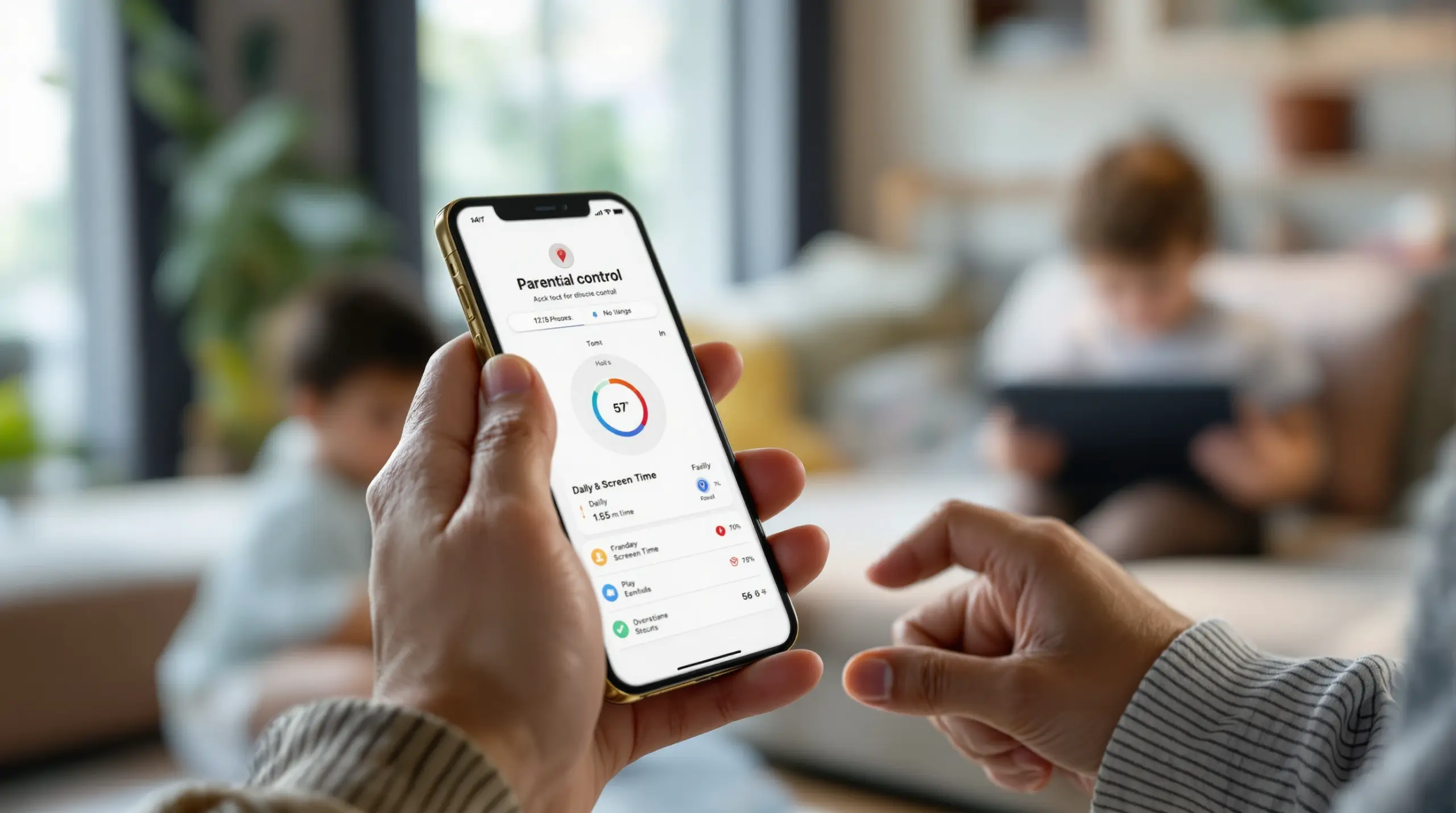
An iphone app parental control helps families set screen time limits, filter content, and monitor activity on iOS devices – compare your top options and find the right fit for your child.
Table of Contents
- What Is an iPhone App Parental Control?
- Key Features to Look For
- Understanding iOS Limitations for Parental Controls
- Choosing the Right iPhone Parental Control App for Your Family
- Frequently Asked Questions
- Comparing iPhone Parental Control Approaches
- How Boomerang Parental Control Can Help
- Practical Tips for Parents
- The Bottom Line
- Sources & Citations
Article Snapshot
iphone app parental control is software installed on a child’s iOS device that lets parents manage screen time, filter web content, approve apps, and monitor location. Apple’s built-in Screen Time provides a foundation, but third-party apps add deeper visibility and enforcement that the native tools simply cannot match.
iPhone App Parental Control in Context
- The global parental control market reached $1,711.9 million USD in 2025 (Boomerang Parental Controls, 2026)[1]
- Leading third-party apps detect and block over 25,000 iOS apps, including popular platforms like Instagram, TikTok, and YouTube (SafetyDetectives, 2026)[2]
- Industry reviewers estimate that a single well-chosen app serves the needs of 90-95% of families looking for iPhone parental controls (Boomerang, 2026)[1]
- As of 2026, at least 13 dedicated iPhone parental control apps are actively reviewed and ranked for families (FindMyKids, 2026)[3]
What Is an iPhone App Parental Control?
An iphone app parental control is a dedicated software tool that gives parents managed oversight of how their child uses an iOS device – covering screen time schedules, app access, web browsing, and physical location. These apps go beyond simply handing a child a phone and hoping for the best. They create structured digital environments where age-appropriate boundaries are set once and enforced automatically, without parents needing to intervene every hour of the day.
Boomerang Parental Control has helped thousands of families address this challenge, and understanding what these tools actually do is the first step toward choosing the right one. At the most basic level, every iPhone parental control app performs some combination of three functions: restricting what a child can access, monitoring what they do, and reporting that activity back to the parent.
START YOUR FREE TRIAL
Take control of screen time—free for 14 days, cancel anytime.




Restriction tools include screen time scheduling (locking the phone at bedtime or during homework), web content filtering (blocking adult or violent websites), and app approval controls (preventing downloads without parent sign-off). Monitoring tools track location, review browsing history, and in some cases flag concerning content in messages. Reporting tools deliver daily or weekly summaries so parents stay informed without logging in constantly.
Apple’s iOS platform places firm restrictions on what any third-party app can see and control on a child’s iPhone. This is a deliberate privacy design choice, and it means iPhone parental control apps work differently – and with fewer deep-device capabilities – than their Android counterparts. On Android, apps can access call logs, SMS content, YouTube history, and per-app usage data at a much deeper level. On iOS, third-party apps must work within Apple’s Screen Time API or rely on iCloud backup data, which limits real-time visibility. Parents choosing between an Android and iPhone for their child’s first device should factor this difference into their decision.
Key Features to Look For in an iPhone Parental Control App
Effective iPhone parental control apps share a core set of features that separate genuine tools from superficial ones. Knowing what to look for helps you avoid paying for capabilities that either don’t apply to iOS or don’t actually work as advertised.
Screen Time Scheduling and Daily Limits
Screen time scheduling is the feature most parents prioritize first, and for good reason. A reliable app lets you define specific hours when the iPhone is locked – bedtime, homework time, family dinner – and set a total daily allowance for device use. On iOS, this is built on top of Apple’s native Screen Time framework, which means some apps act as a management layer over built-in controls rather than replacing them entirely. The practical effect for parents is the same: the phone turns off automatically when time is up, without requiring a nightly argument.
Web Content Filtering and Safe Browsing
Web filtering blocks access to inappropriate websites across categories like adult content, violence, gambling, and unfiltered search results. On iPhone, filtering works through a custom DNS profile or a dedicated safe browser app. Tools like SPIN Safe Browser, which integrates with Boomerang, filter content at the app level without requiring a VPN or router configuration – meaning protection travels with the device to school, a friend’s house, or anywhere else with a data connection.
Strong safe browsing tools also enforce SafeSearch on Google, Bing, and Yahoo automatically, so even if a child finds their way into a search engine, the results stay age-appropriate without the child being able to switch it off.
App Approval and Management
App approval gives parents a gate on every new download. Instead of discovering three weeks later that your child installed a social media app, you receive a notification the moment they try – and the app stays blocked until you approve it. On iOS, third-party apps have more limited access to installed app data than on Android, so the depth of app management varies significantly between platforms. Some iOS apps can block or hide specific apps using Apple’s Screen Time API; others notify parents after the fact. Understanding this distinction matters when comparing options.
Location Tracking and Geofencing
Real-time location tracking lets you see where your child’s iPhone is on a map at any moment. Geofencing extends this by creating digital boundaries around specific places – school, home, a sports field – and sending you an automatic alert when your child arrives or leaves. This passive safety net removes the need for constant check-in texts and gives parents confidence that their child arrived where they were supposed to be.
Understanding iOS Limitations for iPhone App Parental Controls
iOS limitations are a defining reality for any iphone app parental control, and parents deserve a straightforward explanation of what those limits mean in practice. Apple’s privacy-first design is genuine consumer protection, but it also creates a ceiling on what third-party developers can do on an iPhone.
Apple does not allow third-party apps to read SMS or iMessage content, monitor calls, access YouTube app history, or install with the same device-level permissions available on Android. This means features that are standard on Android parental control apps – keyword alerts in text messages, per-app time limits from a third-party interface, YouTube viewing history – are either unavailable on iOS or require workarounds like iCloud backup access that come with their own limitations and delays.
As one iOS parental monitoring expert noted, “Parentaler seems to be the standout here because it uses iCloud backup data to actually track social media and web activity – something Apple’s native controls can’t touch.” (Parentaler Forum User, 2026)[4] The iCloud method does work, but it introduces a time lag – activity reports reflect what was backed up to iCloud, not what is happening right now – and it requires the child’s iCloud credentials to be shared with the parent app.
Apple’s own Screen Time, built directly into iOS settings, handles core functions like app limits, downtime schedules, and content restrictions without any third-party involvement. For many families, especially those with younger children who aren’t yet pushing against the boundaries, Apple Screen Time is a solid starting point at no extra cost. The gap between Apple Screen Time and a paid third-party app becomes most visible when children learn to work around native controls – disabling Screen Time with a passcode they’ve observed, or using Screen Time’s own request system to negotiate extra minutes until a parent gives in.
Third-party iPhone parental control apps address this gap by adding management layers, reporting dashboards, and in some cases tamper-resistance measures that make bypassing controls harder. Parents managing children on both Android and iPhone devices will find that the Android child device offers meaningfully deeper control capabilities. Features like Call and Text Safety monitoring, YouTube App History access, and per-app allocated time limits are Android-only territory.
Choosing the Right iPhone Parental Control App for Your Family
Choosing an iphone app parental control comes down to matching the tool’s actual capabilities to your child’s age, your family’s specific concerns, and the devices in your household. There is no single best app for every family, but there is a right approach for narrowing the field quickly.
Match Features to Your Child’s Age and Needs
For younger children – ages 6 to 10 – the priority is content filtering and screen time limits. At this age, the primary risks are stumbling onto age-inappropriate content and spending too long on games or videos. A combination of Apple’s built-in Screen Time and a safe browser like SPIN Safe Browser addresses both needs on iPhone without complex setup.
For pre-teens and early teenagers, app approval control and location tracking become more important. These children are beginning to seek social apps, explore YouTube independently, and spend more time away from home. A paid third-party app that combines location tracking, app management, and a reporting dashboard gives parents the visibility they need without requiring hourly check-ins.
For tech-savvy teenagers who have already bypassed simpler controls, the challenge shifts to finding tools that genuinely resist circumvention. On iPhone, this is harder than on Android because iOS does not allow the same level of uninstall protection. Reviewing independent evaluations of parental control apps helps parents identify which tools hold up against determined teenagers and which ones fall apart after a factory reset.
Consider Your Household Device Mix
If your child uses an Android device rather than an iPhone, the full depth of parental control features becomes available. Android-first tools like Boomerang Parental Control offer YouTube App History Monitoring, Call and Text Safety, per-app time limits, and Samsung Knox-backed uninstall protection – capabilities that do not exist in the iOS ecosystem for third-party apps. Families managing both Android and iPhone child devices should look for apps that support both platforms, while understanding that the feature set will differ between them.
According to a SafetyDetectives cybersecurity researcher, “Qustodio is the best parental control app for iOS devices in 2025 – it allows cross-device monitoring, blocks 25,000+ iOS apps, and has excellent web filtering for Safari and Google Chrome.” (SafetyDetectives Expert, 2025)[2] Cross-device monitoring matters particularly for families where one child uses Android and another uses iPhone – a single parent dashboard that covers both simplifies the management load considerably.
When evaluating options, also check independent reviews from trusted sources. A detailed review from SafeWise covers Boomerang’s feature set and helps parents understand how it performs in real family scenarios compared to competing apps.
Your Most Common Questions
Can an iPhone parental control app read my child’s text messages?
No third-party iphone app parental control can directly read iMessage or SMS content on a child’s iPhone in real time. Apple’s iOS privacy architecture prevents any app from accessing message content without the child’s explicit permission – which defeats the purpose. Some apps work around this by accessing iCloud backup data, which can include message information that was backed up to the cloud. This method does provide some visibility into communication patterns, but it is not real-time monitoring, and it requires the parent to have access to the child’s iCloud credentials. Parents who need deeper SMS and call monitoring – including keyword alerts for concerning language – will find that Android devices offer this capability through apps like Boomerang’s Call and Text Safety feature, which is unavailable on iOS. If message monitoring is a top priority, this is one of the clearest reasons to consider an Android device for your child’s phone.
What is the difference between Apple Screen Time and a third-party iPhone parental control app?
Apple Screen Time is built directly into iOS settings and handles core functions like app limits, downtime schedules, communication limits, and content restrictions. It costs nothing and requires no additional app. Its main weaknesses are that it can be negotiated around by persistent children who send extension requests, it lacks a dedicated parent reporting dashboard, and older children who know the Screen Time passcode can disable or adjust settings. Third-party iPhone parental control apps add a parent-facing management dashboard, more detailed usage reports, location tracking with geofencing, web filtering via a custom safe browser or DNS profile, and app approval workflows. The best third-party tools also make it harder for children to bypass the controls, though no iOS app can match the tamper-resistance available on Android through tools like Boomerang’s Uninstall Protection and Samsung Knox integration. Think of Apple Screen Time as the foundation and a third-party app as the layer that adds reporting, convenience, and stronger enforcement.
Does an iphone app parental control work without the child knowing it’s installed?
On iOS, fully hidden monitoring is not reliably possible, and most reputable parental control app developers do not attempt it. Apple’s privacy framework requires certain permissions to be granted explicitly on the device, which means the child is likely to see evidence of the app or the Screen Time restrictions it enforces. Child safety experts and family technology researchers consistently recommend transparency with children about monitoring. Telling your child that parental controls are in place – and explaining why – produces better long-term outcomes than covert surveillance. It builds trust and teaches children to self-regulate rather than simply hiding behavior. That said, features like geofencing location alerts and web filtering work passively in the background without requiring the child to interact with them daily. The goal of most families using these tools is not secret surveillance; it is creating consistent, automated guardrails that run without daily parental intervention or argument.
Is Boomerang Parental Control available for iPhone?
Yes, Boomerang Parental Control is available on iOS via the App Store, but with important limitations compared to the Android version. On iPhone, Boomerang supports scheduled screen time, location tracking, and geofencing. The SPIN Safe Browser, which integrates with Boomerang, is also available on iOS and provides web content filtering and SafeSearch enforcement on any network without a VPN. However, several deep-control features are Android-only: YouTube App History Monitoring, Call and Text Safety, per-app time limits with allocated timers, and Uninstall Protection backed by Samsung Knox are not available on iOS child devices. This is not a Boomerang limitation specifically – it reflects what Apple’s iOS platform permits for third-party apps. Families whose children use Android devices get access to the full Boomerang feature set. Parents managing both platforms can use Boomerang across both, with the understanding that the iOS experience is more limited. For families currently choosing between giving their child an Android or iPhone, this feature gap is worth considering.
Comparing iPhone Parental Control Approaches
Not all iPhone parental control solutions work the same way, and the approach you choose determines what you can actually see and control. The table below compares the four main methods families use to manage a child’s iPhone, across the features that matter most day to day.
| Approach | Screen Time Scheduling | Web Content Filtering | App Approval Control | Location Tracking | SMS/Call Monitoring | Tamper Resistance |
|---|---|---|---|---|---|---|
| Apple Screen Time (built-in) | Yes | Basic (content restrictions) | Yes (ask to buy) | Via Find My (separate) | Communication limits only | Low – passcode can be shared |
| Third-Party iOS App (e.g., Qustodio) | Yes | Strong – blocks 25,000+ apps (SafetyDetectives, 2025)[2] | Yes, with dashboard | Yes, with geofencing | Limited on iOS | Moderate |
| Safe Browser Only (e.g., SPIN Safe Browser) | Via Boomerang integration | Strong – no VPN required | No | No | No | App-level only |
| Android Parental Control App (e.g., Boomerang) | Yes – daily limits + scheduled downtime | Strong – SPIN Safe Browser integration | Yes – pre-install approval | Yes – real-time + geofencing | Full – keyword alerts, call logs (Android only) | High – Uninstall Protection + Samsung Knox |
How Boomerang Parental Control Can Help Your Family
Boomerang Parental Control is built around one central idea: parents deserve tools that actually work, consistently, without becoming another daily argument in the household. We offer iOS support for the parent app and for features like location tracking and safe browsing through SPIN Safe Browser – but our strongest and most comprehensive protection is on Android child devices, where the platform gives us the access to enforce rules the way parents need them enforced.
For families with iPhone child devices, Boomerang’s screen time features on iOS provide scheduled downtime and location tracking to cover the core needs. The SPIN Safe Browser, available on iOS via the App Store, adds a meaningful layer of web content filtering that Apple’s built-in restrictions don’t fully address, blocking millions of inappropriate websites automatically and enforcing SafeSearch on all major search engines from first launch.
For families considering Android for their child’s device – or already managing one – Boomerang Parental Control delivers the full suite: per-app time limits, YouTube App History Monitoring, Call and Text Safety, App Discovery and Approval, and Uninstall Protection backed by Samsung Knox on supported Samsung devices. As one parent put it: “Hey fellow parents, So far this the best parental control app .. hands down. So far the only app my 11 year old was not able to bypass. Big Shout out to developers for making such a great app.” – Jason H, Google Play review
Another parent shared: “This is a great application! I have control back over my child’s phone and applications because she managed to circumvent family link. I have no idea how she did that but she managed to find a way, as did other kids. That was a major frustration for us. But now with Boomerang, I can manage her time, what applications she uses and what sites she visits.” – Joe Eagles, Google Play review
Boomerang offers annual subscriptions for single devices and a Family Pack covering up to 10 child devices, making it practical for households with multiple kids. Setup is designed for non-technical parents – guided steps, automated enforcement once configured, and daily emailed activity reports that keep you informed without requiring you to open the app. Visit our contact page or reach out at [email protected] to learn which plan fits your family.
Practical Tips for Setting Up iPhone Parental Controls
Getting the most out of any iphone app parental control comes down to how you set it up and how you talk about it with your child. Technical tools work best when paired with clear family expectations.
Start with Apple Screen Time before adding a third-party app. Activating Screen Time in your iPhone’s settings costs nothing and takes about ten minutes. Setting a strong Screen Time passcode – one your child does not know – is the single most important first step. Without that, most other controls are easily undone.
Add a dedicated safe browser on day one. Safari’s built-in content restrictions are basic. Installing SPIN Safe Browser on your child’s iPhone provides pre-configured filtering that blocks inappropriate content automatically, without any network setup, VPN, or router changes. It works on home wifi, school networks, and mobile data alike.
Use geofencing instead of constant check-in calls. Set up geofence boundaries around school, home, and any regular after-school locations. You receive an automatic alert when your child arrives or leaves – which eliminates the need for “did you get there?” texts and gives you passive safety confirmation throughout the day.
Have an honest conversation before installing controls. Children who understand why controls are in place – protecting their sleep, keeping inappropriate content off their phone, building trust gradually – respond more constructively than children who discover monitoring unexpectedly. Frame it as a tool for earning more freedom over time, not permanent surveillance.
Review activity reports weekly, not daily. Most parental control apps send daily summaries, but reviewing them weekly gives you a more useful picture of patterns rather than reacting to individual incidents. Look for trends – which apps are used most, whether screen time is consistently hitting the daily limit – and use that as the basis for calm conversations rather than real-time enforcement.
Reassess controls as your child gets older. The right level of restriction for an 8-year-old is not the same as for a 14-year-old. Building in a semi-annual review of your settings – and involving your child in that conversation – builds the self-management skills that are the goal of every parental control tool.
The Bottom Line
An iphone app parental control is one of the most practical investments a parent can make when handing a child their first phone. These tools replace daily arguments with automated rules, give you visibility into your child’s digital life, and travel with the device wherever your child goes. The key is choosing a tool that matches your child’s age, your family’s priorities, and – critically – the platform your child’s device runs on.
iOS offers solid foundational controls through Apple Screen Time, with third-party apps adding reporting, safe browsing, and location features on top. Android devices, managed with a tool like Boomerang Parental Control, go significantly further – covering YouTube history, per-app limits, SMS safety, and tamper-resistant enforcement that holds even against tech-savvy teenagers. If your child is on Android, or you are still choosing a device, the depth of available parental controls is a genuine factor worth weighing.
Ready to put the right tools in place? Visit our download page to get started with Boomerang on your child’s Android device, or email us at [email protected] with any questions about which plan fits your household.
Sources & Citations
- iOS Parental Monitoring App: Complete 2026 Guide for Parents. Boomerang Parental Controls.
https://useboomerang.com/article/ios-parental-monitoring-app/ - 8 Best Parental Control Apps for iOS in 2026: Ranked. SafetyDetectives.
https://www.safetydetectives.com/best-parental-control/ios/ - Best iPhone Parental Monitoring Apps. FindMyKids.
https://findmykids.org/blog/en/iphone-parental-monitoring-apps - Which is the top parental control app for iPhone users? Parentaler.
https://parentaler.com/discussions/t/which-is-the-top-parental-control-app-for-iphone-users/358
START YOUR FREE TRIAL
Take control of screen time—free for 14 days, cancel anytime.
