
26
Jun
2026
Android Tablet Parental Control: A Complete Guide
June 26, 2026
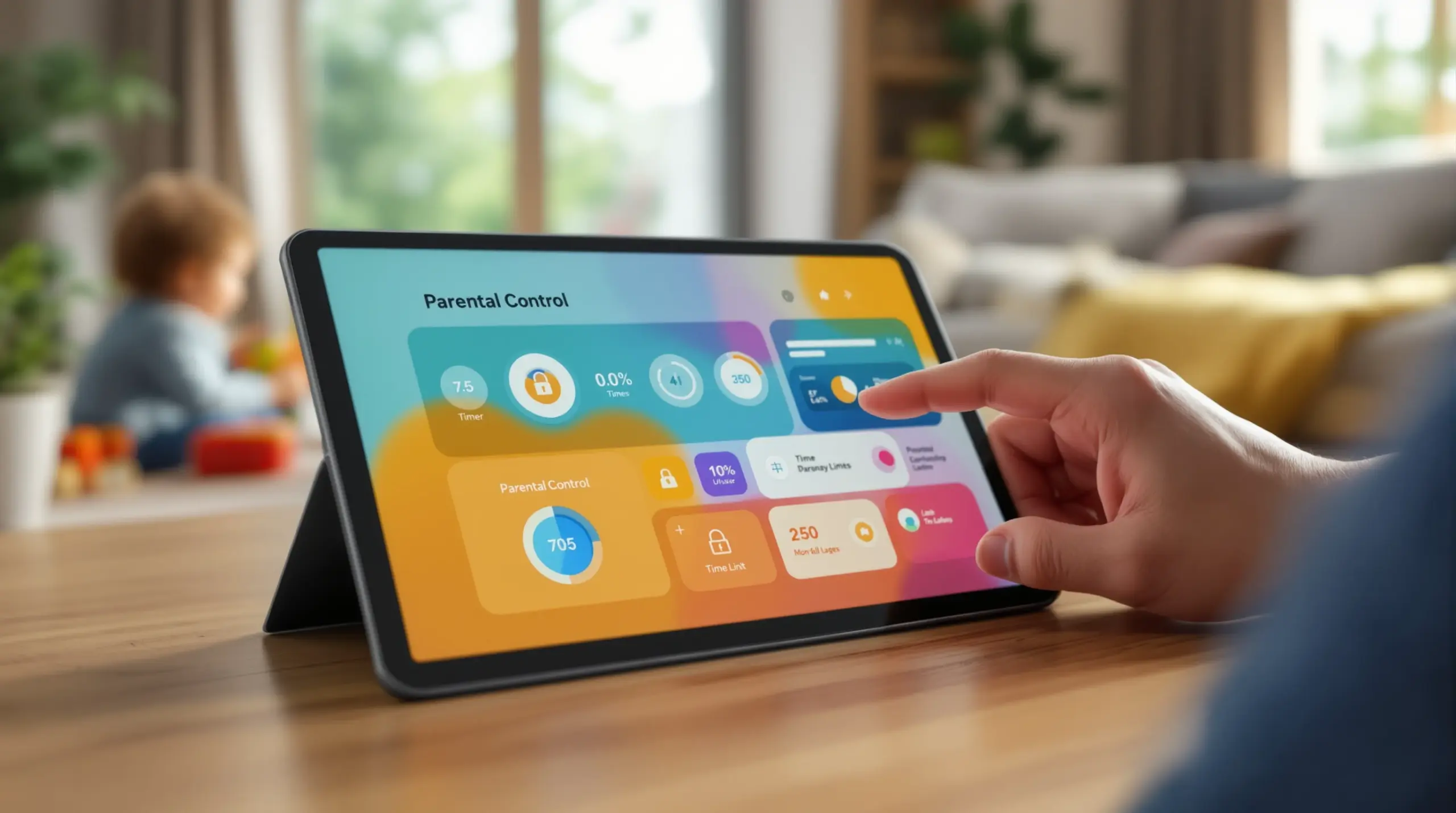
Android tablet parental control gives parents real-time oversight of their child’s screen time, app use, and online content – this guide explains how to choose and set up the right tools for your family.
Table of Contents
- What Is Android Tablet Parental Control?
- Built-In Controls vs. Dedicated Apps
- Key Features to Look For
- Setting Up Android Tablet Parental Control
- Frequently Asked Questions
- Comparing Parental Control Approaches
- How Boomerang Parental Control Helps
- Practical Tips for Parents
- The Bottom Line
- Sources & Citations
Article Snapshot
Android tablet parental control is a set of tools – built into Android or installed as a dedicated app – that lets parents manage screen time, filter content, approve apps, and monitor a child’s device activity. The right solution combines automated limits with visibility features so parents stay informed without constant intervention.
Market Snapshot
- Android tablet parental controls are configured using a restricted user profile directly on the device (Internet Matters, 2026)[1]
- Google Family Link provides a device-activity dashboard showing how a child spends time on their device (Google Play, 2026)[2]
- Parental-control.net identifies screen time management, content filtering, and location tracking as the three core feature categories in leading parental control apps for 2026 (Parental-control.net, 2026)[3]
- Google Family Link supports app approval, screen time scheduling, and device location management from a single parent app (Boomerang, 2026)[4]
What Is Android Tablet Parental Control?
Android tablet parental control refers to the software tools and device settings that give parents authority over how a child uses an Android tablet – covering screen time limits, app access, web content filtering, and location monitoring. Whether you are handing your eight-year-old their first tablet or managing a teenager’s device habits, having the right controls in place from day one makes an enormous difference for family peace and child safety.
Boomerang Parental Control was built specifically for this challenge, offering Android-first features that go well beyond what built-in options provide. At its core, parental control on an Android tablet works by either modifying the device’s own settings – such as creating a restricted user profile – or by installing a dedicated third-party app that integrates with the operating system to enforce rules automatically.
START YOUR FREE TRIAL
Take control of screen time—free for 14 days, cancel anytime.




As Parental-control.net explains, these apps “integrate with your device to monitor your child’s activity, enforce screen time limits, block specific apps or content, and provide detailed reports of your child’s digital behavior” (Parental-control.net, 2026)[3]. That combination of monitoring and active enforcement is what separates a true parental control solution from a simple usage tracker.
For parents setting up a first device, establishing tablet supervision tools before the child starts using the tablet is the most effective approach. Once browsing habits, app preferences, and screen time patterns are already formed, changing them is significantly harder. Proactive digital boundaries, set through strong device management software, give children a structured environment where good habits develop naturally.
This guide walks through the difference between built-in and dedicated app-based controls, the features that matter most, how to set everything up, and how Boomerang compares to the alternatives available to North American families in 2026.
Built-In Controls vs. Dedicated Parental Control Apps
Android tablets offer two distinct paths for parental oversight: the controls built directly into the operating system and dedicated third-party apps installed on top of it. Understanding the gap between these two options helps parents choose the level of protection that matches their family’s actual needs.
What Android’s Built-In Tools Offer
Android’s native options include restricted user profiles and Google Family Link. A restricted user profile lets you select exactly which apps a secondary user can access on a shared device, and the child cannot switch to the main profile without a password (Internet Matters, 2026)[1]. This works well on a shared family tablet but has limited usefulness on a device the child uses independently.
Google Family Link adds remote oversight. As Google describes it, “You can use the app to see how your child is spending time on their device, see their device location, manage privacy settings, and more” (Google Play, 2026)[2]. Family Link lets parents approve app downloads, set daily screen time limits, and remotely lock the device. It is free and reasonably capable for younger children – but it has well-documented limitations that become apparent as children grow older and more tech-savvy.
As Boomerang notes, “Family Link is Google’s free parental control service for Android that lets parents approve apps, set screen time schedules, and view a child’s device activity” (Boomerang, 2026)[4] – but it lacks deeper controls like per-app time limits, YouTube history monitoring, call and text safety, and bypass-resistant uninstall protection.
Where Dedicated Apps Fill the Gap
Dedicated parental control apps connect more deeply with the Android operating system. They offer per-app time limits, content filtering through a safe browser, YouTube activity monitoring, keyword alerts in text messages, and uninstall protection that makes it very difficult for a child to remove the app without a parent PIN. These features address the real-world scenarios that built-in tools do not cover – particularly for tablets used by older children who already know how to probe for loopholes in simpler controls.
For a child-specific Android tablet used independently, a dedicated app-based solution provides the most reliable combination of screen time management, online safety enforcement, and parental visibility.
Key Features Every Android Tablet Parental Control Should Have
Not all parental control apps offer the same depth of protection, and choosing based on a feature checklist rather than marketing language ensures you get tools that actually work in daily family life. These are the capabilities that matter most when evaluating android tablet parental control options.
Screen Time Scheduling and Daily Limits
Automated screen time scheduling locks the device at a preset time – bedtime, homework time, or family meals – without any parent needing to intervene. This single feature eliminates the majority of daily screen time arguments because the app, not the parent, becomes the rule enforcer. Daily limits cap total usage regardless of which apps the child uses, so creative children cannot shift from one app to another to extend their time.
On Android, the most capable apps also offer per-app time limits – for example, 30 minutes for a game while educational apps run without any cap. Designating learning apps as “Encouraged Apps” so they never count against the daily limit is a particularly effective way to reward positive habits without removing oversight altogether.
Content Filtering and Safe Browsing
Web content filtering blocks millions of inappropriate websites automatically, covering categories like adult content, violence, and unfiltered search engines. The SPIN Safe Browser is a dedicated safe browser that enforces content filtering and locked SafeSearch on any network – home Wi-Fi, school networks, or mobile data – without requiring a VPN or router configuration. Installing a safe browser alongside a parental control app closes the gaps that Chrome or Safari leave open by default.
App Approval and Discovery Control
Every new app a child installs carries potential risk – from privacy concerns to age-inappropriate content. An app approval workflow notifies the parent the moment a child attempts to download something new and requires parental authorization before the app becomes usable. This gatekeeping feature is especially important when setting up a first tablet, giving parents full visibility into the app environment from day one.
Uninstall Protection
A parental control app that a child can simply delete provides no real protection. Strong uninstall protection – reinforced by Samsung Knox integration on supported Samsung devices – makes it extremely difficult for children to remove or tamper with the app. On Samsung Galaxy tablets, Knox-level integration provides enterprise-grade security without requiring corporate IT knowledge, making it one of the most significant differentiators in the consumer parental control market. Boomerang Parental Control is the only parental control app to use Samsung’s Knox, an enterprise mobile security solution pre-installed in most Samsung smartphones and tablets.
Location Tracking and Geofencing
Real-time location tracking lets you confirm a child’s whereabouts without relying on them to send a text. Geofencing goes further by creating digital boundaries around specific locations – school, home, or a sports field – and sending an automatic alert when the child arrives or leaves. This passive safety feature removes the need for constant check-in calls while still giving parents reliable confirmation of their child’s physical safety.
Setting Up Android Tablet Parental Control Step by Step
Setting up android tablet parental control correctly from the start prevents the gaps that children learn to exploit over time. The process varies slightly depending on whether you use the device’s built-in tools, Google Family Link, or a dedicated app – but the core steps apply across all approaches.
Step One: Decide on Your Approach
For a shared family tablet, Android’s built-in restricted user profile is a practical starting point. For a tablet used exclusively by one child, a dedicated parental control app paired with a safe browser gives you the most comprehensive protection. If your child uses a Samsung Galaxy tablet, prioritize an app with Samsung Knox integration to lock in bypass resistance from day one.
Step Two: Install and Configure the Parent App
Install the parental control app on both the parent device and the child’s tablet. Follow the setup wizard to link the two accounts. Most quality apps, including Boomerang, walk through this process with guided steps that do not require technical experience. Set your daily screen time limit, configure the bedtime schedule, and mark any educational apps as always-allowed before handing the device to your child.
Step Three: Enable Content Filtering
Install the safe browser on the child’s tablet and set it as the default browser. Configure web filtering categories to match your child’s age – younger children need the strictest settings, while teenagers have limited browsing privileges with monitoring in place. Verify that SafeSearch is locked on major search engines before the child uses the device.
Step Four: Activate App Approval
Enable app discovery and approval so that every new download requires your authorization. This step is most effective when done before the child has already installed apps they are attached to – removing existing apps creates more conflict than gating new ones from the start. Review the existing app library and remove anything that does not meet your household’s standards during the initial setup.
Once the basic setup is complete, check the daily activity reports for the first two weeks to understand your child’s usage patterns before adjusting limits. Starting with firm boundaries and gradually loosening them as trust builds is consistently more effective than starting permissively and trying to tighten controls after habits have formed. A unified dashboard approach shows that tracking app usage, overall screen time, and browser history together gives parents the clearest picture of what is actually happening on the device (Kids360, 2026)[5].
Your Most Common Questions
Can I set up parental controls on an Android tablet without a third-party app?
Yes, Android tablets offer two built-in options. The first is a restricted user profile, which limits app access for a secondary user account on a shared device. Internet Matters notes that you select a new restricted user and choose which apps are accessible, with a password required to access the unrestricted profile (Internet Matters, 2026)[1]. The second is Google Family Link, which provides remote device management including app approval, screen time scheduling, and location tracking from a parent app.
However, built-in controls have meaningful limits. Restricted profiles work best on shared tablets, not on devices a child uses independently. Google Family Link lacks per-app time limits, YouTube activity history monitoring, keyword alerts in messages, and strong uninstall protection. For older children or tablets used without direct supervision, a dedicated parental control app provides substantially more reliable enforcement and visibility than built-in tools alone.
What is the best android tablet parental control for Samsung Galaxy tablets?
For Samsung Galaxy tablets specifically, an app that integrates with Samsung Knox provides the strongest level of protection. Knox is an enterprise-grade mobile security platform built into most Samsung devices, and a parental control app that uses it enforces rules at the operating system level – making it extremely difficult for children to uninstall or bypass the app.
Boomerang Parental Control is the only consumer parental control app to use Samsung Knox integration, giving parents enterprise-level device management without needing a corporate IT background. Combined with features like screen time scheduling, per-app limits, YouTube history monitoring (Android only), and app approval control, it is the most comprehensive option for Samsung Galaxy tablet households. The Knox integration is a direct answer to the common frustration of tech-savvy children who have already defeated simpler tools like Google Family Link or basic free alternatives.
How do I stop my child from uninstalling a parental control app on their Android tablet?
This is one of the most common frustrations parents face, especially with older children who are comfortable with device settings. On Android, a child often uninstalls apps, revokes device administrator permissions, or performs a factory reset if standard protection is not in place. Basic free tools are particularly vulnerable to these workarounds.
The most effective solution is a parental control app with dedicated uninstall protection that requires a parent-set PIN to remove. On Samsung Galaxy tablets, apps with Samsung Knox integration add a second layer of protection at the firmware level – making bypasses that work on other Android devices ineffective on Samsung hardware. Boomerang’s uninstall protection is specifically designed to address this problem, and it is one of the primary reasons parents switch from Google Family Link or Apple Screen Time after their child has already found a workaround.
Does android tablet parental control work differently on iOS vs. Android tablets?
Yes, there are significant differences between Android and iOS parental control capabilities, and parents should understand them before choosing an app. Android gives parental control apps much deeper system access than iOS does, which enables features that are not possible on Apple devices.
On Android, dedicated apps like Boomerang offer per-app time limits, YouTube App History Monitoring, Call and Text Safety with keyword alerts, SMS log monitoring, and strong uninstall protection with Samsung Knox integration. On iOS, the same app provides scheduled screen time and location tracking, but features like YouTube monitoring, per-app allocated time limits, keyword alerts in messages, and tamper protection are either unavailable or limited to notifications only. For families choosing between an Android tablet and an iPad for a child’s device, the depth of available parental controls is a genuine factor in favor of Android – particularly for parents who want comprehensive digital oversight rather than basic scheduling.
Comparing Android Tablet Parental Control Approaches
Parents evaluating their options for tablet supervision tools choose between three approaches: Android’s built-in restricted profiles, Google Family Link, and a dedicated third-party app. Each offers a different balance of depth, ease of use, and bypass resistance – and the right choice depends on your child’s age, technical ability, and the device model you are managing.
| Approach | Screen Time Limits | App Approval | Content Filtering | Uninstall Protection | YouTube Monitoring | Best For |
|---|---|---|---|---|---|---|
| Android Restricted Profile | None | Manual (setup only) | None | None | No | Shared family tablet, young children |
| Google Family Link | Daily limit only | Yes | Basic | Weak | No | Younger children on supervised devices |
| Dedicated App (e.g., Boomerang) | Daily + per-app limits (Android)[4] | Yes, with alerts | Advanced (SPIN Safe Browser) | Strong (Samsung Knox on Samsung) | Yes (Android only) | Pre-teens, teens, first devices, Samsung tablets |
How Boomerang Parental Control Helps Your Family
Boomerang Parental Control is an Android-first parental control app designed to give parents comprehensive visibility and firm control over their child’s tablet use – without requiring technical expertise or constant manual intervention. Boomerang Parental Control – Taking the battle out of screen time for Android and iOS is the platform’s core promise, and its feature set is built around eliminating the three biggest pain points parents report: daily screen time arguments, children bypassing controls, and not knowing what their child is doing online.
The Boomerang Parental Control screen time features include automated daily limits, bedtime scheduling, and per-app time limits on Android – so you can cap gaming to 30 minutes while leaving a school reading app fully unrestricted. App Discovery and Approval notifies you the moment your child tries to download something new, and no app becomes usable until you approve it. Combined with the SPIN Safe Browser for content filtering and SafeSearch enforcement, these features create a layered protection system that covers the device from first use.
For Samsung Galaxy tablet households, Boomerang’s Samsung Knox integration provides uninstall protection that operates at the firmware level – a level of security no other consumer parental control app offers. For non-Samsung Android tablets, the sideload download page for Android devices provides the full Boomerang experience including call and text safety features and app removal protection.
“This is a great application! I have control back over my child’s phone and applications because she managed to circumvent family link. I have no idea how she did that but she managed to find a way, as did other kids. That was a major frustration for us. But now with Boomerang, I can manage her time, what applications she uses and what sites she visits. I especially find the time-out and extend-time functionalities very useful. Kudos to the people who took the initiative to develop this app!” – Joe Eagles, Google Play review
“Hey fellow parents, So far this the best parental control app .. hands down. So far the only app my 11 year old was not able to bypass. Big Shout out to developers for making such a great app.” – Jason H, Google Play review
Subscriptions are available on an annual basis for a single device or as a Family Pack covering up to 10 child devices – a practical option for households managing both smartphones and tablets. Support is available through the help portal at any time, and setup walkthrough videos are available on the Boomerang YouTube channel for parents who prefer guided onboarding.
Practical Tips for Android Tablet Parental Control
Setting up the right tools is only part of the job. How you communicate about and apply those tools determines whether they create family harmony or become a source of ongoing conflict.
Start strict, then loosen gradually. Beginning with firm daily limits and restricted app access gives you a baseline of control. As your child shows responsible behavior – respecting limits, communicating about what they want to access, and not attempting to bypass controls – you can extend time allowances and approve additional apps as earned privileges. This approach builds trust incrementally rather than creating a battle to reclaim permissions.
Use Encouraged Apps to reinforce positive habits. Designating school portals, reading apps, and educational tools as always-allowed ensures children can complete homework and pursue learning even after their entertainment screen time has run out. This practical distinction between productive and recreational use teaches children to see technology as a tool, not just entertainment.
Review activity reports weekly, not daily. Daily monitoring creates anxiety and micromanagement. Weekly reviews of the app usage dashboard, YouTube history (Android), and location data give you the trends that matter without pulling you into every small decision. Use what you see to start conversations – not to deliver immediate consequences.
Set geofences around key locations from day one. School, home, and regular after-school activity locations should have geofences active before your child takes the tablet out of the house. Automatic arrival and departure alerts remove the need for check-in texts and give you passive confirmation of physical safety throughout the day.
Talk to your child about the controls. Transparency about why limits exist – and what earning more freedom looks like – produces better long-term outcomes than covert monitoring. Children who understand the rules and see a path to greater autonomy are less motivated to find bypasses. Parental control tools work best when they support an ongoing conversation, not replace it. You can read independent assessments of Boomerang’s approach at TechRadar’s Boomerang Parental Control software review for additional perspective.
The Bottom Line
Android tablet parental control works best when built-in tools are paired with a dedicated app that provides deeper enforcement, content filtering, and bypass-resistant protection. Built-in Android options and Google Family Link are useful starting points, but they leave meaningful gaps – particularly for older children who are motivated to find workarounds. A dedicated solution like Boomerang Parental Control addresses those gaps directly, combining automated screen time management, app approval, YouTube history monitoring on Android, and Samsung Knox-level uninstall protection in one platform.
The goal is not to surveil every moment of your child’s digital life – it is to create a structured, safe environment where good habits develop and where you are informed enough to have real conversations about what your child encounters online. Whether you are setting up a first tablet or replacing a solution your child has already bypassed, the right android tablet parental control setup gives you back confidence and gives your child a healthier relationship with their device.
To get started, visit useboomerang.com or reach out directly at [email protected]. For technical questions, our support team is available through the help portal at community.useboomerang.com.
Sources & Citations
- Android tablet safety guide for parents. Internet Matters.
https://www.internetmatters.org/parental-controls/smartphones-and-other-devices/android-tablet/ - Google Family Link – Apps on Google Play. Google.
https://play.google.com/store/apps/details?id=com.google.android.apps.kids.familylink&hl=en_US - Best Parental Control Apps in 2026: iPhone & Android Comparison. Parental-control.net.
https://parental-control.net/en/blog/article/best-parental-control-apps-in-2026 - Family Link: What It Does and Where It Falls Short. Boomerang.
https://useboomerang.com/article/family-link/ - How to Check Screen Time on Android (Step-by-Step Guide for 2026). Kids360.
https://kids360.app/blog/how-to-check-screen-time-on-android/
START YOUR FREE TRIAL
Take control of screen time—free for 14 days, cancel anytime.
