
17
Apr
2026
Best App Blocker for iPhone: Parent’s Guide
April 17, 2026
An app blocker for iPhone helps parents limit screen time, filter content, and keep kids safe online – discover the best options and how to choose the right one for your family.
Table of Contents
- What Is an App Blocker for iPhone?
- How iPhone App Blockers Work
- Choosing the Right App Blocker for Your Family
- Android vs. iOS: Why Platform Matters for Parental Controls
- Frequently Asked Questions
- Comparison: App Blocker Approaches for iPhone
- How Boomerang Parental Control Supports Your Family
- Practical Tips for Managing Screen Time on iPhone
- The Bottom Line
- Sources & Citations
Quick Summary
An app blocker for iPhone is a tool that restricts access to specific apps, limits daily usage time, or enforces scheduled downtime on iOS devices. Parents use these tools to protect children from inappropriate content and reduce screen time conflicts, with options ranging from Apple’s built-in Screen Time to dedicated third-party apps.
Quick Stats: app blocker for iphone
- 15 million satisfied users have used AppBlock, a leading app blocker solution (AppBlock App Store, 2026)[1]
- 63% reduction in screen time achieved in the first week by AppBlock users (AppBlock App Store, 2026)[1]
- 3 hours of average daily time savings reported by AppBlock users (AppBlock App Store, 2026)[1]
- iOS 16.0 is the minimum version required for StayFree, a popular app-blocking solution on iPhone (StayFree App Store, 2026)[2]
What Is an App Blocker for iPhone?
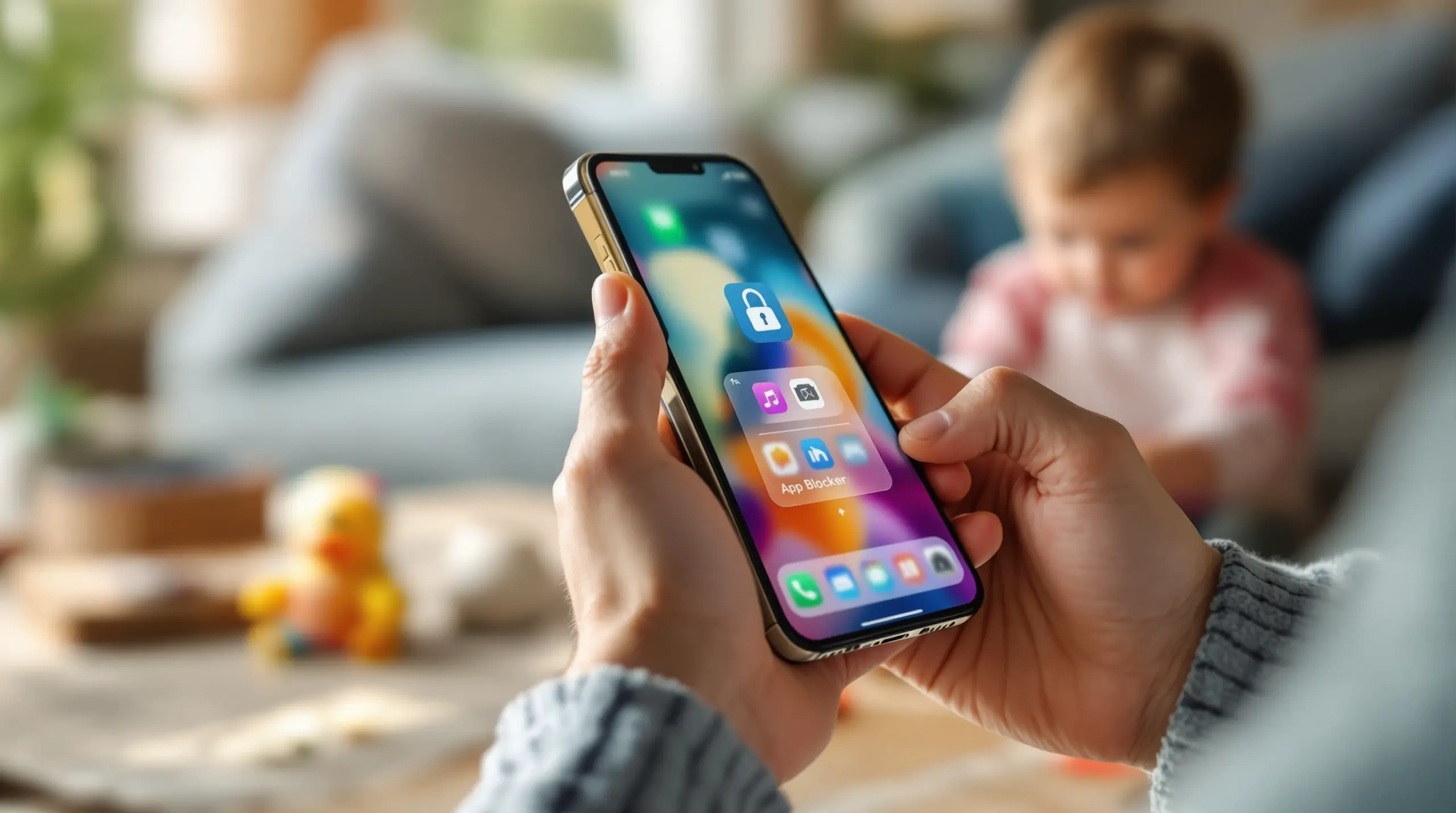
An app blocker for iPhone is software that lets you restrict, schedule, or limit access to apps on an iOS device – giving parents a practical way to manage what their child can do on a phone or iPad. Whether you want to block social media during homework hours, cap daily gaming time, or prevent access to inappropriate apps entirely, these tools are designed to put parents back in control. Boomerang Parental Control offers families a comprehensive approach to digital safety that covers both app management and broader online security.
iPhone app blockers work through Apple’s Screen Time API, which is built into iOS and gives approved apps permission to control what is accessed on the device. This is the same framework that powers Apple’s own Screen Time feature. Third-party apps tap into this system to add features that go beyond what Apple provides natively – such as custom scheduling, daily usage budgets per app, and more detailed reporting.
START YOUR FREE TRIAL
Take control of screen time—free for 14 days, cancel anytime.




For parents of children with iPhones or iPads, this matters because unmanaged devices quickly become a source of conflict, distraction, and exposure to content that isn’t age-appropriate. A well-chosen app blocker creates clear, consistent boundaries – ones that don’t depend on you having to physically intervene every time your child needs to put the phone down.
Common use cases for parents include blocking entertainment apps like TikTok or YouTube during school hours, limiting total daily screen time, and preventing new app downloads without approval. Some tools also let you designate certain apps – like reading or homework apps – as always accessible, so learning is never blocked even when entertainment limits kick in.
How iPhone App Blockers Work
iPhone app blockers operate through two primary mechanisms: Apple’s built-in Screen Time framework and third-party apps that extend its capabilities. Understanding how each works helps you choose the right tool for your family’s needs.
Apple’s Screen Time feature is built directly into iOS settings. As the Off-Switch Team explained in their 2026 guide, “Screen Time and Focus shape the default behaviour of your phone at the operating system level. That matters because you’re not relying on an app running in the background” (Off-Switch Team, 2026)[3]. This means controls applied through Screen Time are deeply embedded in the device, making them harder to bypass through typical workarounds.
Within Screen Time, parents set App Limits – daily time budgets for categories like Social Networking, Games, or Entertainment. When the limit is reached, the app locks and displays a message. You set Downtime windows where only approved apps remain accessible, and use Communication Limits to control who your child calls or messages.
Third-party app blockers build on top of this framework to add features Apple doesn’t offer natively. These include more granular scheduling options, per-app time limits, usage reports sent to the parent, and stricter enforcement mechanisms. For example, the Opal Team describes how their app works: “Opal’s Time Limit feature blocks apps or sites automatically once you’ve used them for a daily amount you choose, independent of scheduled sessions” (Opal Team, 2026)[3].
One important limitation on iOS is that Apple restricts how deeply third-party apps integrate with the operating system. This is why features like monitoring text messages, tracking individual app usage per child profile, or blocking the phone’s browser across all apps are more restricted on iPhone compared to Android. Parents need to understand that iOS app blockers – whether Apple’s own or third-party – work within the boundaries Apple sets, which affects what is and isn’t possible.
Key iPhone App Blocking Features to Look For
When evaluating any app blocker for iPhone, look for scheduled downtime (automatic locking at bedtime or homework time), per-app time limits, content filtering for Safari or built-in browsers, app approval controls to gate new downloads, and daily usage reports sent to the parent’s device. Not every tool offers all of these, so matching features to your specific parenting priorities is the right approach.
Choosing the Right App Blocker for Your Family
Choosing the right app blocker for iPhone depends on your child’s age, the level of control you need, and whether the iPhone is their primary device. Parents of younger children need stricter controls and more detailed visibility, while parents of teenagers prioritize accountability tools that can’t be easily bypassed.
For younger children (ages 8 to 11) receiving their first iPhone, a comprehensive blocker with app approval controls is the priority. You want to approve every app before your child uses it, and you want web filtering active from day one. Apple’s built-in Screen Time is a good starting point, but many parents find it lacks the enforcement needed to stop a determined child. Third-party tools like SPIN Safe Browser add a layer of safe browsing protection that works across networks without requiring a VPN or router setup.
For teenagers, bypass resistance becomes a central concern. Tech-savvy teens frequently find workarounds in free tools, including Apple’s own Screen Time. Parents dealing with this frustration need a solution that keeps controls in place even when the child knows how to look for loopholes. StayFree, for instance, highlights this challenge: “StayFree can help you block apps and set thoughtful limits on your usage; schedule time away from your phone throughout the day” (Sensor Tower Team, 2026)[2] – but how well any tool resists bypass depends heavily on implementation.
Budget is another factor. Apple Screen Time is free and already on every iPhone. Many third-party app blockers offer free tiers with limited features and paid subscriptions for full functionality. Annual plans work out cheaper than monthly billing, and family plans covering multiple devices offer better value for households managing more than one child’s phone.
Finally, consider how much time you want to spend managing the tool. Automated enforcement – where the app handles lockouts without you having to intervene manually each day – is significantly more practical for busy parents than tools requiring daily adjustments. Look for solutions that send you regular activity summaries so you stay informed without having to log in constantly.
Android vs. iOS: Why Platform Matters for Parental Controls
The platform your child’s device runs on has a direct impact on how effective parental controls are, and parents who understand this difference make better decisions when choosing and managing tools. iOS and Android have fundamentally different approaches to how third-party apps interact with the operating system, and this affects what any app blocker does.
On Android, parental control apps integrate more deeply with the device. This opens up capabilities that are not available on iOS. With a solution like Boomerang Parental Control – Taking the battle out of screen time for Android and iOS, Android users get features including YouTube App History Monitoring, Call and Text Safety, per-app time limits with allocated timers, keyword alerts in text messages, and Samsung Knox integration for uninstall protection. These are Android-only features, and they represent a level of visibility and control that iOS cannot match due to Apple’s platform restrictions.
On iOS, parental controls operate through Apple’s Screen Time framework. Third-party apps must request permission through Apple’s Family Controls API, which limits what they monitor or block compared to Android. iOS app blockers schedule downtime, set category-based app limits, and filter Safari browsing – but they cannot monitor individual text messages, view YouTube watch history within the app, or prevent uninstallation using enterprise-level security tools the way Samsung Knox enables on Android.
This doesn’t mean iPhone app blockers are ineffective – for many families they work well for managing basic screen time and scheduling. It does mean that parents who want comprehensive monitoring and bypass-resistant controls will find Android devices give them more tools to work with. A review of Boomerang Parental Control by TechRadar notes the depth of features available on the Android platform specifically.
For families where the child already has an iPhone, using the best available iOS tools in combination – Apple Screen Time for core scheduling plus a safe browser like SPIN Safe Browser for content filtering – gives you the strongest possible setup within Apple’s ecosystem. If you are choosing a first device for a younger child and have flexibility, Android’s deeper integration with parental control tools is worth factoring into your decision.
Your Most Common Questions
Can I use an app blocker for iPhone to stop my child from accessing YouTube?
Yes, you block the YouTube app on an iPhone using Apple’s Screen Time or a third-party app blocker. Through Screen Time’s App Limits, you restrict the YouTube app directly, set a daily time budget, or block it entirely during scheduled hours like homework or bedtime. Third-party tools give you additional scheduling flexibility and often provide tighter enforcement so the limit can’t be dismissed with a tap.
However, there is an important limitation to understand. On iPhone, you cannot view your child’s YouTube watch history through a parental control app the way you can on Android. Apple’s platform restrictions prevent third-party apps from accessing what a child has watched inside the YouTube app. If visibility into YouTube viewing habits is a priority for you – not just blocking but actually seeing what your child watches – an Android device with a tool like Boomerang gives you that capability through its YouTube App History Monitoring feature. On iPhone, you block or limit access, but you won’t get that same level of insight into viewing history.
Is Apple’s built-in Screen Time good enough, or do I need a third-party app blocker for iPhone?
Apple Screen Time is a solid starting point and works well for families with younger children who haven’t yet learned to look for workarounds. It’s free, already installed on every iPhone, and covers the core needs: scheduled downtime, app limits by category, content restrictions, and communication controls. For many parents of children under ten, it provides enough control without additional cost.
The challenge emerges with older or more tech-savvy children. Apple Screen Time has known bypass methods that circulate among teens – from changing the device date and time to factory resetting the phone. A determined teenager finds a way around it. Third-party app blockers that use stricter enforcement, like those with a dedicated “Strict Mode” that prevents overrides, give parents more reliable control. If your child has already bypassed Screen Time, or if you need more detailed usage reports sent directly to your phone, a third-party solution is worth the investment. Think of Screen Time as a foundation and third-party tools as the additional reinforcement layer that fills the gaps.
What happens when my child reaches their app limit on iPhone – can they just ignore it?
When a time limit is reached using Apple Screen Time, the app displays a lock screen with the message that the time limit has been used. By default, the child is shown an “Ask For More Time” option, and there is also a “One More Minute” button that lets them briefly continue. Without a Screen Time passcode that only the parent knows, children tap “Ignore Limit for Today” and keep using the app. This is a significant weakness in the default configuration.
To close this gap, parents should always set a Screen Time passcode that is different from the device unlock code, and disable the “One More Minute” option in Screen Time settings if possible. Third-party app blockers address this more aggressively. For instance, AppBlock’s Strict Mode is described by its developers as designed to prevent users from bypassing restrictions (AppBlock Team, 2026)[4]. Choosing a tool with strict enforcement and ensuring your passcode is genuinely private are the two most important steps to making any iPhone app blocker work as intended.
Are there app blockers for iPhone that also track my child’s location?
Yes, several parental control solutions combine app blocking with location tracking for iPhone. Apple’s own Find My app provides real-time family location sharing and is available free on all Apple devices. Some third-party parental control apps bundle location tracking with their app blocking and screen time management features, giving you a single dashboard for both digital and physical safety.
Boomerang Parental Control includes real-time location tracking and geofencing on both Android and iOS. Geofencing lets you set digital boundaries around specific places – school, home, a sports field – and receive automatic alerts when your child arrives or leaves. This removes the need for check-in texts and gives you passive confirmation of your child’s whereabouts. On iOS, location tracking and geofencing are among the features Boomerang supports, even though some of the deeper monitoring features like YouTube history and SMS monitoring are limited to Android devices. Combining app blocking with location awareness gives you a more complete picture of your child’s safety, both online and offline.
Comparison: App Blocker Approaches for iPhone
Not all iPhone app blocking approaches offer the same level of control, and the right choice depends on how much enforcement, visibility, and ease of use your family needs. The table below compares four main approaches parents use.
| Approach | Enforcement Strength | Visibility / Reporting | Setup Complexity | Cost |
|---|---|---|---|---|
| Apple Screen Time (built-in) | Moderate – known bypass methods exist | Basic category usage reports | Low – already on device | Free |
| Third-party app blocker (e.g., AppBlock, Opal) | High – Strict Mode prevents overrides (AppBlock App Store, 2026)[1] | Detailed per-app reports | Medium – app install and setup required | Free tier / paid subscription |
| Safe browser + Screen Time combo | Moderate-High – layered protection | Limited to browser and app usage | Medium – two tools to configure | Free to low cost |
| Full parental control app (Android-primary) | Highest – Knox integration on Android; notification-only on iOS | Comprehensive including location and (on Android) SMS and YouTube history | Low-Medium – guided setup | Affordable annual subscription |
How Boomerang Parental Control Supports Your Family
Boomerang Parental Control provides parents with a practical, straightforward platform designed to reduce daily screen time conflict and keep children safer online. While Boomerang is an Android-first solution with the deepest feature set on Android devices, it also supports iOS with core features including location tracking, geofencing, scheduled screen time, and the SPIN Safe Browser for safe browsing on both platforms.
For families with Android devices, Boomerang delivers the most comprehensive parental control experience available at the consumer level. Features include YouTube App History Monitoring so you see what your child is searching and watching in the actual YouTube app, per-app time limits with allocated daily timers, Call and Text Safety with keyword alerts, and Uninstall Protection backed by Samsung Knox integration on supported Samsung devices – making it exceptionally difficult for children to remove or bypass the app. You can explore these capabilities further through the Boomerang Parental Control screen time features page.
For iOS households, Boomerang provides scheduled screen time, geofencing and location tracking, and access to SPIN Safe Browser – a self-contained browser with built-in content filtering that blocks millions of inappropriate websites automatically, enforces SafeSearch on all major search engines, and requires no VPN or router configuration to work on any network. This combination offers a meaningful improvement over Apple Screen Time alone for families who want stronger web filtering alongside their app management.
Two users summarize the experience well. “So far this the best parental control app .. hands down. So far the only app my 11 year old was not able to bypass. Big Shout out to developers for making such a great app.” – Jason H, Google Play review. And from another parent: “I have control back over my child’s phone and applications because she managed to circumvent family link… But now with Boomerang, I can manage her time, what applications she uses and what sites she visits.” – Joe Eagles, Google Play review.
Boomerang is available as an annual subscription covering a single device or a Family Pack for up to 10 child devices. You can visit the sideload download page for Android devices to get started, or contact the team at [email protected] for questions. Support is available through the help portal.
Practical Tips for Managing Screen Time on iPhone
Setting up an app blocker for iPhone is only the first step. How you configure and maintain it makes the difference between a tool that genuinely works and one that frustrates everyone. These tips reflect what works in real family environments.
Set a Screen Time passcode your child doesn’t know. This is the single most important step. Your Screen Time passcode must be different from the device unlock PIN. If your child knows the passcode, every limit you set is overridden. Choose something they won’t guess and store it somewhere secure.
Use Downtime as your core scheduling tool. Downtime on Apple Screen Time locks the device outside of approved hours. Configure it to cover bedtime, homework hours, and mealtimes. Automated scheduling removes you from the role of manual enforcer – the phone handles the turn-off, not you.
Designate educational apps as always allowed. Blocking all apps equally discourages healthy use. Mark apps like reading tools, school portals, and homework platforms as “Always Allowed” so learning is never accidentally blocked when entertainment limits kick in. This approach rewards positive habits rather than just punishing overuse.
Review activity reports weekly, not daily. Most parental control tools send daily summaries or let you view weekly reports. Checking in weekly rather than daily gives you a clearer picture of trends – which apps are consuming the most time, whether usage is creeping up – without becoming an obsessive daily task.
Combine tools for stronger protection on iPhone. Apple Screen Time handles scheduling and app limits. A safe browser like SPIN Safe Browser handles web content filtering across any network. Using both together gives you layered protection that addresses more of the risk profile than either tool alone. This is especially relevant for younger children who are just starting out with a device.
Talk to your child about the rules before activating controls. Children who understand why limits exist – better sleep, more time for hobbies, staying safe online – are less likely to actively look for workarounds. Frame the tools as guardrails that support them, not punishment. This conversation matters more than any technical setting.
Revisit your settings every few months. Children’s needs change as they grow. A setup that was appropriate for an 11-year-old needs adjusting at 13. Reviewing your rules periodically – and giving your child more autonomy as they show responsible use – builds trust and reduces conflict over time.
The Bottom Line
Finding the right app blocker for iPhone takes more than just picking the first app you see in the App Store. The best approach for your family depends on your child’s age, the level of control you need, and whether enforcement strength or reporting detail matters most to you. Apple Screen Time is a practical free foundation, and third-party tools fill the gaps where it falls short.
For families who want the deepest level of parental control – including features like YouTube history monitoring, SMS keyword alerts, and bypass-resistant uninstall protection – an Android device paired with Boomerang Parental Control delivers capabilities that iOS cannot match due to Apple’s platform restrictions. On iPhone, combining Apple Screen Time with a safe browser and a reliable third-party app blocker gives you the strongest available setup within Apple’s ecosystem.
Whatever platform your child uses, the goal is consistent, automated enforcement that runs in the background and reduces daily conflict – not a tool you have to manually police every day. Start with clear rules, communicate them to your child, and let the technology handle the enforcement. To explore what Boomerang does for your family, visit Boomerang Parental Control or reach out at [email protected].
Sources & Citations
- AppBlock: Block Apps & Website – App Store. AppBlock App Store.
https://apps.apple.com/us/app/appblock-block-apps-website/id1515753232 - StayFree – Block Apps & Sites App – App Store. StayFree App Store.
https://apps.apple.com/us/app/stayfree-block-apps-sites/id1631132311 - The Ultimate Guide to the Best App Blockers for iPhone in 2026. Off-Switch.
https://www.off-switch.co.uk/post/top-5-app-blockers-for-iphone-in-2026-plus-a-physical-off-switch-that-actually-sticks - AppBlock: App & Site Blocker – App Store. AppBlock.
https://apps.apple.com/is/app/appblock-app-site-blocker/id1515753232
START YOUR FREE TRIAL
Take control of screen time—free for 14 days, cancel anytime.
