
17
Apr
2026
Apple Family Controls: What Parents Need to Know
April 17, 2026
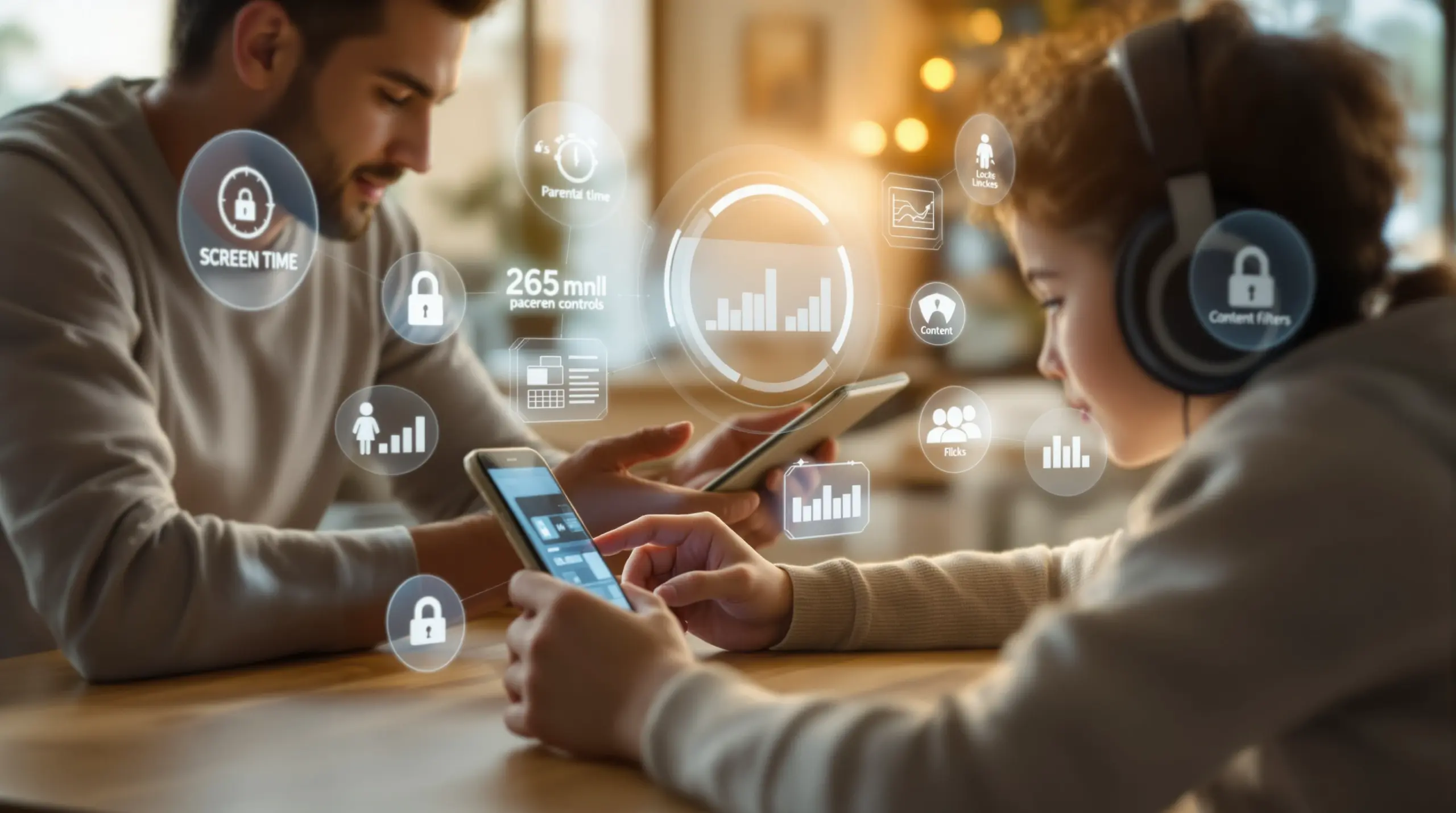
Apple family controls are built-in iOS and macOS tools that let parents manage screen time, restrict content, and monitor app usage – but understanding their limits helps you choose the right protection for your child.
Table of Contents
- What Are Apple Family Controls?
- What Apple Family Controls Do Well
- Where Apple Family Controls Fall Short
- Building a Stronger Safety Net Beyond Apple Family Controls
- Frequently Asked Questions
- Comparing Parental Control Approaches
- How Boomerang Parental Control Fills the Gaps
- Practical Tips for Managing Your Child’s Device
- The Bottom Line
- Sources & Citations
Article Snapshot
Apple family controls is the suite of built-in Screen Time and Family Sharing tools available on Apple devices. They offer a solid starting point for managing content and usage, but many parents find the bypass risks and limited Android support make a dedicated parental control app a necessary addition.
What Are Apple Family Controls?
Apple family controls refers to the set of parental oversight features built directly into Apple’s operating systems, primarily Screen Time on iOS and macOS, combined with the Family Sharing framework that links up to six family members under one Apple ID. These tools allow parents to set content restrictions, manage app downloads, schedule downtime, and view usage reports – all without installing a third-party app. For families that live entirely within the Apple ecosystem, they represent a convenient and cost-free first layer of digital protection.
Screen Time was introduced with iOS 12 and has grown steadily since. Parents access it through Settings on their own device and use a Screen Time passcode to lock the configuration. From there, you can set daily app limits by category, schedule Downtime hours when only approved apps are accessible, restrict explicit content on Safari, and require App Store purchase approvals from a designated family organizer. Family Sharing ties these controls together by allowing the parent’s device to push restrictions to a child’s device remotely.
START YOUR FREE TRIAL
Take control of screen time—free for 14 days, cancel anytime.




Boomerang Parental Control works alongside these Apple tools – and in many cases goes significantly further, particularly for families managing Android devices or children who have already found ways around the built-in controls.
For parents handing a child their first iPhone or iPad, understanding exactly what Apple’s native tools cover – and where they stop – is the single most important step before deciding whether additional protection is needed. The sections that follow walk through the strengths, the gaps, and the practical options available to North American families today.
What Apple Family Controls Do Well
Apple’s built-in parental oversight tools cover several core family needs effectively and without any additional cost, making them a natural first stop for parents setting up a child’s iPhone or iPad.
Screen Time Scheduling and App Limits
Screen Time’s Downtime feature allows parents to schedule hours during which the device is locked to approved apps only. A parent can set Downtime from 9:00 PM to 7:00 AM every night, meaning the device effectively becomes a locked-down alarm clock during sleep hours. App Limits complement this by capping daily usage per category – for example, allowing no more than one hour of Social Networking apps per day. When the limit is reached, the app grays out and the child must request more time from the parent.
These features address one of the most common pain points for families: the nightly argument about putting down the phone. When the device enforces the rule automatically, the parent is removed from the role of enforcer and the boundary becomes a technology fact rather than a negotiation.
Content Restrictions and Safe Search
Under Content & Privacy Restrictions, parents can block explicit music, podcasts, and movies, restrict Safari to approved websites, and prevent the installation of apps above a specific age rating. Parents can also enable Screen Time’s Communication Limits to restrict who a child can call or message during Downtime hours, which provides a basic layer of communication safety.
Apple’s Family Sharing purchase approval system means that any App Store download – free or paid – on a child’s account under 18 triggers an Ask to Buy notification on the parent’s device. The app does not install until the parent approves. This gives parents a meaningful gate on new app installation, particularly useful when setting up a device for the first time.
Location Sharing via Find My
Through the Find My app, Family Sharing members can share their location with each other. Parents can see a child’s device location on a map in real time, and family members can choose to share or stop sharing at any time. For basic location awareness – confirming a child arrived at school or is still at a friend’s house – this works well without any additional subscription or setup.
Where Apple Family Controls Fall Short
Apple family controls provide a useful baseline, but several well-documented limitations mean they leave meaningful gaps for many families, especially those with older children or tech-savvy kids who are motivated to find workarounds.
Bypass Risks Are Well Known
Screen Time’s passcode-based protection is one of the most commonly bypassed parental control mechanisms among teenagers. Because the restriction is enforced at the software settings level rather than through deeper device management, children with some technical knowledge can exploit iOS backups, device resets, or secondary Apple ID accounts to remove or reset Screen Time settings. Parents frequently discover that their teenager has restored the device through iTunes or iCloud to wipe Screen Time restrictions entirely – a reset that can be completed in under twenty minutes.
This bypass risk is the primary reason many parents of tech-savvy teens transition away from Apple’s native tools toward solutions with stronger enforcement mechanisms. A dedicated parental control app with strong uninstall protection addresses this gap directly in a way that Apple’s settings-based approach cannot.
No Visibility into YouTube App Activity
Screen Time shows total time spent in the YouTube app, but it does not show what a child searched for or watched. This is one of the most significant blind spots in Apple’s family oversight tools. A parent can see that their child spent two hours on YouTube, but has no way of knowing whether that time was spent on educational content or something entirely inappropriate. Parents who want informed visibility into their child’s viewing habits need a third-party solution.
Limited Communication Monitoring
Apple’s Communication Limits can restrict who a child contacts during Downtime, but there is no keyword monitoring in text messages, no alerts for inappropriate language, and no logging of call history for parental review. For parents concerned about cyberbullying or contact from unknown adults, Apple’s native tools offer limited reassurance. This is an area where Android-based parental controls, including the Call and Text Safety features available on Android through Boomerang, provide substantially more visibility.
iOS-Only – Android Devices Are Left Unmanaged
Apple family controls only work within the Apple ecosystem. If your child uses an Android phone or tablet – or if your household includes a mix of iOS and Android devices – Apple’s tools provide no coverage for the Android side. Families managing multiple devices across platforms need a cross-platform solution or a dedicated Android parental control app. For Android-focused families, a purpose-built solution provides far deeper control than anything Apple can offer natively, including per-app time limits, YouTube history monitoring, and SMS keyword alerts that iOS tools simply do not support.
Building a Stronger Safety Net Beyond Apple Family Controls
Many families find that apple family controls work best as a foundation rather than a complete solution – particularly once children reach the ages where they have both the motivation and the technical knowledge to probe for weaknesses.
Understanding What Deeper Control Looks Like
A meaningful upgrade from Apple’s built-in tools involves three core improvements: enforcement that cannot be bypassed by a device reset, visibility into actual content consumption rather than just time totals, and communication monitoring that surfaces risks before they escalate. Dedicated parental control apps are built specifically to deliver these improvements in a way that platform-native settings cannot.
On Android devices, the difference is especially significant. Android’s open architecture allows dedicated apps to integrate at a deeper system level, enabling features like per-app daily time limits (not just category limits), YouTube app history monitoring that shows specific searches and videos, SMS keyword alerts that flag messages containing concerning language, and uninstall protection reinforced by enterprise-grade security frameworks like Samsung Knox on supported Samsung devices. These capabilities go well beyond what Screen Time offers on iOS and have no equivalent in Apple’s Family Sharing tools.
Safe Browsing as a Separate Layer
One practical improvement available on both iOS and Android is replacing the default browser with a dedicated safe browser. SPIN Safe Browser is a fully self-contained browser with built-in content filtering that blocks millions of inappropriate websites across categories including adult content, violence, and hate. Unlike Safari’s content restrictions, which rely on a blocklist parents must configure, SPIN Safe Browser’s filtering is active from the first launch with no setup required. It works on any network – home Wi-Fi, school networks, or mobile data – without requiring a VPN, making it one of the most practical upgrades a parent can add to either an iPhone, iPad, or Android device.
When to Add a Dedicated Parental Control App
Parents dealing with any of the following situations benefit most from adding a dedicated parental control app: a child who has already bypassed Apple Screen Time at least once; a teenager who knows how to perform an iOS device reset; a household with both iOS and Android devices; or a parent who needs more than usage time totals and wants to understand what their child is actually consuming online. In these cases, the built-in tools have reached their practical limit and a purpose-built solution provides the next level of protection.
Independent reviews from outlets like TechRadar have examined how third-party parental control apps compare against platform-native tools, consistently noting that dedicated solutions offer meaningfully stronger enforcement and visibility for families who need more than basic controls.
What People Are Asking
Can my child turn off Apple family controls without my permission?
Apple family controls are protected by a Screen Time passcode that only the parent should know. However, the passcode protection has well-documented bypass methods that tech-savvy teenagers have used successfully. The most common approach involves performing an iOS device restore through iTunes or iCloud, which can wipe Screen Time restrictions. Apple has worked to close some of these loopholes over time, but no iOS software update has fully eliminated the risk. If you have a teenager who is motivated to bypass the restrictions and is comfortable with device management, the built-in Screen Time passcode will not hold. Parents in that situation find that a dedicated parental control app with tamper-resistant enforcement – particularly one that uses Samsung Knox integration on Android – provides a significantly more reliable barrier. On iOS specifically, the structural limitations of Apple’s ecosystem mean that even third-party apps have less bypass-resistant capability than their Android counterparts.
Does Apple Screen Time show what my child watches on YouTube?
No – Apple Screen Time only shows the total amount of time a child spends in the YouTube app. It does not show individual videos watched, search terms entered, or channels browsed. This is one of the most commonly cited limitations of Apple’s native parental oversight tools. Parents who want genuine visibility into YouTube activity need either YouTube’s own Family Link integration (which is Android-specific) or a third-party solution that provides YouTube history monitoring. On Android devices, Boomerang Parental Control offers YouTube App History Monitoring, which shows parents a log of what their child searched for and watched within the main YouTube app. This kind of visibility is not available through Apple’s built-in tools on iOS, making it a meaningful gap for parents who are concerned about the content their children consume on the platform.
Do Apple family controls work on Android devices?
No. Apple family controls, including Screen Time and Family Sharing location features, work exclusively on Apple devices running iOS, iPadOS, and macOS. If your child uses an Android smartphone or tablet, none of Apple’s built-in parental tools apply to that device. Households with both iOS and Android devices need either a cross-platform parental control app or separate solutions for each platform. For Android devices specifically, a dedicated Android parental control app like Boomerang Parental Control provides features that go well beyond what any platform-native tool offers, including per-app time limits, YouTube history monitoring, SMS keyword alerts, and uninstall protection reinforced by Samsung Knox on supported Samsung devices. These features have no direct equivalent in Apple’s ecosystem, which is why many families managing Android-first households choose a purpose-built Android solution as their primary parental control tool.
What is the difference between Apple Screen Time and a dedicated parental control app?
Apple Screen Time is a settings-based tool built into iOS that offers app limits, scheduled downtime, content restrictions, and purchase approvals. It is free, convenient, and works well for younger children or households where bypass is not yet a concern. A dedicated parental control app like Boomerang Parental Control is a standalone application designed specifically for family device management, offering deeper enforcement, more granular controls, and features Apple does not provide. Key differences include bypass resistance (dedicated apps use stronger enforcement mechanisms), content visibility (apps like Boomerang show YouTube history on Android rather than just time totals), communication monitoring (SMS keyword alerts and call logging on Android), and cross-platform support. For families with pre-teens receiving their first device, Screen Time is sufficient to start. For families managing teens who have already tested the limits of built-in controls, or households with Android devices, a dedicated parental control app provides meaningfully stronger and more reliable protection.
What People Are Asking
Can my child turn off Apple family controls without my permission?
Apple family controls are protected by a Screen Time passcode that only the parent should know. However, the passcode protection has well-documented bypass methods that tech-savvy teenagers have used successfully. The most common approach involves performing an iOS device restore through iTunes or iCloud, which can wipe Screen Time restrictions. Apple has worked to close some of these loopholes over time, but no iOS software update has fully eliminated the risk. If you have a teenager who is motivated to bypass the restrictions and is comfortable with device management, the built-in Screen Time passcode will not hold. Parents in that situation find that a dedicated parental control app with tamper-resistant enforcement – particularly one that uses Samsung Knox integration on Android – provides a significantly more reliable barrier. On iOS specifically, the structural limitations of Apple’s ecosystem mean that even third-party apps have less bypass-resistant capability than their Android counterparts.
Does Apple Screen Time show what my child watches on YouTube?
No – Apple Screen Time only shows the total amount of time a child spends in the YouTube app. It does not show individual videos watched, search terms entered, or channels browsed. This is one of the most commonly cited limitations of Apple’s native parental oversight tools. Parents who want genuine visibility into YouTube activity need either YouTube’s own Family Link integration (which is Android-specific) or a third-party solution that provides YouTube history monitoring. On Android devices, Boomerang Parental Control offers YouTube App History Monitoring, which shows parents a log of what their child searched for and watched within the main YouTube app. This kind of visibility is not available through Apple’s built-in tools on iOS, making it a meaningful gap for parents who are concerned about the content their children consume on the platform.
Do Apple family controls work on Android devices?
No. Apple family controls, including Screen Time and Family Sharing location features, work exclusively on Apple devices running iOS, iPadOS, and macOS. If your child uses an Android smartphone or tablet, none of Apple’s built-in parental tools apply to that device. Households with both iOS and Android devices need either a cross-platform parental control app or separate solutions for each platform. For Android devices specifically, a dedicated Android parental control app like Boomerang Parental Control provides features that go well beyond what any platform-native tool offers, including per-app time limits, YouTube history monitoring, SMS keyword alerts, and uninstall protection reinforced by Samsung Knox on supported Samsung devices. These features have no direct equivalent in Apple’s ecosystem, which is why many families managing Android-first households choose a purpose-built Android solution as their primary parental control tool.
What is the difference between Apple Screen Time and a dedicated parental control app?
Apple Screen Time is a settings-based tool built into iOS that offers app limits, scheduled downtime, content restrictions, and purchase approvals. It is free, convenient, and works well for younger children or households where bypass is not yet a concern. A dedicated parental control app like Boomerang Parental Control is a standalone application designed specifically for family device management, offering deeper enforcement, more granular controls, and features Apple does not provide. Key differences include bypass resistance (dedicated apps use stronger enforcement mechanisms), content visibility (apps like Boomerang show YouTube history on Android rather than just time totals), communication monitoring (SMS keyword alerts and call logging on Android), and cross-platform support. For families with pre-teens receiving their first device, Screen Time is sufficient to start. For families managing teens who have already tested the limits of built-in controls, or households with Android devices, a dedicated parental control app provides meaningfully stronger and more reliable protection.
Comparing Parental Control Approaches
Choosing the right approach to managing your child’s device depends on your child’s age, the devices in your household, and how motivated your child is to find workarounds. The table below compares four common approaches across the features that matter most to North American families.
| Approach | Cost | Bypass Resistance | YouTube History Visibility | SMS Monitoring | Android Support | Best For |
|---|---|---|---|---|---|---|
| Apple Screen Time (apple family controls) | Free | Low – device restore bypasses it | No | No | No | Young children on iOS, first-device setup |
| Google Family Link | Free | Low – frequently bypassed by teens | No | No | Yes (Android primary) | Young children on Android |
| Dedicated App (iOS) | Paid subscription | Moderate – limited by iOS architecture | No (iOS restriction) | No (iOS restriction) | Varies by app | Families needing more than Screen Time on iPhone |
| Dedicated App – Android (e.g., Boomerang) | Paid subscription | High – Samsung Knox integration on supported devices | Yes (Android only) | Yes (Android only) | Yes – primary platform | Android households, teens who bypass simpler tools |
How Boomerang Parental Control Fills the Gaps
Boomerang Parental Control – Taking the battle out of screen time for Android and iOS was built specifically to address the gaps that platform-native tools like apple family controls leave open. For Android-first families, Boomerang goes substantially deeper than anything available through Apple’s ecosystem or Google’s Family Link.
On supported Samsung devices, Boomerang is the only parental control app to use Samsung’s Knox enterprise security framework, which makes the app exceptionally difficult for children to remove or bypass. This is a critical differentiator for parents of teenagers who have already defeated simpler controls – including Apple Screen Time. Samsung Knox operates at a hardware security level that no settings-based tool can match.
Beyond bypass protection, Boomerang provides the visibility and control that Screen Time does not. YouTube App History Monitoring on Android shows parents the specific searches and videos their child watches in the main YouTube app. Boomerang’s screen time features include per-app daily limits, scheduled downtime, and the ability to mark educational apps as Encouraged so they remain accessible even when the child’s daily limit is reached – a practical way to support homework without rewarding unlimited entertainment time.
For communication safety on Android, Call and Text Safety logs call history and sends keyword alerts when messages contain concerning language – giving parents early warning of cyberbullying or unknown contact without requiring them to read every message. Real-time Location Tracking and Geofencing provide passive location awareness, sending automatic alerts when a child arrives at or leaves a designated area like school.
Testimonials from parents reflect how these features perform in real households. “Hey fellow parents, So far this the best parental control app .. hands down. So far the only app my 11 year old was not able to bypass. Big Shout out to developers for making such a great app.” – Jason H, Google Play review
“This is a great application! I have control back over my child’s phone and applications because she managed to circumvent family link. I have no idea how she did that but she managed to find a way, as did other kids. That was a major frustration for us. But now with Boomerang, I can manage her time, what applications she uses and what sites she visits.” – Joe Eagles, Google Play review
Boomerang offers annual subscriptions for single devices and a Family Pack covering up to ten child devices. For parents ready to move beyond built-in controls, the Android sideload download page provides access to the full feature set including Call and Text Safety and enhanced uninstall protection.
Practical Tips for Managing Your Child’s Device
Whether you start with Apple family controls or move to a dedicated parental control app, a few practical steps make a significant difference in how effective your setup actually is day to day.
Start with a family agreement before you hand over the device. The most effective parental controls work alongside a clear, spoken agreement about device rules. Children who understand the boundaries – and the reasons for them – are less likely to actively seek workarounds. Establishing expectations at the start makes the technology a reinforcement of agreed rules rather than an adversarial restriction.
Set Downtime before the first day of school routines, not after a conflict. Configuring scheduled downtime proactively – before arguments about bedtime or homework start – frames the restriction as a normal part of how the device works rather than a punishment. Both Apple Screen Time and Boomerang support scheduled downtime; setting it on day one is far easier than imposing it after habits have formed.
Review the independent third-party assessments of any app you consider. Sites like SafeWise’s Boomerang review provide hands-on testing of how parental controls perform under real conditions, including whether bypass resistance holds up. Reading two or three independent reviews before committing to a tool helps you understand what you are actually getting.
Use Encouraged Apps to reward balance rather than just restrict. If you use Boomerang on an Android device, marking educational or health apps as Encouraged means your child retains access to genuinely useful apps even when their daily entertainment limit is reached. This shifts the dynamic from pure restriction to guided balance – an approach that generates less conflict and more buy-in from the child.
Combine browser filtering with screen time controls for layered protection. Screen time limits and content restrictions work better when paired with a dedicated safe browser. Installing SPIN Safe Browser on your child’s device adds a content filtering layer that works regardless of what network the device is connected to, closing the gap that router-based filtering leaves when the device leaves the house.
Check your setup every three to six months. Children’s device habits and technical knowledge evolve quickly. A control that was sufficient at age ten is inadequate at twelve. Scheduling a brief quarterly check of your parental control settings – including reviewing which apps are approved, what the current time limits are, and whether the child has attempted any bypass – keeps your protection current.
The Bottom Line
Apple family controls offer a genuinely useful starting point for any parent setting up an iPhone or iPad for a child. Screen Time scheduling, App Limits, content restrictions, and purchase approvals cover the basics well and cost nothing to enable. For younger children on iOS devices with limited technical knowledge, they are entirely sufficient.
For parents of older children, tech-savvy teenagers, households that include Android devices, or any family that needs more than usage time totals, the built-in tools reach their limits quickly. The bypass risks are real, the content visibility is shallow, and Android devices fall outside Apple’s coverage entirely.
A dedicated parental control app – particularly one built for Android with strong enforcement mechanisms – fills those gaps with the depth that families managing real-world device challenges actually need. If you are ready to move beyond the built-in controls, visit Boomerang Parental Control or reach out directly at [email protected] to find the right plan for your family.
Sources & Citations
- Boomerang Parental Control – Taking the battle out of screen time. useboomerang.com.
https://useboomerang.com/ - SPIN Safe Browser – Safe web browsing for children. spinsafebrowser.com.
https://spinsafebrowser.com/ - Boomerang Parental Control Software Review. TechRadar.
https://www.techradar.com/reviews/boomerang-parental-control-software - Boomerang Parental Control Review. SafeWise.
https://www.safewise.com/boomerang-parental-control-review
START YOUR FREE TRIAL
Take control of screen time—free for 14 days, cancel anytime.
