
30
Jul
2026
Boomerang vs Canopy: Which Parental Control Wins?
July 30, 2026
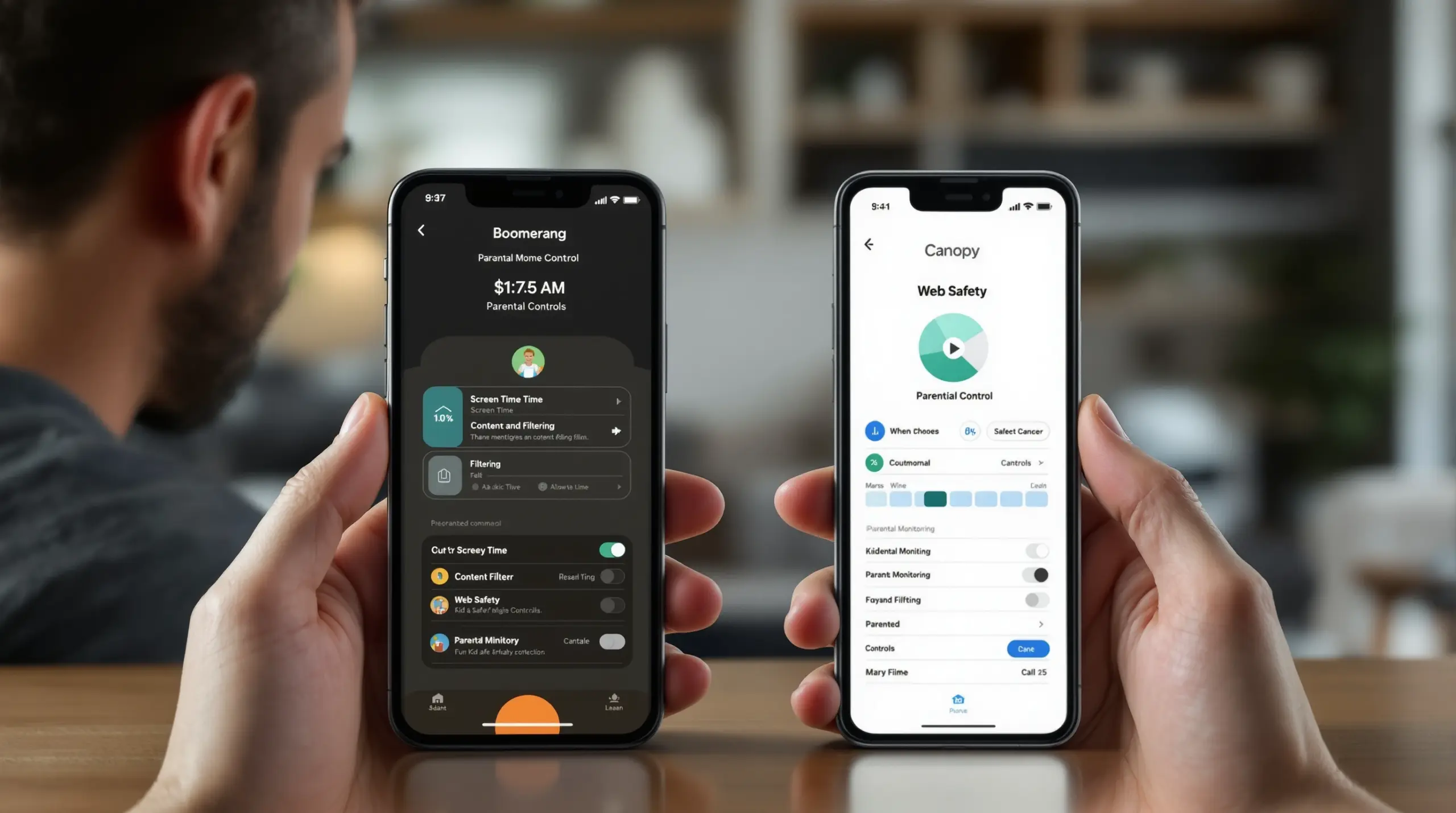
Comparing boomerang vs canopy parental control apps helps parents choose the right tool for managing screen time, blocking inappropriate content, and keeping kids safe on Android and iOS devices.
Table of Contents
- What Is Boomerang vs Canopy and How Do They Differ?
- Key Features That Separate Boomerang from Canopy
- How Does Boomerang Perform on Android Devices?
- Which Parental Control App Is Right for Your Family?
- Frequently Asked Questions
- Side-by-Side Comparison
- How Boomerang Parental Control Protects Your Family
- How to Choose and Set Up a Parental Control App in 5 Steps
- The Bottom Line
- Sources & Citations
Article Snapshot
Boomerang vs Canopy is a comparison of two dedicated parental control apps designed to help families manage screen time and online safety. Boomerang leads on Android with deep device controls, while Canopy focuses on AI-powered content filtering across platforms. The right choice depends on your child’s device and your family’s primary safety goals.
What Is Boomerang vs Canopy and How Do They Differ?
Boomerang vs Canopy represents two distinct approaches to child online safety: Boomerang Parental Control is an Android-first platform built around automated screen time enforcement and device-level controls, while Canopy focuses primarily on AI-driven content filtering and nudity detection across both Android and iOS. Boomerang Parental Control, launched in 2015, was designed from the ground up to give parents a comprehensive remote control over their child’s mobile device – automating bedtime locks, daily usage limits, and app approval so families spend less time arguing and more time connecting.
Canopy positions itself as a content-safety specialist. Its AI scans images and web content for inappropriate material, including nudity, and blocks it in real time. This makes Canopy particularly attractive to parents whose primary concern is shielding their child from explicit visual content. Boomerang, by contrast, addresses a wider range of family pain points: not just what kids see, but how long they use devices, which apps they install, where they go physically, and whether someone inappropriate is contacting them via text or calls on Android.
START YOUR FREE TRIAL
Take control of screen time—free for 14 days, cancel anytime.




The core difference comes down to depth versus breadth on a single platform. Boomerang delivers exceptional depth on Android – with features like YouTube App History Monitoring, per-app time limits, Samsung Knox-powered uninstall protection, and Call and Text Safety – none of which are available through Canopy or basic built-in tools like Google Family Link. Canopy offers broader cross-platform content filtering but does not match Boomerang’s Android device management capabilities.
Parents choosing a first-smartphone solution for a pre-teen on Android will find Boomerang’s App Discovery and Approval workflow, Encouraged Apps designation, and automated scheduling give them gate-keeping control that Canopy does not replicate. For families with iOS-only households focused purely on content filtering, Canopy addresses a narrower but real need. Understanding this distinction is the starting point for every boomerang vs canopy evaluation.
Key Features That Separate Boomerang from Canopy
The feature sets of Boomerang and Canopy reflect their different design philosophies, and for most Android-using families, Boomerang’s depth of control is the decisive factor. Boomerang’s screen time management goes well beyond simple on/off scheduling. On Android, parents set a total daily usage allowance, create fixed Scheduled Downtime windows for bedtime and homework, and apply per-app limits – for example, capping a game at 30 minutes while leaving a school portal completely unrestricted as an Encouraged App. iOS support includes scheduled screen time and location tracking, but the per-app limits, daily allocated timers, and communication monitoring features are Android-only.
Canopy’s screen time tools are more limited. The app focuses its engineering on content detection – its AI-based image scanning and web filtering are genuinely strong for identifying nudity and explicit imagery before a child sees it. Canopy also filters web categories and monitors texts on iOS for certain content risks. However, Canopy does not offer the granular per-app daily timers, Encouraged Apps designation, or the automated daily limit enforcement that Boomerang provides on Android.
Uninstall protection is a critical differentiator in any honest parental control software comparison. Tech-savvy kids regularly delete monitoring apps the moment parents are out of the room. Boomerang’s Uninstall Protection – reinforced by Boomerang Parental Control’s Samsung Knox integration, an enterprise mobile security solution pre-installed on most Samsung smartphones and tablets – makes the app extremely difficult to remove without the parent’s PIN. This level of tamper-resistance is not matched by Canopy, which is more readily bypassed on Android devices by determined teenagers.
Both apps offer web content filtering and safe search enforcement. Boomerang pairs its filtering with the SPIN Safe Browser, a fully contained browser that blocks millions of inappropriate websites automatically on any network – home wifi, school networks, or mobile data – without requiring a VPN or router configuration. Canopy’s filtering works through a VPN-based mechanism on-device. For families who dislike VPN setups or have children who have learned to disable VPNs, Boomerang’s approach is more reliable in everyday use.
How Does Boomerang Perform on Android Devices?
Boomerang Parental Control’s Android performance sets it apart from nearly every competitor in the parental control software market, including Canopy. On Android, Boomerang operates at a deep device level, using administrator permissions and Samsung Knox integration on supported devices to deliver controls that cannot be casually bypassed. This is particularly important for parents of tech-savvy pre-teens and teenagers who have already defeated simpler tools.
YouTube App History Monitoring is one of Boomerang’s most-requested Android-only features. Parents see exactly what their child has been searching for and watching inside the main YouTube app – not just YouTube Kids – giving them the visibility to have informed, proactive conversations about content before problems escalate. Canopy does not offer equivalent YouTube app monitoring, and neither do built-in free options like Google Family Link or Apple Screen Time.
Call and Text Safety on Android logs call history and SMS records, sends keyword alerts when inappropriate language appears in text messages, and blocks calls from numbers not saved in the child’s contacts. This gives parents an early warning system for cyberbullying and unknown adult contact – risks that content filtering alone cannot address. A third-party review from TechRadar’s Boomerang Parental Control software review highlights the app’s comprehensive approach to device management as a standout in its category.
Location Tracking and Geofencing round out Boomerang’s safety toolkit on Android and iOS. Parents receive automatic alerts when a child arrives at or leaves a designated location – school, a friend’s house, a sports field – without the child needing to remember to check in. Up to 30 days of location history is stored. This passive safety confirmation eliminates the need for constant check-in texts and reduces anxiety for working parents who cannot monitor their child in real time. The SafeWise Boomerang Parental Control review notes the location features as particularly useful for families with active after-school schedules.
Which Parental Control App Is Right for Your Family?
Choosing between Boomerang and Canopy depends on three questions: What device does your child use? What is your primary safety concern? And how tech-savvy is your child? For Android households where parents need comprehensive device management – automated time limits, per-app controls, uninstall protection, YouTube monitoring, and communication safety – Boomerang Parental Control is the stronger choice. Its Android-first design means features are deep, reliable, and difficult for children to circumvent.
For families where a child uses an iOS device and the parent’s primary concern is blocking explicit visual content, Canopy’s AI image scanning adds a layer of protection that is genuinely useful. However, parents should note that Boomerang’s iOS support includes scheduled screen time, location tracking, SPIN Safe Browser content filtering, and notification-based tamper alerts – covering the core safety bases for iPhone and iPad users while keeping one app managing all family devices.
Parents of teenagers who have already bypassed Google Family Link or Apple Screen Time will find Boomerang’s tamper-resistant controls on Android – particularly the Samsung Knox integration – a meaningful upgrade. As one parent noted in a Google Play review: “I have control back over my child’s phone and applications because she managed to circumvent family link. I have no idea how she did that but she managed to find a way, as did other kids. That was a major frustration for us. But now with Boomerang, I can manage her time, what applications she uses and what sites she visits.” – Joe Eagles, Google Play review
Budget is also a practical factor. Boomerang offers annual subscriptions for a single device and a Family Pack covering up to 10 child devices – making enterprise-grade Android management accessible at a consumer price point. Canopy’s pricing structure is subscription-based but does not offer the same depth of Android device-level integration. For most North American families managing Android devices, Boomerang delivers more value per dollar when the full feature set is compared honestly.
Your Most Common Questions
Does Boomerang or Canopy work better for blocking inappropriate content on Android?
Boomerang works better for blocking inappropriate content on Android, combining web filtering, safe browsing, and app-level controls in a tamper-resistant package. Boomerang’s SPIN Safe Browser blocks millions of inappropriate websites automatically on any network without requiring a VPN, and it enforces strict SafeSearch on Google, Bing, and Yahoo so children cannot override search filter settings. The App Discovery and Approval feature adds a second layer of protection by requiring parent sign-off for every new app install, preventing risky applications from reaching the device in the first place. Canopy’s content filtering relies on a VPN-based mechanism that determined teenagers on Android can sometimes disable. Boomerang’s deeper Android integration – including Samsung Knox on supported devices – makes its protections significantly harder to bypass, which is the practical test that matters most for parents of tech-savvy kids.
Can Boomerang monitor YouTube activity on my child’s Android phone?
Yes, Boomerang monitors YouTube activity on Android devices through its YouTube App History Monitoring feature, which is exclusive to Android and not available on iOS. This feature gives parents a clear view of what their child has been searching for and watching inside the main YouTube app – not just the YouTube Kids app – so parents can identify concerning content trends before they become serious problems. Canopy does not offer equivalent YouTube app history monitoring. Google Family Link and Apple Screen Time also lack this capability, making Boomerang’s YouTube visibility one of its strongest differentiators in the boomerang vs canopy comparison. Parents use this information to start informed conversations with their child about viewing habits rather than reacting after the fact. This feature is Android-only; parents managing an iOS child device will not have YouTube history access through Boomerang.
What happens if my child tries to delete the Boomerang app?
On Android, Boomerang’s Uninstall Protection and optional Samsung Knox integration make it extremely difficult to remove the app without the parent’s PIN. This is one of the most significant practical differences in the boomerang vs canopy comparison, because many children – especially teenagers – routinely uninstall parental control apps the moment a parent leaves the room. Boomerang’s Uninstall Protection uses device administrator permissions, and on Samsung devices, Knox enterprise security adds an additional layer that even tech-savvy teens struggle to defeat. On iOS, Boomerang provides notification-only tamper alerts, meaning parents are informed if someone attempts to remove the app, but iOS system restrictions limit deeper enforcement. Canopy is more readily removed on Android devices. For parents who have already experienced their child bypassing simpler tools, Boomerang’s tamper resistance on Android is often the deciding feature.
Does Boomerang Parental Control work on iOS devices?
Yes, Boomerang Parental Control works on iOS devices, but with a more limited feature set compared to its Android capabilities. On iOS, Boomerang supports scheduled screen time, real-time location tracking and geofencing, SPIN Safe Browser for content filtering, and notification-based tamper alerts if someone tries to remove the app. Features that are Android-only include per-app daily time limits, YouTube App History Monitoring, Call and Text Safety monitoring, keyword alerts for SMS messages, and Samsung Knox-powered uninstall protection. If your child uses an iPhone or iPad, Boomerang still delivers meaningful scheduled time management and location safety tools. For the full depth of Boomerang’s device controls – including communication monitoring and unbreakable uninstall protection – an Android device gives your family significantly more capability. Parents managing a mixed household with both Android and iOS child devices use Boomerang across all of them from a single parent account.
Boomerang vs Canopy: Side-by-Side
The table below compares Boomerang Parental Control and Canopy across the features families most commonly evaluate when choosing a parental control app. Understanding these differences helps parents match the right tool to their child’s device and their family’s primary safety priorities.
| Feature | Boomerang Parental Control | Canopy |
|---|---|---|
| Primary Platform Strength | Android-first with deep device integration | Cross-platform content filtering focus |
| Screen Time Scheduling | Automated daily limits + per-app timers (Android); scheduled time (iOS) | Basic screen time controls |
| Uninstall Protection | Strong on Android; Samsung Knox on supported devices | Limited on Android; easier to bypass |
| YouTube Monitoring | YouTube App History Monitoring (Android only) | Not available |
| Web Content Filtering | SPIN Safe Browser; no VPN required | AI-powered; VPN-based mechanism |
| Call and Text Safety | Available on Android only | Limited text monitoring on iOS |
| Location Tracking & Geofencing | Real-time tracking + geofence alerts (Android and iOS) | Available |
| App Approval Control | App Discovery and Approval (Android and iOS) | Not a primary feature |
| iOS Support | Limited features: scheduling, location, SPIN browser | Full iOS support |
How Boomerang Parental Control Protects Your Family
Boomerang Parental Control – taking the battle out of screen time for Android and iOS – gives parents a comprehensive toolkit to manage their child’s digital life without becoming the daily screen time police. For Android families, Boomerang acts as a remote control for your child’s device: you set the rules once, and the app enforces them automatically, around the clock.
The Boomerang Parental Control screen time features include automated Daily Time Limits, Scheduled Downtime for bedtime and homework hours, and per-app timers that cap entertainment apps while leaving Encouraged Apps – like school portals or reading tools – unrestricted. This eliminates the daily negotiation and conflict that exhausts so many families. As one parent shared: “Kids hate it and they are doing low rating. This app has been great. Any issues or questions that I have are very quickly responded to. Have been using for 2 years and am very pleased. The very low price covers all year.” – App Store review
Beyond screen time, Boomerang provides YouTube App History Monitoring on Android so you can see what content your child is actually watching. Call and Text Safety on Android monitors communication for inappropriate keywords and unknown contacts, giving you an early warning system for cyberbullying. Real-time Location Tracking and Geofencing deliver passive safety confirmation – you get an alert when your child arrives at school or leaves a friend’s house, without needing them to text you.
Boomerang is available for Android via Google Play or as a sideload download for Android devices that unlocks Call and Text Safety plus App Removal Protection. Annual subscriptions cover a single device or a Family Pack for up to 10 child devices. To get started or ask a question, reach the team at [email protected] or visit the support portal.
How to Choose and Set Up a Parental Control App in 5 Steps
Step 1: Identify Your Child’s Device and Primary Safety Concern
Before downloading any app, confirm whether your child uses Android or iOS, because feature availability differs significantly between platforms. Then decide whether your top priority is screen time management, content filtering, communication safety, or location tracking – this narrows your choice immediately and ensures you select a tool that actually addresses your family’s real pain point rather than a generic solution.
Step 2: Install the Parental App on Your Own Device First
Download the parent-facing app on your own smartphone and create your account before touching your child’s device. This lets you understand the dashboard, set your preferences, and prepare the rules you want to enforce – so when you install the child-side app, setup is quick and confident rather than fumbling through menus in front of your child.
Step 3: Install and Configure the Child-Side App with Uninstall Protection Enabled
Install the child-side application on your child’s device and immediately activate uninstall protection before handing the device back. On Android, grant the necessary device administrator permissions and, on Samsung devices, enable Knox integration to make the app tamper-resistant. Skipping this step is the single most common reason parental controls fail – a child who can delete the app will.
Step 4: Set Screen Time Schedules, App Rules, and Content Filters
Configure your daily time limits, bedtime Scheduled Downtime, and per-app timers on Android to match your family’s real routine – not an ideal routine. Designate educational or health apps as Encouraged Apps so they are never blocked. Enable web content filtering through SPIN Safe Browser and activate App Discovery and Approval so every new install requires your sign-off before your child can use it.
Step 5: Have an Honest Conversation with Your Child About the Rules
Tell your child clearly that parental controls are in place, what the rules are, and why those boundaries exist – transparency reduces resentment and teaches self-management far better than secret monitoring alone. Review activity reports together periodically and adjust limits as your child demonstrates responsibility, using the app as a tool for building trust rather than just a restriction mechanism.
The Bottom Line
The boomerang vs canopy decision ultimately comes down to your child’s device and how deep you need your controls to go. For Android families who want automated screen time enforcement, YouTube history visibility, tamper-proof uninstall protection, and communication safety monitoring, Boomerang Parental Control delivers a depth of Android device management that Canopy does not match. For iOS-only households focused on AI-powered content filtering, Canopy covers that narrower need well.
Most North American families managing Android devices – particularly parents of pre-teens getting their first smartphone or teenagers who have already bypassed simpler tools – will find Boomerang gives them reliable, automated control without daily conflict. The combination of scheduled limits, app approval, location tracking, and Samsung Knox protection puts parents genuinely back in charge of the device.
Ready to see how Boomerang works for your family? Visit useboomerang.com to explore features, or email [email protected] to ask a question before you commit. You can also browse the help portal for setup guides and walkthrough videos to get started with confidence.
Sources & Citations
- Boomerang Parental Control software review. TechRadar.
https://www.techradar.com/reviews/boomerang-parental-control-software - Boomerang Parental Control Review. SafeWise.
https://www.safewise.com/boomerang-parental-control-review - SPIN Safe Browser – Safe web browsing for Boomerang Parental Control. SPIN Safe Browser.
https://spinsafebrowser.com/
START YOUR FREE TRIAL
Take control of screen time—free for 14 days, cancel anytime.
