
06
Aug
2026
Does Boomerang Work on Xbox? Full Guide
August 6, 2026
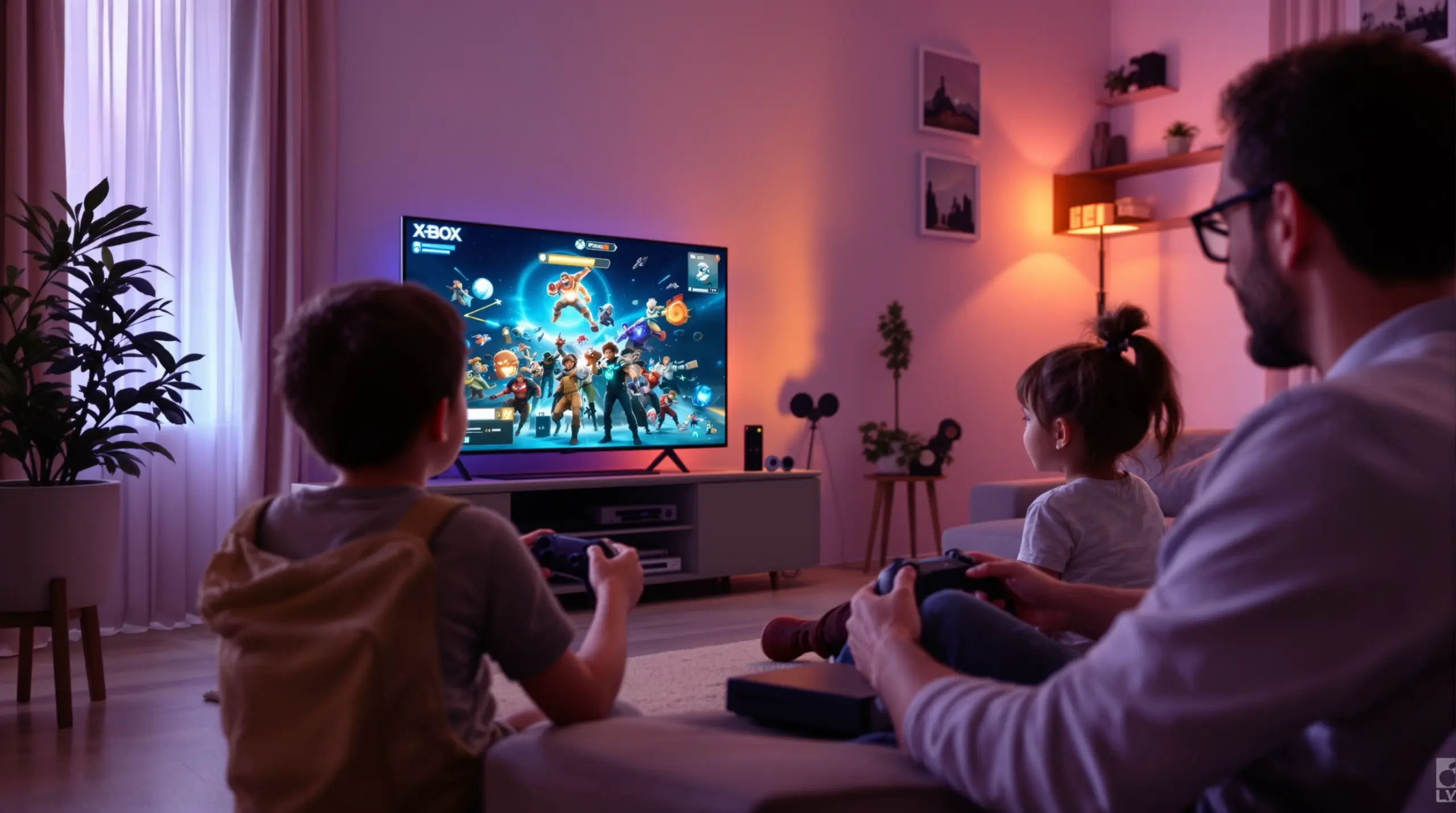
Does boomerang work on Xbox? No. Boomerang Parental Control is a mobile app designed for Android and iOS smartphones and tablets – it cannot be installed on an Xbox console and it cannot manage one. The confusion usually starts with Boomerang Fu, an unrelated party video game that is sold in the Xbox store, or with parents hoping one single app can cover every screen in the house. This guide clears up the mix-up, explains which tool actually controls an Xbox, and shows you how Boomerang Parental Control protects your child on the smartphone or tablet they carry.
Table of Contents
- Does Boomerang Work on Xbox? The Direct Answer
- Why the Confusion Exists: Boomerang Fu vs. Boomerang Parental Control
- How to Protect Your Child on Xbox: Microsoft Family Safety
- Where Boomerang Parental Control Does Work
- Android vs. iOS: What Boomerang Supports on Each Platform
- Why a Layered Approach Works Best for Gaming Families
- Comparison: Matching Each Device to the Right Tool
- How to Set Up Console and Mobile Protection in 5 Steps
- Your Most Common Questions
- The Bottom Line
- Sources & Citations
Article Snapshot
Does boomerang work on xbox – the honest answer is no. Boomerang Parental Control is a mobile app for Android and iOS smartphones and tablets only, and it does not run on Xbox consoles. For console-level rules on Xbox, use Microsoft Family Safety. For your child’s smartphone or tablet, Boomerang Parental Control provides screen time limits, app approval, web filtering, and location tools.
Boomerang Platform Support in Context
- Boomerang Parental Control is available on Android smartphones and tablets via Google Play or sideload download
- iOS support is available with limited features: scheduled screen time, location tracking, SPIN Safe Browser, and notification-only tamper alerts
- Boomerang Parental Control cannot be installed on Xbox, PlayStation, Nintendo Switch, smart TVs, or any other console or TV platform
- Boomerang Fu, a separate party game by Cranky Watermelon, launched on Xbox on August 13, 2020 and is unrelated to our parental control app[1]
Does Boomerang Work on Xbox? The Direct Answer
No. Boomerang Parental Control does not work on Xbox. It is not available in the Microsoft Store, it has no Xbox integration, and there is no version of the app that runs on any gaming console. Boomerang is built exclusively for mobile devices: Android smartphones and tablets receive the full feature set, and iOS devices are supported with a limited feature set. If you were hoping to install Boomerang directly on an Xbox One or Xbox Series X|S, that is not possible – and any page that tells you otherwise is wrong.
When parents search “does boomerang work on Xbox,” they are usually in one of two situations. Either they saw something called Boomerang in the Xbox store and assumed it was our parental control app, or they want a single tool that can set rules on the console and the smartphone at the same time. The first case is a simple name collision with a video game. The second case is a reasonable wish, but it is not how device ecosystems work: Xbox consoles only accept Microsoft’s own family safety system, and mobile parental control apps only run on mobile operating systems. The practical answer is to use the right tool on each platform, and this article walks you through exactly that.
START YOUR FREE TRIAL
Take control of screen time—free for 14 days, cancel anytime.




Why the Confusion Exists: Boomerang Fu vs. Boomerang Parental Control
The main source of confusion is a game called Boomerang Fu. It is a cartoon-style party game developed and published by Cranky Watermelon, released on Xbox on August 13, 2020, in which players knock each other out with boomerangs in short arena matches[1]. It supports local multiplayer for two to six players and is also available on Nintendo Switch and Steam. It is a fun family game, but it has no connection whatsoever to Boomerang Parental Control – different company, different purpose, different platforms.
Because both products share the word “Boomerang,” search results mix them together, and parents researching parental controls land on game listings. If your child is asking about Boomerang on Xbox, they almost certainly mean the game. If you arrived here looking for parental control, the answer stays the same either way: our parental control app is a mobile app for Android and iOS devices, not a console application. The rest of this guide focuses on what actually protects your child – Microsoft’s tools on the Xbox side, and Boomerang Parental Control on the mobile side.
How to Protect Your Child on Xbox: Microsoft Family Safety
The tool that actually controls an Xbox console is Microsoft Family Safety, and it is free[2]. You create a Microsoft family group, add your child’s account to it, and then manage that account from a browser or the Family Safety app. For the Xbox itself, the feature set covers the things parents care about most.
- Screen time limits: set daily play-time allowances and specific hours when the console is allowed, with separate schedules for school days and weekends.
- Content filters: restrict games, apps, and media by age rating so mature titles cannot launch.
- Spending controls: require approval for purchases in the Microsoft Store and block unauthorized spending.
- Communication limits: control who your child can play and chat with online.
- Activity reporting: review what your child played and for how long.
These settings live at the console and account level, which is exactly where they need to be – no third-party app can reach inside an Xbox, and Microsoft intentionally keeps it that way. Set these rules once, protect them with your own password, and the console enforces them whether or not you are in the room.
Where Boomerang Parental Control Does Work
Boomerang Parental Control works on the devices children actually carry: smartphones and tablets. On Android, the app is available from Google Play, or by sideload download from our website for the complete feature set. On iOS, it is available from the App Store with limited features. This is the full picture of what Boomerang covers on mobile – and only on mobile.
- Screen Time Scheduling and Daily Limits: fixed lock hours for bedtime and homework, plus a total daily allowance on Android.
- Per-App Limits and Encouraged Apps (Android only): individual time budgets for specific apps, with educational apps exempted from limits.
- App Discovery and Approval: new app installs require your sign-off before your child can use them.
- SPIN Safe Browser and web filtering: blocks inappropriate websites and enforces safe search.
- YouTube App History Monitoring (Android only): see what your child searches and watches in the YouTube app.
- Call and Text Safety (Android only): call and SMS logs, keyword alerts, and optional blocking of unknown callers.
- Location Tracking and Geofencing: real-time location plus alerts when your child arrives at or leaves a place like school.
- Uninstall Protection: on supported Samsung devices this is reinforced with Samsung Knox integration, making the app very difficult for a child to remove.
You can read the complete feature set on the Boomerang Parental Control homepage, and the sideload download page explains how Android devices get the full feature set including Call and Text Safety.
Android vs. iOS: What Boomerang Supports on Each Platform
One point we are always direct about: Android and iOS are not the same experience. Boomerang is an Android-first product. Android smartphones and tablets get the full feature set described above, because Android allows deeper device integration. iOS devices are supported, but Apple’s platform restrictions limit what any third-party parental control app can do on an iPhone or iPad.
On iOS, Boomerang provides scheduled screen time, location tracking, the SPIN Safe Browser, and notification-only tamper alerts – you are notified if the app is removed rather than the removal being actively blocked. YouTube App History Monitoring, Call and Text Safety, keyword alerts in messages, per-app time limits, and allocated timers are Android-only features and are not available on iOS child devices. Our Android vs. iOS comparison page is the canonical reference for these differences, and we encourage every parent to read it before subscribing so expectations match reality.
Why a Layered Approach Works Best for Gaming Families
Kids do not live on one screen. A child who is locked out of the Xbox at 8 p.m. will reach for a phone or tablet if that device has no rules of its own – and the reverse is also true. That is why the most effective setup for a gaming household is a layered one: Microsoft Family Safety governing the console, and Boomerang Parental Control governing the smartphone and tablet, with the limits aligned.
Practically, that means matching the totals. If the Xbox allowance is one hour on school nights, the mobile daily limit should leave room for homework and sleep rather than adding another three hours of entertainment screen time. Boomerang’s automated scheduling removes you from the enforcement role: the device locks itself at bedtime, every night, without an argument. Independent reviewers have covered how these mobile-side tools work in practice, including the TechRadar Boomerang review and the SafeWise Boomerang review. Review the daily activity reports Boomerang emails you, adjust the rules as your child demonstrates responsibility, and the system gradually becomes a trust-building routine instead of a daily battle.
Comparison: Matching Each Device to the Right Tool
| Device | Right Tool | What It Controls |
|---|---|---|
| Xbox console | Microsoft Family Safety (free) | Console screen time, game age ratings, purchases, online communication |
| Child’s Android phone or tablet | Boomerang Parental Control | Full feature set: daily limits, per-app timers, app approval, YouTube history, Call and Text Safety, location, uninstall protection |
| Child’s iPhone or iPad | Boomerang Parental Control (limited) plus Apple Screen Time | Scheduled screen time, location tracking, SPIN Safe Browser, notification-only tamper alerts |
| TVs and other screens | The TV manufacturer’s built-in controls | Content ratings and PIN locks on the television itself |
How to Set Up Console and Mobile Protection in 5 Steps
Step 1: Set up Microsoft Family Safety on the Xbox
Create a family group at Microsoft’s family safety site, add your child’s account, and configure play-time limits, age-rating filters, and purchase approval. This is the only tool that can control the console, so do this first.
Step 2: Install Boomerang on your child’s smartphone or tablet
On Android, install from Google Play or use the sideload download page on our website for the full feature set. On iOS, install from the App Store. A free 14-day trial lets you confirm everything works on your child’s exact device before you commit.
Step 3: Set daily limits and scheduled downtime
In Boomerang, set a total daily allowance and fixed lock windows for homework and bedtime. Align the totals with the Xbox limits so your child cannot simply migrate to another screen when the console locks.
Step 4: Enable app approval and uninstall protection (Android)
Turn on App Discovery and Approval so every new install needs your sign-off. On supported Samsung devices, the Knox-backed Uninstall Protection keeps the app in place even if a tech-savvy child tries to remove it.
Step 5: Review reports weekly and adjust
Boomerang emails daily activity reports covering device usage and, on Android, YouTube viewing history. Check them weekly, keep limits proportionate, and loosen rules gradually as your child earns trust.
Your Most Common Questions
Does boomerang work on Xbox as a parental control app?
No. Boomerang Parental Control does not work on Xbox consoles and cannot be installed on any gaming console. It is a mobile app for Android and iOS smartphones and tablets only. For console-level parental controls on Xbox, use Microsoft Family Safety, which is free and built into the Xbox ecosystem. Use Boomerang on your child’s mobile devices alongside it.
Can I use Boomerang to limit my child’s Xbox screen time?
No – no mobile app can control an Xbox directly. Xbox screen time limits are managed through Microsoft Family Safety. What Boomerang can do is limit the smartphone and tablet your child uses before and after console time, so the total entertainment screen time across all devices stays within your household rules.
What devices does Boomerang Parental Control work on?
Boomerang Parental Control works on Android smartphones and tablets with the full feature set, available via Google Play or sideload download, and on iOS devices with limited features: scheduled screen time, location tracking, SPIN Safe Browser, and notification-only tamper alerts. It does not run on Xbox, PlayStation, Nintendo Switch, smart TVs, or any other console or TV platform.
Is Boomerang Fu the same product as Boomerang Parental Control?
No. Boomerang Fu is a party video game by Cranky Watermelon, released on Xbox on August 13, 2020 and also available on Nintendo Switch and Steam. It shares the word Boomerang with our parental control app but is made by a different company and serves a completely different purpose.
The Bottom Line
Does boomerang work on Xbox? No – Boomerang Parental Control is a mobile app for Android and iOS smartphones and tablets, and no version of it runs on any gaming console. The Xbox needs Microsoft Family Safety, and that tool is free and effective at the console level. The protection gap most families actually have is the smartphone and tablet in the child’s hands, and that is exactly where Boomerang works: automated daily limits, app approval, web filtering, YouTube visibility on Android, and location tools. Cover the console with Microsoft’s tools, cover the mobile devices with Boomerang, align the limits, and your household rules hold on every screen.
Sources & Citations
- Boomerang Fu – Official Xbox Store Listing. Xbox
https://www.xbox.com/en-us/play/games/boomerang-fu/9pjdvrggfpph - Microsoft Family Safety. Microsoft
https://www.microsoft.com/en-us/microsoft-365/family-safety - Boomerang Parental Control – Android vs. iOS Feature Comparison. Boomerang
https://useboomerang.com/boomerang-android-vs-ios/ - Boomerang Parental Control software review. TechRadar
https://www.techradar.com/reviews/boomerang-parental-control-software - Boomerang Parental Control Review. SafeWise
https://www.safewise.com/boomerang-parental-control-review
START YOUR FREE TRIAL
Take control of screen time—free for 14 days, cancel anytime.
