
08
Jul
2026
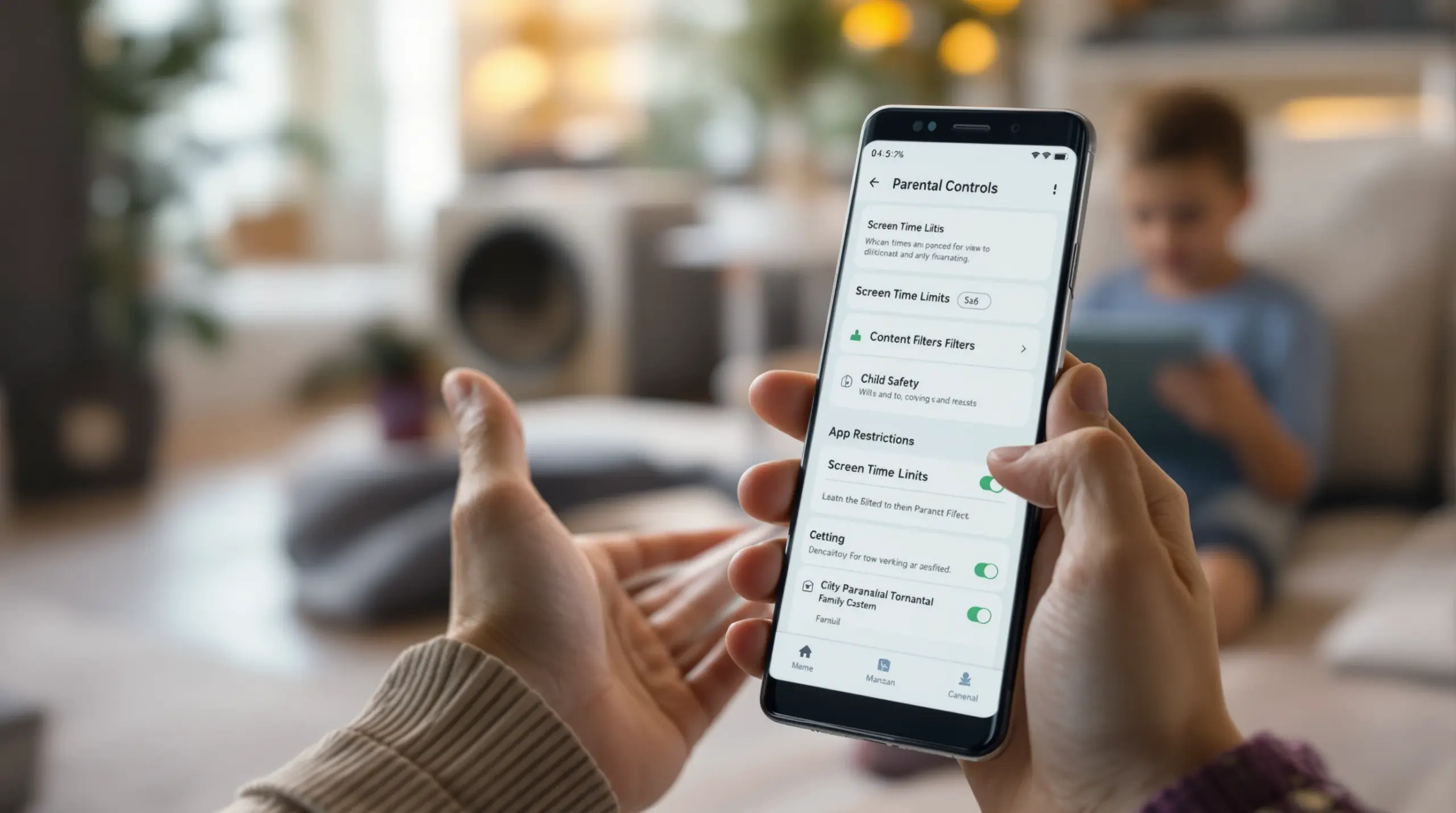
Parental Controls on Samsung Phone: Full Guide
July 8, 2026
Learn how to set up parental controls on Samsung phone devices using built-in tools and third-party apps – keep your child safe, manage screen time, and block inappropriate content.
Table of Contents
- What Are Parental Controls on Samsung Phone?
- Built-In Samsung and Google Controls
- Where Built-In Controls Fall Short
- Third-Party Apps for Stronger Protection
- Frequently Asked Questions
- Comparing Your Options
- How Boomerang Parental Control Can Help
- Practical Tips for Samsung Parental Controls
- The Bottom Line
- Sources & Citations
Article Snapshot
Parental controls on Samsung phone devices are built-in digital safety settings and third-party tools that restrict content, manage screen time, and monitor app usage. Samsung Galaxy devices support Google Family Link, Google Play restrictions, and Samsung Family settings – each targeting different layers of child safety.
Quick Stats: parental controls on samsung phone
- Samsung Galaxy parental controls include a dedicated settings path through Digital Wellbeing and parental controls (Samsung Support, 2026)[1]
- Google Play parental controls let parents restrict downloads and purchases by maturity level on any Android device (Google Support, 2026)[2]
- Samsung Family settings cover 4 control categories: web content, apps and games, downloads and purchases, and Samsung apps (Samsung Support, 2026)[3]
- Google Play parental controls require a PIN to protect settings from being changed by a child (Google Support, 2026)[2]
What Are Parental Controls on Samsung Phone?
Parental controls on Samsung phone devices are a collection of built-in settings and third-party tools that let you manage what your child can access, download, and do on their Galaxy smartphone or tablet. Samsung Galaxy devices run Android, which means they support multiple overlapping layers of control – from Google Family Link and Google Play restrictions to Samsung’s own Family account features and dedicated parental control apps like Boomerang Parental Control – Taking the battle out of screen time for Android and iOS.
The practical goal is straightforward: you want your child to use their phone safely, without spending hours glued to entertainment apps or stumbling onto content that isn’t right for their age. Samsung’s Android foundation makes this achievable, but understanding which tool does what – and where each one stops – is important before you start.
START YOUR FREE TRIAL
Take control of screen time—free for 14 days, cancel anytime.




Google Family Link is the most commonly recommended starting point. As Samsung Support explains, “Parental controls with Google’s Family Link app allow you to set rules for how Galaxy phones and tablets are used, allowing you to guide your child while they learn and play online.” (Samsung Support, 2026)[1] Family Link covers app approvals, screen time scheduling, and location tracking directly from a parent’s phone.
Samsung adds its own layer through Family group settings within a Samsung account. According to Samsung Support, “From here, you can set options for web content, apps and games, downloads and purchases, Samsung apps, apply a parental control PIN, and more.” (Samsung Support, 2026)[3] Together, these tools form a solid foundation – but they each have gaps that parents of tech-savvy kids often discover the hard way.
This guide walks through each available layer of Samsung parental controls, explains what each one actually does in plain terms, and shows you where a dedicated third-party app fills the gaps that built-in tools leave open.
Built-In Samsung and Google Family Link Controls
Samsung Galaxy devices offer two primary built-in pathways for setting up child safety restrictions: Google Family Link and Samsung’s own Family account settings – and understanding both helps you build a more complete safety setup.
Google Family Link on Samsung Galaxy
Google Family Link is the main child management tool for Android devices, including all Samsung Galaxy phones and tablets. Once you create a supervised Google account for your child and link it to your parent account, Family Link gives you a dashboard where you can approve or reject app downloads, set daily screen time limits, review activity reports, and check your child’s location.
Internet Matters notes that “Google Family Link will be automatically installed on the parent or carer’s device” (Internet Matters, 2026)[4] when you follow the setup process – making the initial install straightforward for most parents. Samsung’s support documentation confirms that Family Link controls for Galaxy devices include location sharing and location checking as part of the control suite (Samsung Support, 2026)[1].
From the Family Link parent app, you can also lock your child’s device remotely. As Samsung Support states, “You can tap Lock next to a device to lock it.” (Samsung Support, 2026)[1] This is useful for enforcing bedtime or homework time without being in the same room.
Google Play Content Restrictions
Separate from Family Link, Google Play has its own built-in parental controls that work at the store level. Google Support explains that “when you put parental controls on an Android device, you can restrict what content can be downloaded or purchased from Google Play on that device based on maturity level.” (Google Support, 2026)[2] You access these by opening the Google Play app on the child’s Samsung device, navigating to Settings, and selecting Parental Controls. A PIN protects these settings so your child cannot simply turn them off (Google Support, 2026)[2].
Google Play purchase approval settings only apply to purchases made through Google Play’s billing system (Google Support, 2026)[2] – they do not cover in-app purchases made through third-party payment systems.
Samsung Family Account Settings
Samsung offers a third layer through its own account-based Family group feature. This covers Samsung-specific apps and services, giving parents control over Samsung app content alongside the broader Google controls. You can find these settings by signing into your Samsung account and navigating to the Family section, where a parental control PIN option is available (Samsung Support, 2026)[3].
Used together, these three built-in systems cover content filtering at the store level, app approval, screen time scheduling, location tracking, and remote locking – a strong baseline for most families.
Where Built-In Controls Fall Short
Built-in Samsung and Google controls provide a useful starting point, but they have well-documented limitations that become obvious once your child gets a little older or a little more curious about getting around them.
Bypass and Workaround Risks
Google Family Link is straightforward for a determined child to work around. Teens and pre-teens regularly find ways to delete supervised accounts, factory reset devices, or use browser-based apps that sidestep app-level restrictions. Because Family Link’s uninstall protection is limited, a child who knows what they are doing can remove or disable monitoring without triggering a reliable alert to the parent. This is one of the most common frustrations parents report after relying on free built-in tools as their only line of defense.
No YouTube App Monitoring
Neither Google Family Link nor Samsung’s built-in controls give you visibility into what your child is actually watching inside the main YouTube app. You can restrict certain app categories, but once the YouTube app is approved and open, those controls do not track viewing history or search queries. For parents concerned about the content their child is consuming – rather than just whether they are spending too much time – this is a significant visibility gap.
No SMS or Call Monitoring
Built-in Samsung and Google controls do not include any monitoring of text messages or phone calls. If your child is receiving messages from unknown contacts or experiencing cyberbullying through SMS, Family Link will not alert you. This communication blind spot is relevant for parents of tweens and younger teens who are beginning to socialize digitally.
Limited Per-App Time Controls
Family Link offers basic daily screen time limits but does not allow you to set different time budgets for individual apps. You cannot, for example, allow 45 minutes of a reading app while limiting a game to 20 minutes within the same daily total. This inflexibility makes it harder to guide balanced digital habits rather than simply cutting off device access altogether.
These limitations do not make built-in tools worthless – they make a strong foundation. But for families who want reliable, bypass-resistant controls with deeper visibility, a dedicated third-party app is worth considering alongside the built-in options. TechRadar’s review of Boomerang Parental Control software explores how a dedicated app addresses several of these gaps directly.
Third-Party Apps for Stronger Protection on Samsung
Third-party parental control apps extend what Samsung’s built-in tools can do, filling the gaps around bypass resistance, per-app controls, and communication monitoring that Family Link leaves open – and Samsung Galaxy devices are well-suited for deeper third-party integration.
Why Samsung Galaxy Devices Support Deeper Controls
Samsung Galaxy phones and tablets support Samsung Knox, an enterprise-grade security platform that is pre-installed on most Samsung devices. A dedicated parental control app that integrates with Knox uses this security layer to protect itself from being uninstalled or tampered with by the child – a level of bypass resistance that Google Family Link cannot match on its own. This makes Samsung devices the strongest platform for hard-to-defeat parental controls among Android devices.
Per-App Time Limits and Encouraged Apps
A third-party app built for Android sets individual time budgets for specific apps – so your child gets 30 minutes of gaming but unlimited access to their school homework portal. This “Encouraged Apps” approach promotes digital balance rather than pure restriction, guiding children toward healthy habits instead of triggering daily arguments about screen time.
YouTube App History Monitoring
On Android devices, a dedicated parental control app accesses the YouTube app’s search and viewing history, giving parents genuine insight into what their child is watching and searching for. This monitoring capability exists because Samsung Galaxy devices run Android – it is not available on iOS devices. Parents who want to know what content is capturing their child’s attention, not just how long they spend on YouTube, need this feature.
Call and Text Safety
On Android, third-party apps monitor call and SMS logs, send keyword alerts when flagged terms appear in text messages, and block calls from unknown numbers. This communication safety layer is Android-only and gives parents an early warning system for cyberbullying and inappropriate contact – something no built-in Samsung or Google tool currently provides.
For families looking for a trusted, well-reviewed option, SafeWise’s Boomerang Parental Control Review provides an independent assessment of how a third-party app performs in real family environments. You can also explore safe browsing protection through SPIN Safe Browser – Safe web browsing for Boomerang Parental Control, which blocks harmful websites on any network without requiring a VPN or router configuration.
Your Most Common Questions
How do I set up parental controls on a Samsung phone using Google Family Link?
Setting up Family Link on a Samsung Galaxy phone involves a few straightforward steps. First, create a Google account for your child if they do not already have one – this will be the supervised account. On your own phone, download the Google Family Link app for parents. On your child’s Samsung Galaxy device, sign in with the child’s Google account and accept the supervision request. Family Link will then connect the two accounts.
Once linked, you can set daily screen time limits, approve or block app downloads from Google Play, review your child’s activity report, and check their device location – all from the Family Link app on your phone. Samsung’s support documentation confirms that the settings path on the Galaxy device itself runs through Digital Wellbeing and parental controls in the device Settings menu (Samsung Support, 2026)[1]. The setup process takes roughly 10 to 15 minutes and does not require any technical background.
Can my child bypass parental controls on their Samsung Galaxy phone?
Yes – and this is one of the most common frustrations parents run into. Google Family Link has known workarounds that tech-savvy children, particularly teens, regularly discover. These include removing the supervised Google account, factory resetting the device, or using browser-based versions of restricted apps to get around app-level blocks. Family Link’s uninstall protection is limited, meaning a determined child can remove monitoring without the parent being immediately alerted.
The most reliable way to close these loopholes on a Samsung device is to use a dedicated parental control app that integrates with Samsung Knox. Knox is an enterprise security platform pre-installed on most Samsung Galaxy phones and tablets, and a Knox-integrated app protects itself from being deleted or tampered with in ways that standard Android apps cannot. This is why parents of tech-savvy teens often move beyond Family Link to a third-party solution after their child successfully bypasses the built-in controls.
Do Samsung parental controls work on the YouTube app?
Built-in Samsung and Google Family Link controls do not give parents visibility into what a child is watching or searching within the main YouTube app. Family Link can approve or block the YouTube app itself, and Google Play restrictions can prevent app downloads by maturity rating – but once the YouTube app is open and running, neither tool tracks what content the child is actually consuming.
Parents who want genuine YouTube visibility – meaning the ability to review search history and watch history inside the YouTube app – need a dedicated third-party parental control app that supports this feature on Android. This monitoring capability is Android-only and is not available on iOS devices. It works by accessing app activity data available through Android’s device management framework, which Samsung Galaxy phones fully support. If knowing what your child watches on YouTube is a priority, this is one of the clearest reasons to add a third-party app alongside Family Link.
What is the difference between Google Family Link and Samsung’s own parental controls?
Google Family Link and Samsung’s built-in controls serve overlapping but distinct purposes. Family Link is Google’s child account supervision system – it manages the child’s Google account, controls Google Play app approvals and purchases, sets daily screen time budgets, and provides location tracking. It works across all Android devices, including Samsung Galaxy phones and tablets.
Samsung’s own Family account settings, managed through a Samsung account, cover Samsung-specific apps and services. According to Samsung Support, these settings let parents control web content, apps and games, downloads and purchases, and Samsung apps – and include a parental control PIN option (Samsung Support, 2026)[3]. In practice, most parents use Family Link as the primary tool and Samsung account settings as a supplementary layer for Samsung-specific content. For comprehensive protection that goes beyond both, a third-party app designed for Android provides the deeper per-app controls, bypass resistance, and communication monitoring that neither built-in system currently offers.
Comparing Parental Control Options for Samsung Galaxy Devices
Choosing the right approach for managing parental controls on Samsung phone devices depends on how much visibility and bypass resistance your family actually needs. The table below compares the three main options across the features parents ask about most.
| Feature | Google Family Link | Samsung Family Settings | Third-Party App (e.g., Boomerang) |
|---|---|---|---|
| Screen time scheduling | Yes – daily limits and device lock | Limited | Yes – daily limits plus per-app timers (Android) |
| App approval and blocking | Yes – Google Play approvals | Yes – Samsung apps | Yes – all apps plus new install approval |
| Content filtering | Google Play maturity ratings (Google Support, 2026)[2] | Web content categories (Samsung Support, 2026)[3] | Full web filtering plus safe browser |
| YouTube app monitoring | No | No | Yes – Android only |
| SMS and call monitoring | No | No | Yes – Android only |
| Location tracking | Yes (Samsung Support, 2026)[1] | No | Yes – with geofencing alerts |
| Bypass/uninstall resistance | Limited | Limited | Strong – Samsung Knox integration |
| Cost | Free | Free (Samsung account required) | Paid subscription |
How Boomerang Parental Control Strengthens Samsung Device Safety
Boomerang Parental Control is built for Android devices, with Samsung Galaxy phones and tablets at the core of its design. Where Family Link and Samsung’s own settings leave gaps, Boomerang fills them – particularly around bypass resistance, per-app time management, YouTube monitoring, and communication safety.
The most significant advantage on Samsung devices is Knox integration. Boomerang Parental Control is the only parental control app to use Samsung’s Knox, an enterprise mobile security solution pre-installed in most of Samsung’s smartphones and tablets. This means that on supported Samsung Galaxy devices, Boomerang uses the same enterprise-grade security framework that corporations rely on to protect managed devices – making it exceptionally difficult for children to uninstall or tamper with the app. Parents of tech-savvy teens who have already bypassed Google Family Link consistently report this as the feature that finally made the difference.
Beyond bypass resistance, Boomerang’s Boomerang Parental Control – screen time features let you set both a total daily device limit and individual per-app time budgets. You can mark educational apps as “Encouraged” so they remain accessible even after the daily entertainment limit is reached – guiding your child toward balanced digital habits rather than simply cutting off all access.
For families who want genuine YouTube visibility, Boomerang’s YouTube App History Monitoring (Android only) shows you what your child searches for and watches in the main YouTube app – not just whether they used it. And Call and Text Safety (Android only) monitors SMS logs and sends alerts when flagged keywords appear in messages, giving parents an early warning for cyberbullying or contact from unknown adults.
“So far this the best parental control app .. hands down. So far the only app my 11 year old was not able to bypass. Big Shout out to developers for making such a great app.” – Jason H, Google Play review
Boomerang is available for Android via Google Play or as a direct sideload through the Sideload download page for Android devices, with subscriptions available for single devices or a Family Pack covering up to 10 child devices. iOS support is available with a more limited feature set.
“This is a great application! I have control back over my child’s phone and applications because she managed to circumvent family link. I have no idea how she did that but she managed to find a way, as did other kids. That was a major frustration for us. But now with Boomerang, I can manage her time, what applications she uses and what sites she visits.” – Joe Eagles, Google Play review
Practical Tips for Setting Up Samsung Parental Controls
Getting the most out of parental controls on a Samsung phone takes a little planning upfront. These tips help you build a setup that holds up over time.
Start with Family Link, then layer from there. Google Family Link is free, well-supported, and covers the basics – app approvals, screen time limits, and location tracking. Set it up first so you have a foundation. Once you know where the gaps are for your child’s age and behavior, you can decide whether Samsung Family settings or a third-party app are worth adding.
Protect settings with a strong PIN. Both Google Play parental controls and Samsung Family settings require a PIN. Choose something your child cannot guess – avoid birthdays, sequential numbers, or any PIN you use elsewhere. A weak PIN undermines every other control you put in place (Google Support, 2026)[2].
Use per-app time limits for balance, not just total screen time. If you only set a total daily screen time budget, your child can spend the entire allowance on entertainment apps and skip educational ones. Per-app limits – available on Android through third-party apps – let you allocate specific time to specific apps and mark learning tools as always available.
Consider Samsung Knox integration if your child has already bypassed simpler controls. If your teen has figured out how to remove Google Family Link or reset their device to escape supervision, Knox-integrated protection on a Samsung Galaxy device is worth the investment. It closes the bypass loopholes that standard Android controls cannot address.
Review activity reports regularly, but make it a conversation, not a tribunal. Weekly check-ins on your child’s app usage, YouTube history, and location history are more effective when you use the data to ask curious questions rather than launch investigations. The goal is building digital accountability over time, not just catching rule-breaking.
Set up safe browsing from day one. On any Samsung Galaxy device you hand to a child, install a safe browser alongside your other controls. SPIN Safe Browser works on Android and iOS without requiring a VPN or router configuration – it filters harmful content on any network the device joins, including at school and friends’ homes.
The Bottom Line
Setting up parental controls on Samsung phone devices does not have to be complicated, but it does need to be intentional. Built-in tools like Google Family Link and Samsung Family settings provide a solid, free starting point – covering app approvals, screen time limits, content filtering, and location tracking without any additional cost.
Where these tools fall short is bypass resistance, per-app control, and visibility into communication and YouTube activity. For families managing younger teens or tech-savvy kids who have already worked around basic controls, a dedicated third-party app with Samsung Knox integration closes those gaps in a way that built-in tools cannot.
The right setup for your family depends on your child’s age, their device habits, and how much oversight you need. Start with what is built in, identify where it is not enough, and add the tools that match your real situation. If you are ready to explore a more complete solution for your Samsung Galaxy device, visit Boomerang Parental Control – Taking the battle out of screen time for Android and iOS or reach out directly at [email protected] to learn more.
Sources & Citations
- Use Google’s Family Link parental controls on your Galaxy phone or tablet. Samsung Support.
https://www.samsung.com/us/support/answer/ANS10003399/ - How to set up parental controls on Google Play. Google Support.
https://support.google.com/googleplay/answer/1075738?hl=en - Manage Family groups and parental controls with your Samsung account. Samsung Support.
https://www.samsung.com/us/support/answer/ANS10002400/ - Samsung smartphones and tablets parental controls. Internet Matters.
https://www.internetmatters.org/parental-controls/smartphones-and-other-devices/samsung-smartphones-and-tablets-parental-controls/
START YOUR FREE TRIAL
Take control of screen time—free for 14 days, cancel anytime.
