
08
Jul
2026
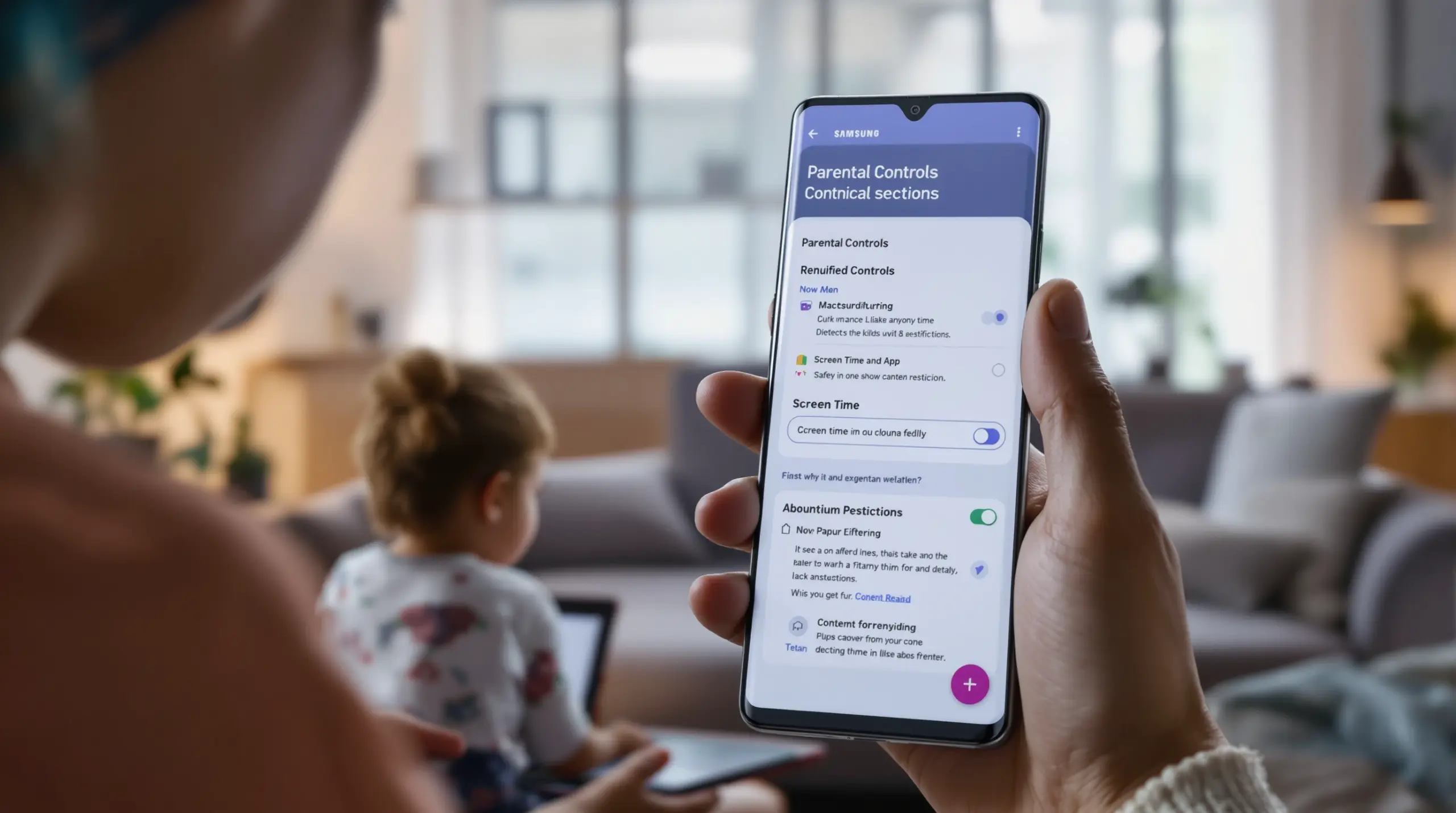
Parental Controls on Samsung: Complete Guide
July 8, 2026
Parental controls on Samsung devices give families a layered set of tools to manage screen time, filter content, and keep children safe – learn how each option works and when a dedicated app fills the gaps.
Table of Contents
- What Are Parental Controls on Samsung?
- Built-In Samsung Parental Control Options
- Using Google Family Link on Galaxy Devices
- Limitations of Built-In Samsung Controls
- Frequently Asked Questions
- Comparing Samsung Parental Control Approaches
- How Boomerang Parental Control Strengthens Samsung Safety
- Practical Tips for Samsung Family Safety
- Key Takeaways
- Sources & Citations
Article Snapshot
Parental controls on Samsung are a collection of built-in and third-party tools that let parents manage what children do on Galaxy phones and tablets. Options include Samsung Kids, Samsung Family Groups, Google Family Link, and Google Play content filters – each covering different aspects of safety, screen time, and content access.
Parental Controls on Samsung in Context
- Samsung’s Family Groups interface covers 4 control categories: web content, apps and games, downloads and purchases, and Samsung apps (Samsung Support, 2025)[1]
- Samsung Kids allows parents to set daily playtime limits for each of the 7 days of the week individually (Samsung Support, 2025)[2]
- Google Family Link on Galaxy devices organizes parental oversight into 4 primary tabs: Highlights, Controls, Location, and Family places (Samsung Support, 2025)[3]
- Google Play parental controls let parents set a content rating ceiling across 2 content types – apps and games – on any Android device (Google Play Help, 2025)[4]
What Are Parental Controls on Samsung?
Parental controls on Samsung Galaxy phones and tablets are a set of built-in and supplementary tools that let caregivers shape how a child uses their device. At Boomerang Parental Control, we work with parents every day who are figuring out exactly which Samsung tools meet their needs – and where the gaps are. Understanding the full picture before your child picks up their first Galaxy device is the smartest starting point.
Samsung’s own ecosystem provides three main native layers: Samsung Kids, Samsung Family Groups (managed through a Samsung account), and Google Play’s built-in content rating controls. On top of those, Google Family Link works directly on Galaxy phones and tablets as an additional supervision layer. Each option targets a different age group and level of oversight, so most families end up combining more than one approach.
START YOUR FREE TRIAL
Take control of screen time—free for 14 days, cancel anytime.




Samsung Kids is designed for younger children – under 7 – and creates a walled-off environment on the device with access only to approved apps and content. Samsung Family Groups is better suited to older children who use the full device interface but still need boundaries around purchases, app downloads, and web content. Google Family Link adds a remote management layer on top of the Android operating system, giving parents visibility into app usage and the ability to approve or block installs from a parent device.
What unites all three is the goal of giving parents meaningful input into how a Galaxy device is used – without requiring a degree in technology. In the sections ahead, we walk through each tool in detail, explain where each one falls short, and show you how a dedicated parental control app fills the remaining gaps for families who need stronger, harder-to-bypass protection on their Samsung device.
Built-In Samsung Parental Control Options
Samsung provides two native parental control systems directly on Galaxy devices: Samsung Kids and Samsung Family Groups, and each serves a distinct parenting scenario.
Samsung Kids: The Locked-Down Mode for Young Children
Samsung Kids creates a fully contained environment on the device. When it is active, your child sees only the apps, contacts, and media that you have specifically approved. The experience is visually designed for young users, and the parent dashboard sits behind a PIN so children cannot exit the environment without your code.
As Samsung’s own documentation states, “Samsung Kids sets limits on playtime, as well as provides access to specific contacts and apps.” (Samsung Support, 2025)[2] In practice, this means parents assign approved apps from four content categories – Apps, Contact, Media, and Music (Samsung Support, 2025)[2] – and set a specific daily playtime limit for each day of the week. That per-day scheduling is genuinely useful, because a Saturday limit and a school-night limit are almost always different numbers.
Samsung Kids works well as a starting point for younger children, but it is not designed to grow with a child. Once a child is old enough to use the full device interface – to text friends, browse the web, or download apps independently – Samsung Kids becomes too restrictive and parents need to move to a different solution.
Samsung Family Groups: Account-Level Controls for Older Children
Samsung Family Groups manages restrictions through the parent’s Samsung account. From that account, parents configure controls across four categories: web content, apps and games, downloads and purchases, and Samsung apps (Samsung Support, 2025).[1] The controls are protected by a parental control PIN, which adds a barrier against children changing their own settings.
Samsung Support explains that “From here, you can set options for web content, apps and games, downloads and purchases, Samsung apps, apply a parental control PIN, and more.” (Samsung Support, 2025)[1] This account-based management approach means your rules travel with the child’s Samsung account rather than being tied to device-level settings alone – a meaningful advantage if your child switches between a phone and a tablet.
For many families managing a pre-teen’s first Galaxy device, Samsung Family Groups combined with Google Play content controls covers the foundational bases. But it does not address screen time scheduling, YouTube viewing history, or text message monitoring – areas where dedicated parental control apps provide significantly more depth.
Using Google Family Link on Galaxy Devices
Google Family Link is a separate parental supervision app that runs on top of Android and works on Samsung Galaxy phones and tablets alongside Samsung’s native controls.
Samsung’s own support documentation confirms that “Parental controls with Google’s Family Link app allow you to set rules for how Galaxy phones and tablets are used, allowing you to guide your child while they use their device.” (Samsung Support, 2025)[3] The app organizes parental oversight into four tabs – Highlights, Controls, Location, and Family places (Samsung Support, 2025)[3] – giving parents a dashboard view of activity, the ability to set daily screen time limits, and remote device locking from the Controls tab.
What Google Family Link Does Well on Samsung
Family Link’s strongest feature for Samsung families is app approval. Any new app your child attempts to install from the Google Play Store triggers a notification to the parent’s device, requiring approval before the install completes. This gate is meaningful for parents of children who are just starting out with their first Galaxy phone and want to control the app environment from day one.
The Location tab shows the device’s current location on a map, which is helpful for basic check-ins. Family places allows parents to set named locations – such as school or a grandparent’s house – and receive automatic arrival and departure alerts. For many families, this passive location awareness removes the need for constant check-in texts.
Where Family Link Falls Short on Samsung
Family Link’s most commonly cited limitation is that tech-savvy children find ways around it. Because Family Link relies on standard Android permission structures, a determined child who knows their way around device settings sometimes reduces its effectiveness. It also does not provide YouTube viewing history, SMS keyword monitoring, or per-app time limits on Android – all areas where a dedicated third-party parental control app provides considerably more capability.
Google Play’s own content controls add a further layer: “When you put parental controls on an Android device, you can restrict what content can be downloaded or purchased from Google Play on that device based on maturity level.” (Google Play Help, 2025)[4] These content rating filters apply to apps and games, letting parents choose the highest maturity level they want to allow. Used alongside Family Link, they create a reasonable baseline for content safety – but they do not monitor what a child does once an app is installed.
Limitations of Built-In Parental Controls on Samsung
Built-in parental controls on Samsung devices cover the basics, but they leave meaningful gaps that matter most to parents of older children and teenagers.
The Bypass Problem
The most frustrating limitation parents encounter is how easily children bypass built-in controls. Samsung Family Groups and Google Family Link both rely on the child cooperating with the system at some level. A child who resets a device, uses a secondary Google account, or removes an app frequently reduces or eliminates the restrictions entirely. This is especially common with tech-savvy tweens and teenagers, and it is one of the most consistent pain points we hear from parents who contact Boomerang Parental Control after trying free tools first.
A dedicated app with strong uninstall protection – particularly one that integrates with Boomerang Parental Control’s Samsung Knox integration, the only parental control app to use Samsung’s enterprise mobile security solution – addresses this directly. Knox is pre-installed on most Samsung smartphones and tablets and operates at a level below standard Android, making it significantly harder for children to remove or bypass the app.
No YouTube Monitoring
Neither Samsung Kids, Samsung Family Groups, nor Google Family Link provides visibility into what a child watches in the main YouTube app. YouTube is one of the most used apps by children and teenagers, and what they watch there is a primary concern for most parents. Built-in Samsung controls simply do not reach into the YouTube app’s viewing or search history. This is a gap that Boomerang Parental Control’s YouTube App History Monitoring (available on Android devices) fills directly, giving parents a clear picture of what content their child is engaging with on the platform.
No SMS or Call Monitoring
Built-in Samsung parental controls do not monitor text messages or phone calls. For parents concerned about cyberbullying or unknown adults making contact, this is a significant blind spot. Call and Text Safety features – available in Boomerang on Android – log call and SMS history and send alerts when messages contain flagged keywords, surfacing potential risks before they escalate. This level of communication visibility is not available through any native Samsung tool.
Limited Screen Time Granularity
Samsung Family Groups and Google Family Link offer broad daily screen time limits, but they do not allow parents to set time limits on individual apps while exempting others. A parent who wants to allow unlimited time on a math practice app while capping social media at 30 minutes per day cannot achieve that through built-in Samsung tools alone. Per-app limits combined with Encouraged Apps – a feature that lets parents mark educational apps as always accessible – require a dedicated solution. You can explore those Boomerang Parental Control screen time features to see exactly how granular the controls get.
Your Most Common Questions
Can I set up parental controls on a Samsung phone without using Google Family Link?
Yes. Samsung’s own account-based Family Groups feature lets you configure restrictions on web content, apps and games, downloads and purchases, and Samsung apps entirely through your Samsung account, without needing Google Family Link at all. You manage everything from your Samsung account dashboard and protect the settings with a parental control PIN. For younger children, Samsung Kids provides a separate locked-down mode that does not require a Google account to operate. That said, Google Family Link adds a meaningful extra layer on top of these Samsung-native controls – particularly for app install approval and remote device locking – so many families use both. If neither built-in option gives you the depth you need, a dedicated app like Boomerang Parental Control adds YouTube monitoring, per-app time limits, and strong uninstall protection that native Samsung tools cannot match on their own.
How do I stop my child from removing parental controls on their Samsung device?
Built-in Samsung controls and Google Family Link both rely on standard Android permissions, which means a motivated child sometimes finds ways around them – particularly by attempting to uninstall apps or reset device settings. The most reliable way to prevent this on a Samsung device is to use an app that integrates with Samsung Knox. Knox is an enterprise-grade mobile security system pre-installed on most Samsung Galaxy phones and tablets. Boomerang Parental Control is the only consumer parental control app that uses Knox to enforce uninstall protection. Because Knox operates below the standard Android layer, it is significantly harder for children to tamper with or remove. For parents who have already experienced their child bypassing Google Family Link or basic controls, this level of protection is the practical next step. The parental control PIN on Samsung Family Groups adds a basic layer of protection, but it does not prevent a factory reset or secondary account workaround the way Knox-level enforcement does.
Does Samsung have parental controls for YouTube?
Samsung’s built-in parental controls – including Samsung Kids, Samsung Family Groups, and Google Family Link – do not provide visibility into what a child watches or searches within the main YouTube app. Samsung Kids restricts access to approved apps and blocks YouTube entirely for young children, but for older children using the full device interface, no native Samsung tool monitors YouTube viewing history. Google Play’s content rating controls filter what is downloaded from the store, but they do not monitor in-app activity once YouTube is installed. The YouTube Kids app is a separate option for young children, but most children aged 8 and up use the main YouTube app, where monitoring is not available through built-in Samsung tools. Boomerang Parental Control’s YouTube App History Monitoring, available on Android devices, gives parents a clear record of what their child searches for and watches in the main YouTube app – something no native Samsung control currently provides.
What is the best parental control setup for a child’s first Samsung phone?
For a child’s first Samsung Galaxy device, the most effective setup combines multiple layers. Start with Samsung Family Groups through your Samsung account to apply account-level content filters and protect settings with a PIN. Add Google Family Link to require your approval for every new app install and to enable remote screen locking. Then layer in a dedicated app like Boomerang Parental Control to handle what the native tools cannot: per-app time limits with Encouraged Apps for educational tools, YouTube App History Monitoring on Android, Call and Text Safety on Android, real-time location tracking with geofencing, and Knox-level uninstall protection. Pair all of this with the SPIN Safe Browser for strong web content filtering that works on any network without a VPN. This layered approach gives you broad coverage from day one and lets you gradually relax individual controls as your child demonstrates responsible habits – building trust without sacrificing safety in the process.
Comparing Samsung Parental Control Approaches
Choosing the right level of protection for your child’s Samsung device depends on their age, how tech-savvy they are, and what risks concern you most. The table below compares four common approaches – from Samsung’s built-in tools to a fully layered setup – across the features that matter most to families.
| Approach | Screen Time Scheduling | App Install Approval | YouTube Monitoring | SMS / Call Monitoring | Uninstall Protection | Per-App Limits |
|---|---|---|---|---|---|---|
| Samsung Kids | Daily limits per day of week (Samsung Support, 2025)[2] | Parent approves content categories | No | No | PIN-protected exit only | No |
| Samsung Family Groups + Google Play Controls | Basic daily limit | Content rating ceiling (Google Play Help, 2025)[4] | No | No | PIN only – bypassable | No |
| Google Family Link on Galaxy | Daily screen time limit | Yes – per-app approval | No | No | Standard Android only | No |
| Boomerang Parental Control (Android) | Scheduled downtime + daily limits | Yes – approval required | Yes – viewing history | Yes – keyword alerts | Yes – Samsung Knox integration | Yes – with Encouraged Apps |
How Boomerang Parental Control Strengthens Samsung Safety
Boomerang Parental Control was built specifically for families managing Android devices – and Samsung Galaxy phones and tablets are at the core of that focus. Where Samsung’s native tools leave gaps, Boomerang steps in with features designed for real family life: automated enforcement, deeper visibility, and protection that genuinely sticks.
The feature that makes the biggest difference for Samsung families is Knox integration. Boomerang Parental Control is the only parental control app to use Samsung’s Knox, an enterprise mobile security solution pre-installed on most Samsung Galaxy devices. This means that when your child tries to remove Boomerang or tamper with the settings, they hit a security layer that operates below standard Android – and it is extremely difficult to defeat. For parents of tech-savvy teenagers who have already bypassed Google Family Link, this is a practical, proven solution.
Beyond uninstall protection, Boomerang adds the layers that built-in Samsung controls do not provide. YouTube App History Monitoring (Android only) shows you exactly what your child is watching and searching on the main YouTube app. Call and Text Safety (Android only) logs call and SMS history and sends alerts when inappropriate keywords appear in messages. Per-app time limits let you set different usage allowances for individual apps – for example, 30 minutes on a game while a school homework app remains unrestricted as an Encouraged App.
Two parents who have experienced this firsthand describe it well. “I have control back over my child’s phone and applications because she managed to circumvent Family Link. I have no idea how she did that but she managed to find a way, as did other kids. That was a major frustration for us. But now with Boomerang, I can manage her time, what applications she uses and what sites she visits.” – Joe Eagles, Google Play review
“Hey fellow parents, So far this the best parental control app .. hands down. So far the only app my 11 year old was not able to bypass. Big Shout out to developers for making such a great app.” – Jason H, Google Play review
You can get started with a Boomerang Parental Control plan for Android and iOS on a single device or a Family Pack covering up to 10 child devices. Subscriptions are billed annually, and support is available through the help portal. Reach us at [email protected] or visit our contact page for any questions about setup.
Practical Tips for Samsung Family Safety
Setting up parental controls on Samsung effectively takes more than installing one app. These practical steps help you build a layered, durable safety setup that grows with your child.
Start with account-level controls first. Before your child uses the device for the first time, set up Samsung Family Groups through your Samsung account and apply a parental control PIN. This establishes a baseline for web content, app downloads, and Samsung app permissions before the device is handed over. Getting this in place on day one is far easier than retrofitting controls after habits have already formed.
Add Google Family Link for app install gating. Even if you plan to use a third-party parental control app, Google Family Link’s app install approval workflow is worth keeping active. Every new app install triggers a notification to your device, giving you a chance to review what your child wants to download before it is installed. This approval gate is especially important in the first months of a child’s first device when you are still learning their habits.
Install SPIN Safe Browser alongside Boomerang. The SPIN Safe Browser works on Android and iOS devices without requiring a VPN or any router configuration. Its content filtering is active from the first launch, blocking inappropriate websites and enforcing strict SafeSearch on major search engines. On a Samsung device, this means your child’s browsing is filtered whether they are on your home wifi, a school network, or mobile data.
Use Encouraged Apps to promote balance, not just restriction. When you set per-app time limits in Boomerang, take the time to mark educational apps, school portals, and reading apps as Encouraged. These apps remain available even when the daily screen time limit runs out. This approach teaches children that devices are tools for learning and connection – not just entertainment – and reduces the all-or-nothing tension that makes screen time a daily battle.
Set geofences for locations your child visits regularly. Location tracking is more useful as a passive safety net than as active surveillance. Setting a geofence around school, home, and after-school activity locations means you get automatic arrival and departure alerts without asking your child to check in by text. This passive confirmation is especially reassuring for parents of older children who are starting to travel independently.
Review YouTube history weekly, not daily. Boomerang’s YouTube App History Monitoring on Android gives you a record of what your child searches for and watches in the main YouTube app. Checking this weekly rather than daily gives you enough information to spot patterns and have informed conversations without feeling like you are monitoring every minute. Use what you find as a starting point for conversation, not as evidence for punishment.
Finally, check third-party reviews of Boomerang from sources like SafeWise’s Boomerang Parental Control review to see how other parents have found the app in practice before committing to a subscription.
Key Takeaways
Parental controls on Samsung work best when you treat them as a layered system rather than a single switch. Samsung Kids, Samsung Family Groups, and Google Family Link each cover part of the picture – but none of them individually delivers YouTube monitoring, SMS safety alerts, per-app time limits, or Knox-level uninstall protection. For families who need those deeper controls, Boomerang Parental Control fills the gaps that Samsung’s native tools leave open, with Android-first features designed for real family life on Galaxy devices.
Whether you are setting up your child’s first Samsung phone or looking to replace controls your tech-savvy teenager has already defeated, the right setup is achievable. Start with the Boomerang download page for Android devices to get the app on your child’s Galaxy phone or tablet today, or email [email protected] to talk through the right plan for your family.
Sources & Citations
- Manage Family groups and parental controls with your Samsung account. Samsung Support.
https://www.samsung.com/us/support/answer/ANS10002400/ - What Parental controls are available in Samsung Kids? Samsung Support.
https://www.samsung.com/latin_en/support/apps-services/what-parental-controls-are-available-in-samsung-kids/ - Use Google’s Family Link parental controls on your Galaxy phone or tablet. Samsung Support.
https://www.samsung.com/us/support/answer/ANS10003399/ - How to set up parental controls on Google Play. Google Play Help.
https://support.google.com/googleplay/answer/1075738?hl=en
START YOUR FREE TRIAL
Take control of screen time—free for 14 days, cancel anytime.
